Workflow AI Assistant
Workflow AI Assistant
Creating and managing workflows can often be a complex task, but with the Workflow AI Assistant, you gain a supportive guide to streamline the process. Designed to help from initial setup to refining existing workflows, Workflow AI provides step-by-step instructions, suggesting relevant actions, and offering optimization tips. This article explores the features and benefits of Workflow AI, along with a practical guide to get you started, plus essential FAQs.
How to Use Workflow AI
1. Access Workflow AI
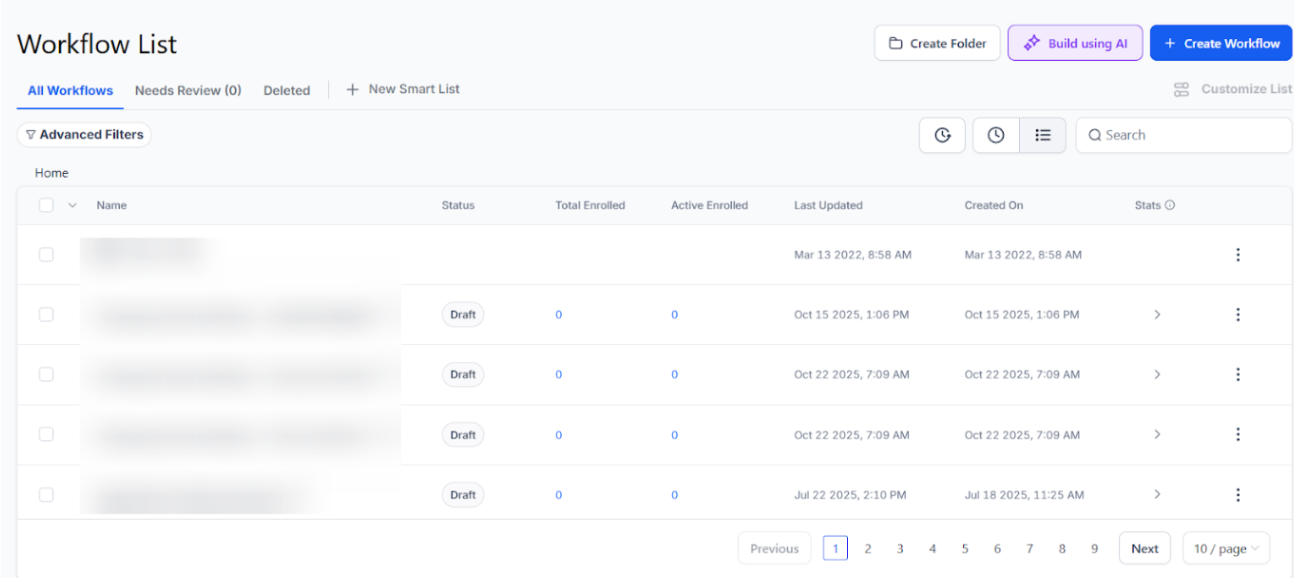
- Go to the workflows tab by clicking on automation in the left-side menu. Create a new workflow or open an existing one.
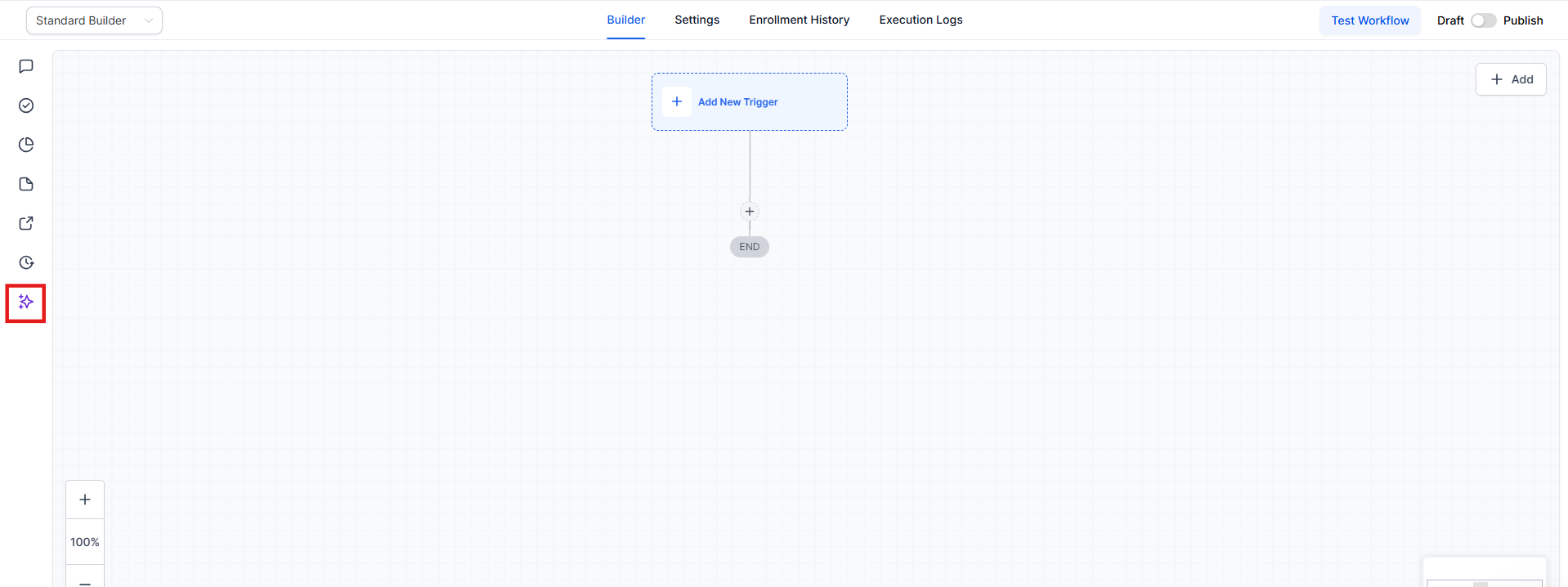
- Open the builder, and locate the Workflow AI icon in the bottom-left corner. Click it to open the chat box.
2. Start Interacting
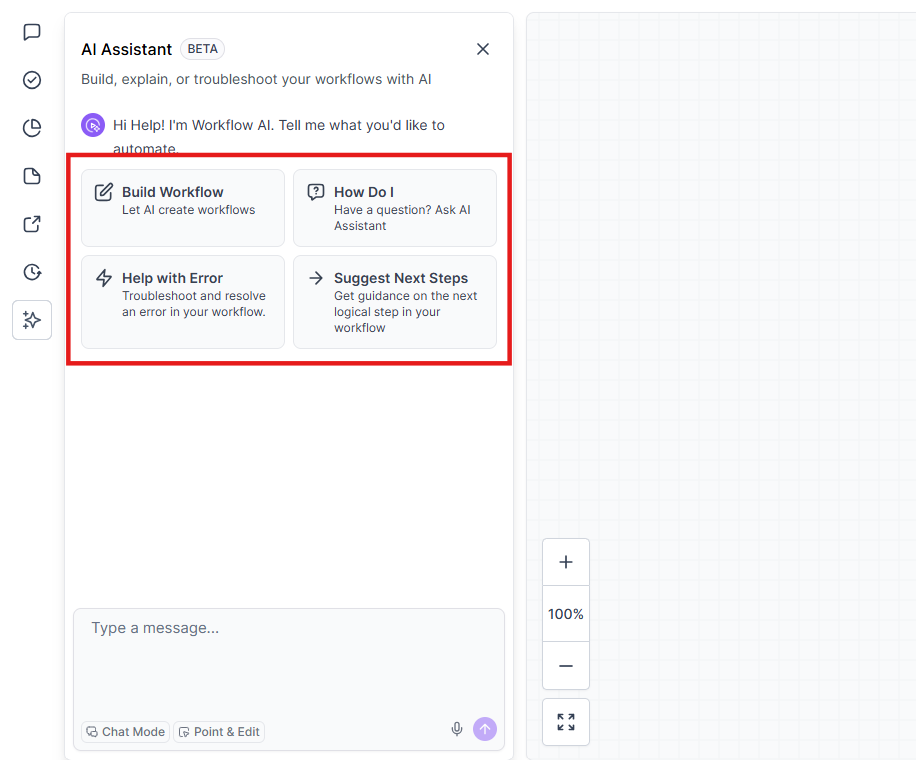
- Choose from the available interaction options:
- Analyze Workflow: Click “Describe this Workflow” for an overview of your current setup.
- Assist with Building: Use “Assist with Building” for action and trigger suggestions.
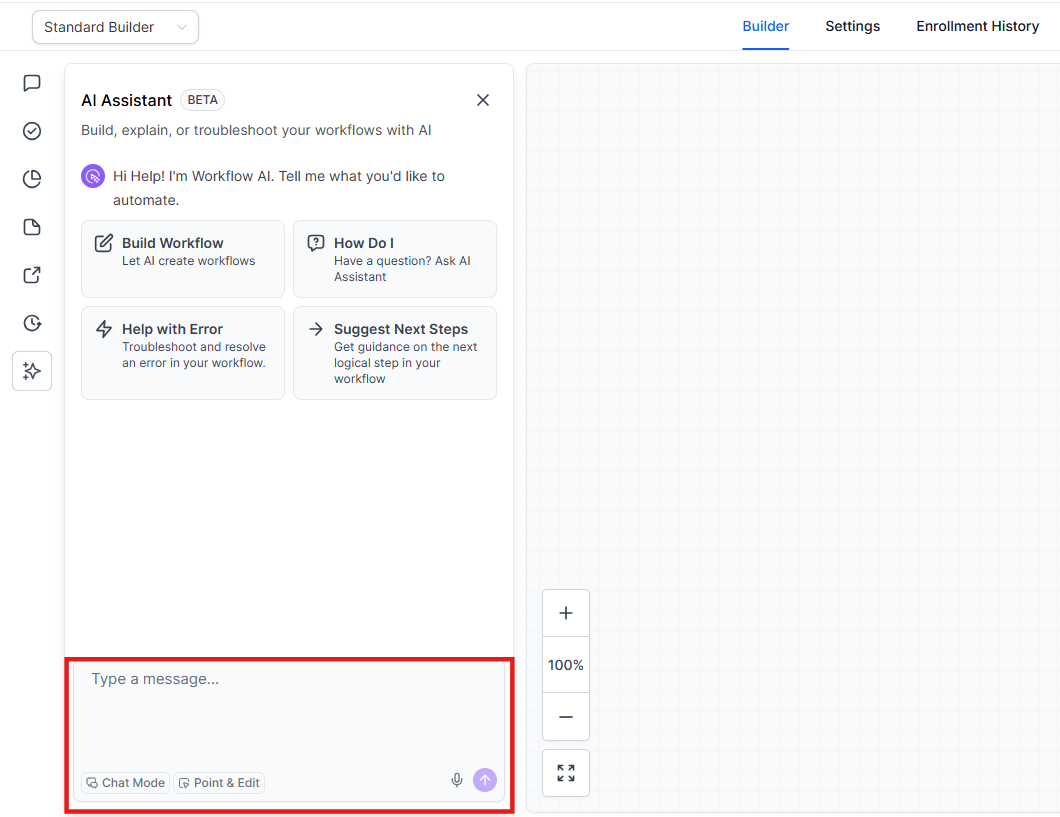
- Type a Question: Start a conversation by typing directly into the chat box.
3. Build Your Workflow
- Advanced Wait Logic: You can describe complex, multi-layered wait sequences in a single prompt. For example, you can request a 5-minute delay, followed by a specific business hours window (e.g., Wednesdays only), followed by a wait for a reply. The AI will correctly configure all time delays, windows, and timeout branches in one go.
- Describe your workflow goal, and Workflow AI will generate a list of recommended actions and triggers.
- For example, if you need a workflow to send SMS reminders, Workflow AI will suggest actions like “Send SMS,” “Set Reminder,” and “Update Status.”
- Workflow AI explains each recommended action, helping you understand how they contribute to the overall workflow.
- Smart Knowledge Base Lookups: The AI Assistant only triggers documentation searches when necessary. It will automatically skip lookups for simple greetings (like “Hi” or “Thanks”) and workflow-specific analysis.
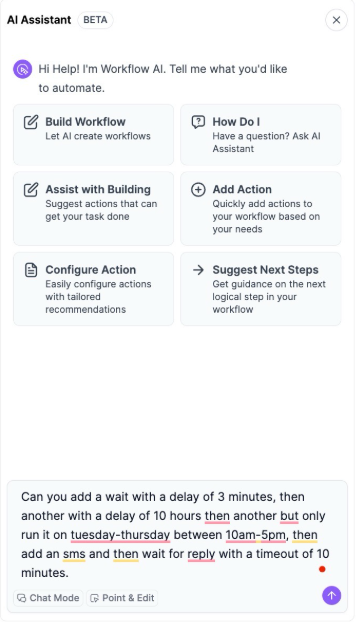
4. Configure Suggested Actions
- Structured Safeguards: To ensure your automations remain stable, the AI enforces “time-based” waits as single-path nodes. If a request accidentally suggests a structure that would break the transition, the system auto-corrects it to maintain a protected workflow structure.
- Workflow AI suggests where to place each action in your workflow. Once you confirm, simply click the “+” button next to the action to add it.
- The added action will automatically open the sidebar, allowing you to customize settings, such as message content, timing, or recipient criteria.
5. Complete Post-Generation Requirements
- Automated To Do List: Once the AI generates your workflow, a checklist now appears to highlight any action or trigger that still requires human input. This ensures that essential details, such as connecting credentials or selecting specific accounts, are not overlooked before going live.
- Actionable Navigation: You can click the pencil icon next to any item in the To Do List to jump directly to that specific step on the builder canvas.
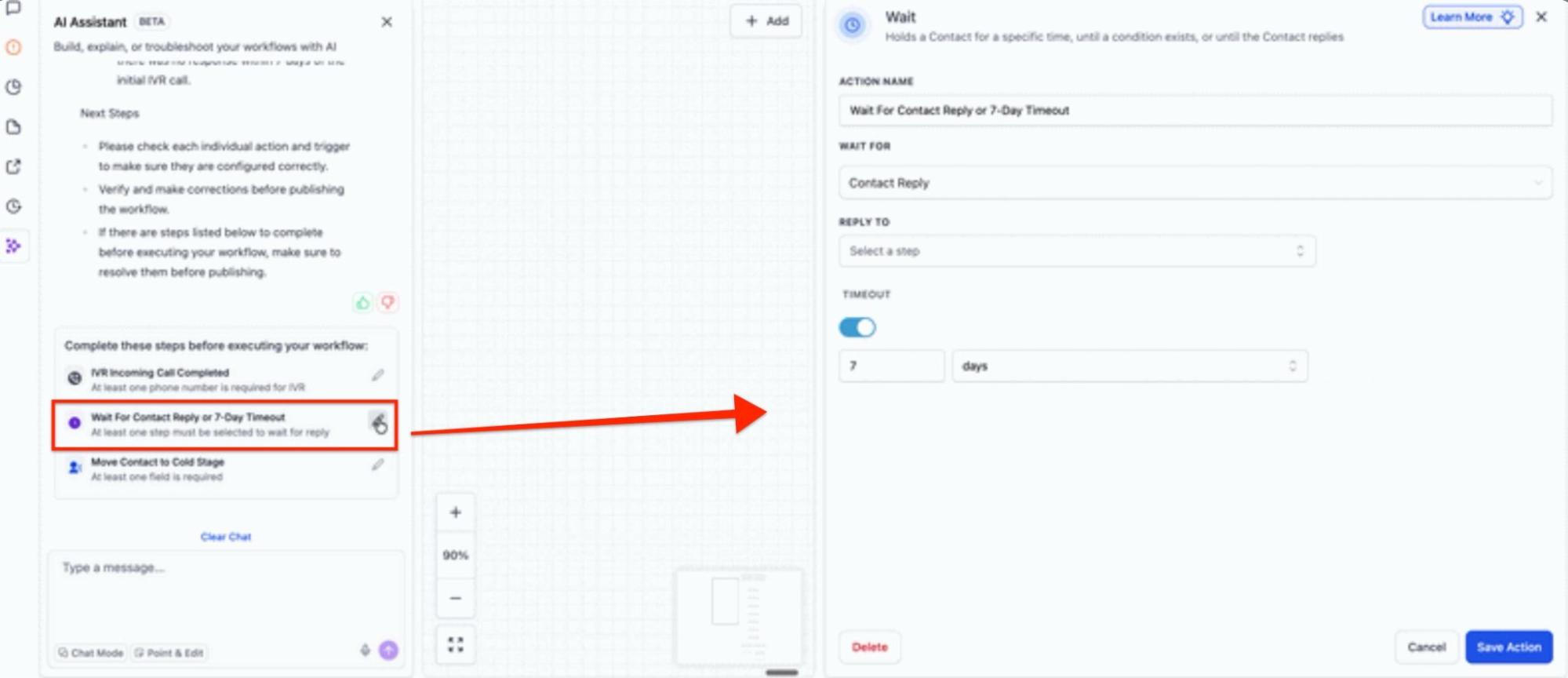
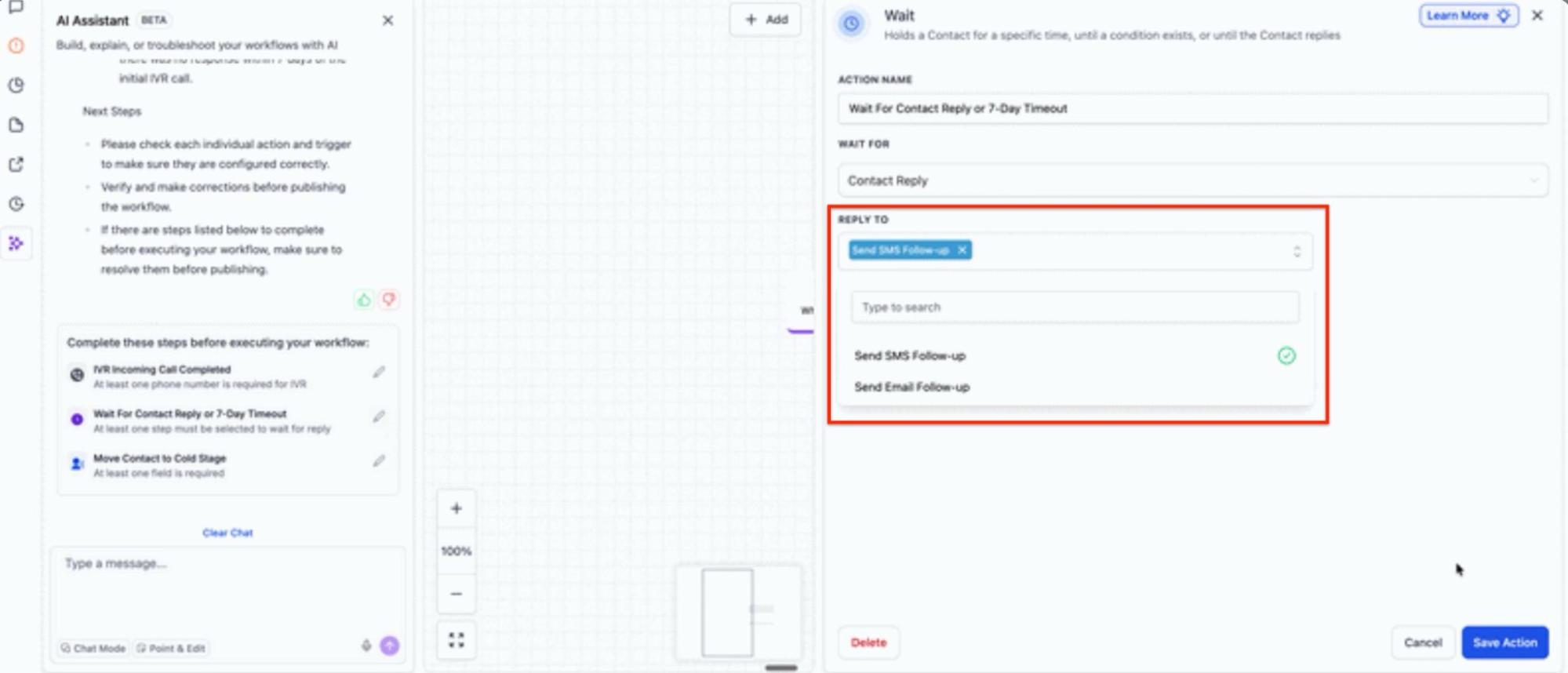
- Centralized View: This checklist consolidates all incomplete fields into one view, reducing the risk of a workflow launching with missing information that could impact performance.
6. Review Workflow Insights and Make Adjustments
- The AI automatically cleans and validates your input. It normalizes time units, blocks invalid or negative values, and caps extreme durations. For instance, if “years” are requested in a wait step, the system intelligently interprets and converts them into a functional day-based format.
- Workflow AI offers insights on potential improvements, flagging areas where actions can be streamlined or optimized.
- For complex workflows, Workflow AI can break down each segment, helping you understand its function and suggest adjustments for better efficiency.
7. Monitor Your Workflow with AI Recommendations
- The AI ensures very predictable wait type selections. Timezone fields are populated accurately, and “Timeout” branches only appear when specifically requested for reply-based waits, ensuring the interface remains clean and relevant to your intent.
- Workflow AI not only assists with creation but also provides ongoing suggestions for next steps. For instance, it might recommend adding a “Follow-Up Email” after a reminder SMS to improve engagement.
8. Autosave for AI-Generated Workflows
The Autosave is fully compatible with workflows created via the AI Builder. Once Autosave is enabled in Global Workflow Settings in Automation > Workflows, any workflow generated by the AI is saved automatically upon creation.

Additional Functions
- Clear & Start New Chat: Start a new conversation by clicking “Clear Chat” at the top right of the chat box.
- Export Chat: Click “Export Chat” to download the conversation for future reference, making it easy to review instructions or suggested actions.
Important Note: Each location (sub-account) receives 30 free daily credits, which reset every day. One credit equals one question asked to Workflow AI.
Key Features and Benefits
- Guided Workflow Creation: Ideal for both beginners and experienced users, Workflow AI breaks down steps, helping you build workflows that suit your needs.
- Streamlined Optimization: By scanning workflows for potential improvements, Workflow AI makes it easier to refine processes and keep workflows efficient.
- Error Prevention: The integrated To Do List surfaces gaps in the setup, such as missing pipeline selections or wait conditions, before the workflow is published.
- Action Recommendations: Workflow AI suggests specific actions or triggers, helping you build workflows quickly and correctly.
- Predictable Reliability: Enhanced logic ensures that complex requests are handled with higher accuracy, minimizing manual corrections for wait steps and time-sensitive transitions.
- Intuitive Question and Answer: Have questions while building? Workflow AI answers specific or general queries on workflows, best practices, and settings.
- Progressive Suggestions: The assistant provides “next step” recommendations, ensuring a smooth progression in your workflow creation.
Pro Tips
- Clear & Export Chat: Clear previous conversations anytime with “Clear Chat” or save the chat history with “Export Chat” for easy reference.
FAQs
Question: Can Workflow AI handle complex workflows? Answer: Yes, Workflow AI is designed to assist with both simple and multi-layered workflows, adapting to your workflow complexity.
Question: How do I know if I missed a setting in my AI-generated workflow? Answer: A To Do List will automatically surface after generation. It lists every trigger or action that needs a human decision, like selecting a specific user or account, so you can fill in the gaps easily.
Question: What happens if I input an invalid wait time, like a negative number? Answer: The AI includes built-in safeguards to block invalid values. It will normalize units and cap extreme values to ensure your workflow remains functional and realistic.
Question: Does the AI understand business hours for delays? Answer: Yes. You can specify “Wait” steps that only run during certain days or hours (e.g., Monday–Friday, 9am–5pm), and the AI will configure the window and timezone settings automatically.
Question: Why did a timeout branch appear in my wait step? Answer: Timeout branches are very predictable and will generally only appear when you explicitly request a “Wait for Reply” or a specific timeout condition, keeping your workflow path clean.
Question: How can I keep a record of my chat with Workflow AI? Answer: Use the “Export Chat” feature to save a copy of your conversation for easy reference.
Question: How can I quickly find the steps that need my attention? Answer: Within the new To Do List, you can click the pencil icon next to any incomplete item. This will take you directly to that step on the builder canvas so you can finish the configuration.
Question: Is Workflow AI available for everyone? Answer: Yes, as long as you have access to workflows, you can use Workflow AI’s features.