List of Workflow Actions
List of Workflow Actions
In this article, you will learn the list of workflow actions that are available for you to choose from.
Step 1: How to Add an Action
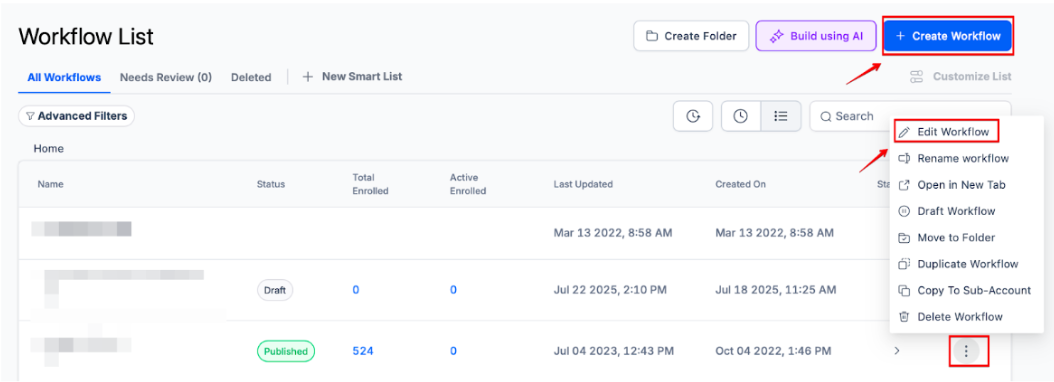
Section titled “Step 1: How to Add an Action”- Navigate to Automation > Workflows and create a new workflow or edit an existing one.
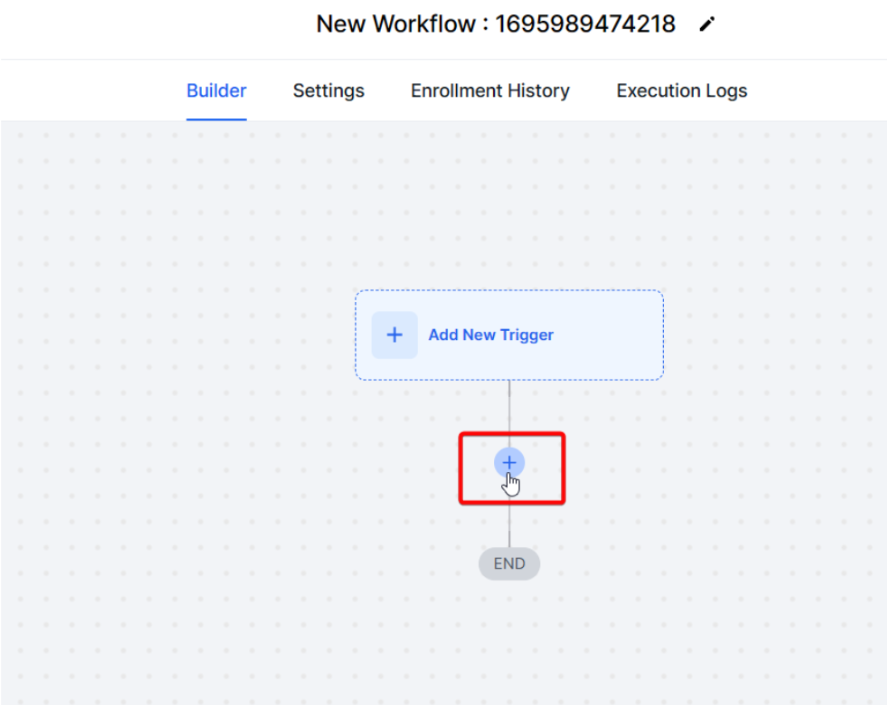
- Add an action by clicking on the “+” icon
- Categories and List of Workflow Actions:
Contact
Create Contact:
- Adds a new contact to the system, useful for managing new leads.
- Useful for: Automates lead capture and organization.
Find Contact:
- Locates a contact in the system based on provided data.
- Useful for: Helpful for finding existing contacts for updates or referencing.
Update Contact Field:
- Modifies a specific field on a contact.
- Useful for: Allows for dynamic updating of contact information.
Add Contact Tag:
- Adds a tag to a contact for organization and segmentation.
- Useful for: Facilitates better contact management and targeting.
Remove Contact Tag:
- Removes a tag from a contact.
- Useful for: Helps maintain contact list organization and segmentation.
Assign to User:
- Assigns a contact to a user in the system.
- Useful for: Enables personalized communication and task allocation.
Remove Assigned User:
- Removes the assigned user from a contact.
- Useful for: Helps in reassigning or managing contacts.
Edit Conversation:
- Edits a conversation by marking it ( Read/Unread), archiving, or unarchiving.
- Useful for: Facilitates conversation management within .
Disable/Enable DND:
- Disables or enables “Do Not Disturb” for a contact.
- Useful for: Controls outbound communication to manage contact preferences.
Add Note:
- Adds a custom note to a contact.
- Useful for: Allows for manual tracking of contact interactions.
Add Task:
- Creates a task related to a contact.
- Useful for: Helps in managing follow-ups and actions.
Copy Contact:
- Duplicates a contact into another sub-account.
- Useful for: Facilitates data sharing and management across accounts.
Delete Contact:
- Removes a contact from the system.
- Useful for: Helps in contact list maintenance.
Modify Contact Engagement Score:
- Adjusts a contact’s engagement score.
- Useful for: Assists in evaluating contact interaction and responsiveness.
Add/Remove Contact Followers:
- Adds or removes followers to/from a contact.
- Useful for: Facilitates shared contact visibility within teams or departments.
Communication
Send Email
- Sends an email to the contact.
- Useful for: Allows personalized communication via email, facilitating follow-ups, updates, and notifications.
Send SMS
- Sends an SMS to the contact.
- Useful for: Enables direct and immediate communication via text, suitable for alerts, reminders, and quick interactions.
Send Slack Message
- Sends a message via Slack if integrated.
- Useful for: Facilitates team communication and internal notifications within Slack, streamlining collaboration and task management.
Call
- Makes a phone call to the contact, if they pick up, it will attempt to ring a user.
- Useful for: Automates lead outreach and management, useful for auto-dialing, and efficiently connecting leads with assigned users.
Voicemail
- Pushes a pre-recorded voicemail file to the contact
- Useful for: This can be useful for follow-ups, notifications, or delivering specific messages without engaging in a live call.
Messenger
- Sends a Facebook message to the contact.
- Useful for: Manages inbound messages via Facebook Messenger, enabling personalized communication and customer engagement.
Instagram DM
- Sends an Instagram Direct Message.
- Useful for: Engages with customers via Instagram Direct Messages, enhancing social media interaction and customer support.
Manual Action (SMS/Call)
- Prompts a manual action to be performed by a user for a contact.
- Useful for: Provides flexibility for manual interventions, useful for lead management and personalized interactions.
GMB Messaging
- Respond to Google My Business messages.
- Useful for: Facilitates customer communication through GMB, enhancing local business engagement and customer service.
Send Internal Notification
- Sends notifications to assigned users or contacts.
- Useful for: Notifies team members about updates or triggers in the system, aiding in team collaboration and task management.
Send Review Request
- Sends a review request.
- Useful for: Automates review requests, enhancing reputation management and customer feedback collection.
Conversation AI
- Manages inbound conversations with customers.
- Useful for: Utilizes AI to handle customer inquiries across multiple channels, improving response time and customer satisfaction.
Facebook Interactive Messenger
- Responds to Facebook comments on posts.
- Useful for: Engages with customers on Facebook, enhancing social media presence and interaction.
Instagram Interactive Messenger
- Responds to Instagram comments on posts.
- Useful for: Boosts engagement on Instagram, fostering community interaction and brand awareness.
Reply in Comments
- Replies to comments on Facebook or Instagram posts.
- Useful for: Facilitates engagement by responding to comments, building relationships with followers.
- Sends WhatsApp messages.
- Useful for: Enables communication via WhatsApp, adhering to WhatsApp’s guidelines for customer support and engagement.
Send Live Chat Message
- Responds to live chat messages.
- Useful for: Enhances real-time customer support by responding to inquiries via live chat, improving customer satisfaction.
Log External Call
- You can post your external calls, that take place from third-party calling tools, to .
- Useful for: Centralizing communication details, including call recordings, for better tracking and management.
Appointment Booking Conversation AI Bot
- Book an appointment with conversation AI bot.
- Useful for: Automating the process of booking appointments through conversational AI, enhancing efficiency and user engagement across various channels.
WhatsApp: Customer Service Window Check
- Can be used to create automated workflows and send free-form messages.
- Useful for: Automating workflows to determine if the customer service window is open, allowing for free-form messaging within the 24-hour window, and optimizing communication costs.
WhatsApp: Send Flows
- Send WhatsApp Flows to your customers, allowing them to book appointments directly on your existing calendars.
- Useful for: sending automated WhatsApp flows, such as appointment booking templates or customer service interactions, within a workflow.
Update Conversation AI Bot and Status
- Enables users to choose and automatically change the status (Active or Inactive) of the Conversation AI Bot for a contact.
- Useful for: automatically changing the status (Active or Inactive) of the Conversation AI Bot for a contact, based on their journey or specific criteria.
Book Appointment
- Automatically sets up appointments using fixed or flexible time slots, and lets you adjust availability when needed.
- Useful for: automating the creation of new appointments based on specified times and calendars, triggered by specific events in workflows.
Send Data
Webhook/Custom Webhook:
- Sends data from __CompanyNamel to external applications or services.
- Useful for: Facilitates integration with other tools and services.
Google Sheets:
- Manages data in Google Sheets, enabling updates or lookups.
- Useful for: Automates data management and reporting.
Google Forms
Find Form by ID:
- Locate a Google Form within the system using its unique Form ID.
Useful for:
- Identifying forms via dynamic input to streamline automated data collection.
Find Form by Name:
- Locate a Google Form by choosing its name from a dropdown list. Useful for: Quickly selecting the correct form for your workflow.
Find Response by ID:
- Retrieve a specific submission using the Form ID and the Response ID. Useful for: Pulling specific respondent data to use in later workflow steps.
Find Responses by Form Name:
- Retrieve all responses associated with a selected form. Useful for: Gathering historical data; includes pagination support for large datasets.
Internal Tools
Section titled “Internal Tools”If Else
- Creates branches based on conditions.
- Useful for: Allows personalized customer experiences by directing contacts down specific paths based on conditions, useful for segmentation and customization.
Wait Step
- Delays the workflow for a specific time.
- Useful for: Useful for scheduling actions or communications at a later time, enhancing workflow efficiency and timing.
Goal Event
- Directs contacts to a specific event goal.
- Useful for: Helps contacts skip unnecessary steps in a workflow, useful for optimizing customer journeys and automation.
Split
- Conducts a split test within a workflow.
- Useful for: Allows comparison of different paths or actions, useful for optimizing marketing messages and strategies.
Update Custom Value
- Updates custom values.
- Useful for: Enables dynamic updating of custom fields based on events or triggers, enhancing data management and personalization.
Go To
- Directs contacts to another workflow.
- Useful for: Facilitates moving contacts between workflows, useful for managing complex customer journeys without duplication.
Date/Time Formatter:
- Format and Compare date fields
- Useful for: Reformatting dates and times, ensuring compatibility across applications, and comparing dates for calculations and decision-making in workflows.
Number Formatter:
- Format and generate Numeric fields
- Useful for: Converting, reformatting, and generating numbers in various formats to meet specific workflow requirements.
Math Operation:
- Add Math Operations like Add and Subtract
- Useful for: Performing calculations on numbers and dates, supporting automated lead scoring, scheduling, and customized workflow logic for lead management.
Set Event Start Date:
- Use this event to set the Event Start Date to a specific day, date, and/or time, which enables you to use Wait events that hold contacts in relation to the day/date/time that you set.
- Useful for: Scheduling tasks and reminders within workflows to manage events like webinars, conferences, and notifications with precision.
Add To Workflow:
- Adds the contact to another workflow
- Useful for: Moving contacts between workflows and stages of your customer journey while carrying over relevant data from the initial trigger.
Remove From Workflow:
- Enables users to automatically remove contacts from one, multiple, or all workflows.
- Useful for: Removing contacts from workflows that are no longer relevant, helping to keep workflow processes clean, and ensuring targeted interactions.
Arrays Functions
- Handles multiple values as a single unit.
- Useful for: Simplifies data management and manipulation, allowing sorting, searching, and iteration of data collections.
Drip Mode
- Drips contacts through the workflow in batch sizes.
- Useful for: Prevents overloading communication channels by controlling the rate at which contacts move through the workflow, maintaining reputation and delivery rates.
Text Formatter
- Formats text.
- Useful for: Facilitates transformation of text data into a desired format, improving data handling and management.
Custom Code
- Executes custom code.
- Useful for: Provides advanced capabilities for running custom scripts or programs, allowing complex data processing and automation.
Workflow AI
AI Prompt (GPT-3 Powered):
- Generates AI responses based on given prompts.
- Useful for: Automates AI-driven responses for better engagement.
Eliza
Eliza AI Appointment Booking:
- Add contact to AI Bot flow for appointment booking. The bot will converse with user and try to book the appointment on the selected calendar.
- Useful for: Automating appointment scheduling conversations with AI.
Send to Eliza Agent Platform:
- Sends the contact to the Eliza Agent Platform.
- Useful for: Utilizing the Eliza Agent Platform service when enabled.
Appointments
Update Appointment Status:
Section titled “Update Appointment Status: ”- Updates appointment status (e.g., rescheduled, no show, completed).
- Useful for: Managing appointment statuses and bookings on your calendars.
Generate One Time Booking Link:
Section titled “Generate One Time Booking Link: ”- Generates a one-time booking link to send to clients.
- Useful for: Sending a booking link via SMS or email to protect your calendar from multiple bookings.
Opportunity
Create/Update Opportunity:
- Creates or updates an opportunity in the pipeline.
- Useful for: Managing opportunity pipelines and moving opportunities along the pipeline.
Remove Opportunity:
- Removes the opportunity from specific or multiple pipelines.
- Useful for: Managing opportunities by removing them from pipelines.
Add Owner to Opportunity
- Assign a new owner to the opportunity. If the contact and opportunity owners are synchronized, both will be updated; otherwise, only the opportunity owner will be updated. Make sure to review your settings.
Remove Owner from Opportunity
- Unassign the owner from the opportunity, leaving it without an assigned user.
Add Follower(s) to Opportunity
- Add the selected users as followers to the opportunity.
Remove Follower(s) from Opportunity
- Remove the selected users or all users as followers from the opportunity.
Find Opportunity
- Search for an opportunity with matching values.
Create Opportunity
- Create a new opportunity using the fields below. If duplicate opportunities are disabled and an opportunity already exists in the same pipeline, the action will not be performed
Payments.
Update opportunity
- Updates the matching opportunity if a ‘Find Opportunity’ action is present. If not, it updates the opportunity that triggered the workflow. If neither is found, no action is taken.
Payments
Section titled “Payments”Stripe One-Time Charge:
- Charges a one-time fee via Stripe using the Stripe Customer ID (“cus_id”).
- Useful for: Sending one-time charges to customers via integrated Stripe.
Send Invoice:
- Sends an invoice created in to the customer.
- Useful for: Automating invoice management and sending invoices to customers.
Send Estimate:
- Automatically send personalized estimates to customers when events like opportunity creation or stage changes occur.
Send Documents and Contracts:
-
Sends a document or contract from a template to the customer.
-
Useful for: Automating the process of sending contracts or documents to customers.
Marketing
Add to Google Analytics:
- Adds contact data to Google Analytics.
- Useful for: Managing contact data for ads or analytics purposes.
Add to Google AdWords:
- Adds contact to Google AdWords.
- Useful for: Managing Google AdWords data and running ads.
Add to Custom Audience (Facebook):
- Adds contact to a custom audience in Facebook.
- Useful for: Managing Facebook ad targeting and audience segmentation.
Remove from Custom Audience (Facebook):
- Removes contact from a custom audience in Facebook.
- Useful for: Managing Facebook ad targeting and audience segmentation.
Facebook Conversion API:
- Sends conversion data to Facebook for better ad tracking.
- Useful for: Tracking conversions for Facebook ads
Affiliate
Add to Affiliate Manager:
- Adds a new affiliate to the affiliate manager.
- Useful for: Automating affiliate management and adding new affiliates.
Update Affiliate:
- Updates existing affiliate details.
- Useful for: Managing and updating affiliate information.
Add/Remove from Affiliate Campaign:
- Adds or removes affiliate from a specific campaign.
- Useful for: Managing affiliate campaigns and promotions.
Add Leads under an Affiliate
- Add leads under a specific affiliate campaign and affiliate.
- Useful for: Automating lead assignment to affiliates, rewarding lead generation, nurturing leads, and simplifying administrative tasks in affiliate programs.
Add Manual Sales For An Affiliate
- Assign manual sales for specific affiliates in the selected affiliate campaigns.
- Useful for: Automating commission assignments, tracking offline sales, and rewarding affiliates for various contributions, ensuring comprehensive and accurate affiliate engagement and compensation.
Courses Actions
Section titled “Courses Actions”Course Grant Offer:
- Grants a course offer to a contact.
- Useful for: Fulfilling purchases of course offers.
Course Revoke Offer:
- Revokes a course offer.
- Useful for: Managing course offerings.
IVR (Interactive Voice Response) Actions
Section titled “IVR (Interactive Voice Response) Actions”Gather Input on Call:
- Gathers input from callers to determine their path in the IVR.
- Useful for: Creating IVR branches based on caller input.
Play Message:
- Plays a message within the IVR journey.
- Useful for: Providing information or instructions during the IVR experience.
Connect to Call:
- Connects the call to a specific user or number.
- Useful for: Forwarding calls to the appropriate user or number.
End Call:
- Ends the call.
- Useful for: Ending the call after a specific action or message.
Record Voicemail:
- Records a voicemail from the caller.
- Useful for: Allowing callers to leave voicemail messages.
Communities Actions
Section titled “Communities Actions”Grant Group Access:
- Grants access to a specific community group.
- Useful for: Managing access to community groups.
Revoke Group Access:
- Removes access from a specific community group.
- Useful for: Managing access to community groups.
Grant Private Channel Access:
- Automatically grant a user access to a private channel within a community group and add them to the group
- Useful for: ensuring timely updates and engagement with relevant content and members.
Remove Private Channel Access:
- Remove a user’s access to a specific private channel within a community group while keeping them as a member of the group.
Grant Community Group Leaderboard Points
- This action allows you to grant points to a community group member’s leaderboard. You can specify the points awarded based on various criteria.
Certificates
Section titled “Certificates”Issue Certificate:
- Choose a certificate to send. The selected certificate template will be sent out as email.
Commsmessenger
Section titled “Commsmessenger”Create Task:
- This action helps you create a task in a particular project directly in our system.
Question: Can I use multiple workflow actions in a single workflow? Answer: Yes, you can use multiple workflow actions within a single workflow to create complex and automated processes that cater to various aspects of customer management, communication, and engagement.
Question: **How do I ensure that the “Add Leads under an Affiliate” action works correctly with other actions in the workflow? Answer: Ensure that the input data is correctly mapped and that the sequence of actions in the workflow is logical and aligned with your objectives. Testing the workflow with sample Answer: e data can help identify and correct any issues.
**Question: Can I customize the messages and notifications sent through workflow actions like “Send Email” or “Send SMS”? Answer: Yes, you can customize messages and notifications in workflow actions by editing the content directly within the action settings, allowing for personalized and relevant comm Answer: unication with your contacts.
Question: Is it possible to integrate external tools and applications with workflows using actions like “Webhook/Custom Webhook”? Answer: Yes, you can integrate external tools and applications with workflows using the “Webhook/Custom Webhook” action, which allows data to be sent from to other services, facilitating seamless integration and automation across platforms.
Question: Can a workflow move a contact to another workflow? Answer: Yes. You can add or remove contacts from one or more workflows, or redirect them into a new workflow path without duplicating data.
Question: Does the system support native triggers for Google form submissions? Answer: Yes. You can trigger automations directly within when a new response is submitted to a connected Google form. These triggers pull data such as respondent details and question answers every 5 minutes (near real-time).
Question: Can I use Google form data in my internal workflow logic? Answer: Absolutely. Responses from these forms can be mapped to fields and utilized within If/Else conditions to create highly personalized paths for your contacts.
Question: Is there a way to automatically pause or stop a bot’s interaction with a contact through a workflow?
Answer: Yes. You can use the “Update Conversation AI Bot and Status” action to automatically change the bot’s status to Inactive for a specific contact based on their journey or specific criteria. Additionally, the “Stop Bot” log entry will appear in your conversations to confirm when this action has occurred.