How to Duplicate a Workflow
How to Duplicate a Workflow
In this article, you will learn how to duplicate a workflow.
Duplicating a workflow is a helpful feature when you want to either preserve an old workflow but make significant changes or use a workflow as a foundation for a brand new automation.
As an example, if you have a workflow with a Form Submitted trigger and action steps, and you want to use this same setup for other forms you created, duplicating a workflow will allow you to use the setup you have and edit the filter and actions as needed.
Step 1: Copy the workflow
Section titled “Step 1: Copy the workflow”- Go to Automation >Workflows
- Click on the 3 dots next to the title of the workflow
- Click on Duplicate Workflow
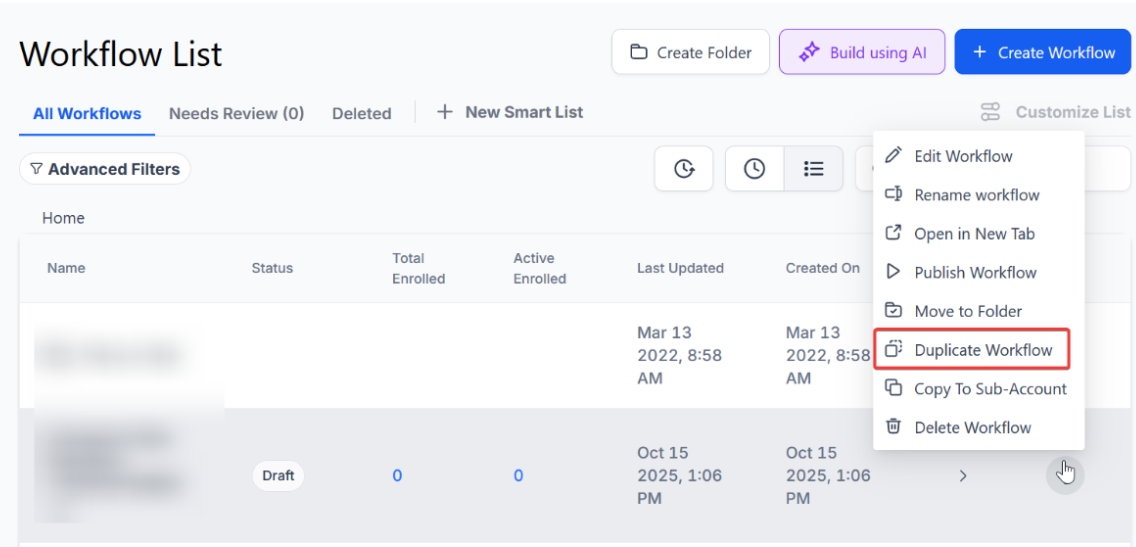
Step 2: Edit the Copy Workflow
Section titled “Step 2: Edit the Copy Workflow”- Edit, if needed, the workflow name you will be duplicating and click on Create.
- Edit the new workflow as needed and save.
- Don’t forget to publish it before using it.
Question: How do I duplicate a workflow? Answer: Navigate to Automation> Workflows, click on the three dots next to the workflow title, and select “Duplicate Workflow.”
Question: Can I change the name of the duplicated workflow? Answer: Yes, you can edit the name of the duplicated workflow during the duplication process.
Question: Do I need to publish the duplicated workflow before using it? Answer: Yes, you must publish the new workflow to activate it and ensure it runs as intended.
Question: Can I duplicate workflows with triggers and actions already set up? Answer: Yes, duplicating a workflow will copy all existing triggers and actions, allowing you to modify them as needed.
Question: Is there a limit to how many workflows I can duplicate? Answer: There is generally no limit to the number of workflows you can duplicate, but keep in mind that managing a large number of workflows may require careful organization.
Question: What should I do before publishing a duplicated workflow? Answer: Run a test using Test Workflow and apply final edits inside the Workflow Builder.
Question: Can I duplicate a folder of workflows? Answer: Currently, you have to duplicate workflows one by one. However, once you’ve made your copies, you can easily move them into a new folder to keep your automation tab organized.
Question: Why would I want to duplicate an existing workflow instead of starting from scratch?
Answer: Duplicating is useful when you want to preserve an original workflow while making significant changes, or when you want to use an existing setup (like specific triggers and actions) as a foundation for a new automation.
Question: If I want to use the same automated sequence for a different form I just built, do I have to start a new workflow from scratch? Answer: No. You can duplicate your existing workflow that contains the “Form Submitted” trigger and action steps. Once duplicated, you simply edit the filter to select your new form and adjust the actions as needed, saving you the time of rebuilding the entire logic.