Communities - Private Channel Workflow triggers & actions
Communities - Private Channel Workflow triggers & actions
Private channels are a great way to create exclusive spaces within your community. Automating access through workflow triggers and actions can enhance the user experience. This article will guide you through effectively using the triggers and actions for private channel memberships, enabling streamlined control over who gets added or removed.
Key Features & Benefits
Section titled “Key Features & Benefits”Private Channel Access Granted & Revoked Triggers: These triggers let you automate actions when a user is added or removed from a private channel, allowing you to manage access and communication efficiently.
Grant & Revoke Private Channel Access Actions: Easily add or remove users from private channels using workflow actions, making the process faster and more efficient without manual intervention.
Automated Group Onboarding: If a user is not yet part of the group, they will be automatically added when granted access to the private channel, streamlining the onboarding process.
How to Use Workflow Triggers and Actions for Private Channels
Section titled “How to Use Workflow Triggers and Actions for Private Channels”Triggers
Section titled “Triggers”Triggers are events that automatically start a workflow when specific actions occur. Here’s how you can set them up:
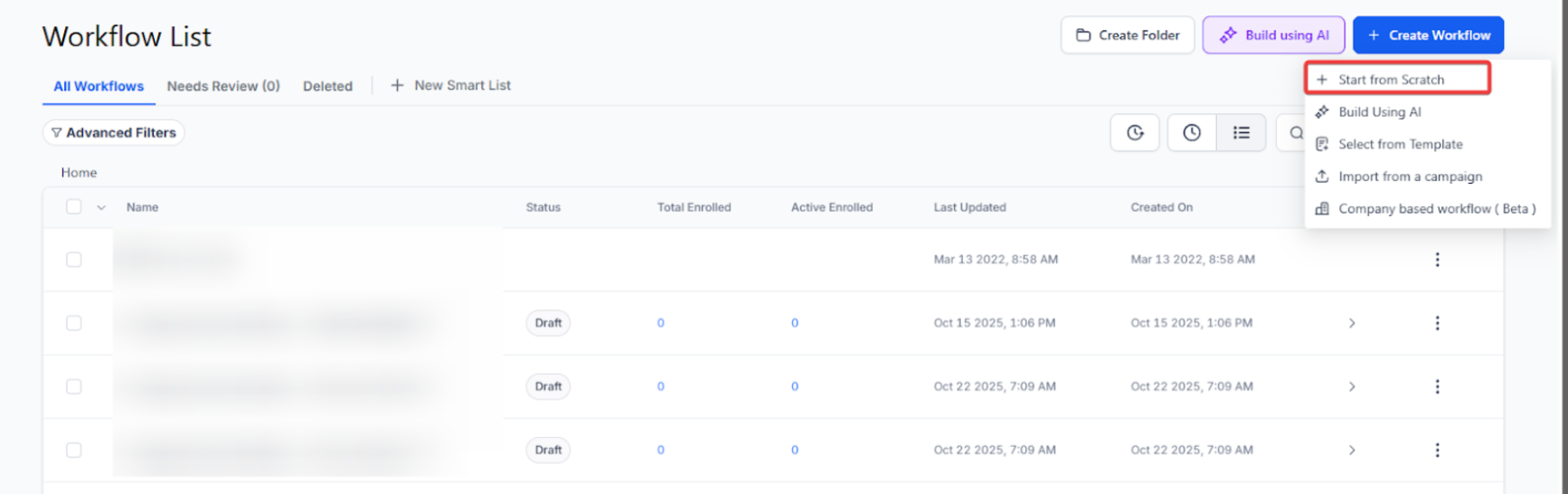
- Navigate to Automation> Workflow builder, click + Create Workflow, and click Start from Scratch
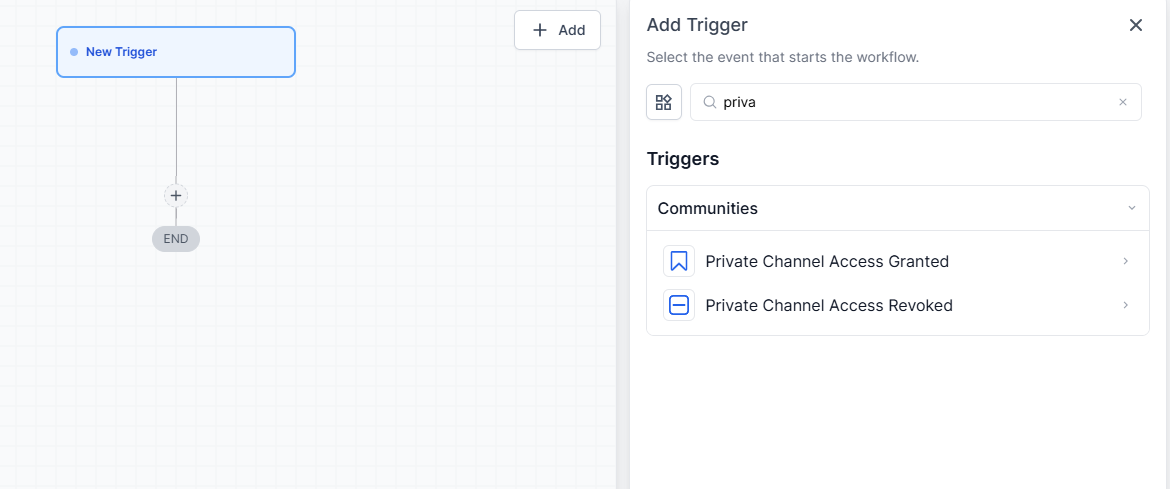
- Select “Add New Trigger” and choose either “Private Channel Access Granted” or “Private Channel Access Revoked.”
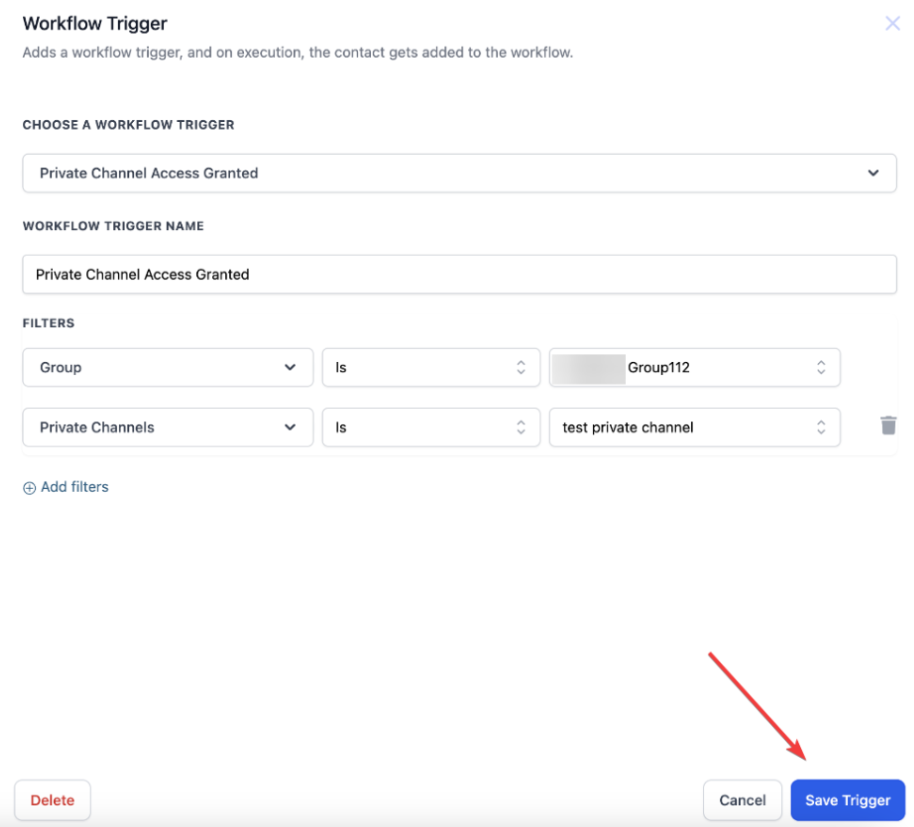
- Define the conditions for triggering the workflow (e.g., when a user is added or removed).
Actions
Section titled “Actions”Actions are tasks that the workflow performs once a trigger is activated.
Setting Up Actions:
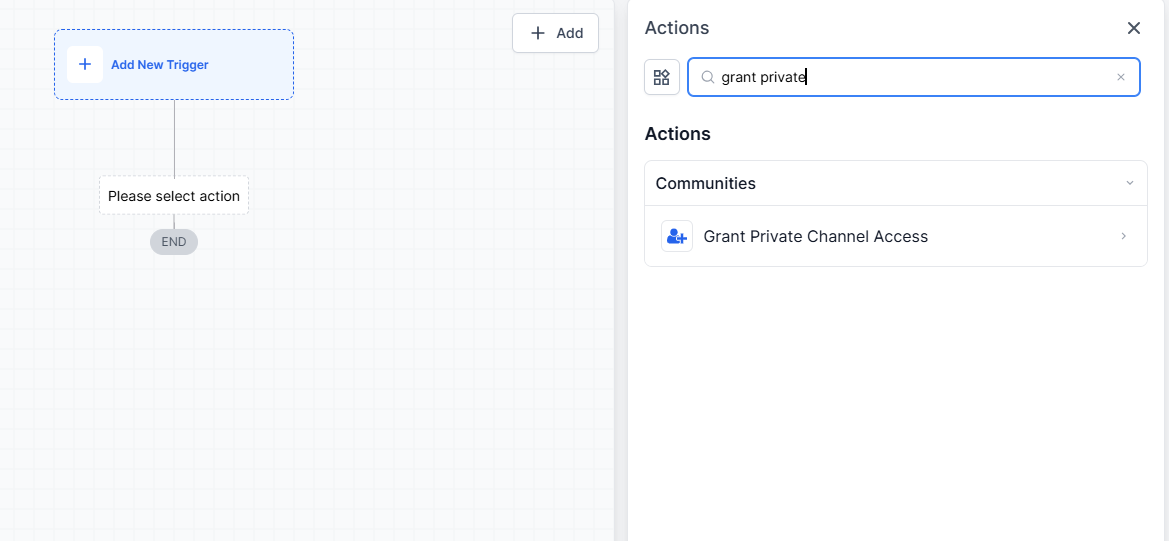
- Within your workflow builder, add a new action for either “Grant Private Channel Access” or “Revoke Private Channel Access.”
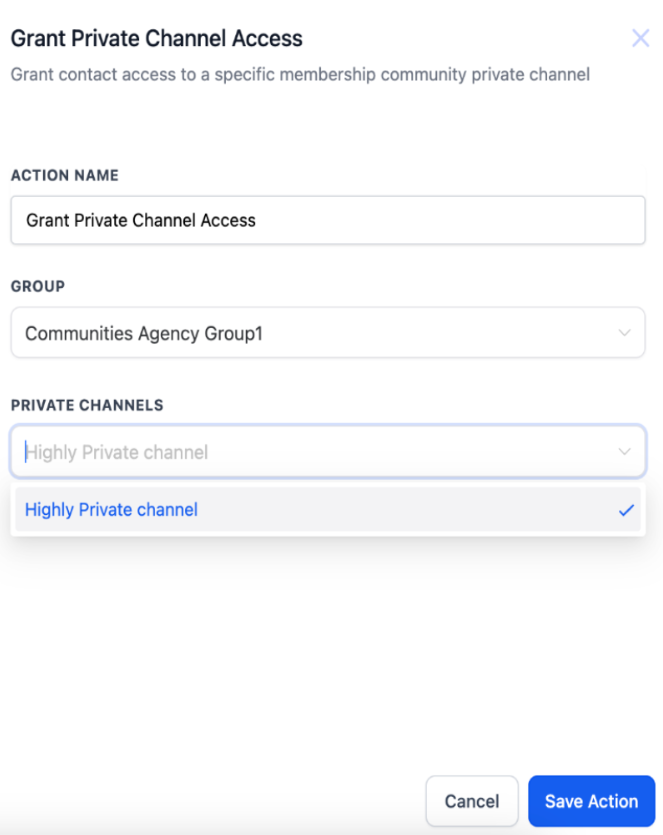
- Specify which private channel to add or remove the user from.
- Save the workflow, and ensure it is published and active.
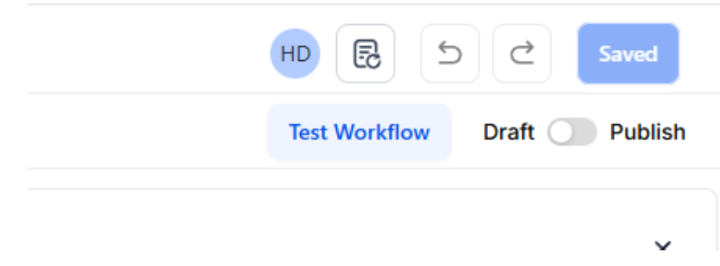
Testing the Workflow:
- Run a test to verify that the triggers and actions are working as expected. Add or remove a user from the private channel and confirm that the automation executes correctly.
Example:
For example, when a new member joins a book club community, a workflow can be set up to automatically grant them access to the “Book Upgrades” private channel. This ensures they receive timely updates on upcoming discussions and can instantly connect with other members.
Pro Tips for Using Private Channel Automations
Section titled “Pro Tips for Using Private Channel Automations”- Ensure Group & Channel Availability: Always confirm that the group you are selecting for automation has at least one private channel, as workflows will not function without a valid channel.
- Immediate Access Control: Once a user is added or removed from a private channel, access is immediate. Use this to provide real-time updates or responses.
- Segmented Communication: Utilize different private channels for different member types, such as VIP customers or event participants, and use workflows to manage access efficiently.
Question: What happens if a user is not part of the group when granted access to a private channel?
Answer: When you add a user to a private channel, they are automatically added to the group if they are not already a member, ensuring seamless access to both the group and the private channel.
Question: Will a user receive any notification when their access is revoked?
Answer: You can create an automated follow-up message within the workflow to inform users when their access is revoked. By default, access is removed without notification, so setting up a custom action is recommended.
Question: Can I grant access to multiple private channels in one workflow?
Answer: Yes, you can add multiple “Grant Private Channel Access” actions within a single workflow to provide access to various private channels simultaneously.
Question: What happens to a user’s data when they are removed from a private channel?
Answer: The user’s data within the group remains intact, but they will lose access to all content and communications specific to that private channel immediately after removal.
Question: Can I reassign a user to a different private channel automatically? Answer: Yes, you can set up a workflow that revokes access from one private channel and grants access to another based on your criteria, automating the reassignment process as needed.
Question: Do I need to have a private channel already created for these workflows to work?
Answer: Yes. For the automation to function, you must ensure that the group you select has at least one existing private channel, as the workflow requires a valid channel to be active.
Question: Can I use these workflows to manage tiered memberships (e.g., VIP vs. Standard)?
Answer: Absolutely. This is one of the best ways to use the tool. You can create segmented workflows that add users to specific private channels based on their membership level, ensuring VIPs get exclusive content without manual oversight.