Asana Workflow Trigger and Action
Managing tasks and projects efficiently is essential for smooth collaboration and productivity. The integration of workflow automation with project management tools allows businesses to streamline task creation, updates, and communication. This article explores how connecting Asana to workflows can enhance task management, improve project visibility, and reduce manual effort.
Key Features and Benefits
Section titled “Key Features and Benefits”Instant Triggers from Asana
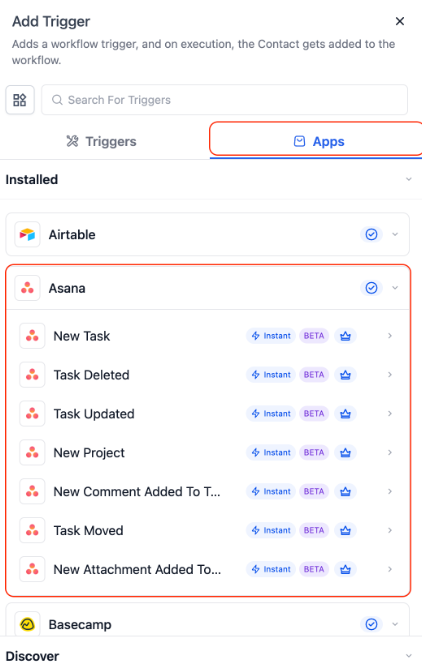
Section titled “Instant Triggers from Asana”Workflows can respond immediately to activity inside Asana, including:
- Task Created: Fires as soon as a new task is added.
- Task Updated: Triggers on status changes or field modifications.
- Project Created: Activates when a new project is generated.
- Comment on Task: Fires when a comment is added.
- New User: Alerts when a new workspace member is added.
- Task Moved to Section: Fires when a task is moved between sections.
- New Attachment Added: Triggers when a file is uploaded to a task.
Actions from Workflow to Asana
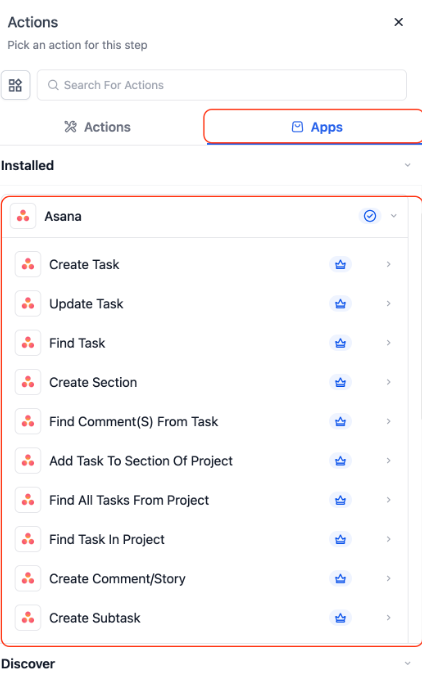
Section titled “Actions from Workflow to Asana”Workflow automation can now create and modify tasks and projects in Asana, including:
- Create Task: Add tasks with details, due date, and assignee.
- Update Task: Modify existing task fields.
- Find Task by ID or Name: Retrieve specific tasks efficiently.
- Create Section / Add Task to Section: Organize projects with sections.
- Create Comment / Story: Add notes or internal comments.
- Create Subtask: Generate subtasks under parent tasks.
- Create Project: Programmatically create new projects.
- Retrieve Tasks and Comments: Access tasks or comments from projects using IDs.
- Dynamic Project Search: Locate specific projects by name to retrieve their unique IDs for use in subsequent workflow steps, removing the need for manual ID entry.
- Section Lookup: Identify specific sections within a project to dynamically route tasks or organize project schemas without hardcoding section data.
Benefits of Integration
Section titled “Benefits of Integration”- Efficiency: Automate task creation and updates, reducing manual data entry.
- Real-Time Updates: Instant triggers ensure workflows react immediately to changes.
- Cross-Platform Synchronization: Keep multiple systems aligned without manual syncing.
- Improved Collaboration: Automatically notify team members of changes or updates.
- Dynamic Flexibility: Use real-time data to find projects and sections on the fly, ensuring your automations remain functional even if project structures change.
How to Use
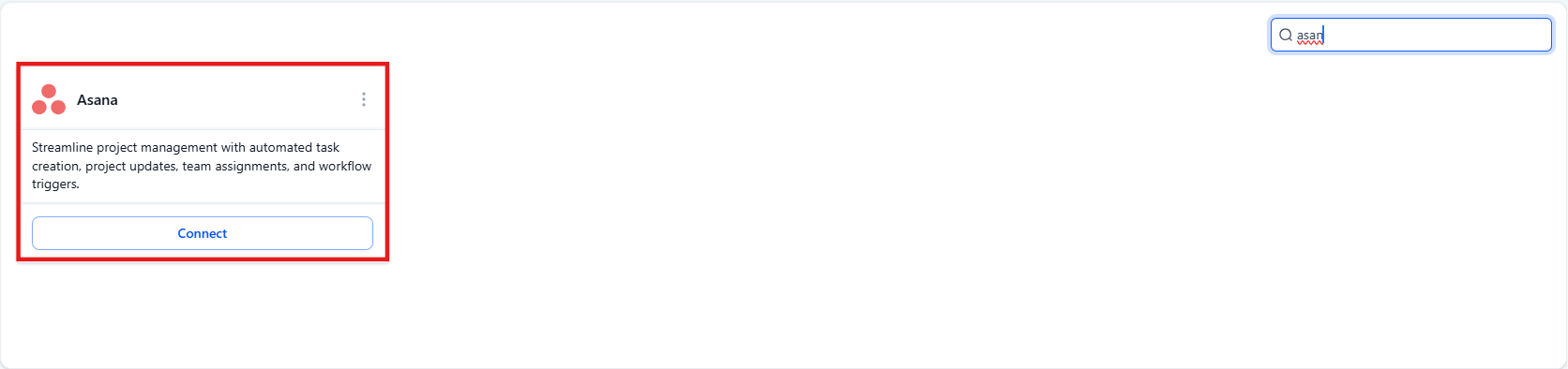
Section titled “How to Use”1- Connect Asana to Workflows:
- In your workflow builder, search for “Asana.”
- Select a trigger or action and click Connect Now.
- Log in using your Asana credentials via OAuth.
- Alternatively, connect via Settings → Integrations search Asana.
2- Navigate to AutomationGo to Automation > Workflows and create a new workflow or edit an existing one.
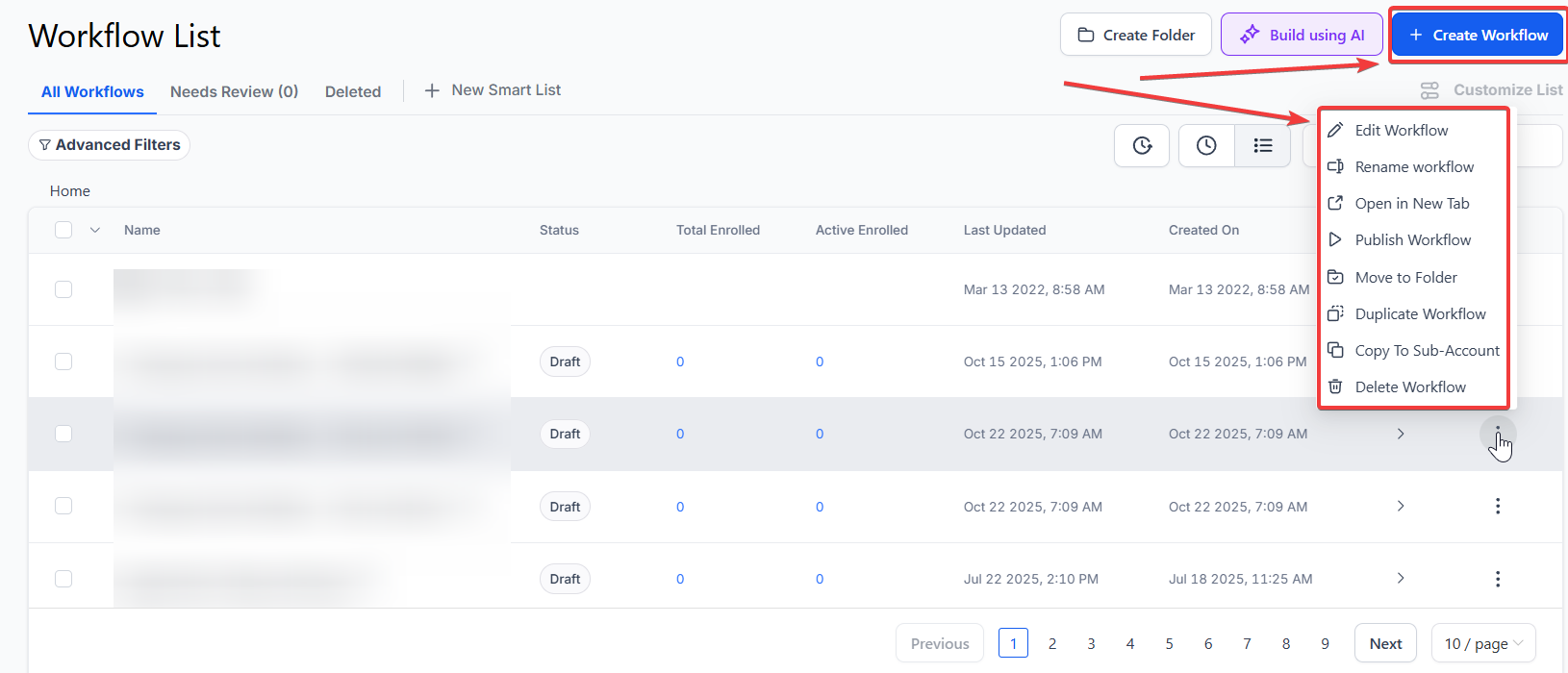
3- Set Up a Trigger or Action:
- Choose the activity that will trigger the workflow or the action you want to perform.
Pro Tip: Use the “Find Project” or “Find Section” actions to pull IDs dynamically, ensuring your “Create Task” steps are always directed to the correct location.
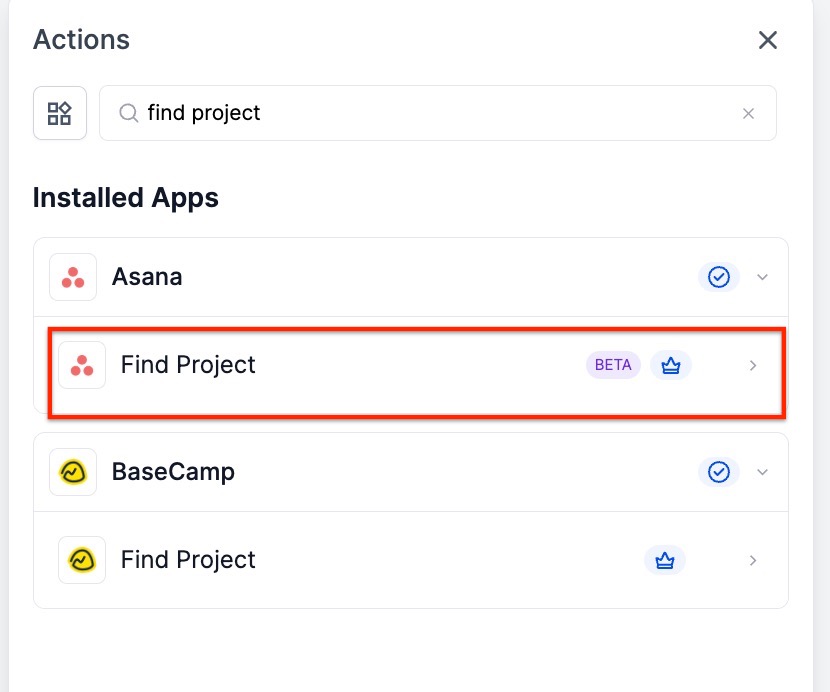
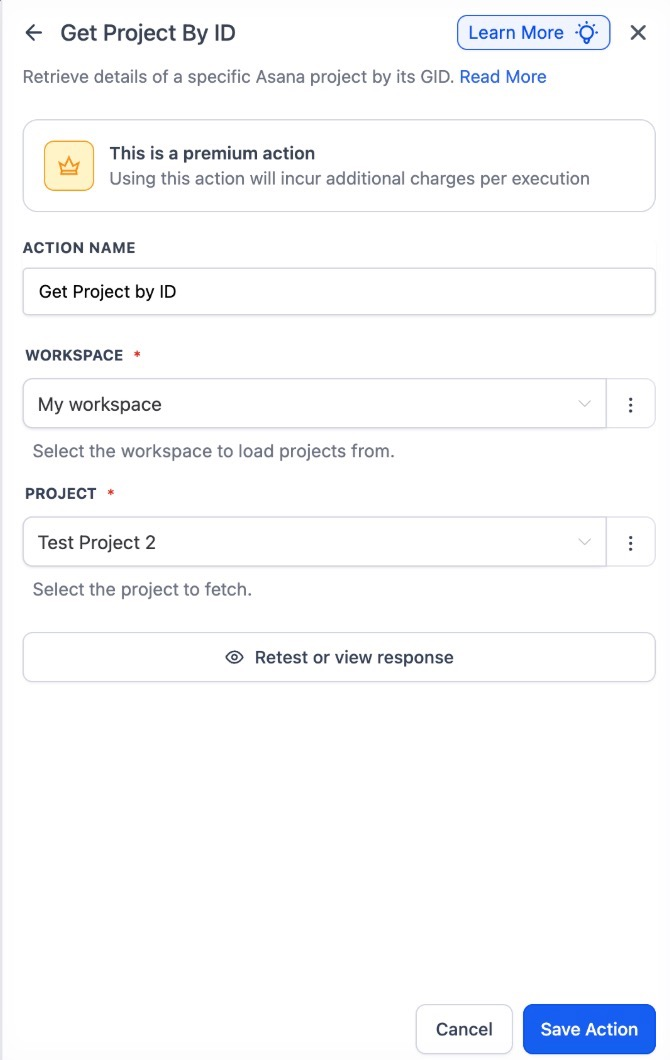
- Configure necessary fields such as task name, due date, project, or assignee.
4- Test the Workflow:
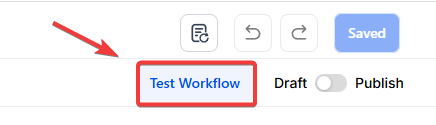
- Run a test task or project update to verify the automation works as intended.
- Ensure notifications, task creation, and updates are correctly synced.
5- Activate and Monitor:
- Enable the workflow and monitor performance for accuracy.
- Adjust field mapping and triggers as needed for optimal results.
Example Use Cases
Section titled “Example Use Cases”- Internal Notifications: Notify team members immediately when a task is updated.
- Lead to Task Creation: Automatically generate Asana tasks when new leads or form submissions are received.
- Cross-Platform Project Syncing: Sync new projects across multiple systems to maintain consistency.
- Dynamic Task Routing: Use a project’s name to find its ID and then automatically place a new task into a specific section, such as “Onboarding” or “In Progress,” without needing to know the ID beforehand.
Pro Tip: When using the Task Updated trigger, select Fields Changed to avoid
Question: Does Asana trigger fire in real time? Answer: Yes, all triggers are instant and respond immediately to changes in tasks or projects.
Question: Can I create tasks automatically from a lead or form submission? Answer: Absolutely, workflows can automatically create tasks in Asana with all relevant details.
Question: Can I update multiple tasks at once? Answer: Workflow actions allow updating task fields based on triggers or conditions, streamlining bulk updates.
Question: How do I avoid unnecessary workflow triggers when updating tasks? Answer: Use the Fields Changed option with Task Updated triggers to ensure workflows only run when specific fields are modified.
Question: How can I connect my Asana account to the workflow builder?
Answer: You can connect it by searching for “Asana” in the workflow builder and clicking “Connect Now” to log in via OAuth, or by navigating to Settings → Integrations → Asana.
Question: Can I dynamically choose which section a task is created in? Answer: Yes. By using the “Find Section” action, you can retrieve the correct section ID and pass it into a “Create Task” action to ensure the task lands in the right place every time