Workflow Trigger: TikTok Form Submitted
The TikTok Form Submitted Workflow Trigger allows you to build a workflow that is triggered whenever a contact submits a TikTok Lead Form. Contacts who submit these forms will then be added to this workflow, allowing you to automate a follow-up response and make the most of these new leads. This article will give an overview of how to set up a workflow using the TikTok Form Submitted Workflow Trigger.
Note: This article will assume that you have already created TikTok Lead forms in your account. For information on TikTok Integration in your account, see our article, “TikTok Integration.”
Step 1: Start a new workflow or edit an existing one
Section titled “Step 1: Start a new workflow or edit an existing one”- Navigate to Automation on the left > Workflows on the top, and create a new workflow or edit an existing one
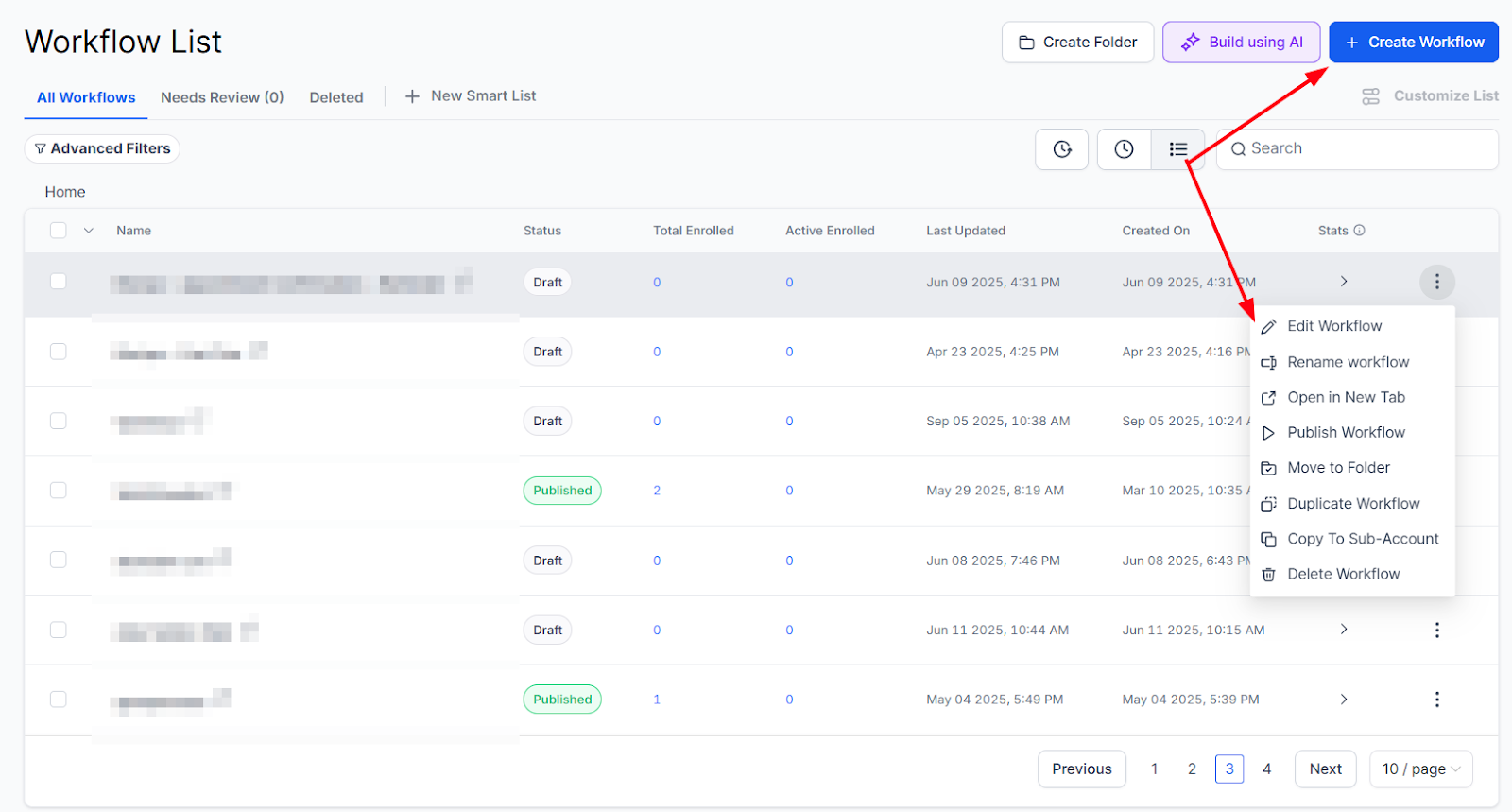
Step 2: Creating and Editing the Trigger
Section titled “Step 2: Creating and Editing the Trigger”- Click “Add New Workflow Trigger”
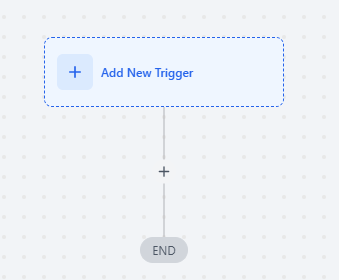
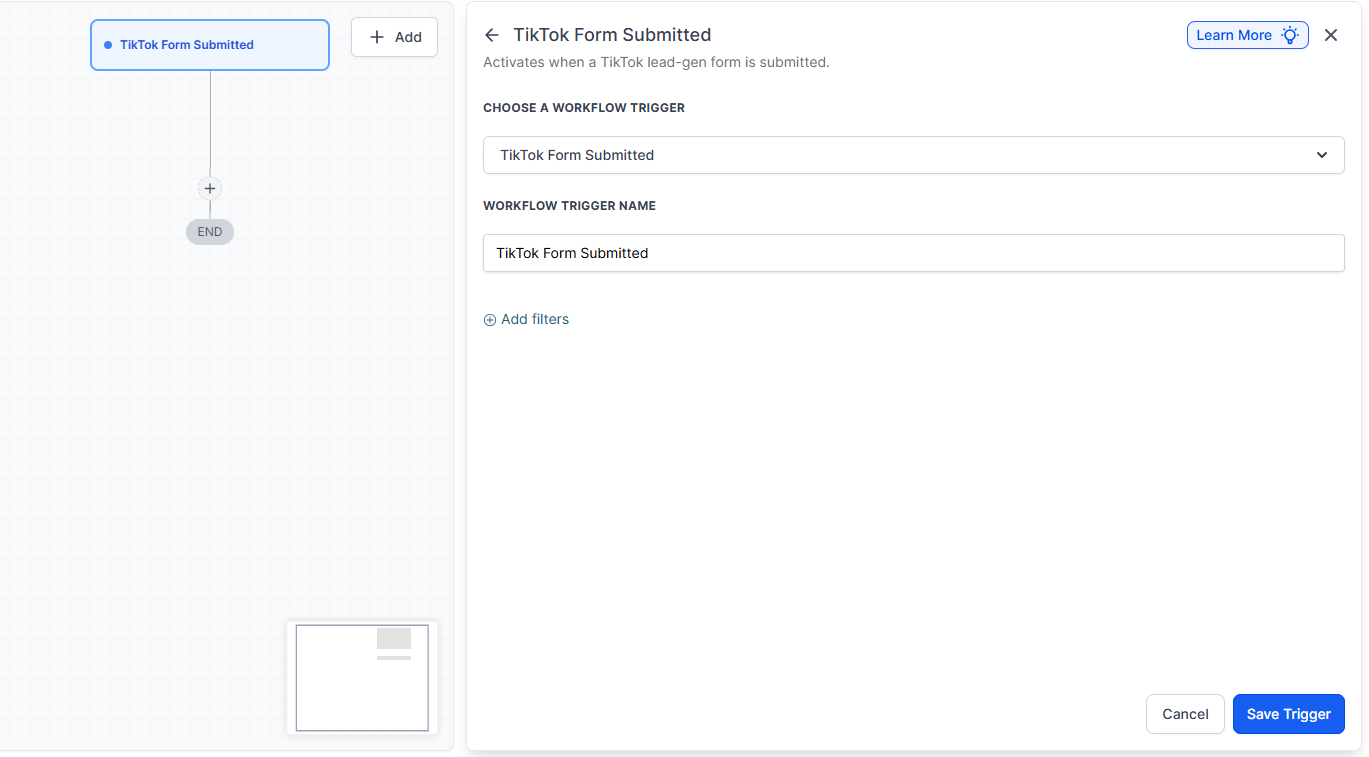
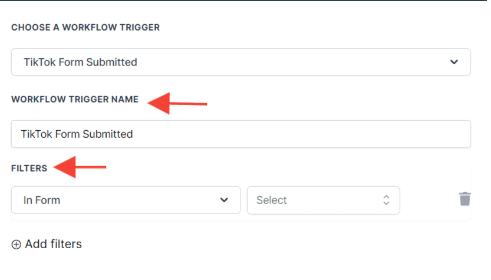
- Select TikTok Form Submitted in the TikTok section of the Workflow Triggers Menu or use the search feature. Once selected, the Trigger setup menu will appear
-
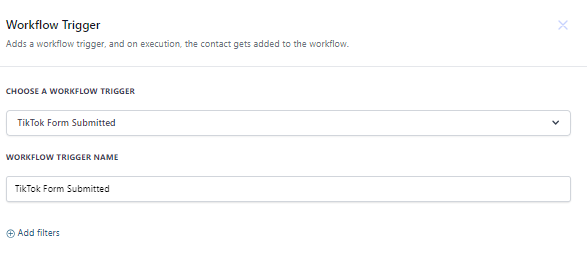
(Optional) You can change the workflow builder display name of this trigger using the textbox below Workflow Trigger Name. Note that this will only affect the display name within the workflow builder and has no other impact on the content or functionality of this Workflow Trigger.
-
Press + Add filters to expand the Filters section of the Trigger setup menu
- The In Form will allow you to select a form to which this workflow would exclusively apply. If you have multiple TikTok lead forms in your account, this will limit this workflow to only being able to be triggered by the one you specify
- You can also filter by Custom Fields, which you have to set up elsewhere in your account. Only contacts who meet the custom value parameters that you specify in this filter will be able to be added to this workflow
- Press Save Trigger in the bottom right corner of the Trigger setup menu
Step 3: Set up applicable Workflow Action(s). We have multiple articles available to explain the setup of each of the Workflow Actions. Feel free to review our articles on these for more information on setting these up.
Section titled “Step 3: Set up applicable Workflow Action(s). We have multiple articles available to explain the setup of each of the Workflow Actions. Feel free to review our articles on these for more information on setting these up.”Pro Tip: You can use any Workflow Actions to be triggered by the TikTok Form Submitted trigger, or you can leave this workflow without any actions.
Step 4: Press Save in the top right corner of your browser to save the workflow
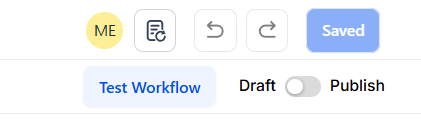
Section titled “Step 4: Press Save in the top right corner of your browser to save the workflow”- If your Workflow is ready to be enabled, make sure the toggle switch under Save is set to Publish
- Be sure to test your Workflow to ensure it is set up correctly using the Test Workflow button next to the Publish toggle switch.
- For an in-depth overview of Workflow Testing see our article, “Using the Testing Features in Workflows”
Now your workflow is set up and ready to go with the TikTok Form Submitted Workflow Trigger.
Example: TikTok Feedback, Thank You Workflow
Section titled “Example: TikTok Feedback, Thank You Workflow”Workflow Trigger Name: “TikTok Feedback Thank You”
Filters:
- In Form: “TikTok Feedback Form” (This ensures that only submissions from this specific form will trigger the workflow)
Workflow Steps:
- Trigger: TikTok Form Submitted (as configured above)
- Action: Send Email - Thank the user for submitting their feedback.
- Action: Update Contact - Tag the contact as “Feedback Provided” to keep track of users who have provided feedback.
Question: What is the Customer Replied Workflow Trigger? Answer: The Customer Replied Workflow Trigger activates a workflow when a message is received from a contact. This feature automates responses or actions based on the customer’s reply, enabling more personalized and timely interactions.
Question: How do I start setting up a workflow with the Customer Replied trigger? **Answer:
- Start by creating a new workflow or editing an existing one.
- Click on “Add New Workflow Trigger.”
- Select “Customer Replied” from the Contact Actions section or use the search feature to find it in the Workflow Triggers Menu.
Question: Can I rename the Customer Replied trigger? Answer: Yes, you can rename the trigger. Enter a new name in the Workflow Trigger Name text box if you want to make the trigger easier to identify within the workflow builder. This step is optional.
Question: What customization options are available under the Filters section? **Answer:
- Contains Phrase: Triggers the workflow if the customer’s reply includes the specified phrase. This filter is not case-sensitive.
- Exact Match Phrase: Triggers the workflow only if the customer’s reply matches the exact phrase specified. This filter is also not case-sensitive.
- Doesn’t Have Tag: Excludes contacts with the selected tag from being added to the workflow.
- Has Tag: Includes only contacts with the selected tag in the workflow.
- Intent Type: Uses AI to detect if the customer’s reply is positive or negative and triggers the workflow based on this detection.
- Replied to Workflow: Adds contacts to the workflow if they reply within a separate workflow.
- Reply Channel: Triggers the workflow only if the reply is received through a specified channel (e.g., Chat Widget, Email, Facebook Messenger, GMB Messaging, Instagram DM, SMS).
Question: What should I do after configuring the Customer Replied trigger? Answer: Set up the applicable Workflow Actions that will be triggered by this event. You can choose from various Workflow Actions based on your needs. Consult our articles on Workflow Actions for detailed setup instructions. If you don’t need any actions, you can leave the workflow as is.
Question: How do I save and publish my workflow? **Answer:
- Click the “Save” button located in the top right corner of your browser to save your changes.
- Ensure the toggle switch under “Save” is set to “Publish” to enable the workflow.
Question: What happens if I don’t add any filters to my Form Submitted trigger? Answer: If you leave the Filters section blank, the workflow will be triggered by every form submission from any contact across your entire account. To avoid this, it is highly recommended to use the “Form is” filter to specify exactly which form should activate the workflow.
Question: Can I use one workflow for multiple different forms? Answer: Yes! In the filter “Form is,” you can select multiple forms from the dropdown menu. This is useful if you want the same thank-you email or tag to be applied to leads coming from several different landing pages.
Question: What should I do to ensure the form submission maps correctly before going live?
Answer: You should use the Test Workflow button next to the Publish toggle switch to verify the setup is functioning as expected before enabling it.