Workflow Trigger: Product Review Submitted
In the world of online shopping, what customers say about your products can make or break your business. The Product Review Submitted trigger is a powerful tool that helps you stay on top of this feedback without having to watch your store 24/7. Whether a customer leaves a glowing 5-star compliment or a helpful suggestion, this feature automatically kicks off the right response the moment they hit “submit.” By connecting your customer’s voice directly to your business actions, you can quickly say thank you, solve problems, and build a brand that people truly trust.
Key Features and Benefits
Section titled “Key Features and Benefits”Instant Engagement: Acknowledge customer effort the second a review is published, reinforcing positive brand sentiment.
Automated Moderation: Route reviews to specific internal teams based on the content or rating, ensuring that concerns are addressed rapidly.
Dynamic Personalization: Use specific filters to trigger unique workflows, such as sending a discount code to a 5-star reviewer or a support ticket for a 1-star rating.
Resource Efficiency: Reduce manual monitoring of storefronts by letting the system alert you to new activity based on your specific criteria.
How to Use the Product Review Submitted TriggerStep 1: Access the Workflow Builder
- Navigate to the Automation tab on your left-hand menu.
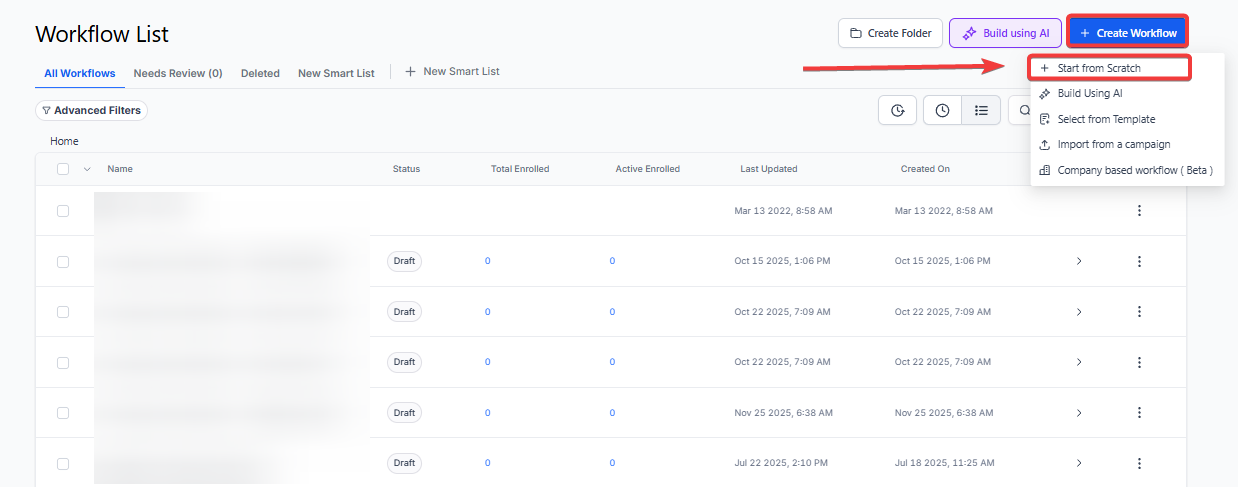
- Click Create Workflow and select Start from Scratch.
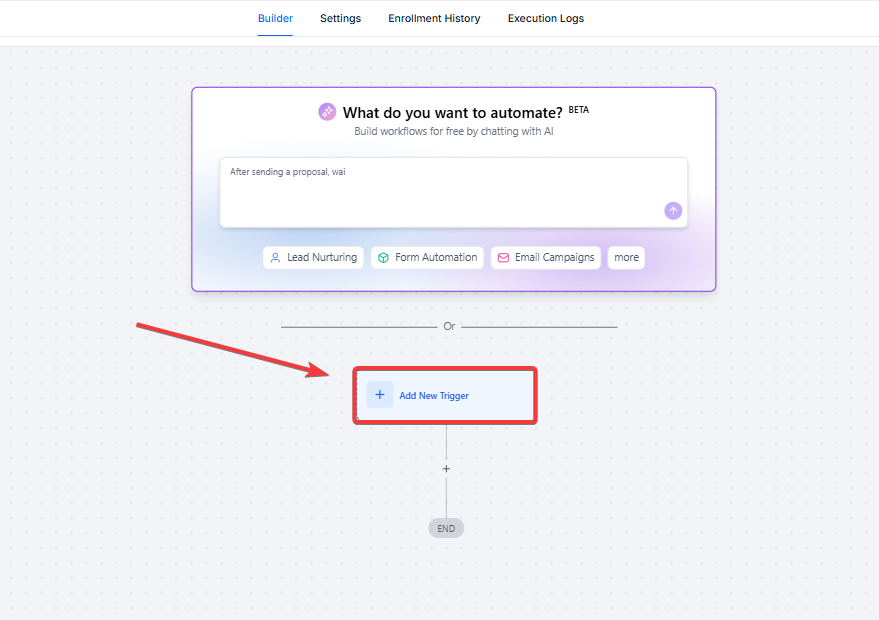
- Click the Add New Workflow Trigger button.
Step 2: Find the Review Trigger
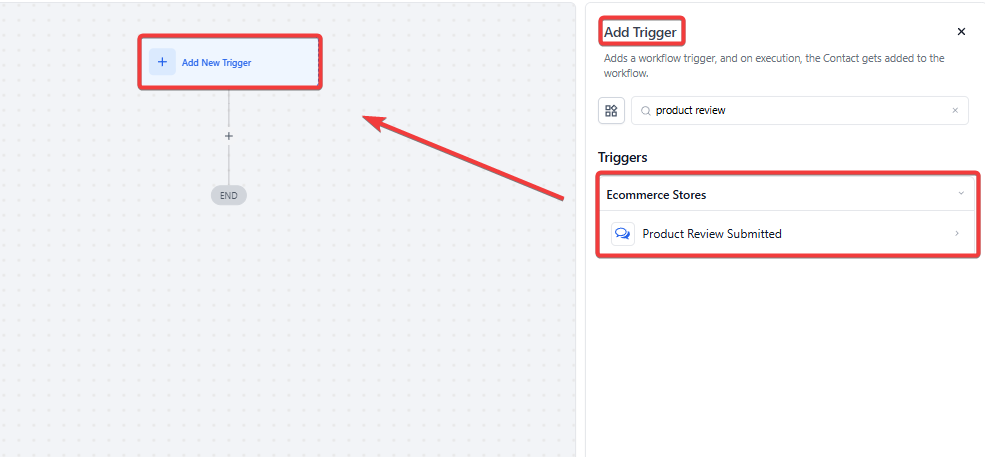
Section titled “Step 2: Find the Review Trigger”- In the search bar, type “Product Review” or scroll to the E-commerce category.
- Select Product Review Submitted from the list.
Step 3: Add Target Filters
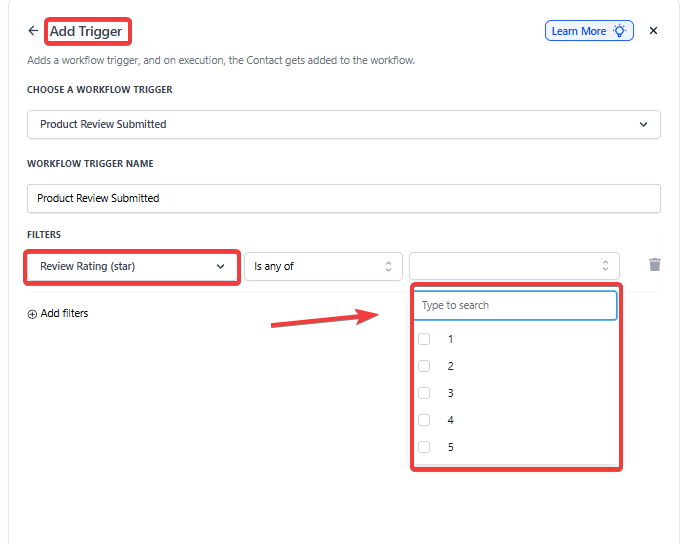
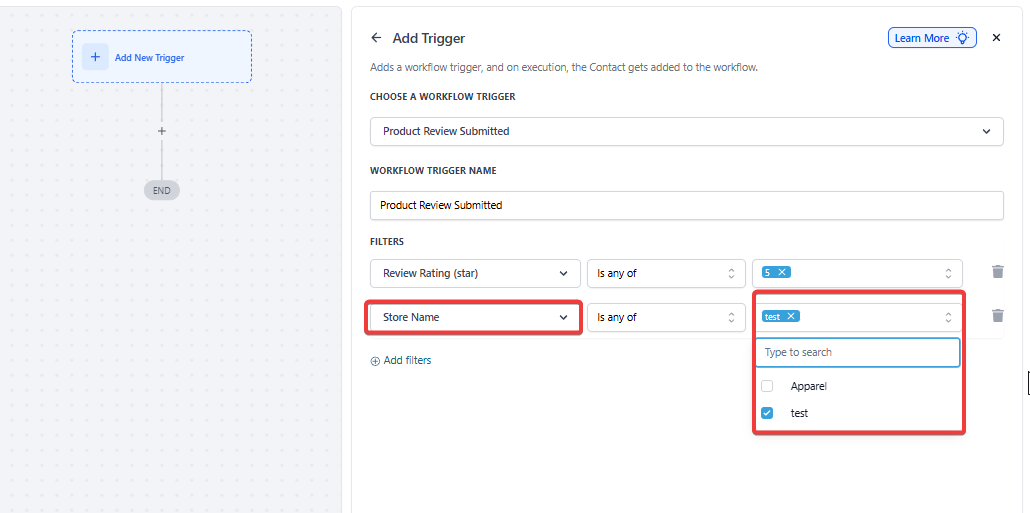
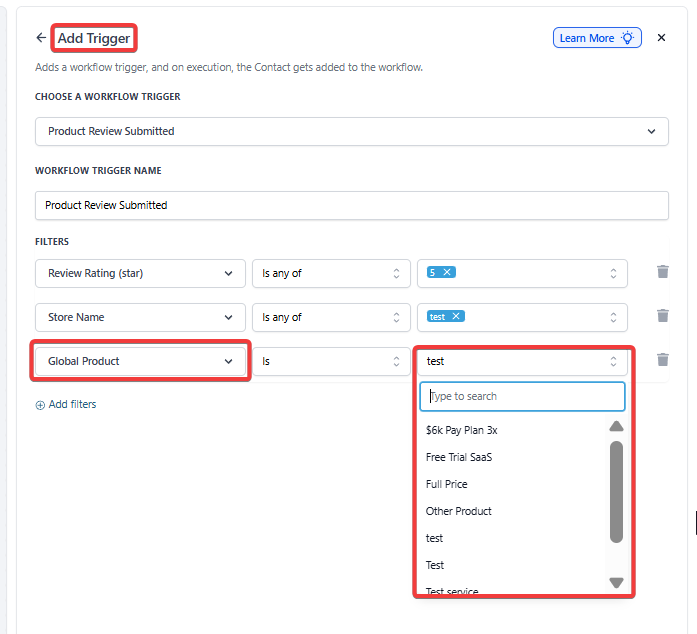
Section titled “Step 3: Add Target Filters”- Click Add Filters to choose exactly which reviews should start this automation.
- Review Rating: Choose specific star ratings (e.g., Select “5” to only trigger for perfect reviews).
- Store Name: Select your specific storefront if you manage more than one.
- Global Product: Choose a specific item if you want to track feedback for a single product.
Step 4: Filter by Specific Content (Optional)
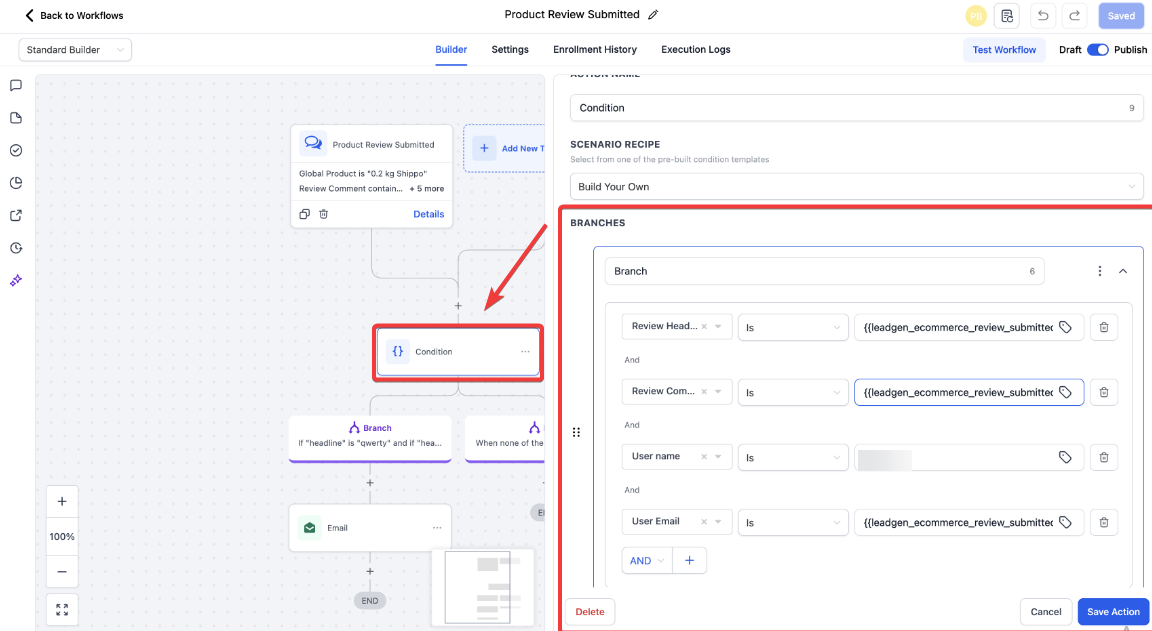
Section titled “Step 4: Filter by Specific Content (Optional)”- If you only want to respond to reviews with text, add the filter Review Comment and select the condition Is Not Empty.
- To catch specific feedback, use Review Comment with the condition Contains and type keywords like “Service” or “Delivery.”
Step 5: Add Your Actions
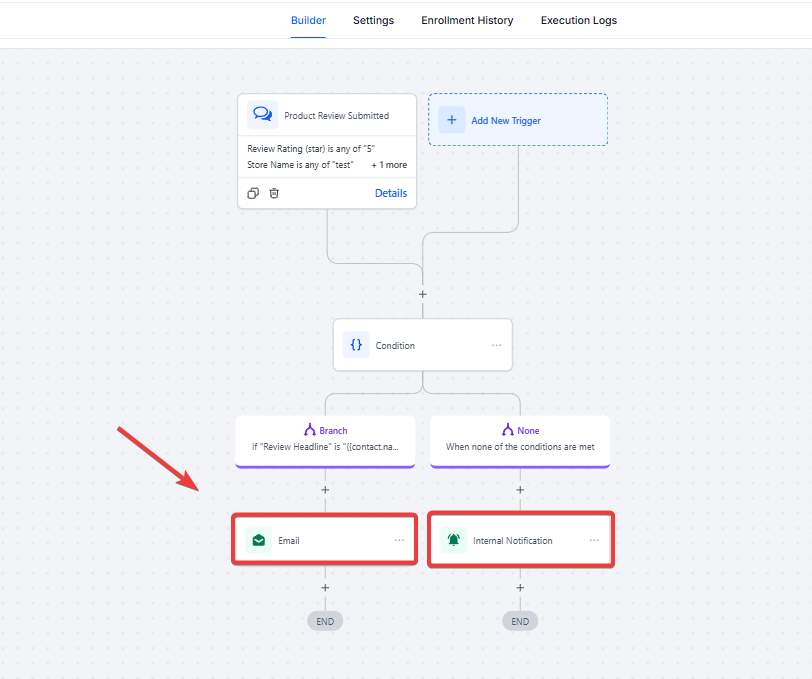
Section titled “Step 5: Add Your Actions”- Click the ”+” icon below your trigger to decide what happens next.
- For High Ratings: Add an “Email” action to send a thank-you note or a discount code.
- For Low Ratings: Add an “Internal Notification” to alert your team to reach out to the customer.
Step 6: Save and Publish
Section titled “Step 6: Save and Publish”- Give your workflow a clear name at the top (e.g., “5-Star Review Follow-up”).
- Click Save in the top right corner.
- Switch the toggle from Draft to Publish to make your automation live!

Pro Tips
Section titled “Pro Tips”Leverage Negative Feedback: Create a specific “Rescue Workflow” for reviews with a rating of 2 stars or fewer. Have the system automatically create a high-priority task for your support team to reach out and resolve the issue before the customer churns.
Social Proof Integration: When a 5-star review is submitted, use the workflow to send a request asking the customer for permission to feature their quote on your social media channels or marketing materials.
Empty Comment Filtering: To keep your data clean, use the “Review Comment is not empty” filter. This ensures your team is only alerted to reviews that provide actionable written feedback rather than just a star rating.
Question: Can I send a different automated response for a 5-star review versus a 1-star review? Answer: Yes. You can either create two separate workflows with different “Review Rating” filters or use a single workflow with “If/Else” branching logic to separate the paths based on the rating.
Question: What happens if a customer submits a review for a product that isn’t in my contact database yet? Answer: The system will typically create a new contact record using the User Name and User Email provided in the review, allowing you to track their journey from that point forward.
Question: Can I use this trigger to alert my team via SMS when a new review comes in?
Answer: Absolutely. Simply add an “Internal Notification” action to the workflow and select SMS as the delivery method to ensure your team is notified instantly on their mobile devices.
Question: Does this trigger work for digital products as well as physical goods? Answer: Yes, as long as the product is sold through the integrated e-commerce storefront within , the trigger will function regardless of the product type.
Question: Is there a way to filter for reviews that contain specific “complaint” keywords?
Answer: Yes, by using the Review Comment filter with the “Contains” operator, you can monitor for specific words like “broken,” “late,” or “wrong” to immediately flag those reviews for investigation.
Question: What happens if a customer leaves multiple reviews for different products?
Answer: The workflow will trigger each time a new review is submitted. To avoid spamming a customer with multiple “Thank You” emails in one day, you can add a “Allow Re-entry” toggle setting or use a “Wait” step with a specific tag to ensure they only receive the automation once per week/month.