Workflow Trigger: Order Submitted
The Order Submitted trigger is a robust workflow feature that allows businesses to upsell customers after they have placed an order. It supports both 1-step and 2-step order forms, offering flexibility in customizing upsells based on the type of order form used or the products purchased.
Please Note:
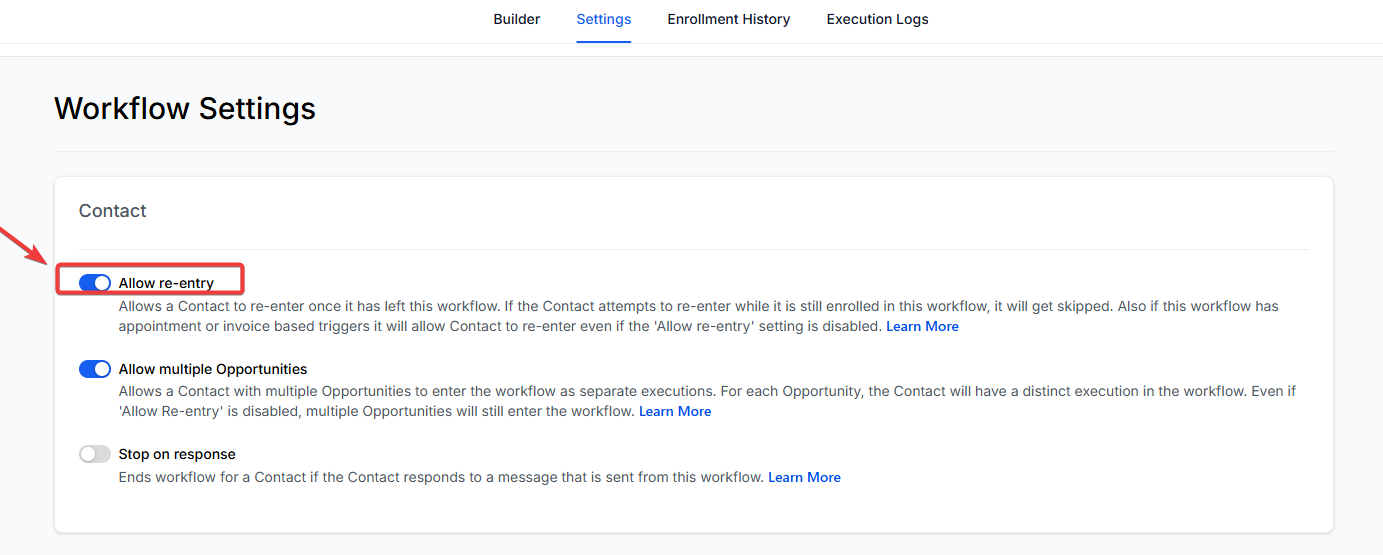
To allow the trigger to fire multiple times for the same contact (e.g., for an upsell right after primary product purchase), ensure the “Allow re-entry” setting is enabled in the Workflow Settings.
If you include a wait step that holds the customer in the workflow after purchasing a primary product and they later purchase an upsell, they won’t be able to enter the workflow again since they are still held in the wait step. It’s advisable to avoid using wait steps if you plan to offer upsells or bumps for the same product.
- The trigger activates when a 1-step or 2-step order form is submitted and an upsell is purchased. For example, if a customer buys products A and B on an order form and later purchases product C as an upsell, the trigger will fire twice—once for the initial purchase and again for the upsell.
Step 1: Navigate under Automation > Workflow > Click into your workflow which you’re using for product purchases and upsells together
Section titled “Step 1: Navigate under Automation > Workflow > Click into your workflow which you’re using for product purchases and upsells together ”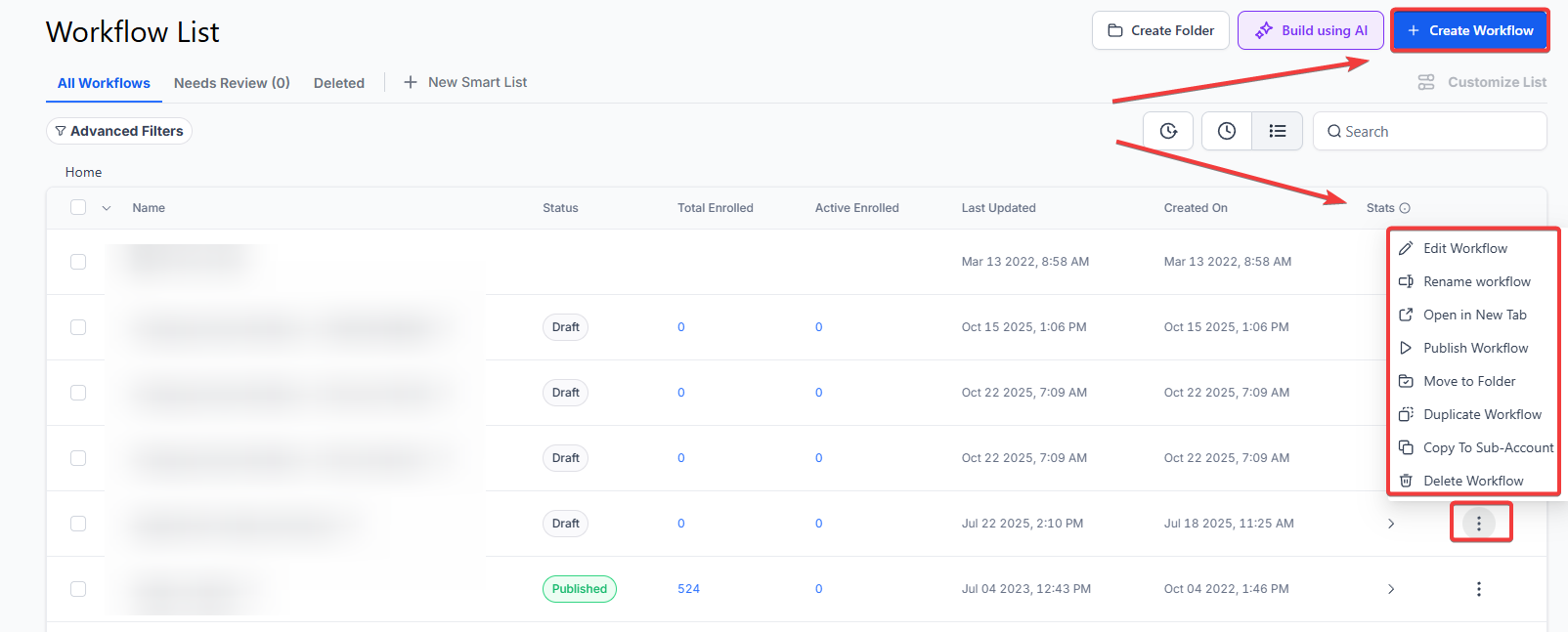
- Make sure that allowing the re-entry of contacts in this workflow is enabled
- To enable this option, go to the settings section within the workflow builder.
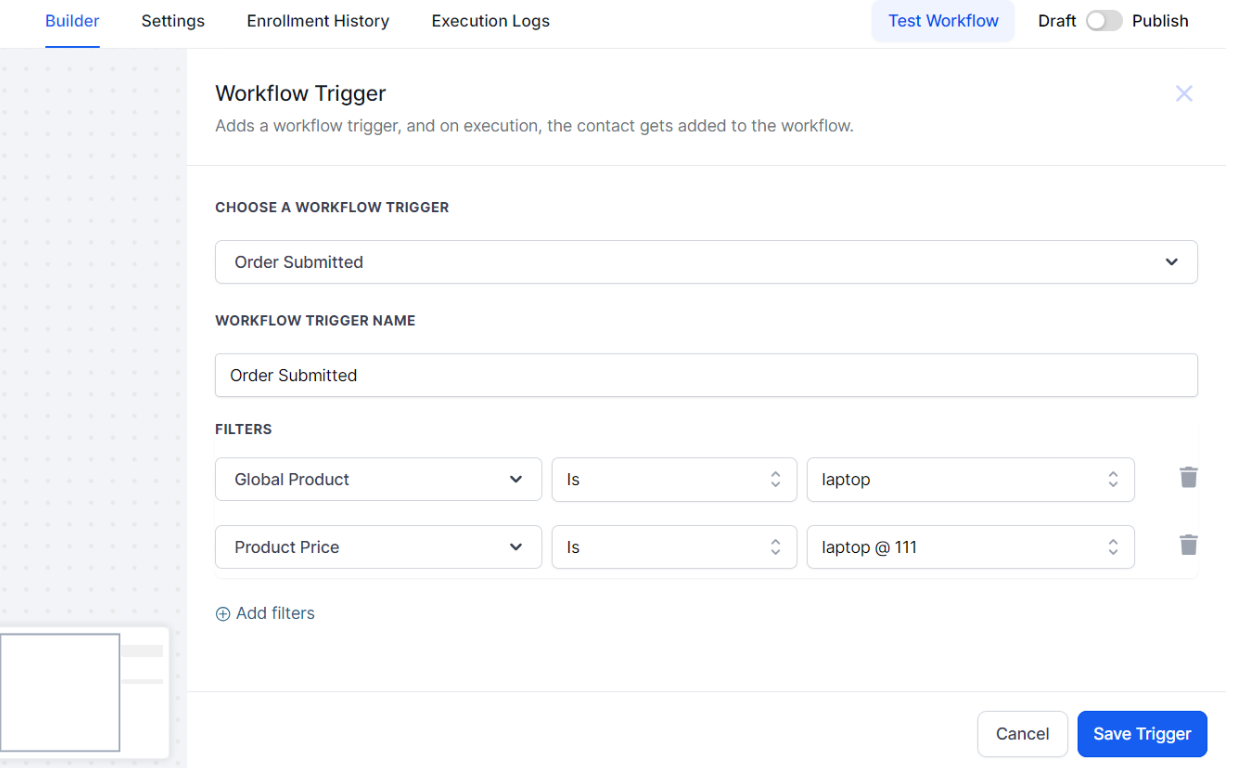
Here are the key differences between the Order Submitted and the Order Form Submitted Workflow Triggers:
- Single Checkout Trigger: Unlike the Order Form Submitted trigger, which does not fire multiple times for multiple product purchases, the Order Submitted trigger sends data as a single checkout event for all products in a single transaction.
- Product/Price-Based Filtering: The Order Submitted trigger allows filtering based on global product/price details, a feature not available in the Order Form Submitted trigger.
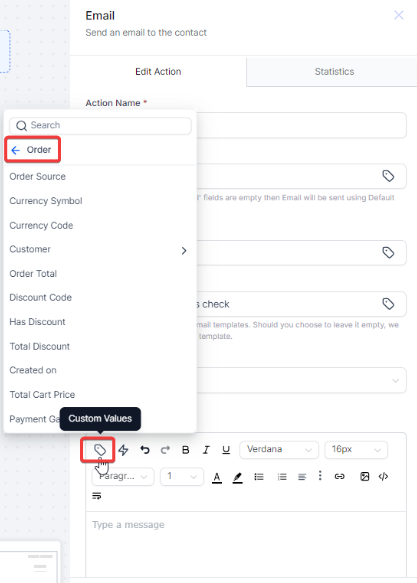
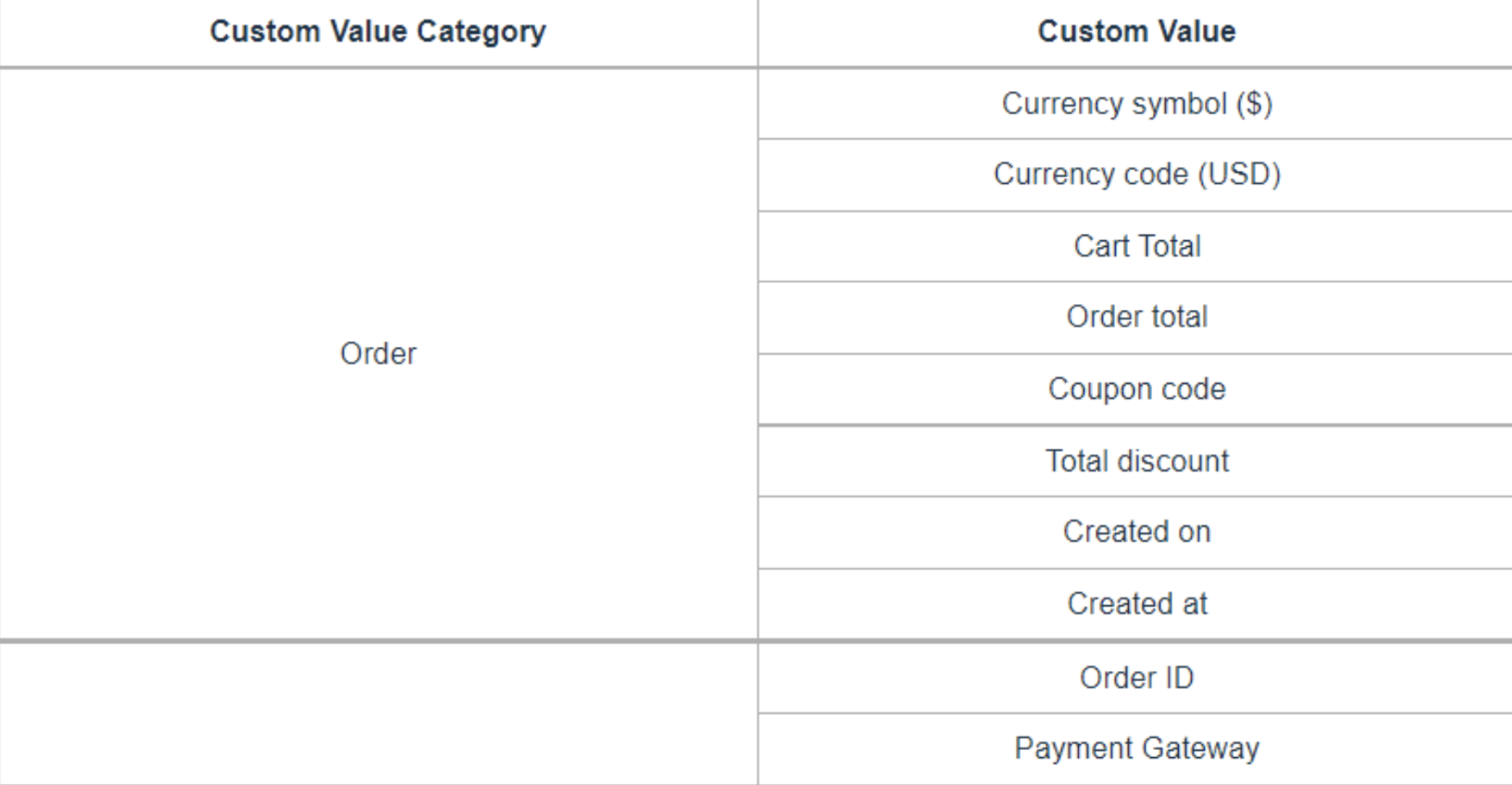
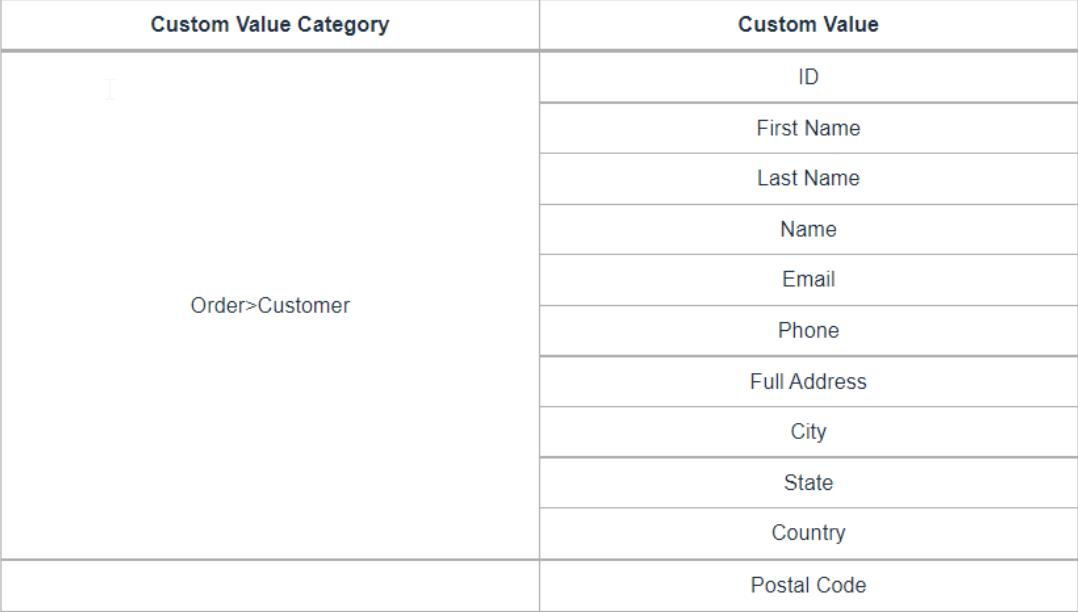
- Order-Related Custom Values: This trigger supports custom values related to customer details, order specifics, coupon information, and payment gateways, allowing for greater customization.
Please Note: Order-related custom values will only appear in the dropdown menu if the Order Submitted trigger is included as one of the workflow steps.
Step 2: Utilize conditions based on order or product details within the If branches to guide the workflow according to cart value, purchased products, or the specific funnel used.
Section titled “Step 2: Utilize conditions based on order or product details within the If branches to guide the workflow according to cart value, purchased products, or the specific funnel used.”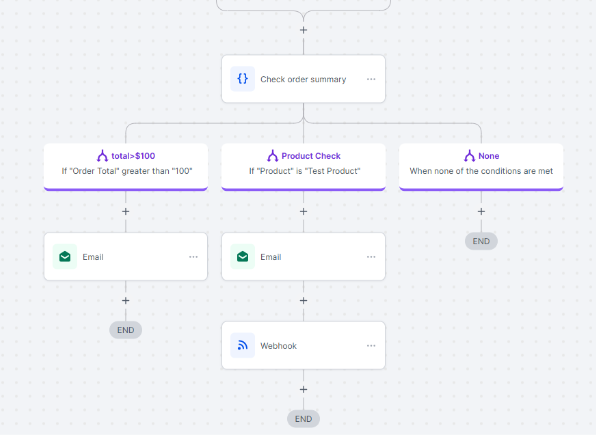
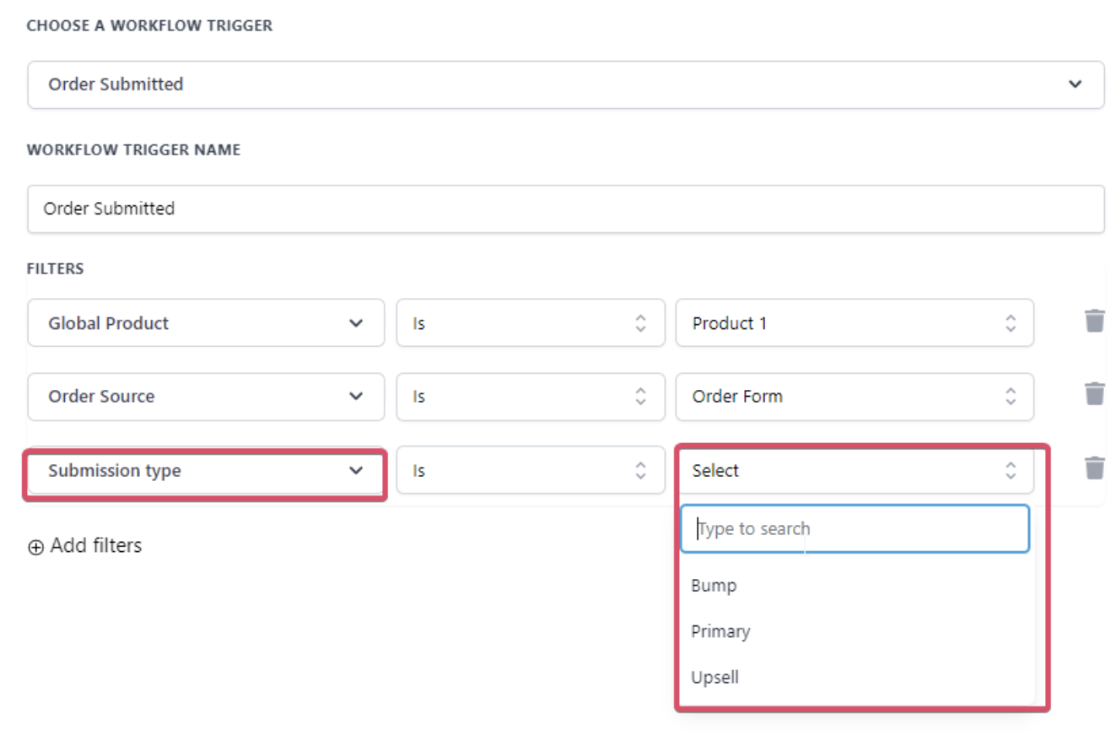
How do submission-type filters work?
Section titled “How do submission-type filters work?”- Primary: Filters purchases of primary products during the checkout process.
- Bump: Filters only bump product purchases; the trigger won’t activate if no bump product is purchased.
- Upsell: Filters only upsell purchases; the trigger won’t run on a primary or bump product purchase.
Will this trigger impact existing Order Form submission triggers?
Section titled “Will this trigger impact existing Order Form submission triggers?”No, it will not affect existing order form submission triggers. However, using the Order Submitted trigger is recommended to leverage order-related custom values, coupon details, and product line items.
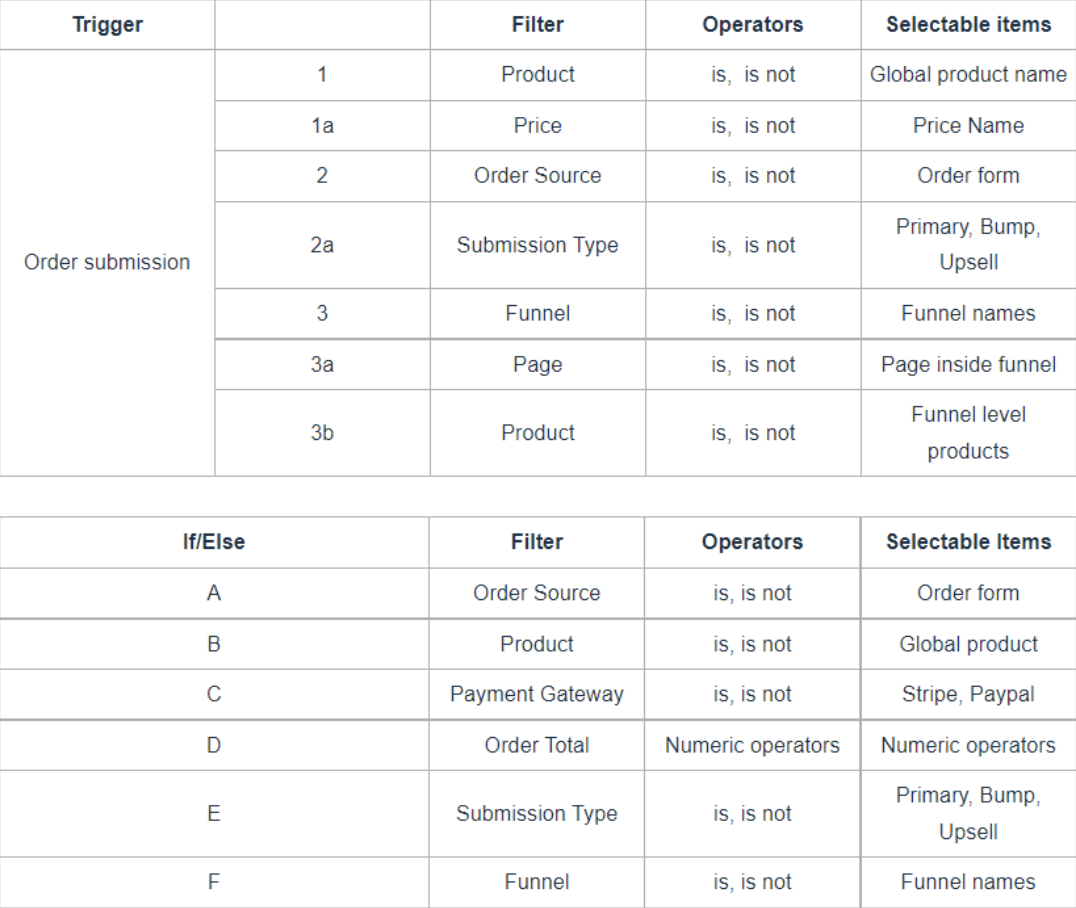
What are the filter types, if/else conditions, and custom values I can use?
Question: What is the Order Submitted trigger used for? Answer: The Order Submitted trigger activates workflows after a customer submits an order or purchases an upsell. It’s especially useful for upselling and customizing post-purchase offers based on purchased products.
Question: How can I allow the trigger to fire multiple times for the same contact? Answer: Ensure the “Allow re-entry” setting is enabled in your Workflow Settings. This allows the trigger to activate multiple times, such as when a customer makes an additional purchase after the initial order.
Question: What are the key differences between the Order Submitted and Order Form Submitted triggers? Answer: The Order Submitted trigger provides a single checkout event for all products in a transaction, supports filtering based on product/price details, and offers custom values related to customer details, order specifics, and coupon information.
Question: How do the submission type filters work? **Answer:
- Primary: Filters purchase of primary products at checkout.
- Bump: Filters only bump product purchases; the trigger won’t fire if no bump product is selected.
- Upsell: Filters only upsell purchases; the trigger won’t activate on primary or bump product purchases.
Question: Will the Order Submitted trigger affect existing Order Form submission triggers? Answer: No, this trigger will not impact existing Order Form submission triggers. However, using the Order Submitted trigger is recommended if you want to access additional custom values and detailed order-related data.
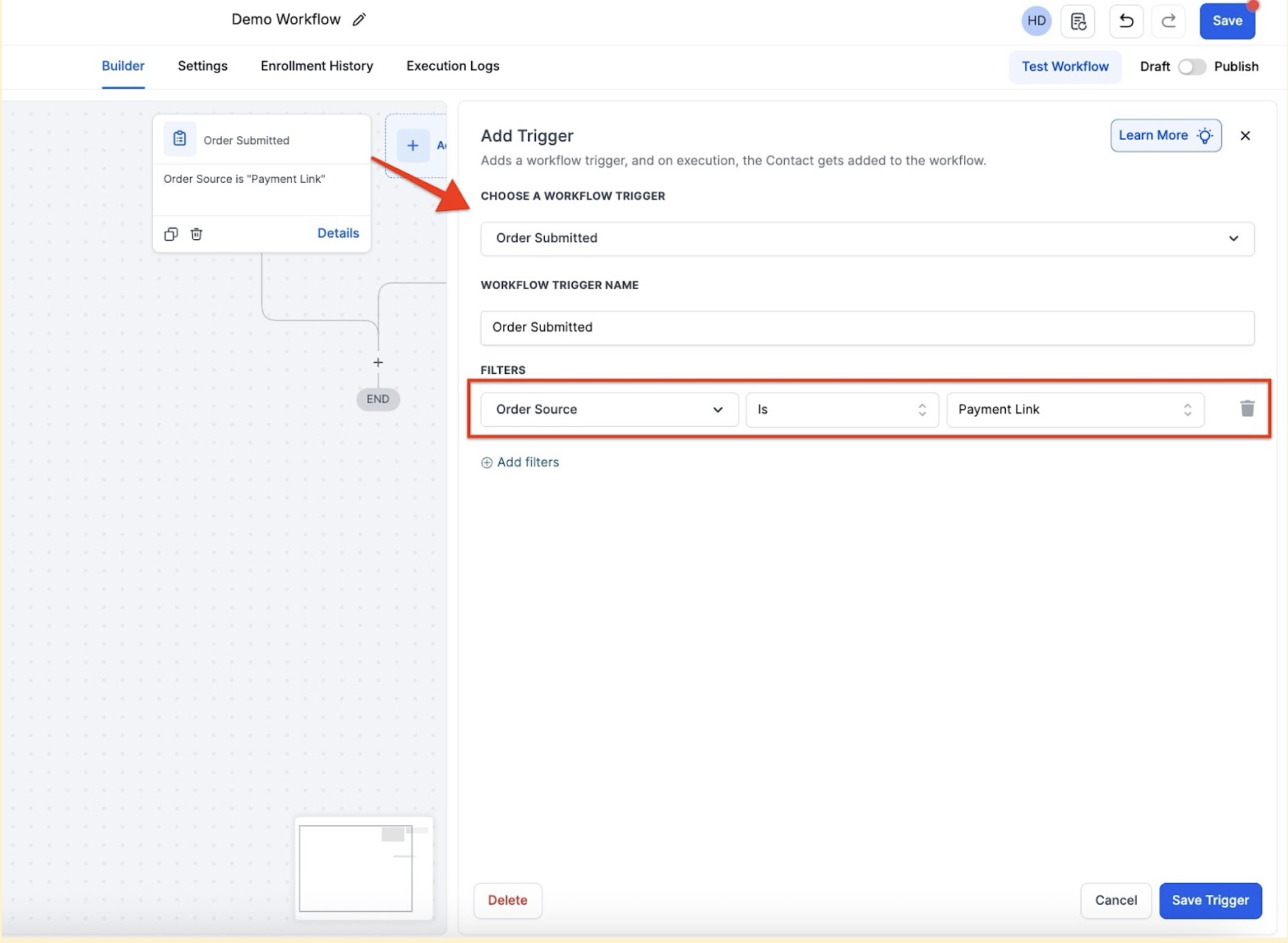
Question: How do I enable the Order Submitted Trigger for payment links? Answer: Navigate to your automation settings, select the Order Submitted Trigger, and customize the actions based on your workflow requirements.
Question: Can customers use PayPal for all recurring invoices? Answer: Customers can use PayPal for recurring invoices only if auto-payment is not enabled
**Question:How can I customize the workflow based on order or product details? Answer: You can set conditions in the If branches to guide the workflow by considering cart value, purchased products, or the specific funnel used. This ensures tailored actions based on the order or product details.
Question: Are there any considerations when using wait steps in the workflow? Answer: Yes. If a wait step is included after a primary product purchase, the same customer may not re-enter the workflow for upsells while held in the wait step. It’s best to avoid wait steps if you plan to offer immediate upsells.
Question: Why can’t I see order-related custom values in my email or SMS templates?
Answer: Order-related custom values (like order specifics and payment gateway info) are dynamic. They will only appear in the custom values dropdown menu if the “Order Submitted” trigger is actively included as one of the steps in that specific workflow.
Question: How does the system handle multiple products bought in a single 2-step form?
Answer: For a single transaction containing multiple products (e.g., a Main Course and a Bump), the trigger fires once but carries the data for all “Line Items.” This allows you to use a single email to list everything they just bought using the “Order Specific” custom values.