Workflow Trigger : Messaging Error - SMS
Workflow Trigger : Messaging Error - SMS
In today’s fast-paced communication landscape, ensuring that your SMS campaigns reach their intended audience is vital. However, messaging errors can occur, leading to undelivered messages and inefficiencies in your communication strategy. To tackle this issue, introduces the Messaging Error Trigger feature, designed to help you address and respond to specific messaging errors automatically. This article will explain the key features, benefits, and how to configure this powerful new tool in your workflows.
Key Features and Benefits
Section titled “Key Features and Benefits”1. Automated Error Response
Section titled “1. Automated Error Response”The Messaging Error Trigger allows you to create automated workflows triggered by specific SMS error codes. This helps to quickly identify and address undelivered messages, allowing you to take the necessary corrective actions.
2. Comprehensive Error Code List
Section titled “2. Comprehensive Error Code List”This feature supports a variety of error codes, including:
- 30007 - Carrier Violation
- 30034 - A2P Registration Pending
- 30032 - Toll-Free Number not Verified
- 30005 - User Inactive/Number does not exist
- 30003 - Unreachable/Out of Service Number
- 30004 - Do Not Want SMS/DND Enabled
- 30006 - Landline/Unable to Receive SMS
- 30023 - Daily message cap reached (US A2P)
- 21408 - SMS not permitted to this region
- 30008 - Unknown error
- 21606 - Invalid “From” phone number
- 21211 - Invalid “To” phone number
- 21614 - “To” number is not a valid mobile number
- 21610 - User replied STOP (opt-out)
- 30011 - MMS not supported by recipient or region
- 30033 - A2P campaign suspended or deleted
- 21661 - “From” number is not SMS-capable
- 21635 - “To” number is a landline
- 30037 - Outbound messaging disabled
- 30002 - Sub-account suspended
3. Improved Delivery Rates
Section titled “3. Improved Delivery Rates”By identifying and filtering out invalid or unreachable contacts, you can keep your contact list clean, improving the overall delivery rate of your SMS campaigns.
4. Seamless Integration
Section titled “4. Seamless Integration”This feature is available for both Native Phone and Twilio accounts, ensuring compatibility across different setups without any additional configuration.
5. Customizable Workflows
Section titled “5. Customizable Workflows”The flexibility to create different workflows based on error types means you can tailor your response to specific scenarios, whether it’s removing an invalid contact, retrying delivery, or notifying a team member.
How to Use Messaging Error Trigger
Section titled “How to Use Messaging Error Trigger”Step 1: Choose the Workflow Trigger
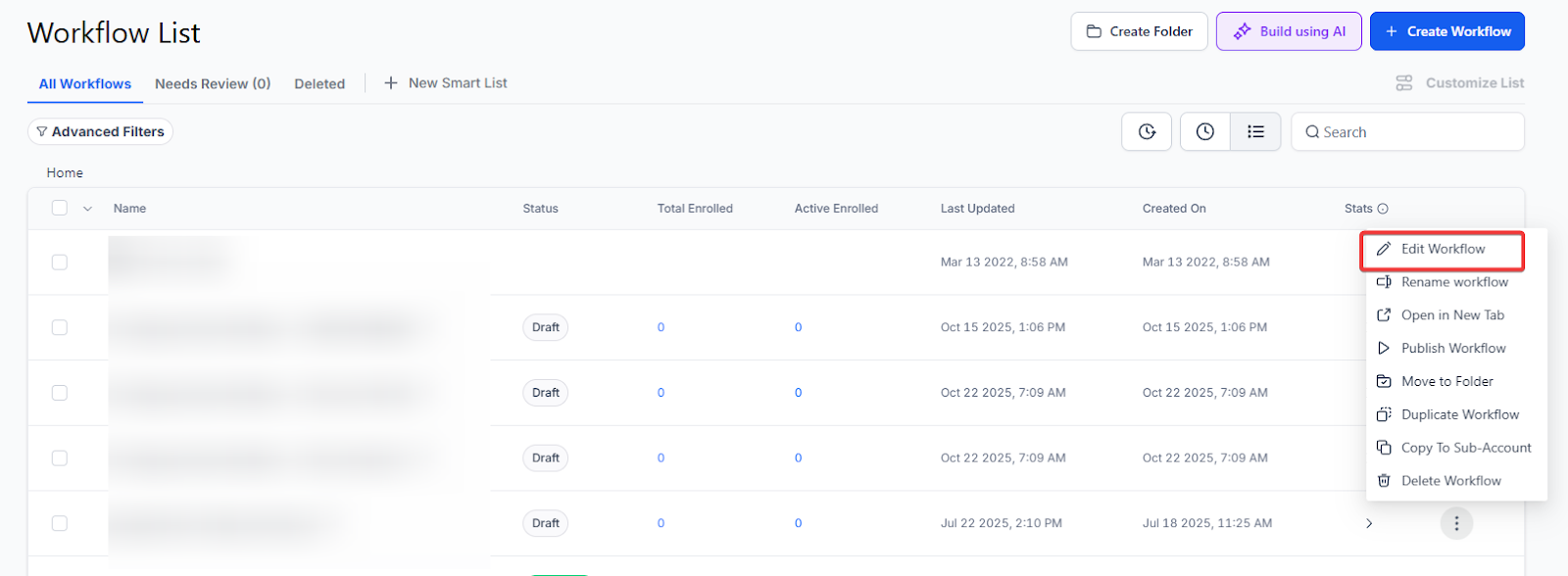
Section titled “Step 1: Choose the Workflow Trigger”- Go to your account, navigate to Automation on the left > Workflows on the top > add a new workflow or edit an existing one.
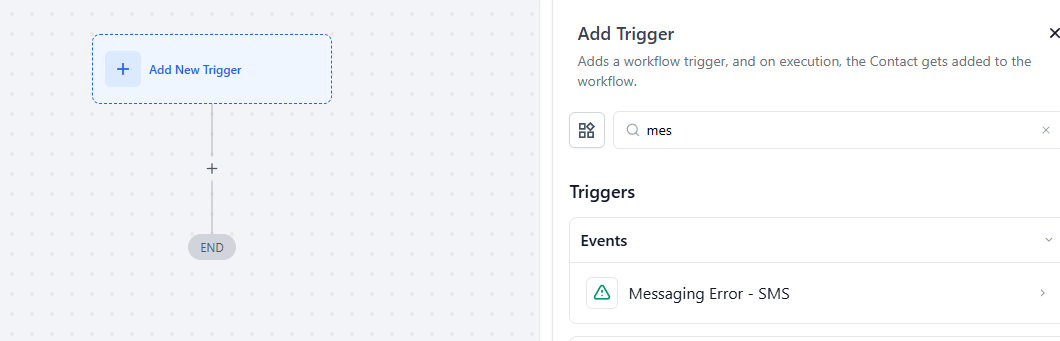
- Select “Messaging Error - SMS” from the dropdown list of triggers.
Step 2: Name the Trigger
Section titled “Step 2: Name the Trigger”- Provide a descriptive name for the trigger to easily identify it within your workflow. For example, “Carrier Violation Error Response.”
Step 3: Add Filters for Specific Error Codes
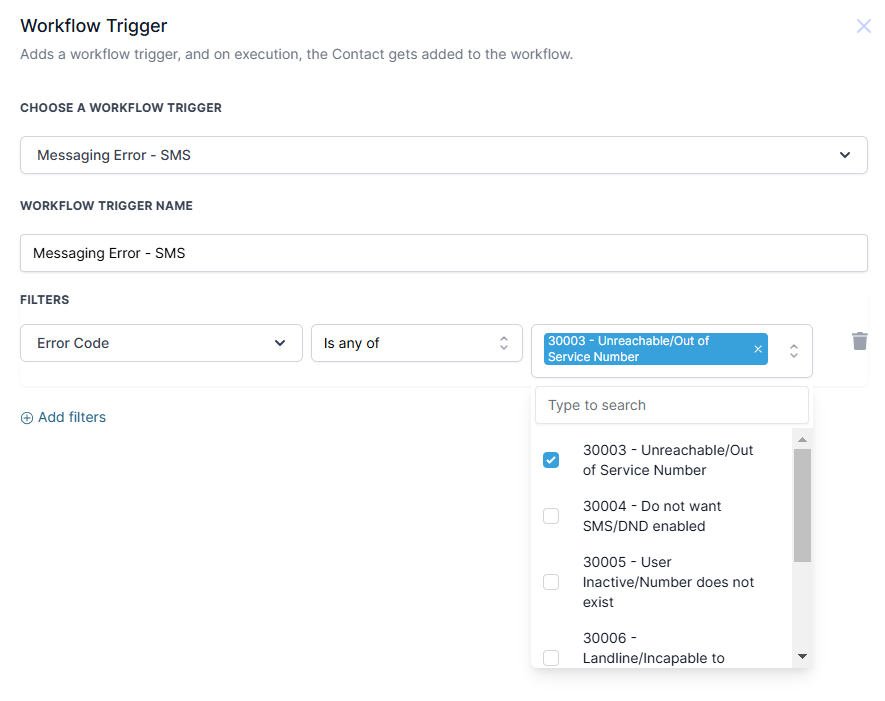
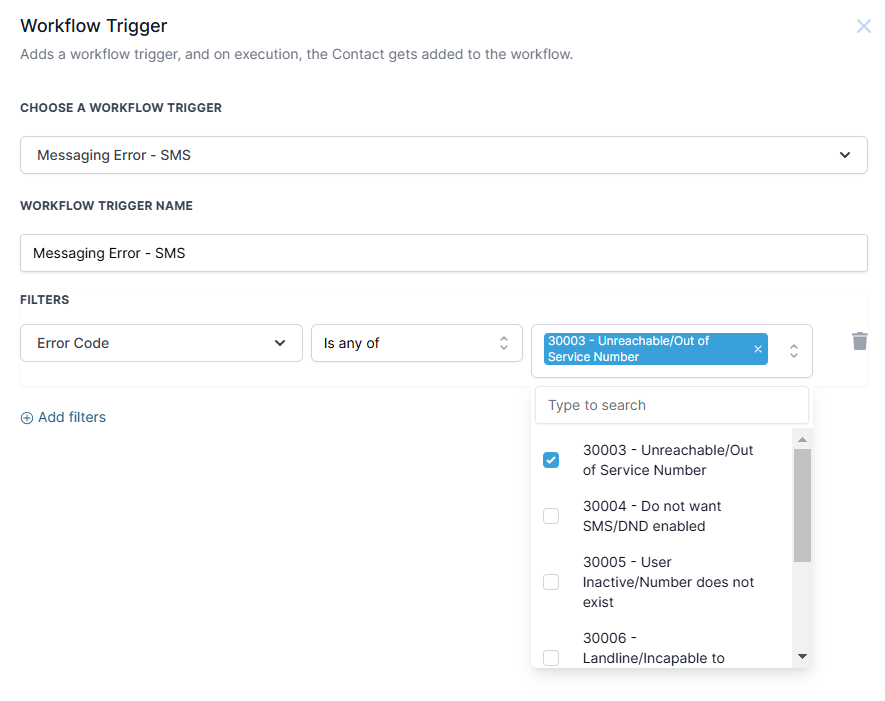
Section titled “Step 3: Add Filters for Specific Error Codes”- To narrow down the workflow for specific error codes, you can add filters. For instance, filter for error code 30007 if you want to focus on addressing carrier violations.
Step 4: Define Actions for Each Error
Section titled “Step 4: Define Actions for Each Error”- Depending on the error code, set up relevant actions. For example:
- If 30005 (User Inactive/Number Does Not Exist) is detected, you can automatically remove the contact from your list.
- If 30003 (Unreachable/Out of Service), you could notify a team member to follow up with the lead via email.
Step 5: Save and Test the Workflow
Section titled “Step 5: Save and Test the Workflow”- After configuring the workflow, save it and run a test to ensure it functions as expected. Review the error-triggered actions and confirm that they address the messaging issues efficiently.
Example
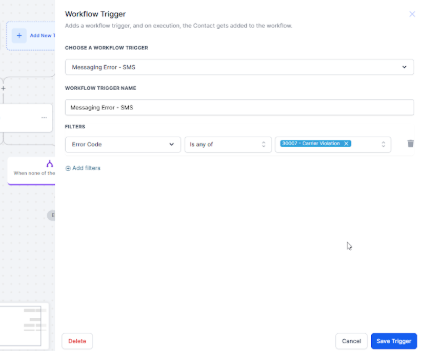
Let’s say you’re running an SMS campaign to promote a new product and want to automatically remove contacts who are likely to face delivery issues next time or add a tag to re-trigger an SMS after some time.
Choose a Workflow Trigger:
- Trigger: Messaging Error - SMS
- Workflow Trigger Name: Messaging Error - SMS
Filters:
- Filter Type: Error Code is
- Error Name: 30007 - Carrier Violation
This can further be expanded into conditional actions, such as using “if/else” logic, depending on the different actions you need to take:
- If: The contact encounters the error (Carrier Violation), take action to remove them from the list or tag them for re-triggering the SMS at a later time.
- Else: For contacts that don’t encounter the error, continue with normal follow-up actions.
Question: What happens if the error code isn’t recognized in my workflow? Answer: If the error code is not part of the trigger filters, no workflow will be initiated. Be sure to add all relevant error codes to your workflow for full coverage.
**Question:How can I prevent repeat errors for the same contact? Answer: Set your workflow to automatically update the contact’s status or remove the contact if specific errors like “User Inactive” or “Do Not Want SMS” are triggered.
**Question:Can I use this trigger to improve the accuracy of my contact list? Answer: Yes, by using this trigger to identify invalid or unreachable numbers, you can clean your list and improve the accuracy of your SMS campaigns.
Question: What if a contact encounters multiple different errors? Answer: You can design your workflow using If/Else branches to handle different errors differently. Each path can be tailored to take specific actions based on the error code triggered.
Question: Can I retry sending an SMS after an error is triggered? Answer: Yes. You can configure actions such as adding a delay and re-sending the SMS, or tagging the contact to be re-engaged later, depending on the error type.
Question: Does this feature only track carrier violations?
Answer: No. While 30007 (Carrier Violation) is a common example, the feature supports a comprehensive list of errors, including registration issues (A2P), landline detection, daily message caps, and invalid “From” numbers.
Question: How can I stop my team from manually texting numbers that have already failed?
Answer: You can add a “DND” (Do Not Disturb) action to your workflow. For errors like 30005 (Number does not exist) or 30006 (Landline), the workflow can automatically enable DND for SMS on that contact record to prevent future manual mistakes.