Workflow Trigger: Call Status
The Call Details Workflow Trigger can be used to trigger workflows when a call status is detected. This article will outline how to set up a workflow using the Call Details Workflow Trigger.
Key Benefits of theCall DetailsWorkflow Trigger
Section titled “Key Benefits of theCall DetailsWorkflow Trigger”- Efficient Customer Follow-Up: Automatically triggers follow-up actions for missed or completed calls, ensuring every customer interaction is addressed.
- Boosted Efficiency: Minimizes manual work by automating tasks and notifications based on call outcomes.
- Customizable Automation: Offers the ability to create tailored workflows using filters like call direction and specific call statuses.
- Seamless Integration: Easily links workflows to handle more complex scenarios or multiple stages in your communication process.
- Improved Team Coordination: Keeps team members informed about call outcomes, ensuring prompt and effective action.
Follow these steps to set up the Call Details trigger for your workflows:
Section titled “Follow these steps to set up the Call Details trigger for your workflows:”Step 1: Start a new workflow or edit an existing one
Section titled “Step 1: Start a new workflow or edit an existing one”- Navigate to Automation > Workflows and start a new workflow or edit an existing one.
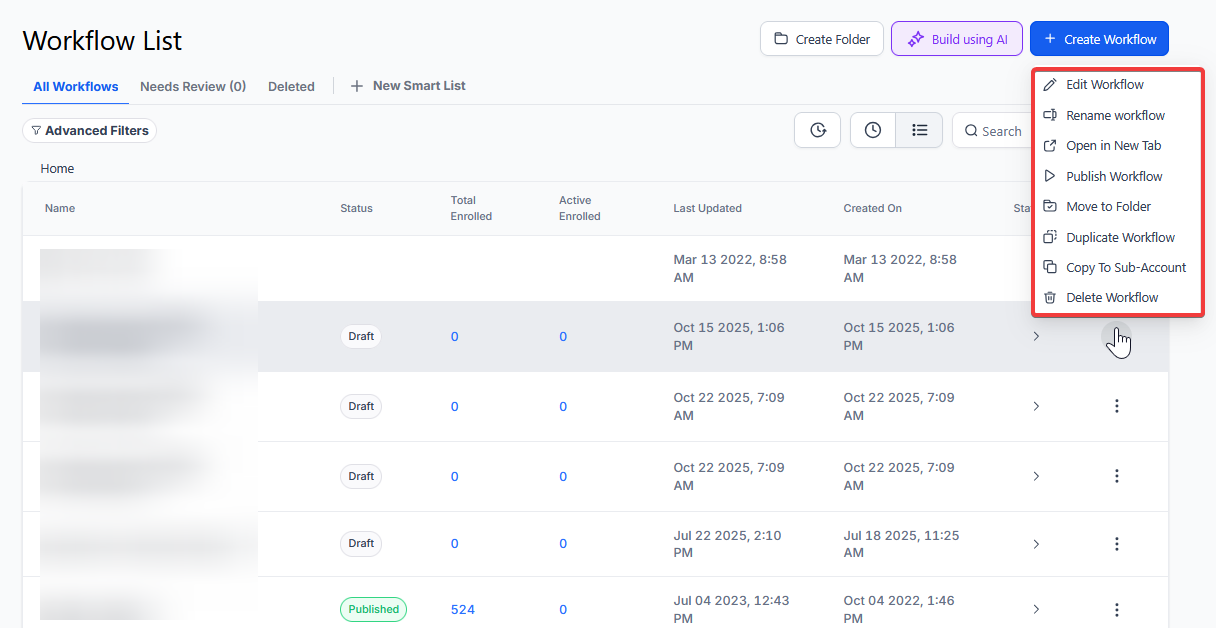
Step 2: Creating and Editing the Trigger
Section titled “Step 2: Creating and Editing the Trigger”- Click “Add New Workflow Trigger”

- Select Call Status in the Events section of the Workflow Triggers Menu or use the search feature
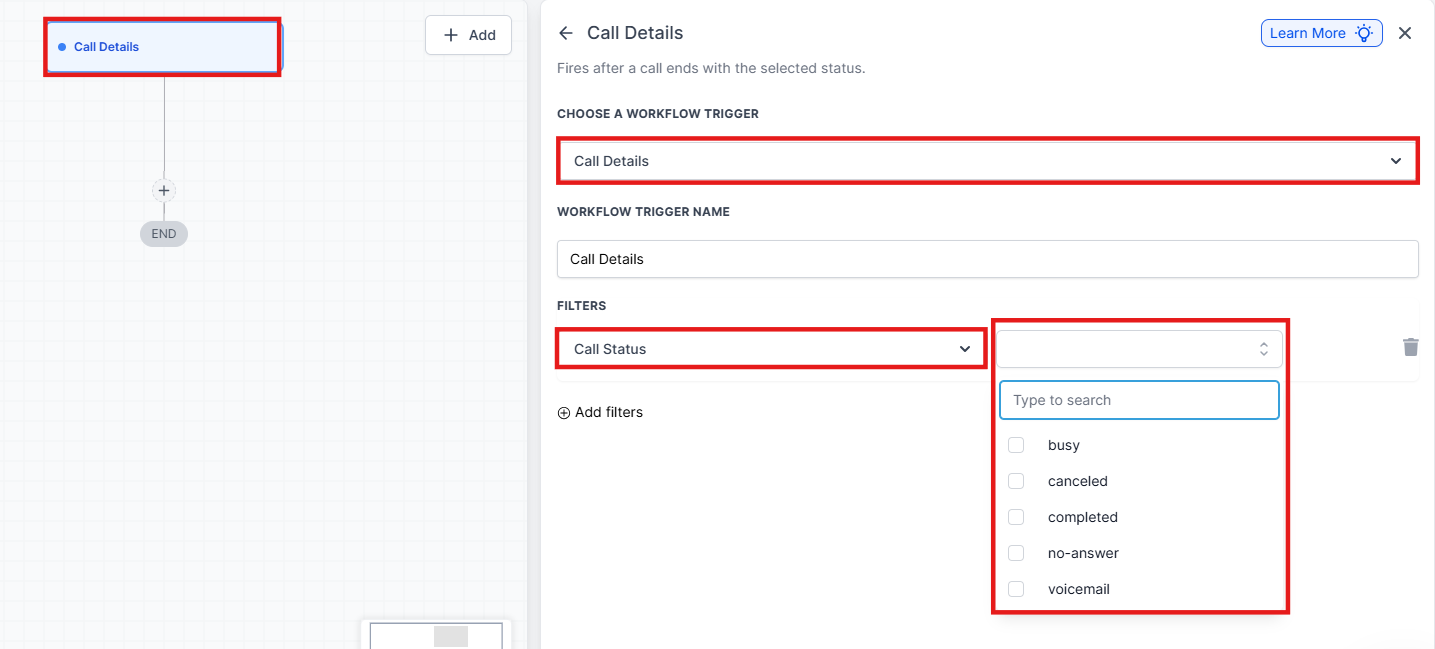
- In its base form, this workflow will be triggered any time a Call details is assigned for any contacts. This is likely too broad of an application, so the Call Status Workflow Trigger has additional filters to specify which call statuses and contacts can trigger this particular workflow
- Under Workflow Trigger Name you can change the display name of this trigger within the workflow.
- Under Filters, there are many options for filtering out which call status situations can trigger this workflow
- Call Direction allows you to delineate distinguish Incoming and Outgoing calls
- Call Details will allow you to specify which call status(es) can trigger this workflow
- In Workflow you will be able to make it so that only calls that occur within a separate workflow can trigger this workflow.
- In Number Pool and In Phone Number allow you to select specific predefined sets of numbers, or specific contact numbers (respectively) to be able to trigger this workflow
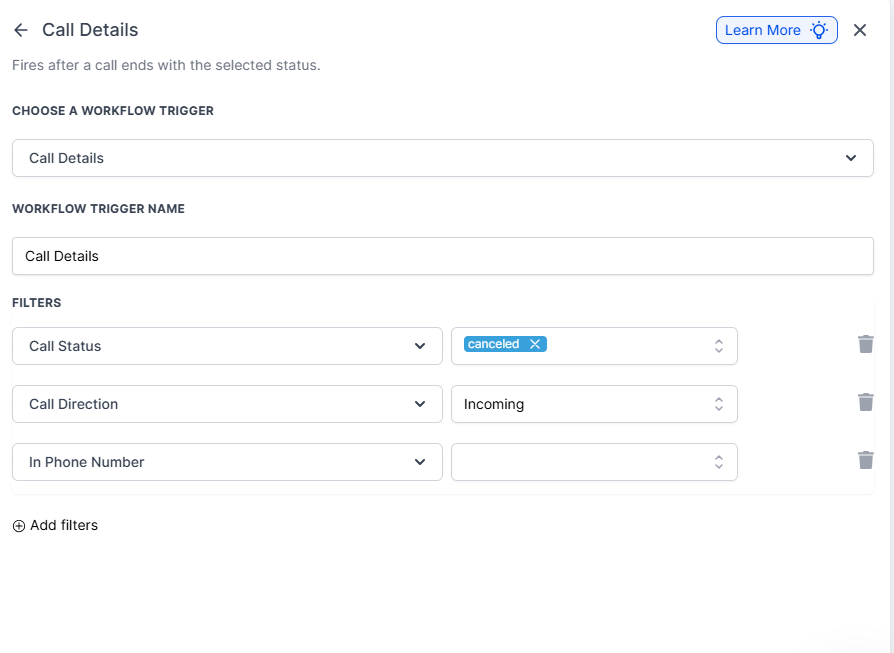
- Press Save Trigger in the bottom right corner of the Trigger setup menu

Step 3: Set up applicable Workflow Action(s). We have multiple articles available to explain the setup of each of the Workflow Actions. Feel free to review our articles for more information on setting these up.
Section titled “Step 3: Set up applicable Workflow Action(s). We have multiple articles available to explain the setup of each of the Workflow Actions. Feel free to review our articles for more information on setting these up.”Pro Tip: You can use any Workflow Actions to be triggered by the Call Details Workflow Trigger or you can leave this workflow without any actions.
Step 4: Press Save in the top right corner of your browser to save the workflow
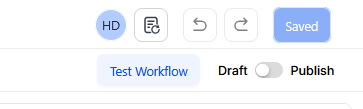
Section titled “Step 4: Press Save in the top right corner of your browser to save the workflow”- If your Workflow is ready to be enabled, make sure the toggle switch under Save is set to Publish
- Be sure to test your Workflow to ensure it is set up correctly using the Test Workflow button next to the Publish toggle switch.
- For an in-depth overview of Workflow Testing see our article, “Using the Testing Features in Workflows”
Now your workflow is set up and ready to go with the Call Details Workflow Trigger.
Scenario: Ensuring Follow-Up on Missed Calls for Enhanced Customer Engagement
Section titled “Scenario: Ensuring Follow-Up on Missed Calls for Enhanced Customer Engagement”Goal: A business wants to make sure that all missed calls, whether due to a busy line or no answer, are followed up promptly to improve customer interaction and support.
Trigger Configuration:
Section titled “Trigger Configuration:”- Trigger Type: Call Details
- Trigger Name: Follow-Up on Missed Calls
- Filter: Set the filter to activate when the Call Status is either “busy” or “no-answer.”
Actions to Take:
Section titled “Actions to Take:”- Notification: Automatically notify the sales or support team via email or SMS whenever a call is missed.
- Task Creation: Create an automatic follow-up task within for a team member to return the missed call.
- Logging: Record the missed call details directly into the customer’s profile to ensure the information is available for future follow-ups.
Result:
Section titled “Result:”This workflow ensures that missed calls don’t go unnoticed. By automatically notifying the team and creating a follow-up task, the business can promptly address customer concerns, resulting in better customer satisfaction and greater opportunities for sales conversion that might have otherwise been missed.
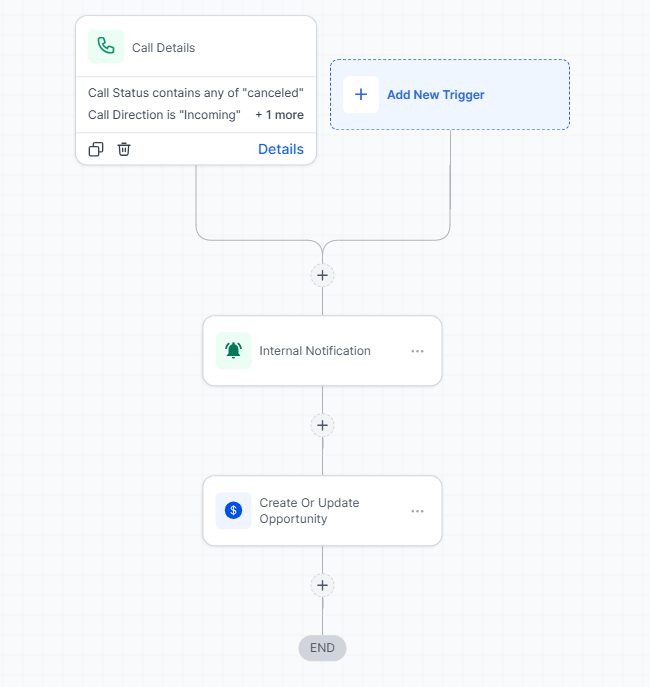
Scenario: Sales Follow-Up After Outgoing Calls
Goal: A business wants to log the outcome of outgoing calls and ensure that the next steps are scheduled automatically, streamlining the sales process.
Trigger Configuration:
- Trigger Type: Call Details
- Trigger Name: Sales Follow-Up After Call
- Filter: Set the filter to activate when the Call Status is “completed” and Call Direction is “outgoing.”
Actions to Take:
- Logging: Automatically log the call outcome in to keep the records up to date.
- Follow-Up Email: Send a personalized follow-up email to the contact based on the call outcome.
- Task Creation: Schedule the next action in the sales pipeline, such as a follow-up call or meeting.
**Result:**By automating call logging and follow-up actions, the workflow ensures that sales opportunities are not missed and that the sales team can efficiently continue their engagement with the customer.
Scenario: Voicemail Notification for Prompt Response
Section titled “Scenario: Voicemail Notification for Prompt Response”Goal: A business wants to ensure that voicemails left by customers are promptly addressed by the appropriate team member.
Trigger Configuration:
- Trigger Type: Call Details
- Trigger Name: Voicemail Notification
- Filter: Set the filter to activate when the Call Status is “voicemail.”
Actions to Take:
- Notification: Send an immediate notification to the relevant team member (via email or SMS) whenever a voicemail is left.
- Logging: Log the voicemail details in under the customer’s contact record.
- Task Creation: Create a follow-up task for the assigned team member to return the call.
**Result:**This workflow ensures that no voicemails go unanswered, providing a swift response to customer inquiries and fostering better engagement.
Question: What is theCall Details Workflow Trigger? Answer: The Call Details Workflow Trigger activates a workflow based on changes in the status of a call. This can be useful for automating responses or actions depending on the outcome of a call.
Question: How do I set up a Call** DetailsWorkflow Trigger?
**Answer:
- Start a Workflow:
- Create a new workflow or edit an existing one.
- Add New Trigger:
- Click “Add New Workflow Trigger.”
- Select “Call Details” from the Events section or use the search feature.
- Configure Trigger:
- Optionally, rename the trigger for easier identification within the workflow builder (this doesn’t affect functionality).
- Use filters to specify which call statuses and contacts will trigger the workflow.
- Save Trigger: Click “Save Trigger” to finalize the setup.
- Set Up Actions: Define the actions that should be triggered when the call status changes.
- Save Workflow: Click “Save” and ensure the workflow is published and tested.
Question: What filters can I apply to the Call** detailstrigger?
**Answer:
- Call Direction: Choose between Incoming and Outgoing calls to specify the direction of the calls that should trigger the workflow.
- Call Status: Select specific call statuses (e.g., completed, missed) that will trigger the workflow.
- In Workflow: Trigger the workflow only for calls occurring within a specific workflow.
- In Number Pool: Select predefined sets of numbers that can trigger the workflow.
- In Phone Number: Specify particular contact numbers that can trigger the workflow.
Question: How do I use the Call Direction filter? Answer: Select either “Incoming” or “Outgoing” to specify whether the workflow should be triggered based on incoming or outgoing calls.
Question: How can I filter by Call Status? Answer: Choose from available call statuses (e.g., completed, missed) to determine which call statuses should activate the workflow.
Question: What does the “In Workflow” filter do? Answer: The “In Workflow” filter ensures that the workflow is triggered only for calls that occur within a specific workflow you select.
Question: How can I use the Number Pool and Phone Number filters? **Answer:
- In Number Pool: Select from predefined sets of phone numbers that should trigger the workflow.
- In Phone Number: Specify individual contact numbers that should trigger the workflow.
Question: Can I set up multiple actions for a CallDetailstrigger? Answer: Yes, you can configure multiple Workflow Actions to be triggered by the Call details Workflow Trigger according to your needs.
Question: How do I test the Call Details Workflow Trigger? Answer: After setting up the workflow:
- Use the “Test Workflow” button next to the Publish toggle switch to simulate the workflow.
- Ensure that the workflow behaves as expected with call status changes.
Question: Where can I find more information on setting up Workflow Actions? Answer: For detailed instructions on configuring Workflow Actions, consult our knowledge base or support center for comprehensive guides and articles.
Question: What are common use cases for the CallDetailsWorkflow Trigger? **Answer:
- Missed Call Follow-Up: Automatically notify a team member and create a follow-up task for missed calls.
- Sales Follow-Up: Log outgoing completed calls and schedule next steps, like follow-up emails or meetings.
- Voicemail Alerts: Notify team members immediately when a voicemail is left and create follow-up tasks.
Question: Can I have a workflow that triggers based on a call status but doesn’t actually perform any actions? Answer: Yes. While workflows are typically used to automate tasks, you have the option to leave a workflow without any actions after setting up the Call Details Workflow Trigger.
Question: Can I trigger a workflow based on the duration of the call? Answer: Not directly within the trigger filters. However, once the workflow is triggered by a “Completed” status, you can use an If/Else action with the “Call Duration” condition to branch your logic (e.g., sending a “Great chatting with you” email only if the call lasted longer than 2 minutes).