How to Add Triggers for Invoices
How to Add Triggers for Invoices
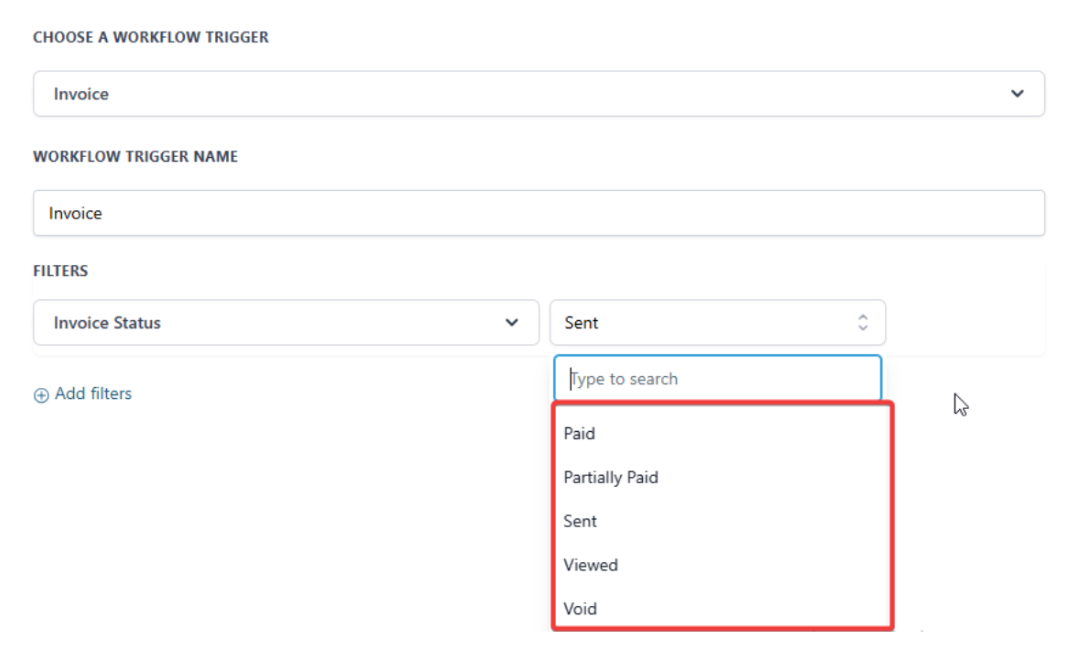
Managing invoices efficiently is crucial for any business. This article will guide you through the process of adding triggers for invoices, focusing on the new workflow statuses: Viewed, Partially Paid, and Void. These statuses provide better oversight and allow for proactive communication and actions based on the invoice conditions.
How to Use
Section titled “How to Use”-
Go to Workflows:
-
Navigate to the Automations tab> Workflows section in your __CompanyName account.
-
Click + Create Workflow and select Start from ScratchAdd Filters in Invoice Trigger:
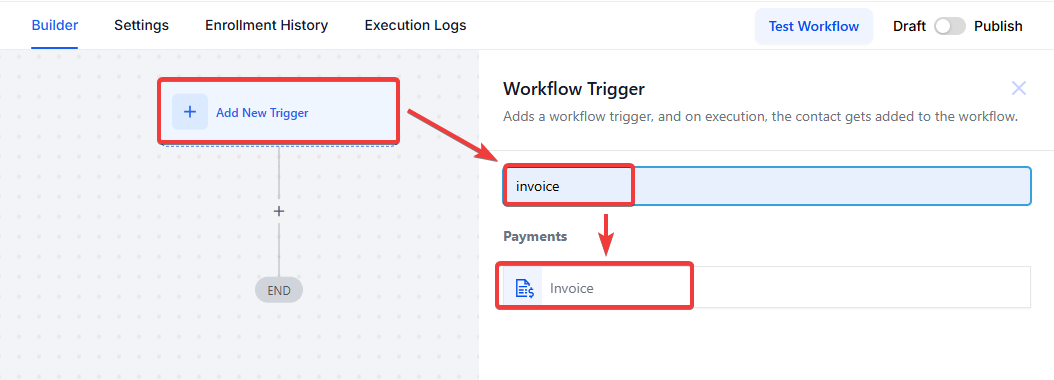
2. Add Filters in Invoice Trigger:
- Within the workflow setup, add an Invoice trigger.
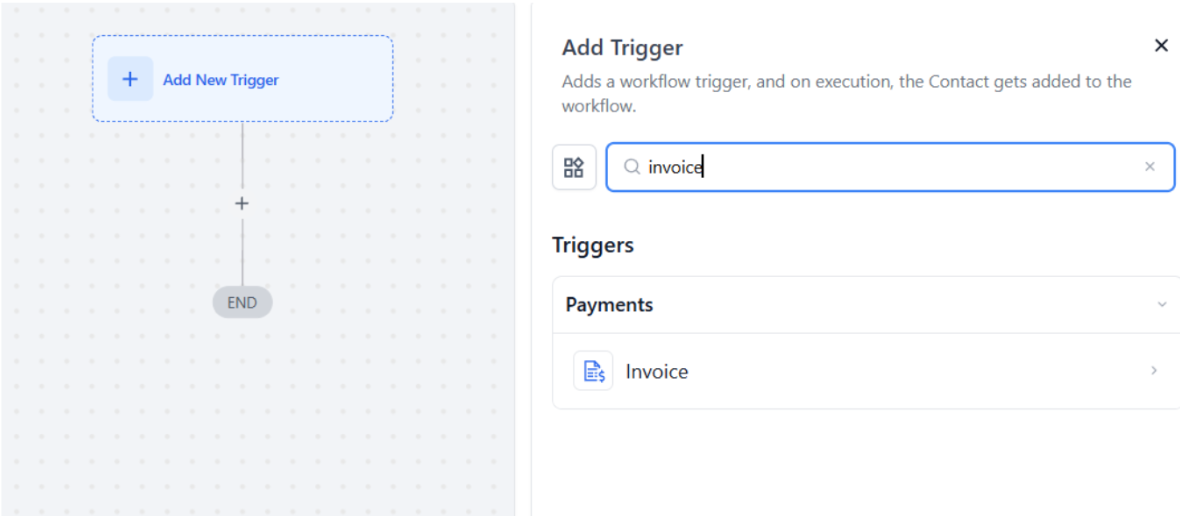
- Use the dropdown menu to select the conditions you want to filter by, such as Viewed, Partially Paid, or Void.
3. Configure Action Items:
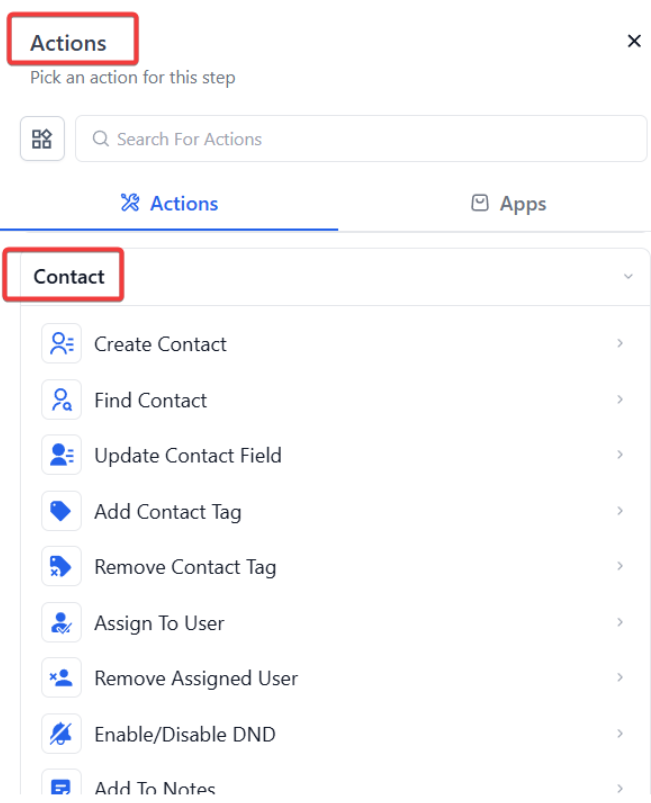
- Based on the selected filters, configure different action items using if/else conditions.
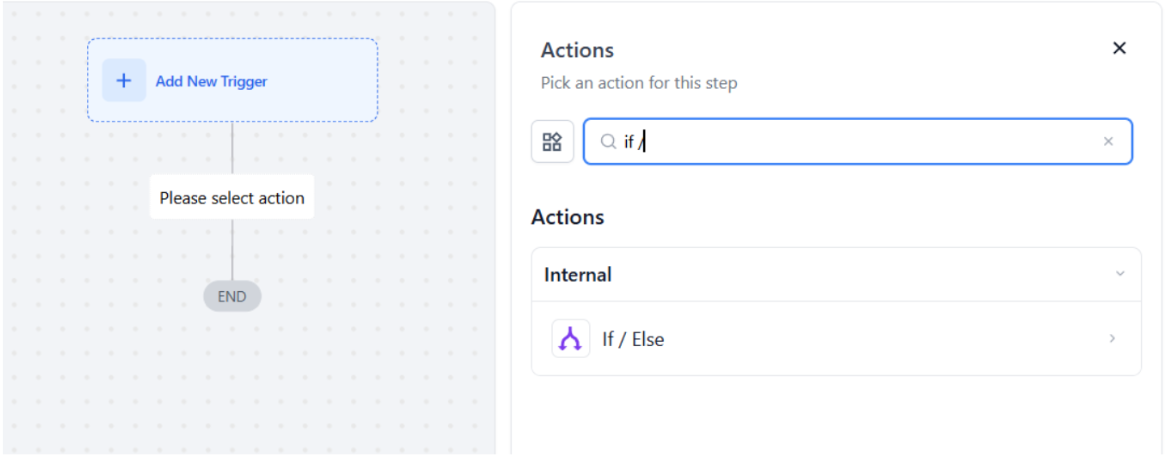
- Examples of actions include sending reminder emails, updating records, and notifying team members.
4. Save and Activate:
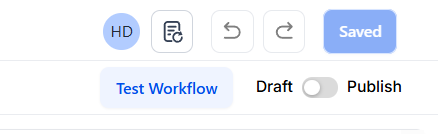
- Once you have configured the triggers and actions, save your workflow.
- Activate the workflow to start automating your invoice management process.
Key Features and Benefits
Section titled “Key Features and Benefits”- Enhanced Tracking: The ability to filter workflows by the new statuses enables better tracking and management of invoices.
- Proactive Communication: Set up automated responses and actions based on invoice status to ensure timely follow-ups.
- Increased Efficiency: Streamline your workflow by configuring specific actions for each invoice status, saving time and reducing manual effort.
Question: Can I use these triggers for all types of invoices?
Answer: Yes, these triggers can be applied to all invoices within your ServiceName account, regardless of the type or amount.
Question: How often should I review and update my workflows? **Answer: It’s recommended to review your workflows periodically, at least once a quarter, to ensure they are still aligned with your business processes and objectives.
Question: What if an invoice changes status after a trigger has been activated? **Answer: If an invoice changes status, the new status will trigger any corresponding workflows configured for that status, ensuring continuous and accurate management.
Question: Are workflows triggered in real time when an invoice status changes? Answer: Yes. Workflows are triggered as soon as the invoice status updates, allowing for timely and automated responses.
Question: What are the specific new invoice statuses I can use for my workflow triggers?
Answer: You can trigger automations based on three specific statuses: Viewed (the customer opened the link), Partially Paid (a portion of the balance was settled), and Void (the invoice was canceled).
Question: If a customer views an invoice ten times, will the “Viewed” workflow trigger ten times?
Answer: No. Typically, a workflow trigger only fires the first time the status change is detected for that specific invoice. This prevents your customers from being spammed with “I saw you viewed this!” emails every time they open the link.