Workflow Premium Action: Copy Contact
Introduction
Section titled “Introduction”The “Copy Contact” premium action within the Workflow Builder of the is designed to offer flexibility and enhanced capabilities for contact management. This highly requested feature enables users to seamlessly copy contacts from one account to another. The action simplifies processes such as lead distribution and allows you to customize what data is copied over to the new account.
Why Use “Copy Contact”?
Section titled “Why Use “Copy Contact”?”- Lead Distribution: Easily distribute leads to different accounts based on conditions or actions. Create a workflow that checks for certain lead qualifications and then uses the “Copy Contact” action to distribute the qualified leads to various accounts for further nurturing.
- Streamlined Processes: Eliminates the need for complex workarounds like using webhooks or third-party integration tools.
- Data Segregation: In instances where you have accounts dedicated to specific departments or projects, you can copy relevant contacts to these sub-accounts while retaining their original data tags and custom fields.
How to Set It Up
Section titled “How to Set It Up”Prerequisites
Section titled “Prerequisites”Make sure you have access to premium workflow triggers and actions. If not, request to our support team to enable them.
Steps to Follow.
Section titled “Steps to Follow.”-
Create or Edit Workflow: Create a new workflow or edit an existing one where you’d like to add the Copy Contact action.
-
Add New Action: Click the little ’+’ symbol to add a new action to your workflow.
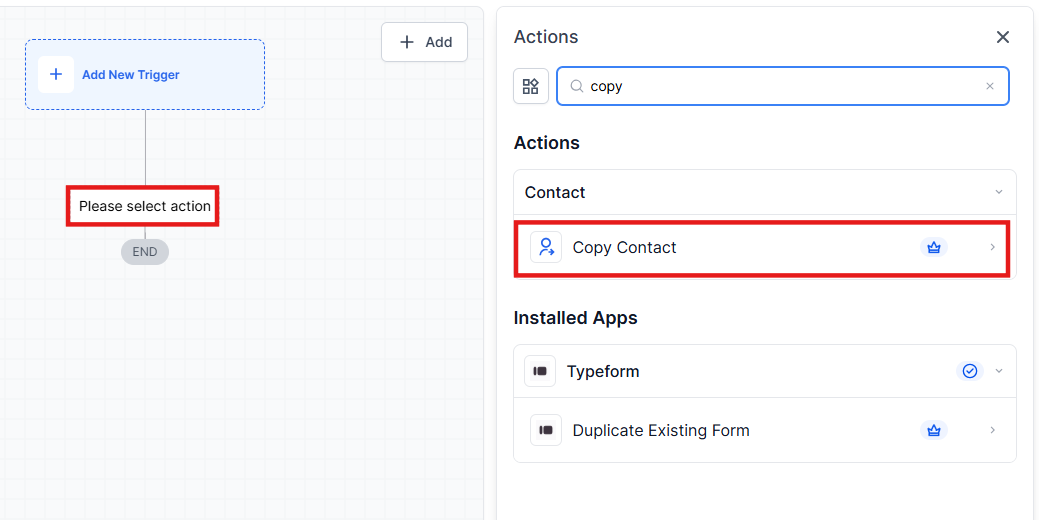
- Select ‘Copy Contact’: Scroll through the actions and find ‘Copy Contact’. It will have a golden crown icon toindicate that it’s a premium feature.
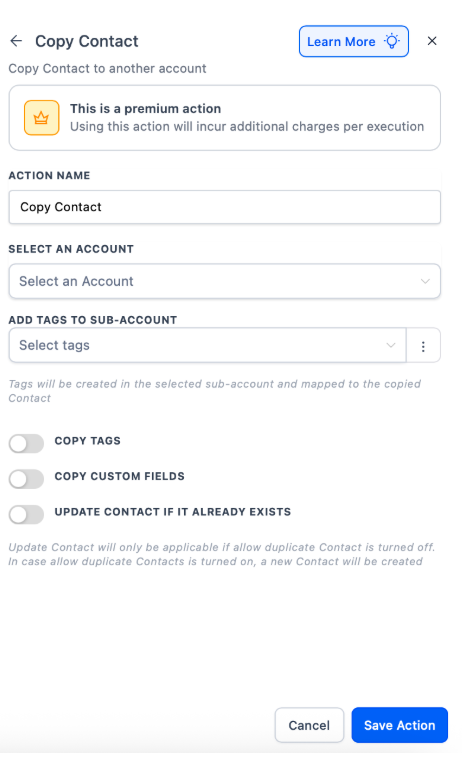
Configure Action Settings:
Section titled “Configure Action Settings:”- Name Your Action: Give the action a descriptive name, for example, “Copy from Account A to Account B.”
- Select Target Sub-Account: Choose the account where you want to copy the contact.
- Copy Tags: Optionally, toggle on the switch to copy tags associated with the contact.
- Copy Custom Fields: Optionally, toggle on the switch to copy custom fields associated with the contact.
- Update contact: Optionally, toggle on the switch if you want to update the contact that already exists
- Save Action: Click “Save Action” to apply the changes.
Test the Workflow: It’s advisable to run a test to make sure everything works as expected.
Question: What is the purpose of the “Copy Contact” action?
Answer: The “Copy Contact” action allows you to transfer contacts from one account to another, facilitating lead distribution, streamlining processes, and maintaining data segregation.
Question: Do I need any special permissions to use the “Copy Contact” action?
Answer: Yes, you need access to premium workflow triggers and actions. If you don’t have access, you’ll need to request to your Support Team enable these features.
Question: How can I configure what data is copied over with the “Copy Contact” action?
Answer: During the configuration, you can choose to copy tags, custom fields, and decide whether to update an existing contact in the target account.
Question: How do I ensure the “Copy Contact” action works correctly?
Answer: After setting up the action, it is advisable to run a test to confirm that the “Copy Contact” feature performs as expected and that all data is copied accurately.
Question: Can I see a log of which contacts were copied and when? Answer: Workflow history and logs will show when the Copy Contact action ran, allowing you to track copied contacts and verify successful transfers.
Question: Does “Copy Contact” remove the person from the original account? Answer: No. This action is a copy, not a move. The contact will remain in your current account exactly as they are, and a “twin” version will be created in the target .
Question: Are Conversations and Notes copied over as well?
Answer: Currently, the action focuses on the Contact Profile data (Name, Email, Phone, Tags, and Custom Fields). It does not transfer historical data such as past SMS conversations, email threads, or internal notes. This ensures the new account starts with a “clean slate” while having all the necessary lead data.