Premium Triggers and Actions - Google Sheets - Update Specific Spreadsheet Row
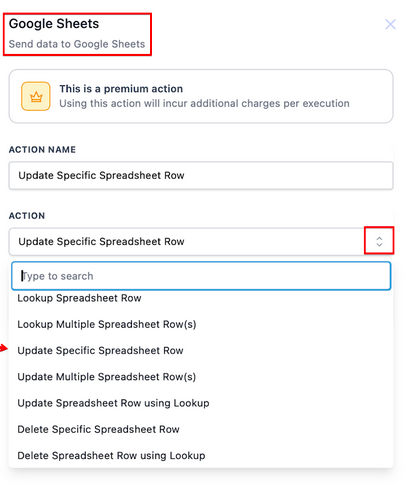
The “Update Specific Spreadsheet Row” action enables us to modify the contents of a specific row by specifying its row number. This action updates the values in the corresponding columns of that row.
Choose a worksheet:
Section titled “Choose a worksheet:”Select a worksheet within your spreadsheet that you wish to edit a row.
Insert Row Number:
Section titled “Insert Row Number:”Specify the row number that you wish to modify in the spreadsheet.
.png)
You may also provide the Row Number using the Custom Variable Picker to use dynamic values.
.png)
Select the Starting Column and ending column:
Section titled “Select the Starting Column and ending column:”You will select the same starting and ending columns to update a specific row..
To update the desired columns, select the starting and ending columns.
You can leave it blank if you do not wish to update a particular column.
.png)
Question: How do I choose which worksheet to update with the “Update Specific Spreadsheet Row” action? Answer: In the action setup, select the desired worksheet from the list of available worksheets in your spreadsheet.
Question: Can I use dynamic values for the row number when updating a specific row? Answer: Yes, you can use the Custom Variable Picker to specify the row number dynamically, allowing for flexible updates based on variable data.
Question: What should I do if I want to update only certain columns in a row? Answer: Select the starting and ending columns you wish to update. If you do not want to update a specific column, leave the column field blank.
Question: What happens if the Lookup Action does not return any rows? Answer: The workflow will skip this step and proceed to the next one.
Question: How do I specify the row number using a variable?
Answer: Use the Custom Variable Picker in the row number field to pass dynamic values from previous workflow steps, such as the result of a search or lookup action.
Question: Will this action work if my Google Sheet is closed?
Answer: Yes. The system connects to Google Sheets via the cloud. Your spreadsheet does not need to be open on your computer for the workflow to successfully update the information.
Question: Does the worksheet need to be in a specific format for this action to function?
Answer: The action works best with standard Google Sheets or Excel formats. Ensure your worksheet has clear headers, as the builder will use those headers to show you which columns you are currently mapping and updating.
Question: How do I correctly set the column range if I only want to update a single, specific row?
Answer: To update a specific row, you must select the same starting and ending columns in the action configuration. This ensures the system targets the exact range within that specific row number.