Premium Triggers and Actions - Google Sheets - Delete Spreadsheet Row using Lookup
Google Sheets - Delete Spreadsheet Row using Lookup
Deleting a spreadsheet row using Lookup involves searching for a specific row in your spreadsheet based on a particular value using Lookup and then deleting all the values in that row.
To delete a specific row in a spreadsheet, you Should use Lookup Action to search for a column value in the data, which will return the corresponding row. Once you have located the desired row, you can use the “Delete Spreadsheet Row using Lookup” Action to clear the data in the row.
Note: If you want to use the “Delete using lookup” action, it is necessary to first use the “Lookup” action to search for a specific row in your spreadsheet based on a particular value. Once you have found the desired row using lookup, you can use the “Delete using lookup” action to clear the row data. Therefore, using the lookup action before delete using lookup is a necessary step in this process.
Select Lookup Action
Section titled “Select Lookup Action”Here’s how to navigate and set up the action for Google Sheets: Delete Specific Spreadsheet Row:
Create a New Action:
- Open your workflow builder.
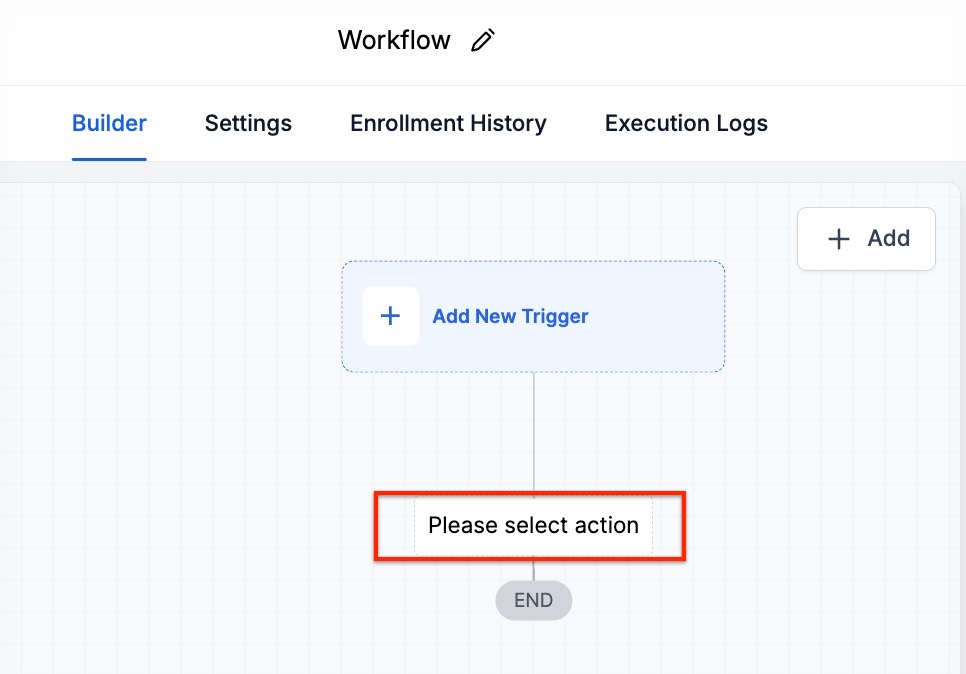
- Click on “Please select action” under your workflow trigger.
Search for Google Sheets:
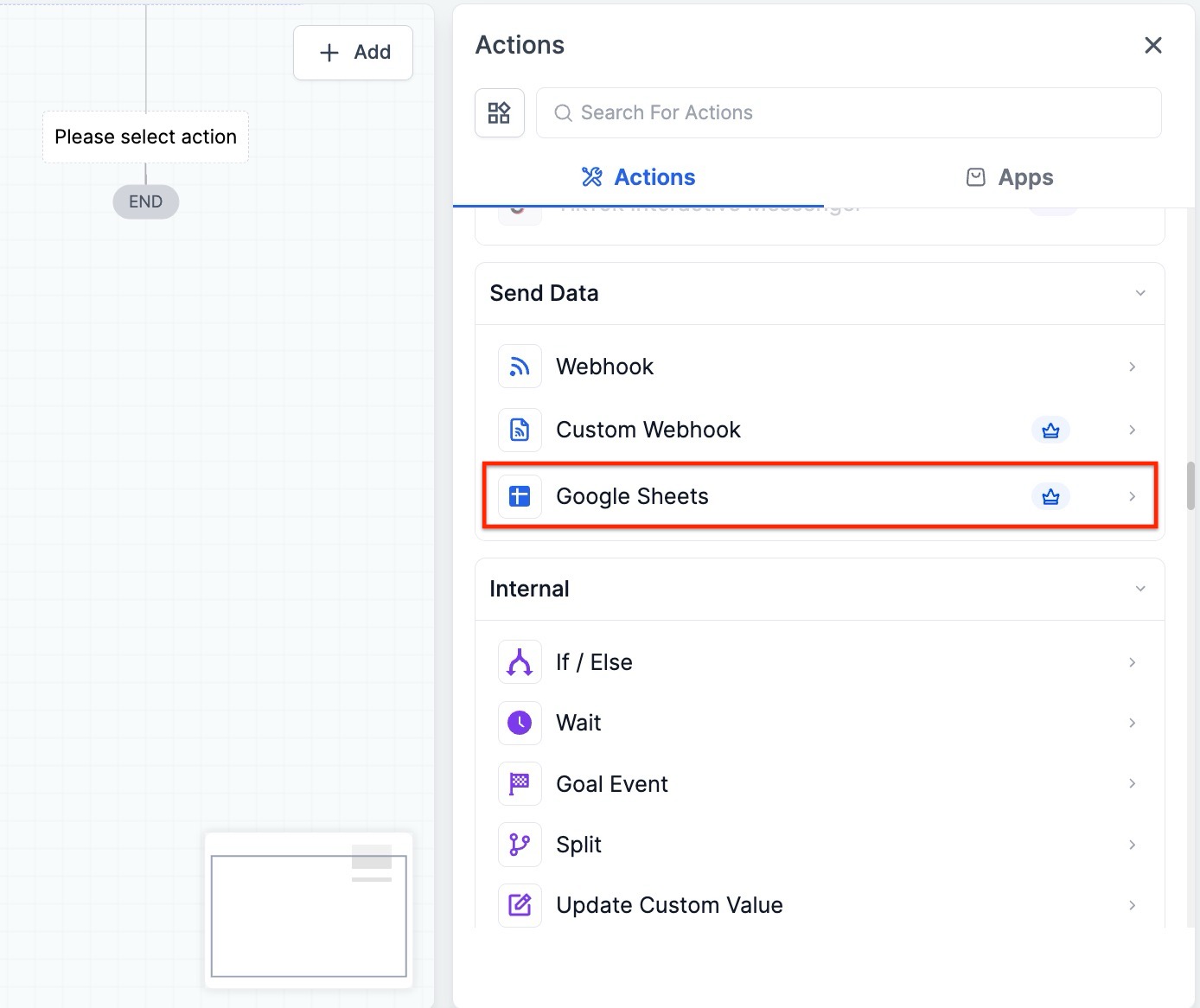
- In the search bar on the right, type “Google Sheets.”
- Select the Google Sheets action from the list.

Choose the Action:
- Once Google Sheets is selected, look for the specific action: Delete Specific Spreadsheet Row Using Lookup.

If a row is returned during a lookup, all the values associated with that row will be cleared.
Notes:
- When you use the “Delete Spreadsheet Row” action, the row’s contents are cleared, but the row itself is not permanently removed.
- If the Lookup Action does not return any rows, the workflow skips this step and proceeds to the next one.
FAQ
Question: What is the “Delete Spreadsheet Row using Lookup” action?
Section titled “Question: What is the “Delete Spreadsheet Row using Lookup” action?”Answer: The “Delete Spreadsheet Row using Lookup” action allows you to search for a specific row in a Google Sheet based on a value in one of its columns. Once the row is found, it clears all the data within that row. It’s important to first use the Lookup Action to find the row, then apply the “Delete Spreadsheet Row using Lookup” action to clear its contents.
Question: Do I need to use the “Lookup” action before the “Delete Spreadsheet Row using Lookup”?
Section titled “Question: Do I need to use the “Lookup” action before the “Delete Spreadsheet Row using Lookup”?”Answer: Yes. The Lookup action is a necessary step. It is used to search for a specific value in a spreadsheet, which returns the corresponding row. Only after the lookup action successfully locates the row, can the “Delete Spreadsheet Row using Lookup” action clear the row’s data.
Question: Can the row be permanently deleted when using the “Delete Spreadsheet Row using Lookup” action?
Section titled “Question: Can the row be permanently deleted when using the “Delete Spreadsheet Row using Lookup” action?”Answer: No. When using the “Delete Spreadsheet Row using Lookup” action, the row’s contents will be cleared, but the row itself is not permanently removed. The row will still exist in the spreadsheet, but its data will be deleted.
Question: What happens if the “Lookup” action doesn’t return any rows?
Section titled “Question: What happens if the “Lookup” action doesn’t return any rows?”Answer: If the Lookup action doesn’t find any matching rows, the workflow will skip the “Delete Spreadsheet Row using Lookup” action and proceed with the next step in the workflow. No data will be deleted in this case.
Question: How do I set up the “Delete Spreadsheet Row using Lookup” action in my workflow?
Section titled “Question: How do I set up the “Delete Spreadsheet Row using Lookup” action in my workflow?”**Answer:
- Open your workflow builder.
- Click on “Please select action” under your workflow trigger.
- In the search bar, type “Google Sheets”.
- Select the Google Sheets action from the list.
- Choose the Delete Specific Spreadsheet Row Using Lookup action.
- Make sure the Lookup action has already been set up to find the row before applying this action.
Question: Can I delete multiple rows at once using this action?
Section titled “Question: Can I delete multiple rows at once using this action?”Answer: No, the “Delete Spreadsheet Row using Lookup” action is designed to delete one row at a time based on the value searched in the Lookup action. If multiple rows need to be deleted, you would need to run the action multiple times with different values or criteria.
Question: Does clearing a row affect other workflows connected to the same spreadsheet?
Answer: Clearing a row may impact other workflows if they rely on the data that was removed. Review dependent automations before enabling this action.
Question: Why do I have to use two separate actions just to delete a row?
Answer: The system needs a “target” before it can act. The Lookup Action acts as a scout to find the specific row index (e.g., Row 15) based on a piece of data like an Email or Order ID. Once the system “holds” that row number, the Delete Action knows exactly where to go to clear the data.
Question: How can I use the lookup result to decide between updating an existing row or creating a new one?
Answer: You can use an If/Else Condition immediately after the lookup. If the lookup has a result, proceed to an “Update” action; if it has no result, proceed to a “Create” action.
Question: Is there a delay between the lookup and the deletion? Answer: The process happens sequentially within the workflow. Once the Lookup Action returns the corresponding row, the “Delete” action can immediately clear the data in that identified row.
Question: How can I find the specific row number of the data retrieved by my lookup action? Answer: You can access the row number by using the custom variable syntax {{sheet.x.rowNumber}}, where “x” represents the specific index of your lookup action. This allows you to reference the exact location of the data within your Google Sheet for use in other parts of your workflow.