Notion - Workflow Trigger & Action (Premium)
Notion - Workflow Trigger & Action (Premium)
In a world where efficiency and real-time collaboration are critical to business success, integrating your workflows with Notion offers a powerful way to streamline operations. This article explores how this integration empowers teams to automate documentation, manage client portals, and build dynamic internal wikis all from within your workflow environment.
Whether you’re managing leads, client onboarding, or internal project documentation, the integration between your and Notion simplifies your day-to-day processes by reducing manual data entry and increasing visibility across teams.
Key Features & Benefits
Section titled “Key Features & Benefits”Two-Way Automation
Section titled “Two-Way Automation”-
Trigger workflows from changes in Notion (e.g., a new item added or a page updated).
-
Execute actions in Notion based on events, such as form submissions, appointment outcomes, or pipeline status updates.
Centralized Knowledge
Section titled “Centralized Knowledge”- Automatically create Notion pages or database items from activity to build live documentation and dynamic project wikis.
Real-Time Data Sync
Section titled “Real-Time Data Sync”- Keep client and project data consistent across tools by automatically syncing changes between platforms.
Broad Collaboration
Section titled “Broad Collaboration”- Use automated updates to ensure teams are aligned, informed, and never miss important changes or milestones.
Reduced Manual Effort
Section titled “Reduced Manual Effort”- Say goodbye to tedious copy paste workflows. Let automation handle repetitive tasks so your team can focus on high-value activities.
How to Use
Section titled “How to Use”1- Access Workflow Builder
Section titled “1- Access Workflow Builder”Navigate to your ‘s workflow builder and search for “Notion” to access all available triggers and actions.
2- Connect Your Notion Account
Section titled “2- Connect Your Notion Account”If not already connected:
- Click “Connect Now”
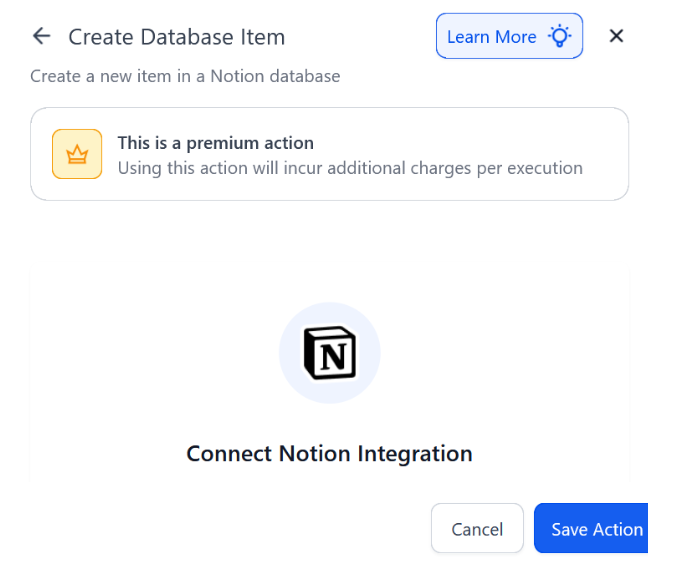
- Complete the OAuth authorization with your Notion account
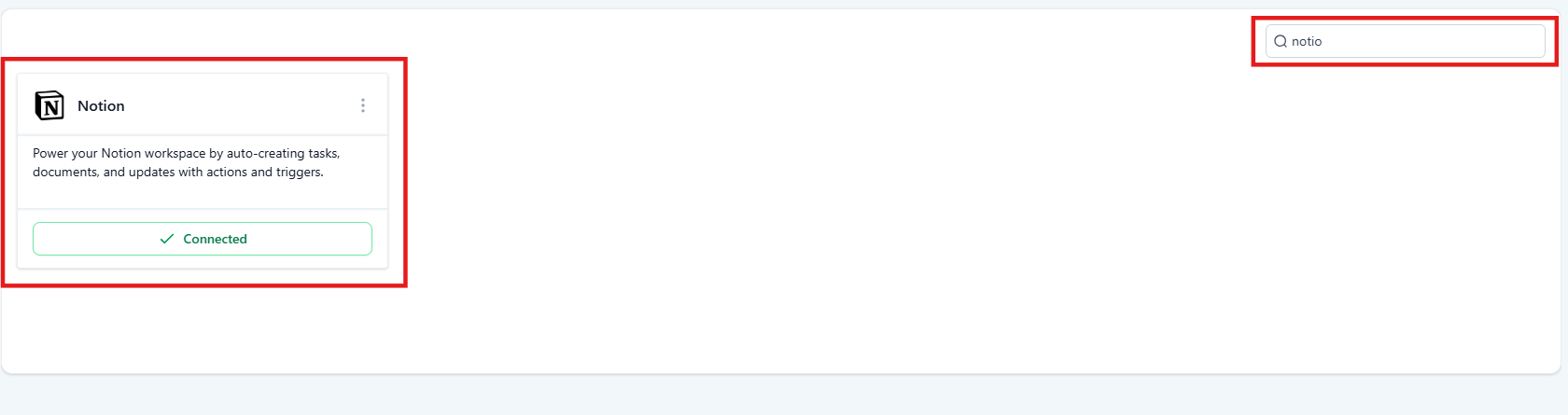
Alternatively: - Go to Settings → Integrations → Notion
- Connect your workspace manually
3- Choose a Trigger
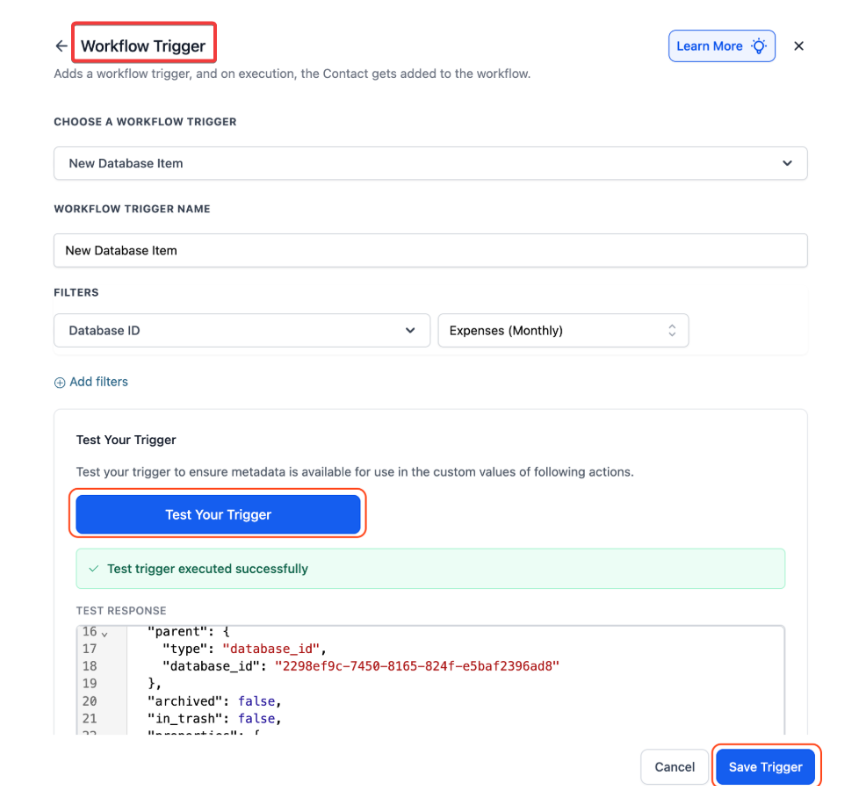
Section titled “3- Choose a Trigger”Example: New Database Item
- Give it a name
- Click “Test Trigger” to pull live metadata from Notion for accurate field mapping
4- Add Workflow Actions
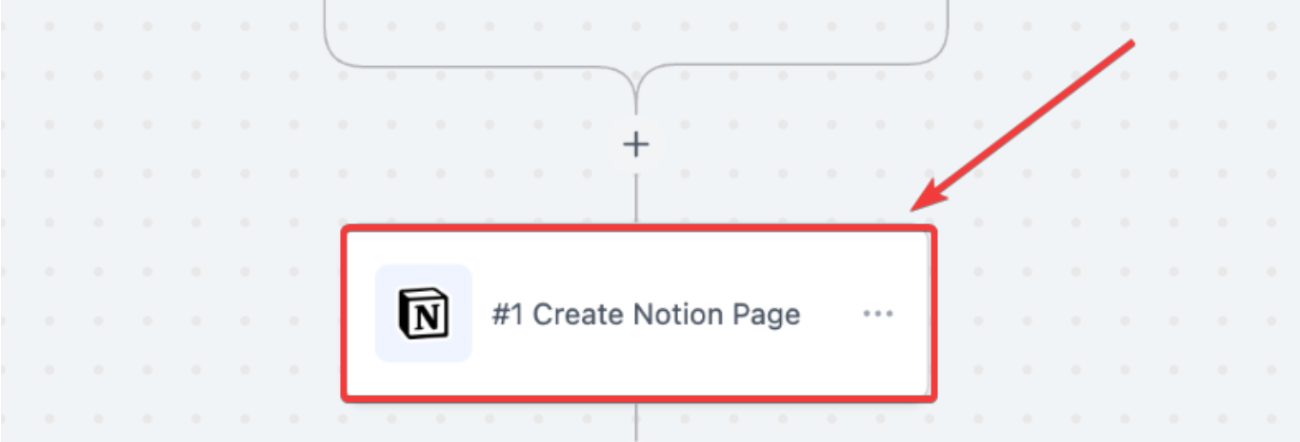
Section titled “4- Add Workflow Actions”Choose from a variety of Notion actions like:
- Create Database Item
- Update Page
- Add Content to Page
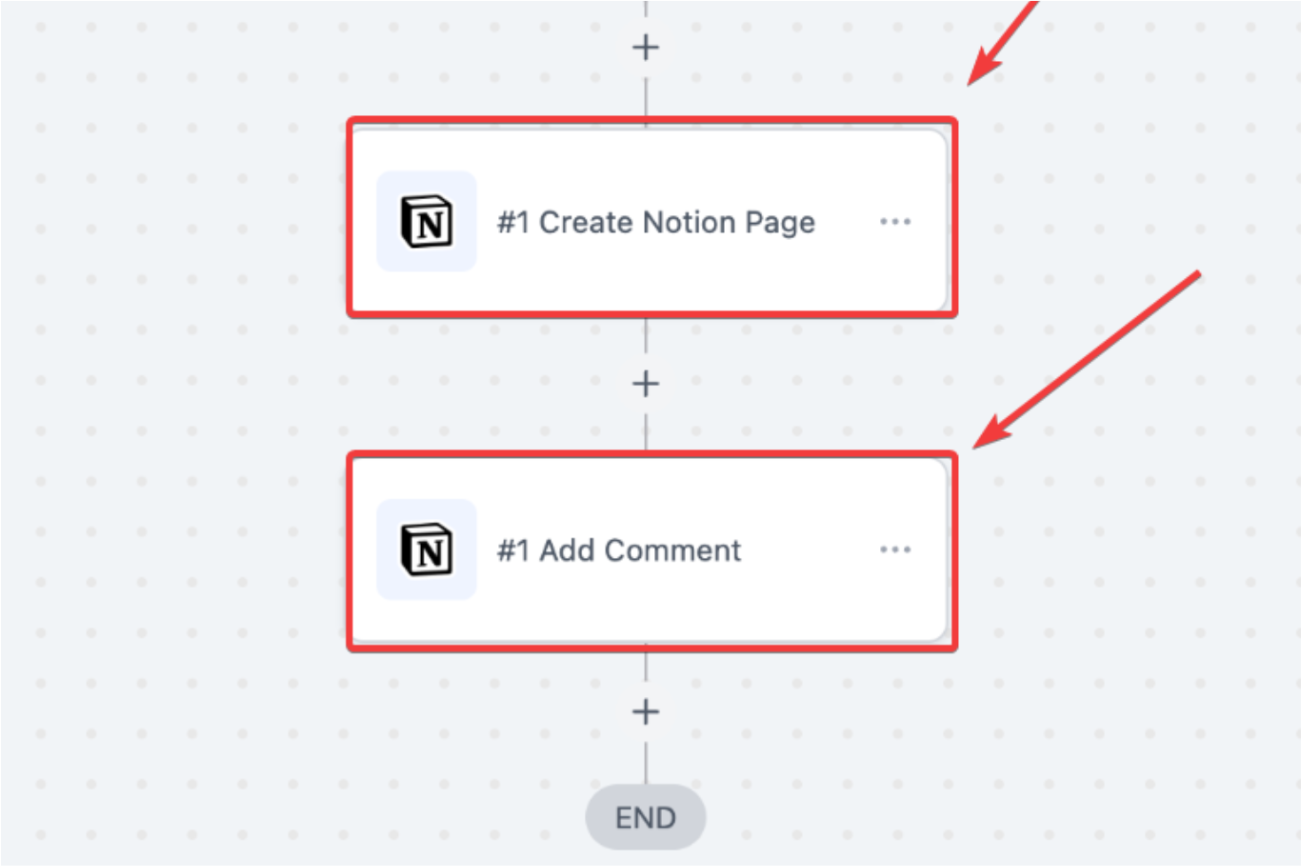
- Find or Create Item
5- Customize Your Flow
Section titled “5- Customize Your Flow”Add filters, conditions, and additional or Notion actions as needed to build a complete automation tailored to your use case.
Available Triggers & Actions
Section titled “Available Triggers & Actions”Triggers (Notion → )
Section titled “Triggers (Notion → )”Trigger Name
Description
New Database Item
Triggers when a new item is added in Notion
Updated Database Item
Triggers when an item is modified
Updated Page
Triggers when a page is updated in Notion
Actions ( → Notion)
Section titled “Actions ( → Notion)”Action Name
Description
Create Page
Generates a new Notion page
Add Content to Page
Appends text or blocks to an existing page
Create Database Item
Adds a new entry to a database
Update Database Item
Edits existing database item fields
Add Comment
Posts a comment on a page
Archive/Restore Item
Archives or reactivates database entries
Find / Find or Create Item
Searches for an item or creates one if not found
Retrieve Page / Children
Gets a page and its nested block structure
Get Page Comments
Retrieves all comments from a specific page
Retrieve Database
Fetches metadata and schema of a Notion database
Frequently Asked Questions
Section titled “Frequently Asked Questions”Question: Can I use this integration with Notion’s free plan? Answer: Yes, the integration is compatible with free plans. However, some advanced features in Notion may be restricted.
Question: How often do Notion triggers run? Answer: Triggers check for changes every 5 minutes using a polling mechanism.
Question: Can I build workflows without third-party tools like Zapier? Answer: Yes, this integration enables direct automation without needing additional platforms or middleware.
Question: What happens if Notion API limits are hit? Answer: Actions may be delayed or fail until limits are reset. It’s best to optimize workflows to avoid frequent or unnecessary API calls.
Question: Can I access nested blocks or page children in Notion? Answer: Yes, use actions like Retrieve Block Children or Get Page and Children to fetch nested content within a page.
Question: What should I do if Notion data isn’t syncing correctly? Answer: Confirm your API connection is active, re-run “Test Trigger,” ensure you have the correct permissions, and check that your mapped fields still exist in Notion.
Question: What is a “Database Item” versus a “Page” in this integration? Answer: In Notion, a Database Item is like a row in a spreadsheet (perfect for tracking leads or tasks). A Page is a blank document (perfect for meeting notes or project briefs). You can choose which one to create based on how you like to organize your work.
Question: If I haven’t connected my Notion account yet, where in the general settings can I set up the integration manually?
Answer: You can manually connect your workspace by navigating to Settings, selecting Integrations, and then choosing Notion.