Google Contacts – Workflow Trigger & Action (Premium)
Efficient contact management is a cornerstone of successful business operations. This article explains how integrating Google Contacts with your system can help you maintain synchronized, up-to-date contact lists automatically. This integration enables the creation, updating, and organization of contacts and contact groups across both platforms, simplifying workflows and reducing manual data entry.
Whether you manage leads, appointments, or client information, syncing your with Google Contacts ensures consistency, better organization, and easier access to essential contact data.
Key Features and Benefits
Section titled “Key Features and Benefits”Automated Synchronization
Section titled “Automated Synchronization”- Two-way sync ensures contacts created or updated in either system reflect automatically in the other, preventing data discrepancies.
Contact and Group Management
Section titled “Contact and Group Management”- Create and update individual contacts as well as contact groups dynamically, supporting segmentation and targeted communications.
Workflow Triggers and Actions
Section titled “Workflow Triggers and Actions”- Initiate workflows based on new contacts or groups created in Google Contacts.
- Automate actions such as creating contacts, updating details, and assigning contacts to specific groups directly from workflows.
Time Saving Automation
Section titled “Time Saving Automation”- Eliminate repetitive manual updates by automating contact syncing tied to calendar events, form submissions, or external database changes.
Dynamic Contact Segmentation
Section titled “Dynamic Contact Segmentation”- Use tags or pipeline stages within your to organize contacts into appropriate Google Groups, improving outreach and organization.
How to Use
Section titled “How to Use”1. Access Workflow Builder
Section titled “1. Access Workflow Builder”Open your ’s workflow builder and search for “Google Contacts” to find triggers and actions related to contacts and groups.
2. Connect Your Google Account
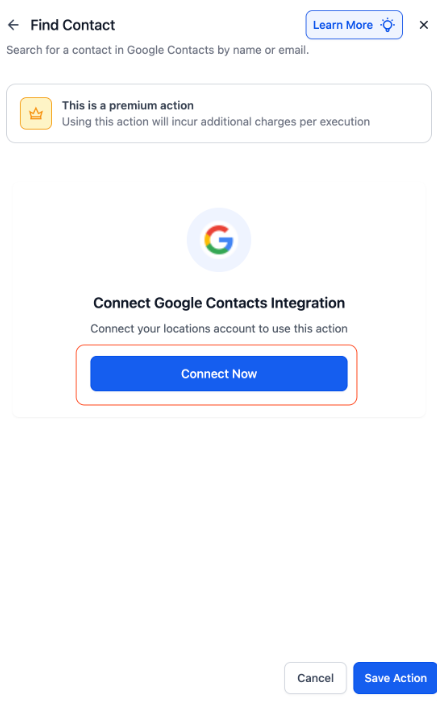
Section titled “2. Connect Your Google Account”- If not connected, click “Connect Now” and sign in with your Google credentials.
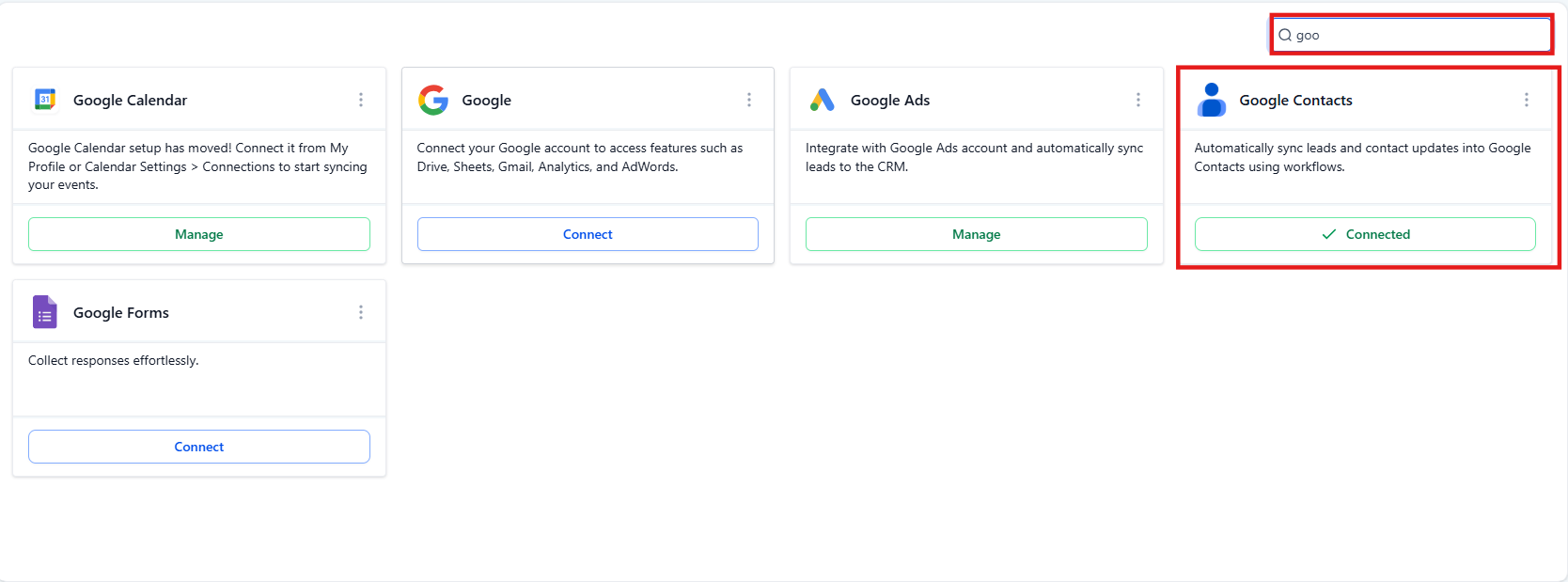
- Alternatively, connect via Settings → Integrations
3. Choose a Trigger
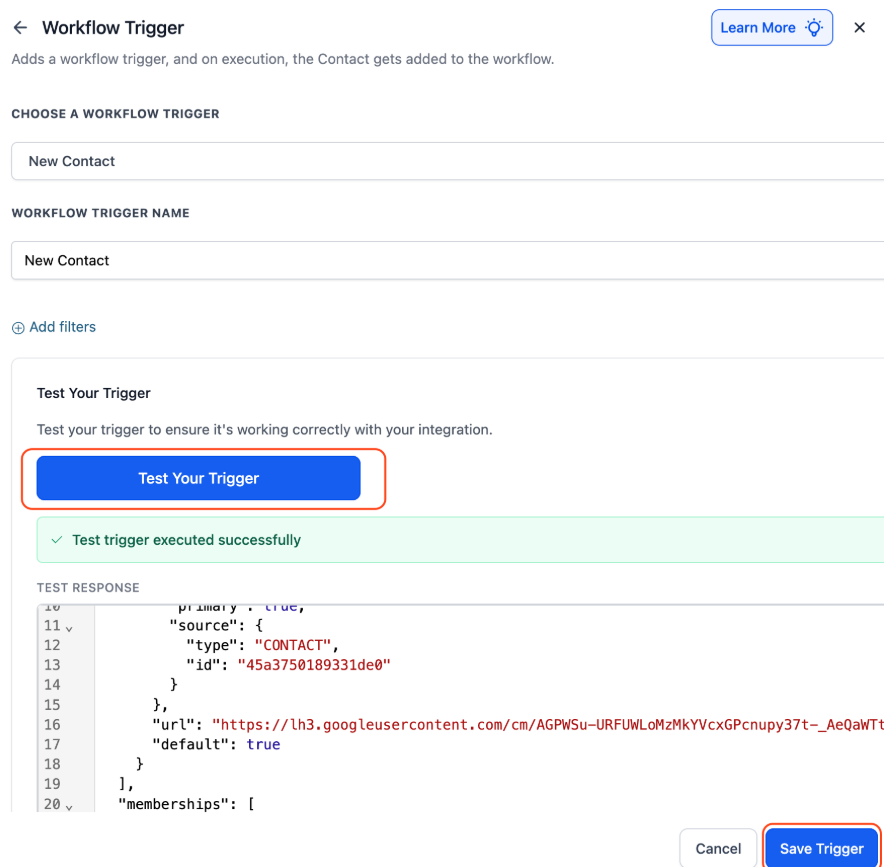
Section titled “3. Choose a Trigger”Select an event such as New Contact or New Group as your workflow trigger.
- Provide a name for the trigger.
- Click Test Trigger to fetch sample data and enable accurate field mapping.
4. Add Actions
Section titled “4. Add Actions”Use actions such as:
- Create Contact to add new entries in Google Contacts.
- Update Contact to modify existing contact details.
- Add Contact to Groups to organize contacts into Google Groups automatically.
5. Customize Workflow
Section titled “5. Customize Workflow”Add filters, conditions, and multiple actions to tailor the automation for your business processes.
Common Use Cases
Section titled “Common Use Cases”Use Case 1: Save Contacts from Appointments
Section titled “Use Case 1: Save Contacts from Appointments”-
Goal: Automatically add new clients to Google Contacts when appointments are booked.
-
Setup:
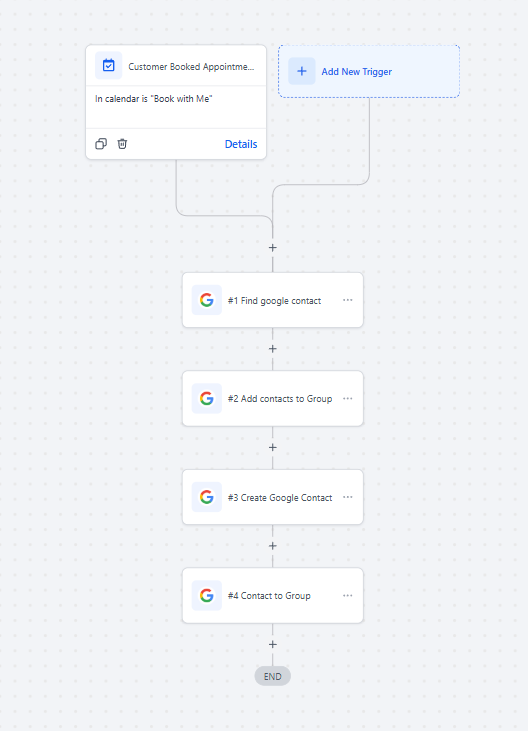
- Trigger: Appointment Booked (filter by calendar)
- Actions: Find or Create Contact → Add Contact to Groups (e.g., “Demo Leads”)
-
Example: When a demo call is scheduled, the client is added to Google Contacts and organized into the appropriate group.
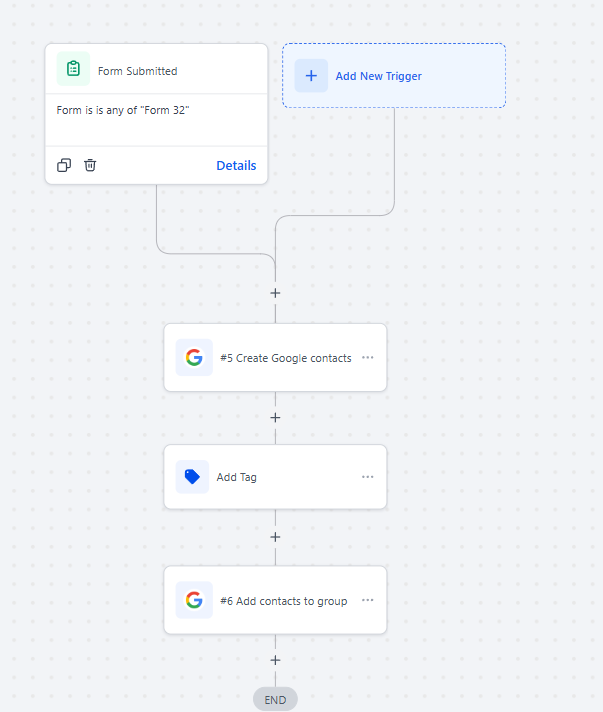
Use Case 2: Turn Form Submissions into Google Contacts
Section titled “Use Case 2: Turn Form Submissions into Google Contacts”-
Goal: Capture and sync leads from web form submissions.
-
Setup:
- Trigger: Form Submitted (filter by form name)
- Actions: Find or Create Contact → Update Contact
-
Example: New leads submitting a website form are either added as new contacts or updated with additional info if they already exist.
Use Case 3: Create Contacts from External Records
Section titled “Use Case 3: Create Contacts from External Records”-
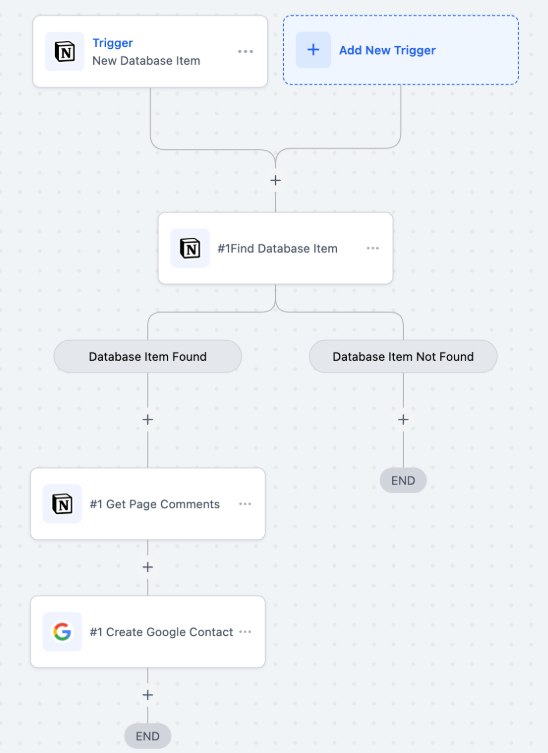
Goal: Generate Google Contacts automatically from records in external databases like Notion.
-
Setup:
- Trigger: New Database Item in external source
- Actions: Create Contact → Add Contact to Groups
-
Example: When a new client record is added to a Notion database, a Google Contact is created and grouped accordingly.
Question: Can I update existing contacts using this integration? Answer: Yes, the integration includes actions specifically designed to update contact details seamlessly.
Question: Is a paid Google account required to use this feature? Answer: No, it works with any Google account that has access to Google Contacts.
Question: How often does the system check for new contacts or groups? Answer: The integration polls for updates approximately every 5 minutes.
Question: Can I dynamically organize contacts into groups based on data? Answer: Yes, you can map tags or pipeline stages to Google Groups to segment contacts automatically.
Question: What should I do if duplicate contacts appear? Answer: Use the “Find or Create Contact” action to search before creating new contacts, which helps avoid duplication.
Question: Can I move a contact from one Google Group to another automatically?
Answer: Yes. You can use a workflow to “Add to Group” when a certain event happens. For example, when a “Lead” becomes a “Customer,” you can have the workflow add them to your “VIP Clients” group in Google so you can easily identify them later.
Question: How can I ensure that my contact fields are mapped correctly before turning on the automation?
Answer: When setting up your trigger in the workflow builder, you can use the “Test Trigger” button. This feature fetches sample data from your account, allowing you to verify that the information is pulling through correctly and enabling accurate field mapping.