Clickup – Workflow Trigger & Action (Premium)
Clickup – Workflow Trigger & Action (Premium)
This article explores the integration of ClickUp’s project management capabilities with automation workflows. By connecting these two systems, you can streamline task creation, project updates, and documentation processes automatically based on events and project changes. Whether you manage client onboarding, sales pipelines, or internal projects, this integration helps keep your operations coordinated and efficient without manual data entry.
Key Features and Benefits
Section titled “Key Features and Benefits”- Trigger-Based Automation: Initiate workflows in your whenever new tasks, comments, or changes occur in ClickUp.
- Task and Project Management Actions: Create, update, or archive tasks and organize projects by adding lists, folders, or workspaces directly from workflows.
- Document Handling: Generate and edit project documents within ClickUp automatically based on data or AI-generated content.
- Real-Time Sync via Webhooks: Changes in ClickUp trigger immediate workflow execution for up-to-date project tracking.
- Custom Field Support: Manage detailed task attributes dynamically, ensuring projects reflect current business needs.
- Reduced Manual Work: Automate repetitive tasks such as creating proposals, assigning tasks, and organizing project spaces.
How to Use:
Section titled “How to Use: ”1- Search for ClickUp Actions and Triggers
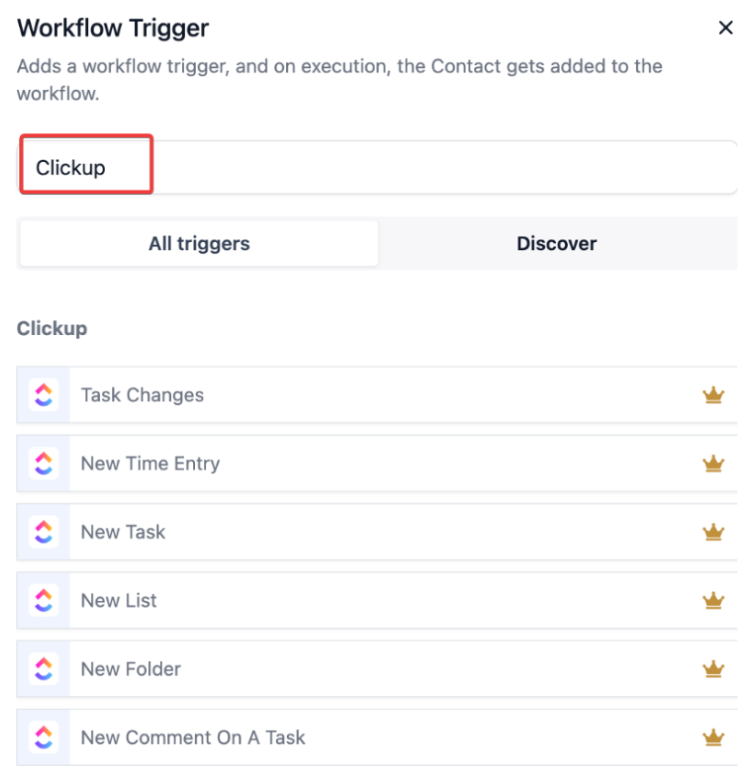
Section titled “1- Search for ClickUp Actions and Triggers”Open your ’s workflow builder and search for available ClickUp triggers (e.g., New Task, Task Changes) and actions (e.g., Create Task, Post Comment).
2- Connect Your ClickUp Account
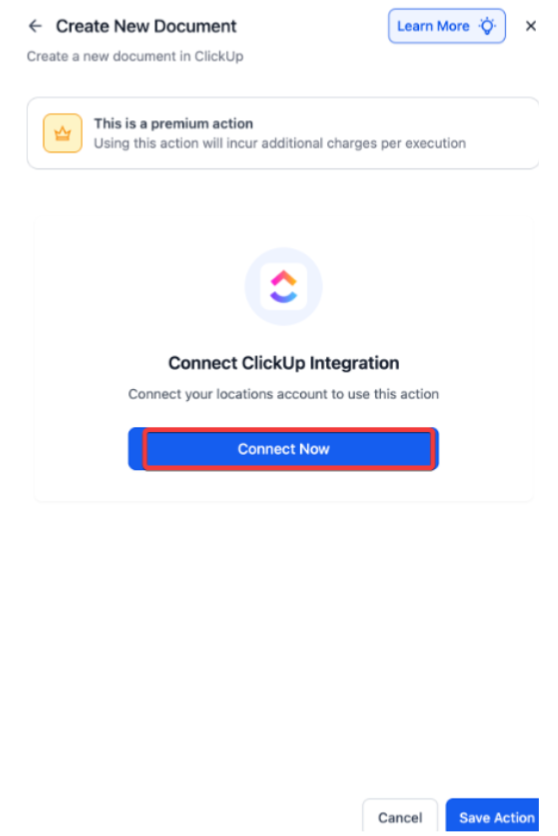
Section titled “2- Connect Your ClickUp Account”- If your ClickUp account isn’t connected, select Connect Now and log in with your credentials.
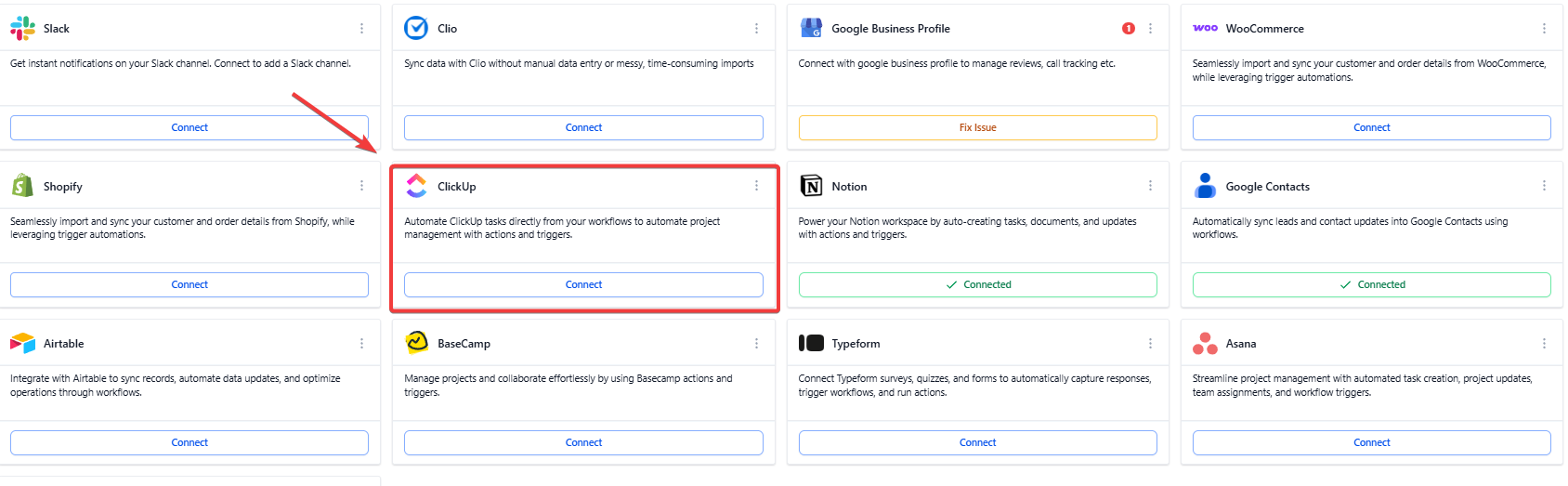
- Alternatively, go to Settings → Integrations → ClickUp to authorize access.
3- Select a Trigger
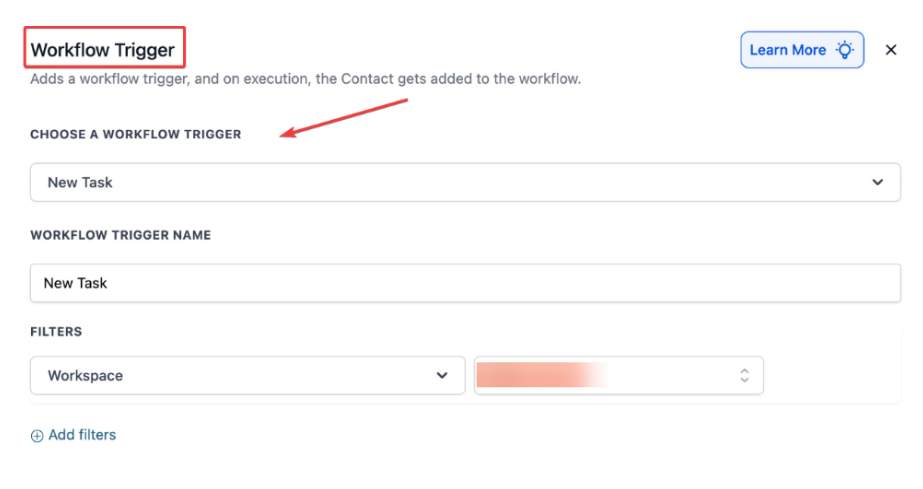
Section titled “3- Select a Trigger”Choose an event from ClickUp that will start your workflow, such as when a new task is created or a task status changes.
- Name your trigger for easy identification.
- Click Test Trigger to pull sample data for mapping.
4- Add Workflow Actions
Section titled “4- Add Workflow Actions”Use actions to create or update tasks, post comments, create documents, or build new project folders and lists based on your workflow needs.
5- Customize and Activate
Section titled “5- Customize and Activate”Add filters, branching logic, or multiple actions to tailor your automation to specific business scenarios. Activate the workflow to start automating.
Common Use Cases
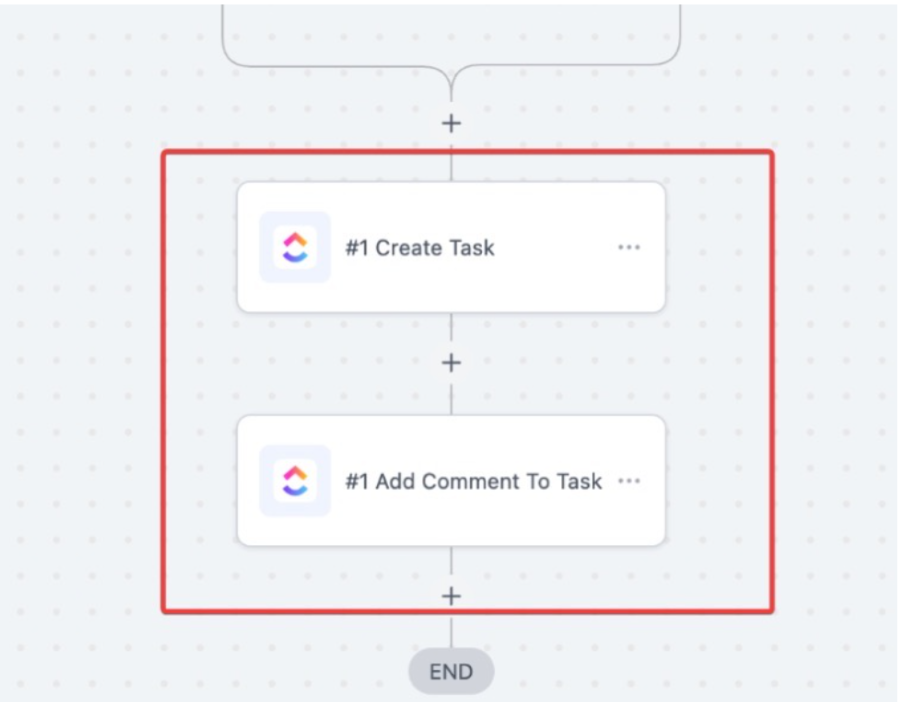
Section titled “Common Use Cases”Use Case 1: Automate Task Creation from Form Submissions
Section titled “Use Case 1: Automate Task Creation from Form Submissions”- Goal: Convert form data into actionable project tasks.
- Example: When a client submits an onboarding form, a task is created in ClickUp under “Client Setup” and a comment summarizing client expectations is added.
Use Case 2: Generate Proposal Documents Automatically
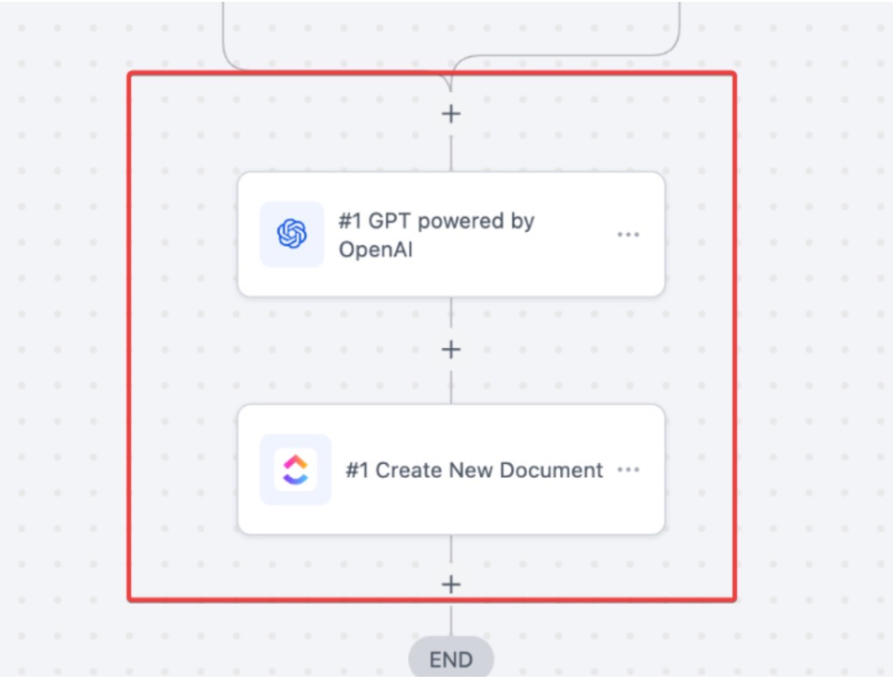
Section titled “Use Case 2: Generate Proposal Documents Automatically”- Goal: Use AI-generated content to create personalized proposals stored in ClickUp documents.
- Example: Upon deal progression to a proposal stage, AI drafts a custom proposal, which is saved in a designated ClickUp folder for review.
Use Case: Build Project Workspaces Based on Deal Types
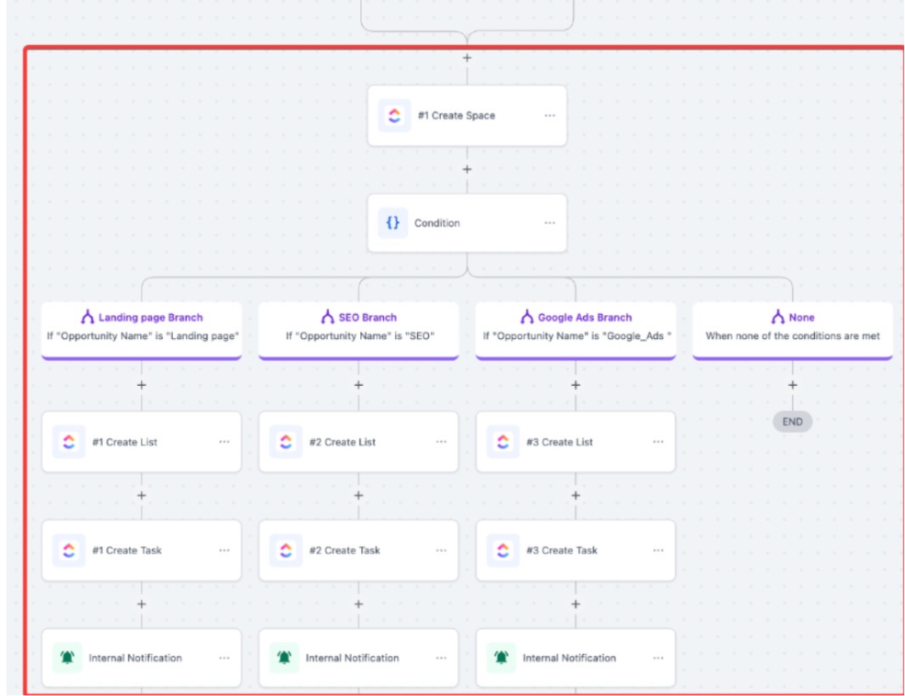
Section titled “Use Case: Build Project Workspaces Based on Deal Types”- Goal: Automatically create structured project spaces tailored to service categories.
- Example: A contract signed for SEO services triggers the creation of a ClickUp space named “[Client] - SEO Project” with predefined task lists and notifications sent to the SEO team.
Question: Do I need a paid ClickUp plan to use this integration? Answer: No, it supports both free and paid accounts; however, some advanced features may require a premium plan.
Question: Can I trigger workflows from any ClickUp event? Answer: The integration supports a wide range of triggers including new tasks, comments, list creations, and task updates.
Question: Is it possible to update existing tasks through the workflow? Answer: Yes, you can modify task details such as status, due date, and priority using the update task action.
Question: How quickly do triggers fire after an event in ClickUp? **Answer: Triggers operate in real-time via webhooks, so workflows initiate almost immediately after the event.
Question: Are there any limits on the number of workflows I can create? Answer: There is no set limit from the integration side, but API rate limits of ClickUp may apply depending on usage.
Question: Can I customize workflows for specific business scenarios? Answer: Absolutely. You can add filters, branching logic, multiple actions, and custom field mappings to tailor workflows to your unique processes.
Question: Can this integration automatically create documents like proposals or intake forms?
Answer: Yes. One of the key features is Document Handling, which allows you to automatically generate and edit project documents within ClickUp using your data or even AI-generated content.