Airtable: Action & Trigger in Workflows (Premium)
Airtable: Action & Trigger in Workflows (Premium)
The Airtable integration with your automation workflows is designed to simplify how structured data is managed across departments. Whether you’re handling client information, campaign performance, or internal project pipelines, this integration eliminates manual work by enabling real-time data synchronization between your and Airtable’s database tables.
This connection ensures that your processes and Airtable records stay in sync keeping your team aligned and your data clean without the need for constant manual updates or third party tools.
Key Features & Benefits
Section titled “Key Features & Benefits”- Two-Way Workflow Compatibility: Trigger workflows based on changes in Airtable or send updated data into Airtable based on events.
- Automated Record Handling: Automatically create, update, find, or delete records in Airtable as part of any automated flow.
- Polling-Based Triggers: Workflows initiate based on regular checks for changes in Airtable, ensuring data stays updated.
- Reduced Manual Input: Eliminate duplicate entries and avoid switching between platforms to keep data consistent.
- Flexible Use Cases: Supports a range of automations like lead syncing, internal notifications, document handoff, or AI-powered task creation.
How to Use
Section titled “How to Use ”1. Find Airtable Triggers or Actions
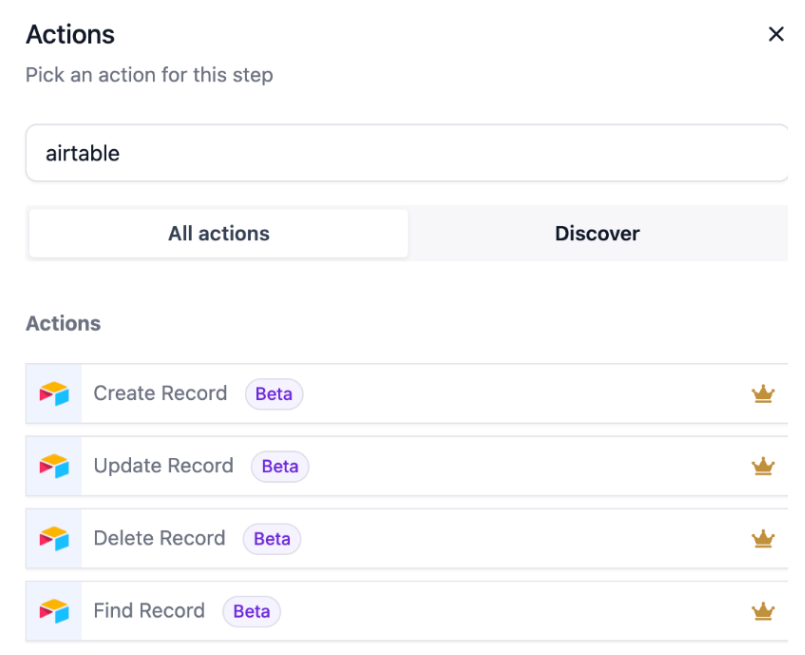
Section titled “1. Find Airtable Triggers or Actions”Open your automation workflow builder and search for Airtable-related steps like:
- Create Record
- Update Record
- Find Record
- New Record Trigger
- Updated Record Trigger**
**
2. Connect Your Airtable Account
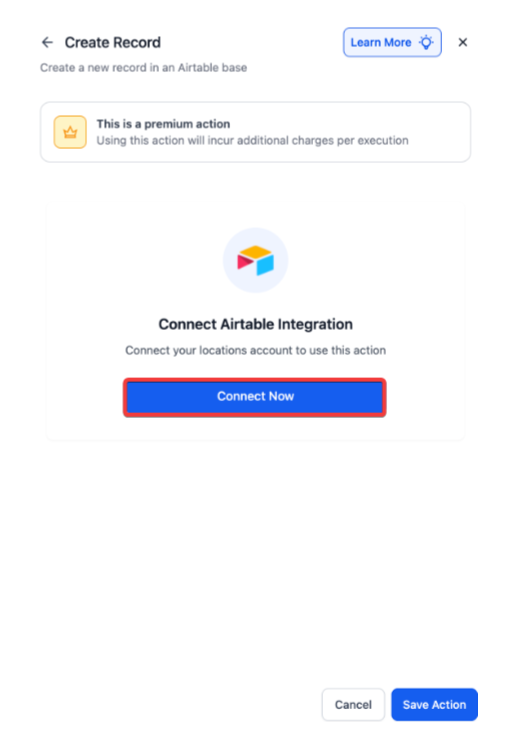
Section titled “2. Connect Your Airtable Account”When adding your first Airtable step:
- Click Connect Now.
- Log in using your Airtable API key or via OAuth, depending on your system’s integration type.
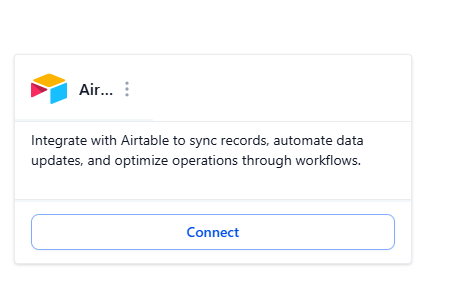
**Alternative:**Navigate to Settings → Integrations and connect Airtable from the available options.
3. Configure the Trigger or Action
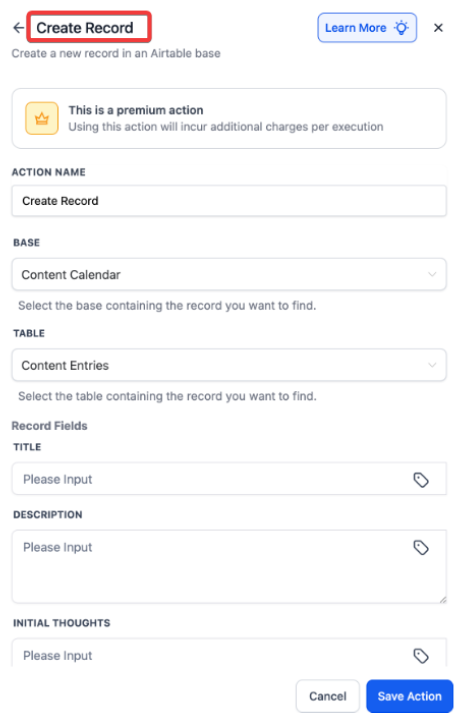
Section titled “3. Configure the Trigger or Action”- For triggers, choose between New Record or Updated Record.
- For actions, choose whether you want to create, find, update, or delete a record.
- Map the required fields such as table ID, record fields, and database schema based on your Airtable setup.
4. Test the Setup
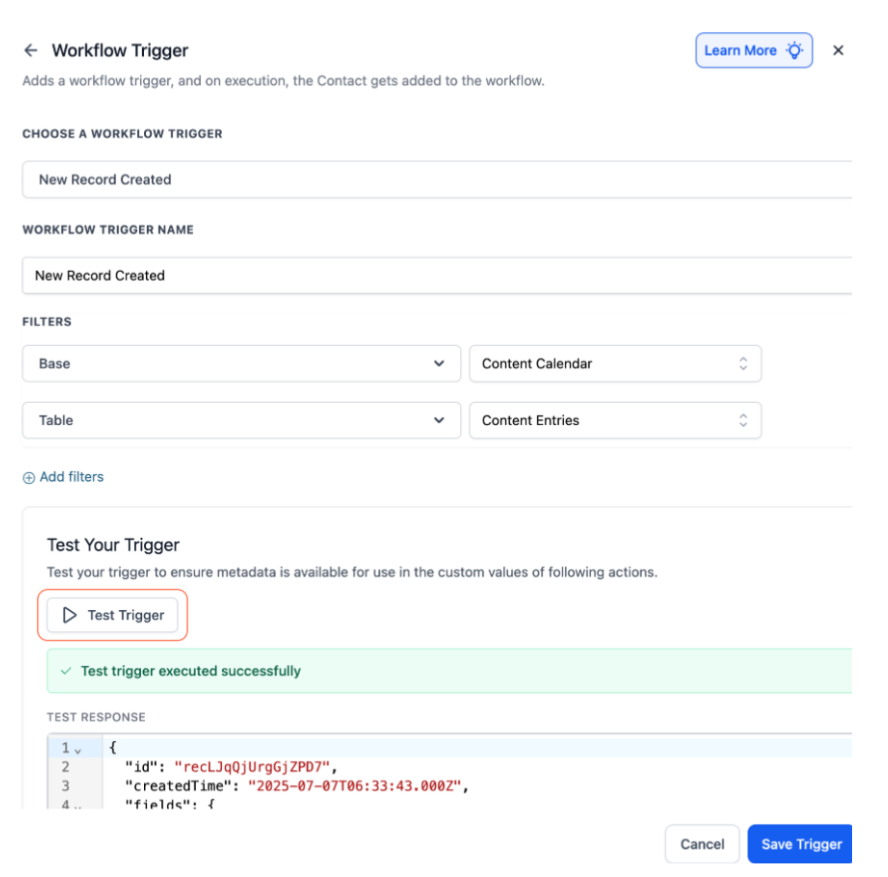
Section titled “4. Test the Setup”Use the Test Trigger or Test Action button to ensure your workflow pulls in real-time metadata from Airtable. This enables dynamic value mapping for future steps.
How Airtable Triggers Work
Section titled “How Airtable Triggers Work”The Airtable integration uses polling, which means the system checks Airtable every 5 minutes to identify new or updated records. This ensures workflows are not delayed but also prevents unnecessary system load.
Setup Example:
Section titled “Setup Example:”- Select a trigger: New Record Created
- Name your trigger (e.g., “New Client in Airtable”)
- Click Test Trigger to fetch a sample record.
- Proceed with the rest of your workflow setup (e.g., internal notifications or data syncing).
Use Cases
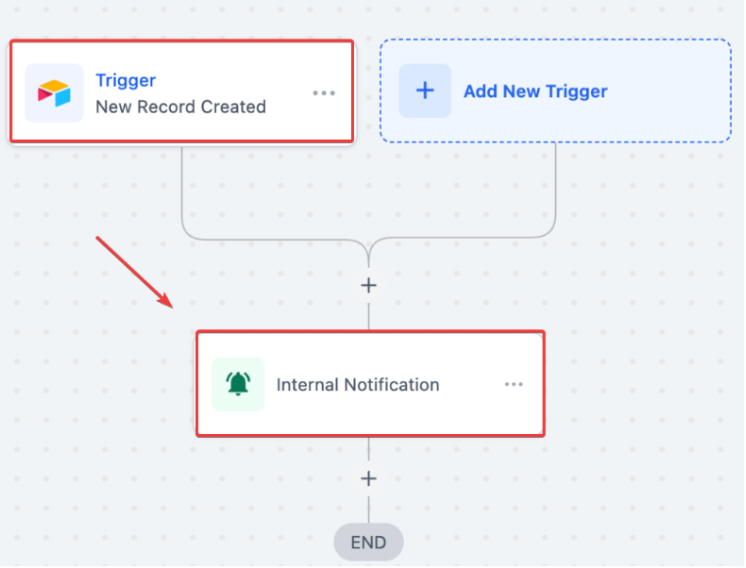
Section titled “Use Cases”Use Case 1: Internal Notifications for New Records
Section titled “Use Case 1: Internal Notifications for New Records”Goal: Alert a team member when a new record is created in Airtable.
-
Trigger: New Record (Airtable table: “Client Projects”)
-
Actions:
- Find Record (to extract values like project ID)
- Internal Notification → Send email or in-app alert to the assigned user
Example:
A new client project is added → Workflow finds the record → Sends an email:
“New project created: {{project_name}}. Assigned team, please review the project briefly.”
Use Case 2: Keep & Airtable in Sync
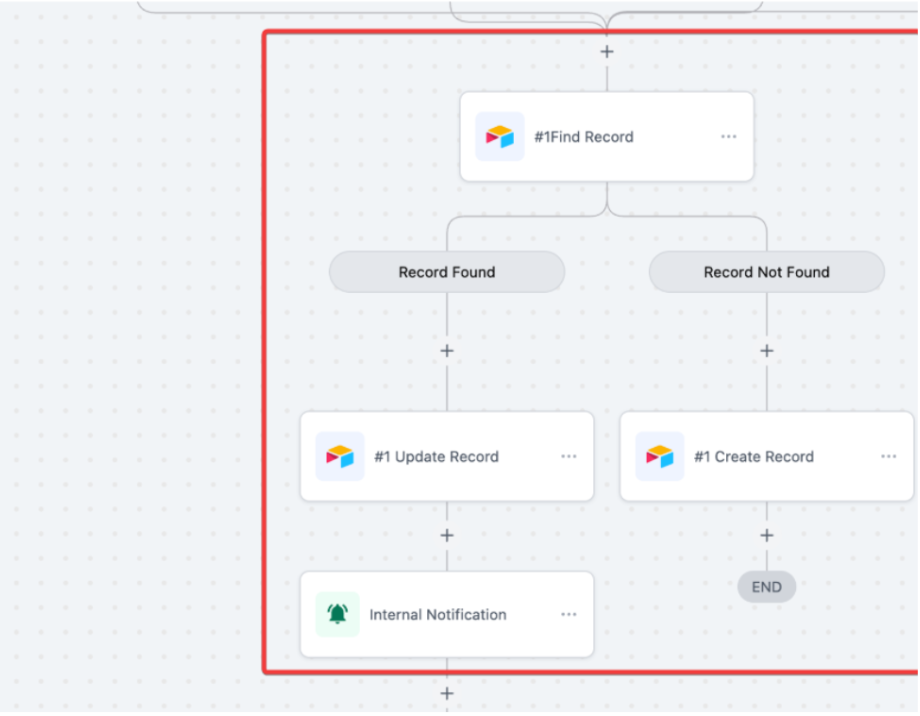
Section titled “Use Case 2: Keep & Airtable in Sync”Goal: Automatically add or update Airtable records when new leads come in.
-
Trigger: Form Submission, Lead Capture, or Contact Tag Added
-
Actions:
- Find Record in Airtable (by email or ID)
- If exists → Update Record
- If not → Create Record
Example:
A Facebook ad form submission occurs → The system checks Airtable → If the contact exists, their info is updated; if not, a new entry is created.
Use Case 3: AI-Generated Task Creation from Airtable Data
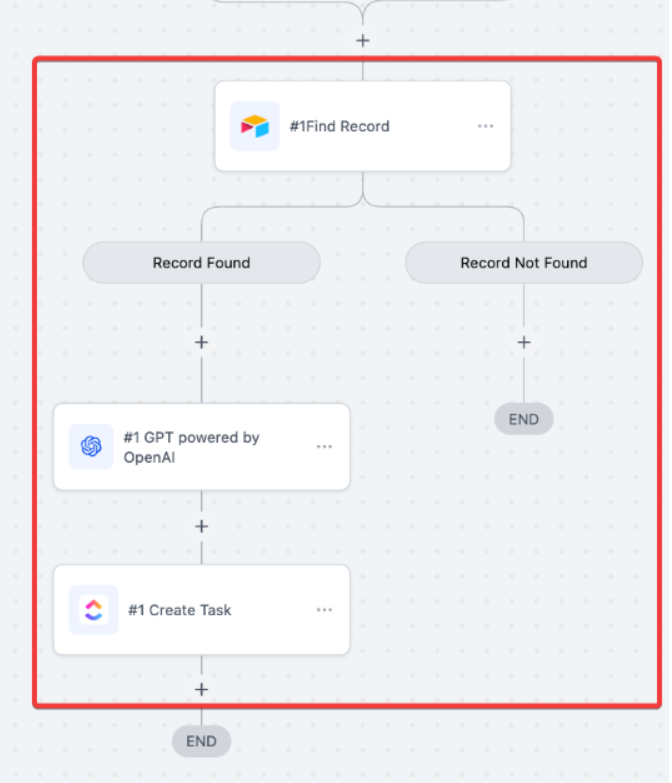
Section titled “Use Case 3: AI-Generated Task Creation from Airtable Data”Goal: Auto-generate task descriptions from Airtable content using AI and save them into project management tools.
-
Trigger: Airtable → New Record (Table: “Content Briefs”)
-
Actions:
- Extract data from Airtable
- Use AI to create captions or summaries (e.g., “Write 3 Instagram captions for {{brief_title}}”)
- Create Task in your project tool with AI output in the description
Example:
A record titled “Holiday Sale Campaign” is added to Airtable → Captions are auto-generated → A task is created with the brief and AI-generated text included.
Question: Can I update existing Airtable records through a workflow? Answer: Yes, use the Find Record step first. If the record is found, follow up with an Update Record action.
Question: Can I use Airtable triggers and actions in the same workflow? Answer: Absolutely. You can trigger a workflow from a change in Airtable and also include Airtable actions within that same workflow.
Question: How often are Airtable triggers checked? Answer: Every 5 minutes. Airtable triggers use polling to identify new or updated records at regular intervals.
Question: Do I need a paid Airtable plan for this integration? **Answer: No, the integration works with free Airtable accounts. However, larger tables or advanced collaboration features might require a paid plan.
Question: Are these actions considered premium? Answer: Yes, both Airtable triggers and actions are premium and may count toward workflow usage limits.
Question: How do I connect my Airtable account to the workflow? Answer: To connect your Airtable account, click “Connect Now” when adding your first Airtable step. Then, log in using your Airtable API key or via OAuth, depending on your system’s integration type. Alternatively, you can go to Settings → Integrations and connect Airtable from the available options.
Question: Can I automate internal notifications using Airtable data? Answer: Yes. For example, when a new record is added in Airtable, you can trigger a workflow that sends internal emails or in-app notifications to relevant team members.
Question: What is “polling” and how does it affect my Airtable triggers?
Answer: Polling is the method the system uses to check for updates. Instead of waiting for Airtable to “send” data, our system proactively checks your Airtable base every 5 minutes to identify any new or updated records