Fetch Product Details using Pluck and Join in Workflows
Fetch Product Details using Pluck and Join in Workflows
Efficiently managing and formatting product details is essential for streamlining order management, syncing data with external systems, or updating logs like Google Sheets. The “Pluck and Join” feature in workflows allows you to dynamically extract and format product details from orders. This guide will walk you through using this feature to automate processes, save time, and reduce manual effort.
What is “Pluck and Join”?
Section titled “What is “Pluck and Join”?”The Pluck Helper extracts specific fields (like product titles) from a dataset, such as an array of objects.
The Join Helper combines these extracted values into a single, formatted string using a custom delimiter (e.g., commas).
This combination enables you to efficiently extract, format, and send product data to external systems, such as logging customer purchases in Google Sheets.
Why Use “Pluck and Join”?
Section titled “Why Use “Pluck and Join”?”- Automation: Reduces manual effort by dynamically formatting data.
- Integration: Makes it easier to send product details to external platforms like Google Sheets.
- Customization: Flexible formatting options to meet diverse use cases.
How to Use “Pluck and Join”
Section titled “How to Use “Pluck and Join””Follow these steps to extract and format product details from orders and send them to external platforms.
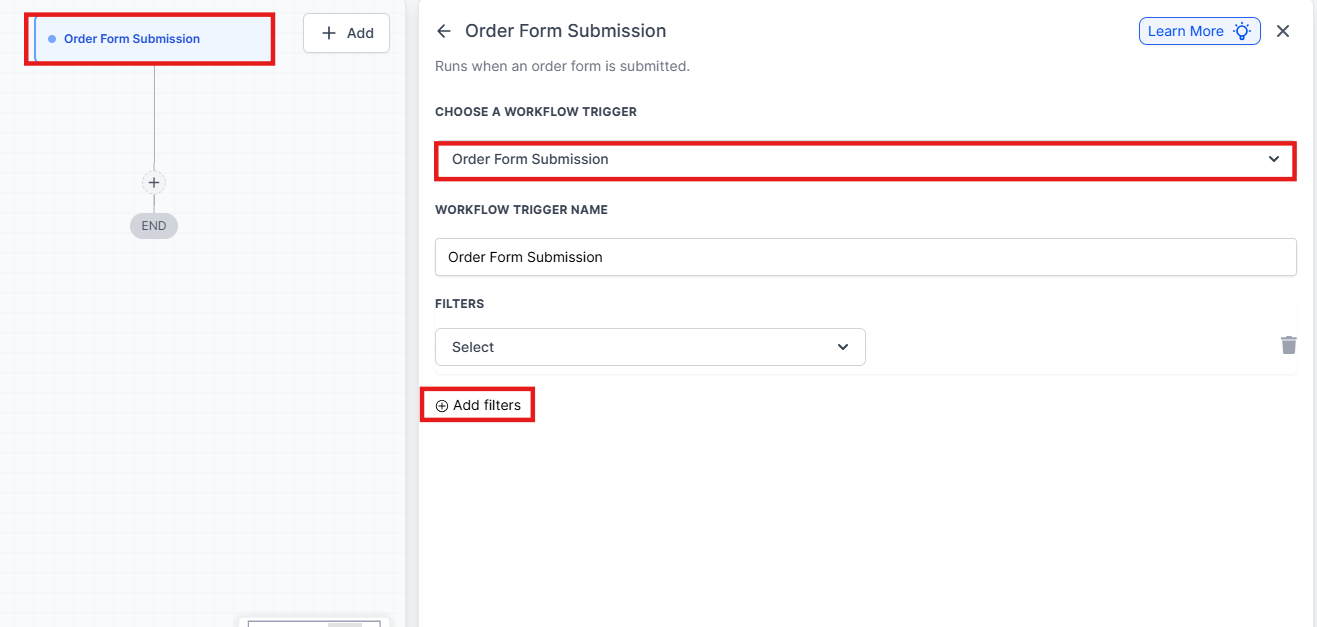
Step 1: Set Up a Trigger
Section titled “Step 1: Set Up a Trigger”- Choose a trigger to initiate your workflow. Examples:
- Order Form Submitted: Starts the workflow when a customer submits an order form.
- Inbound Webhook: Initiates the workflow when data is received from an external source.
- Configure the trigger to capture a dataset with order details, including an array of product items.
Step 2: Add Data Processing Logic
Section titled “Step 2: Add Data Processing Logic”Extract Product Titles Using the Pluck HelperUse the following syntax to pull product titles from the line_items array:
{{ pluck order.line_items “title” }}
- Example Output:
[ “Product A”, “Product B”, “Product C” ]
Format Titles Using the Join HelperCombine the extracted titles into a single string separated by commas:
{{ join (pluck order.line_items “title”) ”, ” }}
- Example Output:
Product A, Product B, Product C
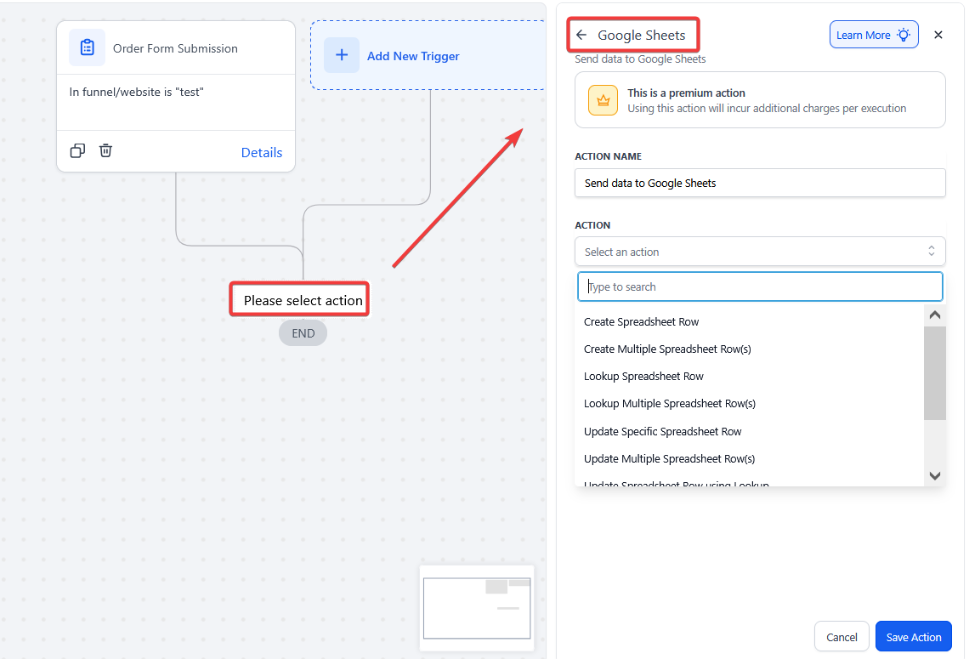
Step 3: Add an Action to Send Data
Section titled “Step 3: Add an Action to Send Data”Example: Log Details in Google Sheets
- Select the action to create a new row in Google Sheets (or any other external platform).
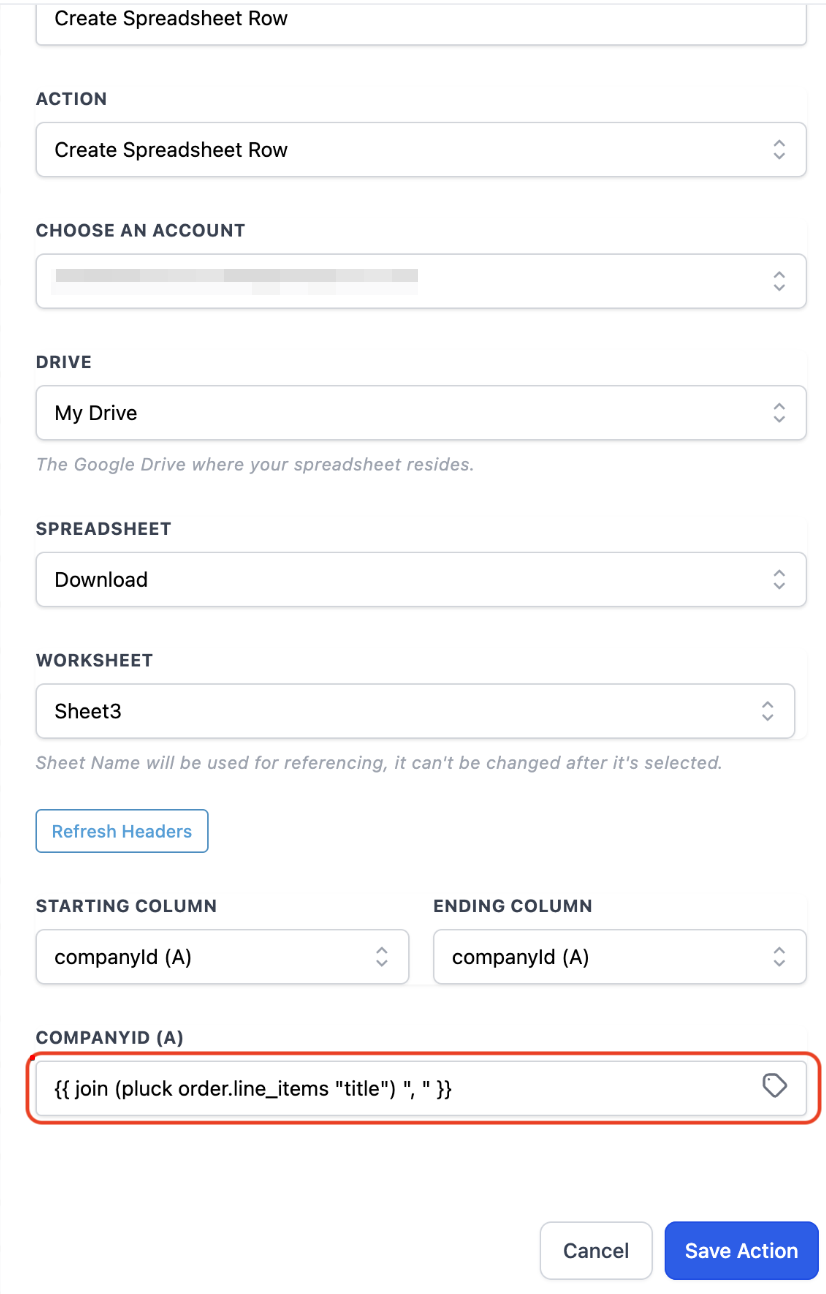
- Map the fields as follows:
- Name: {{ contact.first_name }}
- Email: {{ contact.email }}
- Products: {{ join (pluck order.line_items “title”) ”, ” }}
- Save the action configuration.
Step 4: Test and Validate
Section titled “Step 4: Test and Validate”- Submit a test order to trigger the workflow.
- Verify that:
- The extracted product titles are correctly formatted in the output.
- Data is successfully logged in the external platform (e.g., Google Sheets).
- Make adjustments if needed.
Real-World Example: Logging Order Details in Google Sheets
Section titled “Real-World Example: Logging Order Details in Google Sheets”Scenario
Section titled “Scenario”You want to log customer orders in Google Sheets, including:
- Customer Name
- Email Address
- Formatted List of Purchased Products
- Trigger: Use the Order Form Submitted trigger.
- Extract and Format Data:
- Extract product titles:
{{ pluck order.line_items “title” }} - Format titles:
{{ join (pluck order.line_items “title”) ”, ” }}
- Extract product titles:
- Send Data: Add the Google Sheets action and map the fields:
- Name: {{ contact.first_name }}
- Email: {{ contact.email }}
- Products: {{ join (pluck order.line_items “title”) ”, ” }}
- Test and Activate: Submit a test order and confirm output.
Example Output
Section titled “Example Output”Google Sheets
Section titled “Google Sheets”Name
Products
Alice
Product A, Product B
Bob
Single Item
Question: Can I use custom separators with Join Helper? Answer: Yes, replace the ”, ” in the syntax with any desired separator (e.g., ”; ” or ” | ”).
Question: What happens if no product titles are found? Answer: The output will be an empty string. Ensure the input dataset is properly configured.
Question: Can I use Pluck and Join with other fields? **Answer: Absolutely. You can extract and format any fields available in your dataset.
Question: What platforms can I integrate with? Answer: Any platform that supports receiving structured data via APIs or connectors, such as Google Sheets,, or analytics tools.
Question: How do I debug errors in workflows? Answer: Use test submissions and review the output at each step. Tools like Postman can help validate triggers and data formats.
Question: Can I use Pluck and Join in combination with other workflow actions? Answer: Yes. The formatted output can be mapped to any subsequent workflow action, such as creating rows in Google Sheets, updating a record, or sending notifications.
Question: What is the specific difference between the “Pluck” and “Join” helpers?
Answer: The Pluck Helper is used to extract specific fields (like product titles) from a dataset, while the Join Helper takes those extracted values and combines them into a single, formatted string.