Workflow Action: Send Internal Notification
Internal notifications are essential for staying informed about key activities in , such as appointment bookings, form submissions, and more. The “Send Internal Notification” action in workflows allows you to keep team members or yourself up to date by sending automated notifications via email, SMS, or in-app alerts. This article will guide you through setting up internal notifications within workflows and how you can customize them to fit your needs.
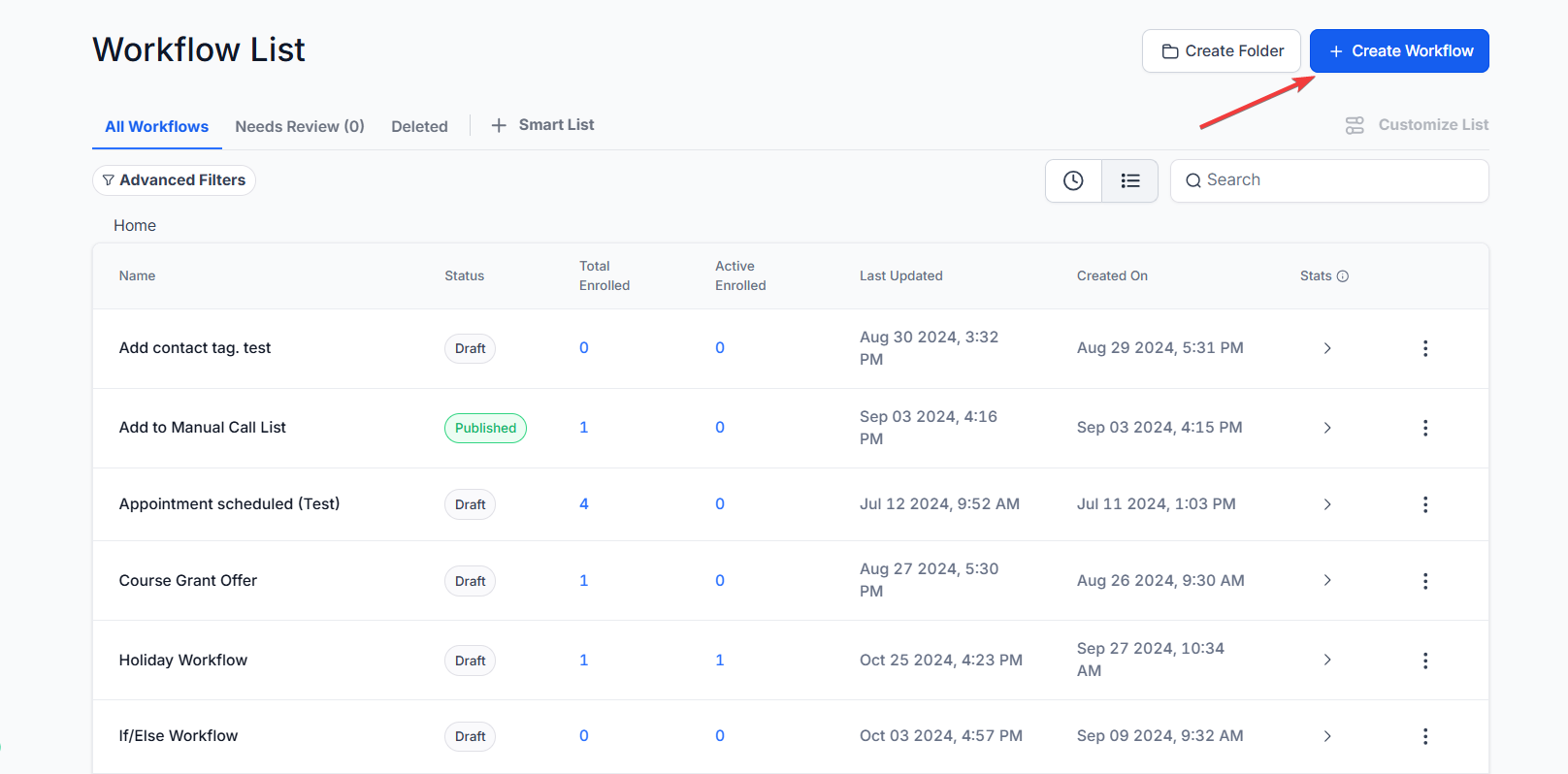
Step 1: Create your workflow
Section titled “Step 1: Create your workflow”- Navigate to Automation > Workflows section of your platform.
- Click on “Create New Workflow” and set up your desired trigger event (e.g., form submission, appointment booking, etc.).


Step 2: Add the Notification Action
Section titled “Step 2: Add the Notification Action”- Click on the “+” button to add a new action.
- From the list of available actions, choose “Send Internal Notification.”
- You will see three notification options: Email, SMS, and Notification.


Set Up Email Notifications
Section titled “ Set Up Email Notifications”- Choose Email as the notification type.
- Fill in the Subject and Body of the email. You can use custom values to include personalized information (e.g., contact name, appointment date).
- Select the recipient. You can choose a specific user, a user type (like “Assigned User”), or enter a custom email address.
- Save your settings.


Set Up SMS Notifications
Section titled “ Set Up SMS Notifications”- Choose SMS as the notification type.
- Write the SMS message content. Like with emails, you can include custom values to personalize the message.
- Choose the recipient(s) by selecting from the available user options.
- Save your settings.

Please Note: You can select multiple users in Internal Notifications for Email/SMS notifications and need not create multiple actions to select different users. This would be with the Particular user type (see below)

Set Up Internal Notifications
Section titled “ Set Up Internal Notifications”- Choose Notification (in-app as the notification type.
- Give the notification a title. You can include custom values to make the title more dynamic.
- Write the notification message in the Message field.
- In the Redirect Page option, select where the user will be redirected when they click the notification. Typically we recommend the Contact or Conversation.

- Select the recipient(s). You can choose a specific user or notify multiple users simultaneously.
- Save your settings.

Test and Publish Your Workflow
Section titled “Test and Publish Your Workflow”- Once you’ve set up your notifications, click “Save Action.”
- Test the workflow to ensure everything is functioning correctly.
- Publish the workflow when you’re satisfied with the setup.

Question: Can I customize the content of these notifications? Answer: Yes, you can use custom values and format the content according to your needs.
Question: Who can receive these notifications? Answer: You can send notifications to specific users, assigned users, or even enter custom email addresses for email notifications.
Question: What actions can trigger these notifications? Answer: Any workflow trigger, such as form submissions, bookings, or purchases, can initiate these notifications.
Question: How do I ensure the notifications are set up correctly? Answer: Test the workflow before publishing, and double-check your custom values and recipient settings.
Question: Can I use multiple notification types in the same workflow? Answer: Yes, you can set up email, SMS, WhatsApp, and internal notifications all within a single workflow.
Question: Can I add multiple CC or BCC recipients? Answer: Yes, multiple recipients can be added by separating their addresses with commas.
Question: Will CC and BCC recipients see each other’s email addresses? Answer: CC recipients can see each other’s addresses, while BCC recipients remain hidden from all other recipients.
Question: Can I include dynamic content like lead value or appointment time? Answer: Yes. Use custom values or variables in the notification content to make messages relevant and personalized.
Question: Is there a limit to how many internal SMS notifications I can send?
Answer: There is no limit to the number of actions, but remember that internal SMS and WhatsApp notifications use your telephony credits (like Twilio). In-app “Notifications” and “Emails” are generally the most cost-effective way to send high-volume alerts.
Question: Can I stop notifications from being sent in the middle of the night?
Answer: Yes. You can use a “Wait” step before your notification action and set it to “Condition: Time Window.” This allows you to hold notifications until business hours (e.g., 8:00 AM) so your team isn’t woken up by lead alerts at 3:00 AM.
Question: What does the “Redirect Page” option do for in-app notifications?
Answer: This setting determines where a team member is taken when they click the notification in their dashboard. It is recommended to set this to Contact or Conversation so the user can immediately see the lead’s details or respond to their message.