Workflow Action - Merge Contacts
Overview:
The Merge Contact action is an automated tool within your workflows that identifies and combines duplicate records. It scans your contacts based on specific criteria you choose, such as an email address or phone number. When the system finds a match, it merges the newer information into the existing older record to ensure your data remains accurate.
Practical Use Case:
Imagine a customer signs up for your newsletter with their email, and later fills out a contact form using the same email but a different last name. Instead of having two separate records for the same person, the Merge Contact action will automatically join these records. This prevents you from sending duplicate emails to the same person and keeps your reporting clear.
Instructions (Step-by- Step):
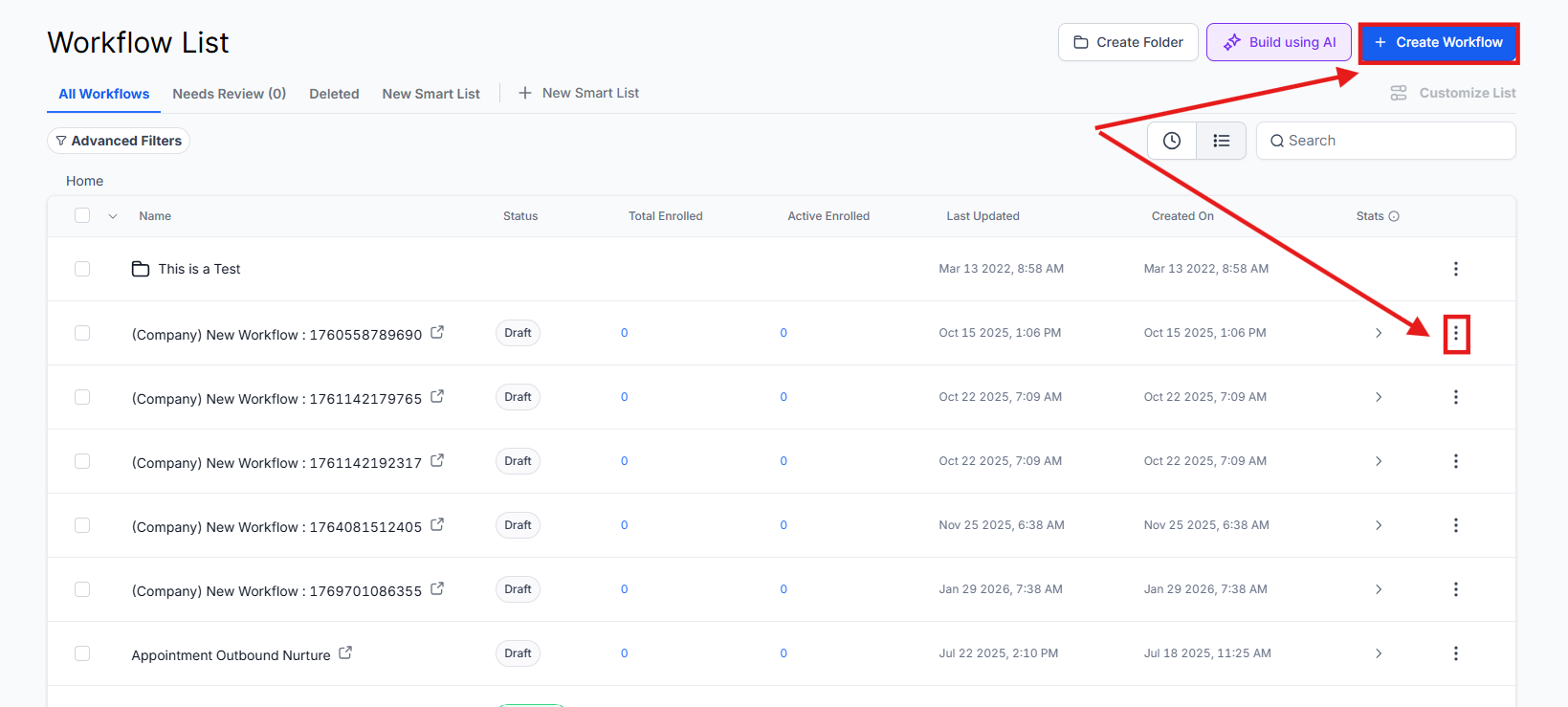
- To begin, navigate to the automation area by clicking Automation > Workflows.
- To create a new automation or edit an existing one, click on the Workflow Name.
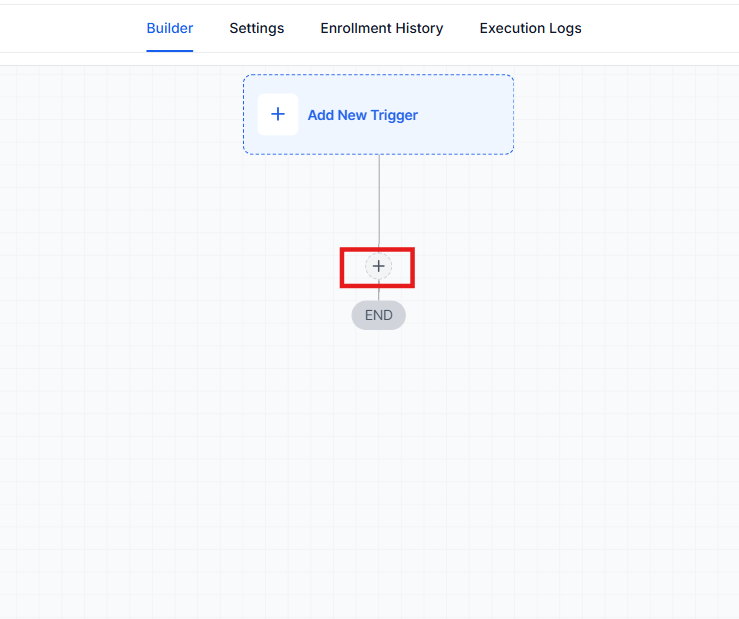
3. To add a new step to your automation, click the (+) icon at the point where you want the check to occur.
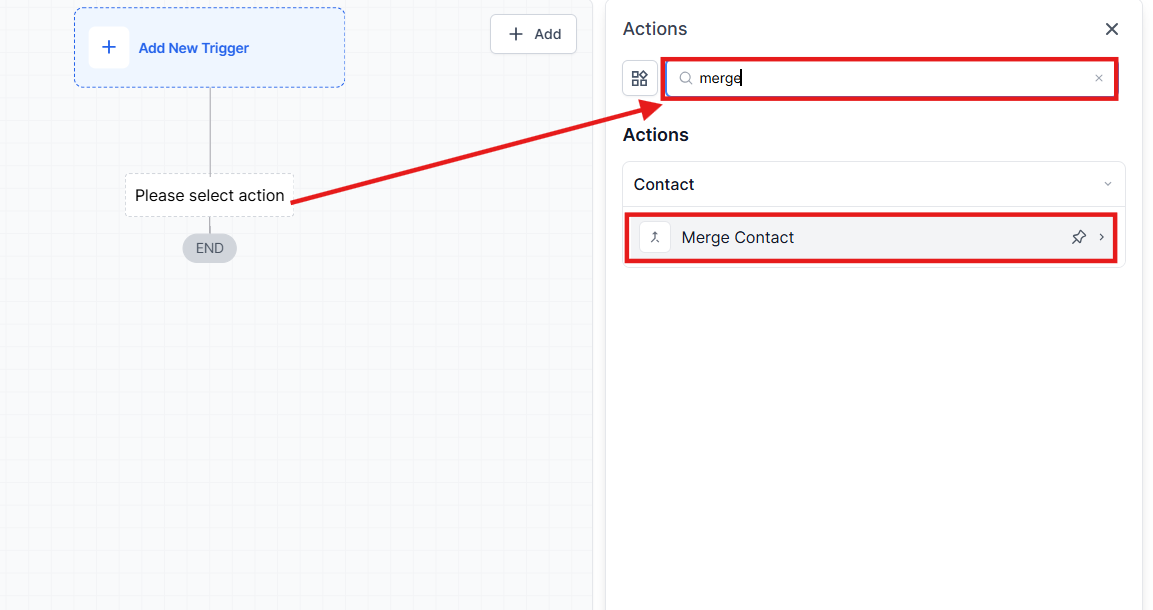
4. To locate the tool, type “Merge Contact” in the search bar or find it under the contact actions list and click Merge Contact.
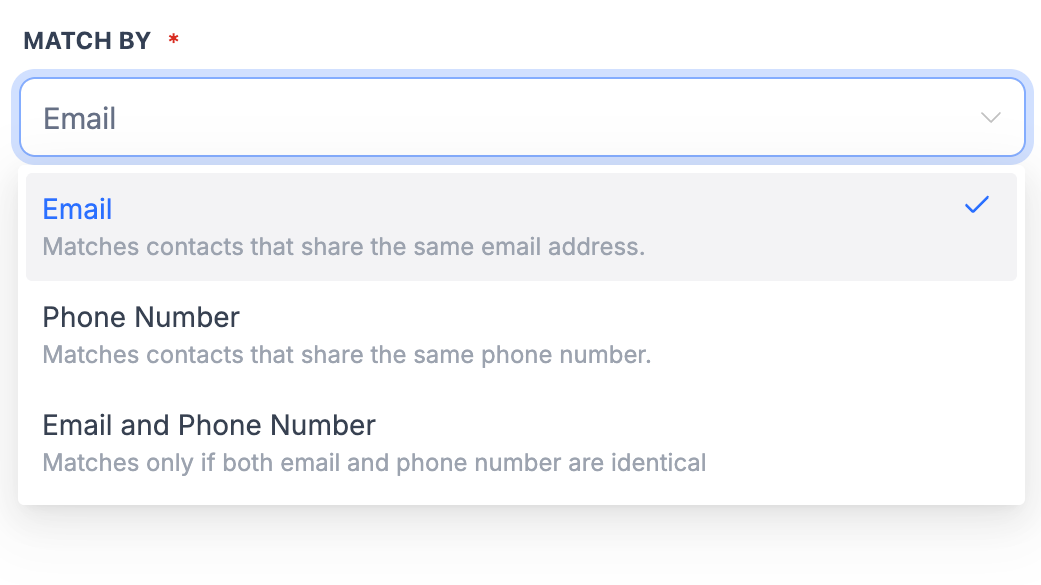
5. To define how the system finds duplicates, go to the Match By dropdown menu and select one of the following:
Email: Matches contacts sharing the same email address.
Phone Number: Matches contacts sharing the same phone number.
Email and Phone Number: Matches only when both the email and phone number are identical.
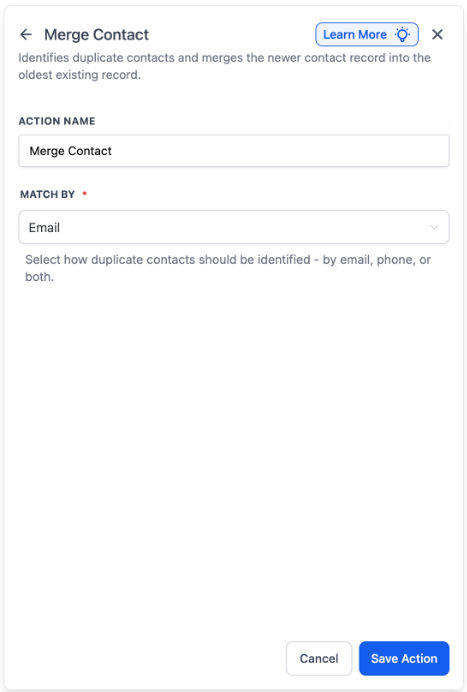
6. To finalize the step, click Save Action.
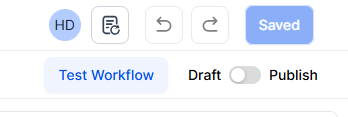
7. To make the automation active, click the Publish toggle and then click Save at the top right of the screen.
Understanding the Logic and Visibility
Section titled “Understanding the Logic and Visibility”Smart Merge Logic The system uses “Smart Merge” logic to protect your data. It always preserves the older contact record (the one created first) and merges the newer duplicate record into it. This ensures that your original historical data, such as the first time they ever contacted you, is never lost.
Full Execution Visibility You can track every action the system takes. Every merge is logged in the Execution Logs with detailed metadata. This log shows you:
- Which contacts were matched.
- Which specific record was preserved.
- The matching criteria used (Email, Phone, or both).
Why This Matters
Section titled “Why This Matters”Duplicate contacts create “noise” in your account. They can lead to customers receiving the same message twice or cause errors in your sales reporting. Previously, you had to find and resolve these manually. By using this action, handles the cleanup for you automatically, keeping your list unified and professional.
FAQs
Question: Which contact record is kept during a merge?
Answer: The system always keeps the oldest record as the primary contact to preserve the original history.
Question: What happens to the data in the newer record?
Answer: The information from the newer record is merged into the older one so that no contact details are lost.
Question: Can I see a history of which contacts were merged?
Answer: Yes, you can view the Execution Logs within the workflow to see exactly which records were combined and why.
Question: Will it merge contacts if only the phone number matches?
Answer: Yes, if you select the Phone Number option in the Match By settings, the system will merge based on that criteria alone.
Question: What if I want both email and phone to match before merging?
Answer: Choose the Email and Phone Number option in the settings. The system will only merge if both pieces of information are exactly the same.
Question: Does this action delete my contacts?
Answer: It does not delete the person; it combines two separate entries for the same person into one single, accurate file.