Workflow Action: Find Contact
The “Find Contact” workflow action is an integral tool for businesses using . It automates the process of searching and identifying contacts within your database using specific criteria. This guide will walk you through what the action does, its benefits, how to configure it, and provide real-world use cases to illustrate its potential.
Key Features & Benefits
Section titled “Key Features & Benefits”- Enhanced Workflow Efficiency: Automates the contact search process, significantly saving time and reducing the chance of manual errors.
- Flexible Search Capabilities: Ability to search using standard and custom fields allows for precise and tailored contact searches.
- Dynamic Integration: Compatible with various triggers such as Inbound Webhook and Marketplace Triggers, making it adaptable to different scenarios.
- Advanced Matching: Capability to perform searches based on external references, like “Stripe Customer ID,” enhancing the tool’s utility.
- Improved Customer Engagement: Ensures that communications and follow-ups are accurately targeted, which enhances customer interactions.
- Comprehensive Data Scanning: Prevents missed matches by scanning beyond primary fields to include secondary contact information in the search.
Configuring the “Find Contact” Workflow Action
Section titled “Configuring the “Find Contact” Workflow Action”Step-by-Step Configuration
Section titled “Step-by-Step Configuration”1- Access Workflow Settings: Navigate to the ‘Automation’ section in your CRM and either create a new workflow or edit an existing one.
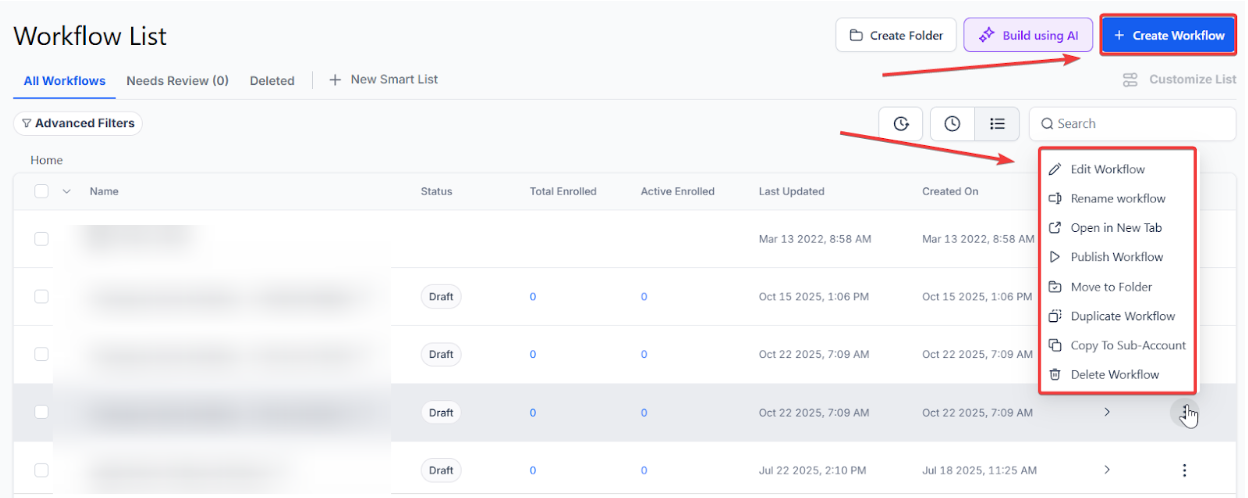
2- Add the Action: Click the ”+” icon and select the “Find Contact” action from the dropdown menu.

3- Name Your Action: For clarity, name it descriptively, such as “Find Contact by Email.”

4- Select Fields:
- Standard Fields: Choose from options like First Name, Last Name, Email, and Phone.

- Custom Fields (Optional): Add fields like “Customer ID” or “Subscription Tier” if they are pertinent to your search criteria.

5- Enable Secondary Search: If you select a Phone or Email field, you can check the box to “Include additional phones or emails.” This allows the system to look for matches within secondary contact data.
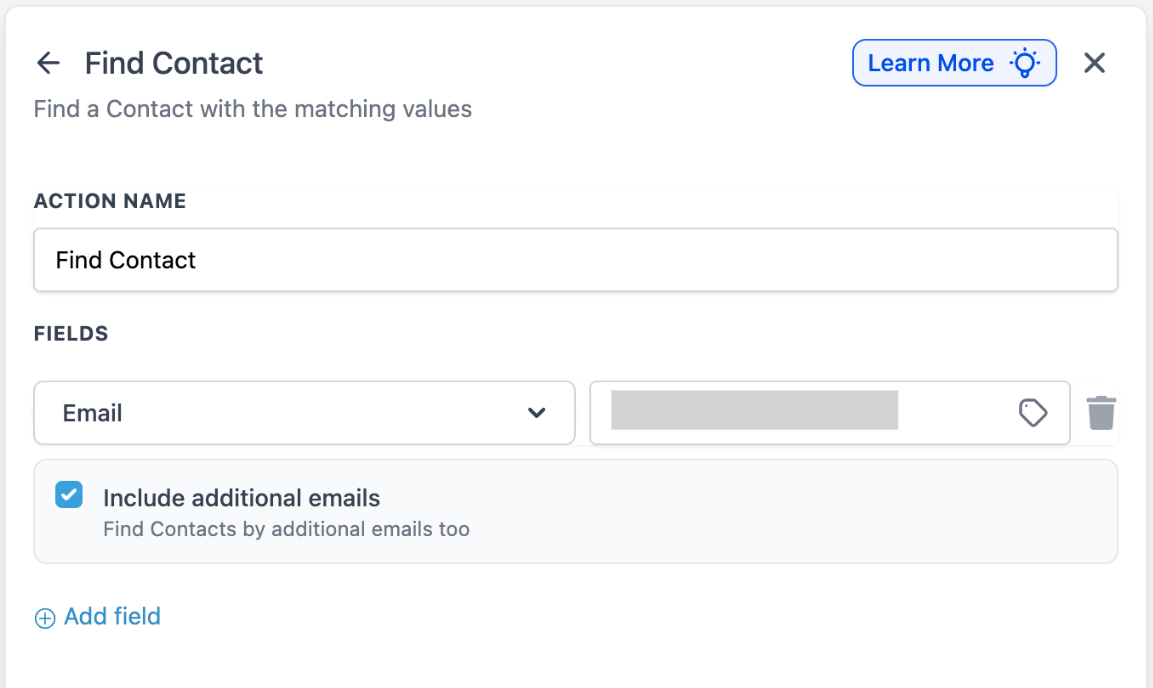
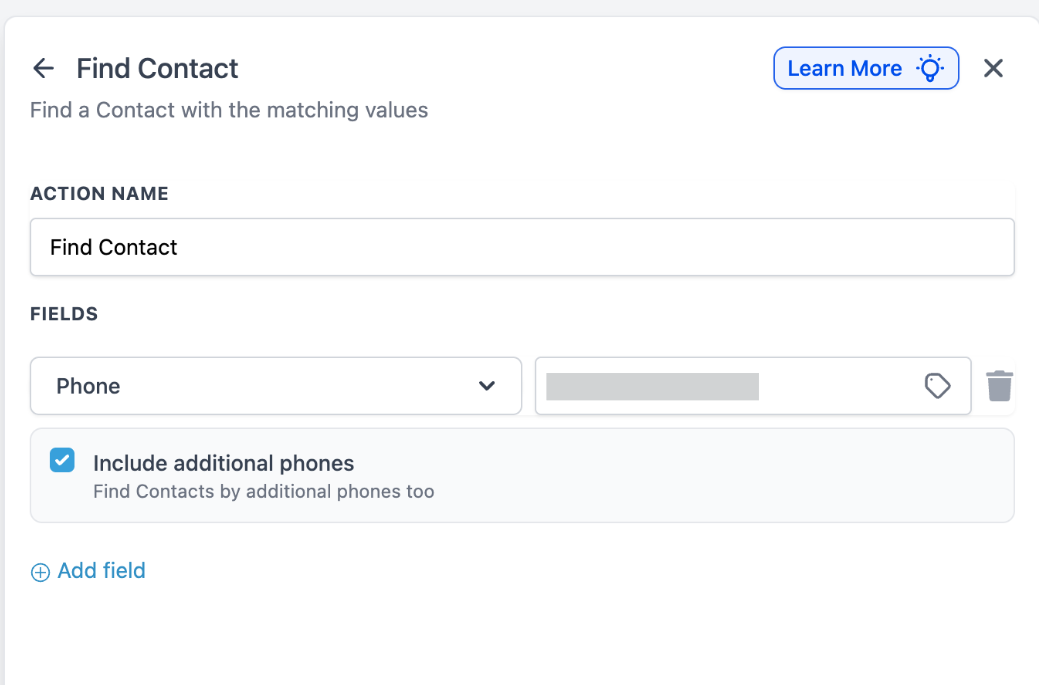
6- Configure Triggers: Set up triggers like “Inbound Webhook” or ‘form submitted’ to activate the action based on specific activities.
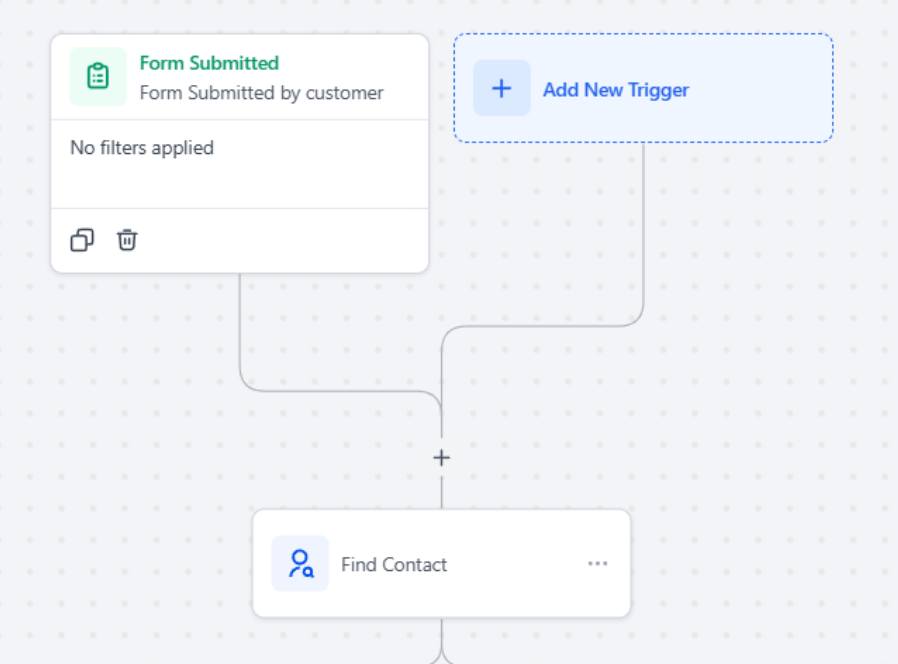
7- Test and Save: Before finalizing, test the configuration with sample data to ensure accuracy.
8- Publish the Workflow: Activate the workflow to start automating the contact search process.
Use Cases
Section titled “Use Cases”- Follow-Up Communication: After a contact submits their email via a web form, the action can find the contact and trigger a personalized follow-up email.
- Secondary Contact Matching: If a customer reaches out using a secondary email address not listed as their primary, the system can still identify them and link the activity to their existing record.
- External Reference Matching: When a webhook sends a “Stripe Customer ID”, the action matches this ID with a contact in the CRM, updating their payment status and triggering a confirmation email.
- Data Validation for Marketing Campaigns: Ensures contacts meet certain criteria before they are included in a promotional email campaign.
- Onboarding Assistance: Finds a contact who has signed up and assigns them to an onboarding specialist for immediate follow-up.
- Lead Scoring Integration: Updates a contact’s lead score based on data from a lead scoring system and notifies the sales team for prioritization.
Branching in the “Find Contact” Workflow Action
Section titled “Branching in the “Find Contact” Workflow Action”The “Find Contact” workflow action includes branching capabilities that allow users to define different paths based on whether a contact is found. This functionality enhances the adaptability and precision of managing workflows.
Implementation
Section titled “Implementation”- Branch Flow Usage: The action allows for the configuration of branching paths that respond based on the search results, enabling different actions depending on whether a contact is found or not.

- Integration in Workflows: This branching, once enabled, is seamlessly integrated into both existing and new workflow configurations, ensuring that all users can benefit from this feature without any need for special updates.


Benefits of Branching
Section titled “Benefits of Branching”- Customized Workflow Responses: Users can tailor workflows to handle different outcomes effectively, such as taking specific actions when a contact is not found.
- Streamlined Workflow Logic: Define clear steps for various outcomes, enhancing the workflow’s effectiveness and response to data conditions.
Question: What happens if the contact is not found? Answer: The workflow may skip subsequent steps or execute a fallback action like creating a new contact record.
Question: How does external reference matching work? Answer: External identifiers stored in custom fields are used by the “Find Contact” action to locate the corresponding contact in the .
Question: Can this action be combined with other workflow actions? Answer: Yes, it can be integrated with actions like “Send Email” or “Update Contact” for more complex workflows.
Question: Is this action compatible with all workflow triggers? Answer: Yes, it works with a variety of data-driven triggers, enhancing its versatility across different scenarios.
Question: Can multiple fields be used for the search? Answer: Absolutely, configuring multiple fields refines the search criteria, ensuring more precise results.
Question: What is branching in the Find Contact action? Answer: Branching allows the workflow to split into different paths based on whether a contact is found or not found. Each path can trigger unique actions depending on the result.
Question: Can I search for contacts using information other than name or email? Answer: Yes. Beyond standard fields, you can use Custom Fields such as “Customer ID,” “Subscription Tier,” or external references like a “Stripe Customer ID” to locate specific contacts.
Question: What is branching in the Find Contact action?
Answer: Branching allows the workflow to split into different paths based on whether a contact is found or not found. Each path can trigger unique actions depending on the result.
Question: Can I search for contacts using information other than name or email?
Answer: Yes. Beyond standard fields, you can use Custom Fields such as “Customer ID,” “Subscription Tier,” or external references like a “Stripe Customer ID” to locate specific contacts.
Question: What happens if the search finds multiple contacts that match the criteria?
Answer: In the event of multiple matches, the system typically identifies the contact that was most recently updated. To ensure the best results, it is recommended to use unique identifiers like Email, Phone, or a specific Customer ID as your primary search criteria.