Workflow Action: Add & Remove Associated Records from Workflows
Modern automation isn’t just about handling one record at a time; it’s about managing the relationships between records and acting on them intelligently. With the Add Associated Records to Workflow and Remove Associated Records from Workflow actions, you can automate processes across contacts, companies, and custom objects based on how they are connected.
This article outlines how these actions work, what they enable, and how to use them effectively across different types of workflows.
Key Features and Benefits
Section titled “Key Features and Benefits”Cross-Record Automation at Scale
Section titled “Cross-Record Automation at Scale”Add Associated Records to WorkflowEnroll related contacts, companies, or custom objects into another workflow based on their association.
Supports various relationship types (e.g., Parent-Child, Assigned Dealer, Employee-Company).
Remove Associated Records from WorkflowAutomatically remove associated records from a workflow when they no longer meet specific criteria or when the relationship changes.
Why It Matters
Section titled “Why It Matters”Cross-Object AutomationEasily involve associated records in automations, from notifying teams to updating client communications.
EfficiencyEliminate the need for manual enrollment or removal. Keep your workflows clean and dynamic.
Control & AccuracyEnsure that only relevant records stay active in a workflow. Remove contacts or objects as soon as they no longer qualify.
How to Use: Step-by-Step
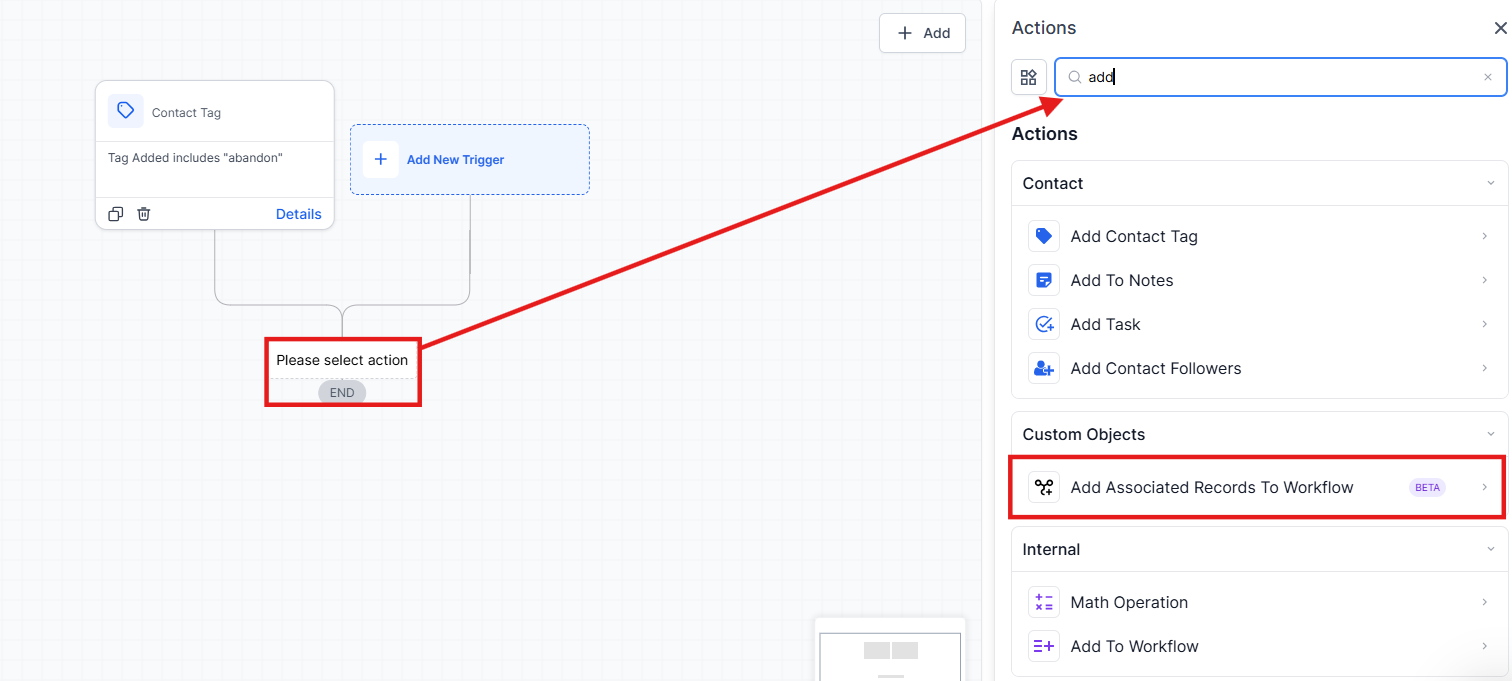
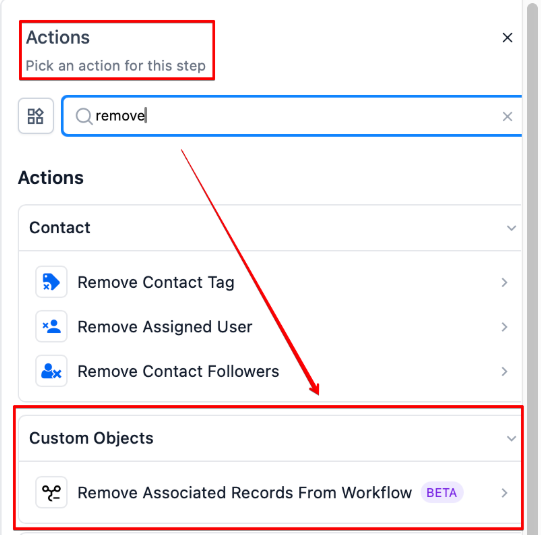
Section titled “How to Use: Step-by-Step”1. Add the Workflow ActionIn your workflow editor:
- Choose either Add Associated Records to Workflow or Remove Associated Records from Workflow.
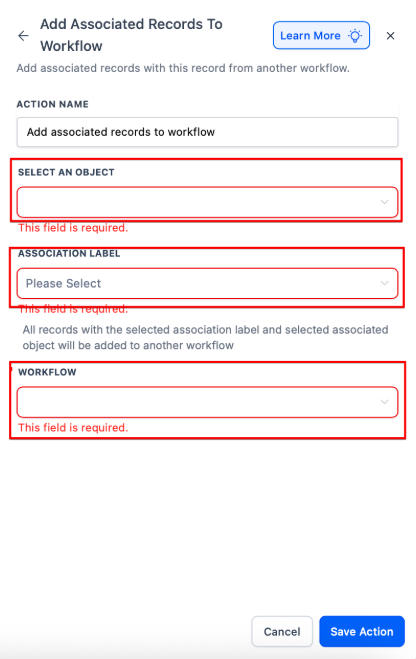
2. Select Object TypeChoose the type of associated record you want to affect:
- Contact
- Company
- Custom Object
3. Choose Association LabelPick the relevant association label (e.g., Parent-Child, Assigned Dealer, Employee).
These labels define which relationships the action should look for.
4. Select Target WorkflowChoose the workflow where you want to add or remove the associated records, and then save the action.
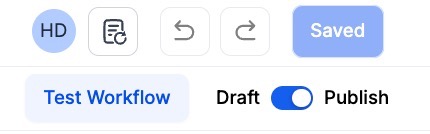
5. Save and PublishOnce the workflow is published, it will automatically handle the add/remove actions for associated records based on the logic you’ve defined.
Use Case Examples
Section titled “Use Case Examples”Add Associated Records
- **Car ↔ Dealer (Custom Object)**When a Car status becomes “Ready for Sale,” automatically add associated Dealers (label: Assigned Dealer) to a notification workflow.
- Contact ↔ ContactWhen a Student is enrolled, add their Parent contact(s) (label: Parent-Child) to a semester update workflow.
- Company ↔ ContactWhen a Company is marked as VIP, enroll all associated Employees into the VIP communication sequence.
Remove Associated Records
- **Car ↔ Dealer (Custom Object)**When a Car is sold, remove all associated Dealers from the Dealer Alert Workflow to stop updates.
- Contact ↔ ContactWhen a Student graduates, unenroll their Parents from the academic notification workflow.
- Company ↔ ContactIf a Company status changes to Inactive, remove all linked Employees from active campaign workflows.
Question: What does the Remove From Workflow action do? Answer: This action removes a contact from either the current workflow they are in or another specified workflow. It helps in managing a contact’s engagement across different workflows.
Question: How do I choose between removing a contact from the current workflow or another workflow? Answer: Select Current Workflow if you want the contact to be removed from the workflow they are currently engaged in. Choose Another Workflow if you want to remove them from a different workflow, and specify which one in the dropdown menu.
Question: Can I use this action to remove a contact from multiple workflows? Answer: No, each Remove From Workflow action can only target one workflow at a time. To remove a contact from multiple workflows, add separate Remove From Workflow actions for each workflow.
Question: Do I need to use a trigger for this action to work? Answer: No, a trigger is not required for the Remove From Workflow action to function. You can set it up to run automatically or manually as needed.
Question: What happens to a contact after they are removed from a workflow? Answer: Once removed, the contact will no longer proceed through the actions or steps defined in that workflow. Any ongoing tasks or communications for that workflow will be stopped for the contact.
Question: How can I test if the Remove From Workflow action is working properly? Answer: Use the Test Workflow button to simulate the workflow and ensure the action functions as intended. Check the contact’s enrollment history and execution logs for verification.
Question: Can I change the display name of the “Remove From Workflow” action in the workflow builder?
Answer: Yes, you can change the display name of the “Remove From Workflow” action within the workflow builder by using the textbox under Action Name in the action setup menu. This only affects the display name within the workflow builder and does not impact the functionality of the action.
Question: What happens if I try to remove a contact from a workflow they are not currently enrolled in?
Answer: The action will be reflected in the execution logs as “skipped.” This ensures you have a record that the system attempted the removal but found the contact was not part of that specific workflow.
Question: Is there a limit to how many associated records can be enrolled at one time?
Answer: While there is no hard limit, the system is optimized for high-volume automation. If you are enrolling hundreds of records simultaneously (e.g., enrolling every employee of a massive corporation), the actions are queued and processed in real-time to ensure stability.