Manus triggers and actions in Workflows
This article provides a comprehensive overview of the native integration of advanced task-based AI functionalities within your automation builder. By utilizing these triggers and actions, businesses can streamline complex logic, manage AI-driven tasks, and automate responses without the need for external middleware. This integration ensures that your AI operations are centralized, efficient, and highly scalable.
Key Features and Benefits
Section titled “Key Features and Benefits”- Native Automation: Create and manage AI tasks directly within your automation sequences, reducing the complexity of your tech stack.
- Bi-Directional Communication: Send structured instructions to the AI system and set up listeners to react when those tasks are completed or stopped.
- Granular Task Control: Perform a full range of operations including creating, updating, fetching, and deleting tasks to maintain a clean and organized database.
- Extended Conversational Logic: Use the “Continue Task” functionality to add follow-up prompts to existing tasks, allowing for multi-step AI reasoning and refined outputs.
- Operational Efficiency: Automate repetitive logic-based tasks, ensuring that AI-generated responses are integrated into your customer journeys in real-time.
How to Use Manus Triggers and Actions
Section titled “How to Use Manus Triggers and Actions”Step 1:From Integrations Page
- Navigate to Settings → Integrations.
- Select Manus and connect it.
- Enter your API key.
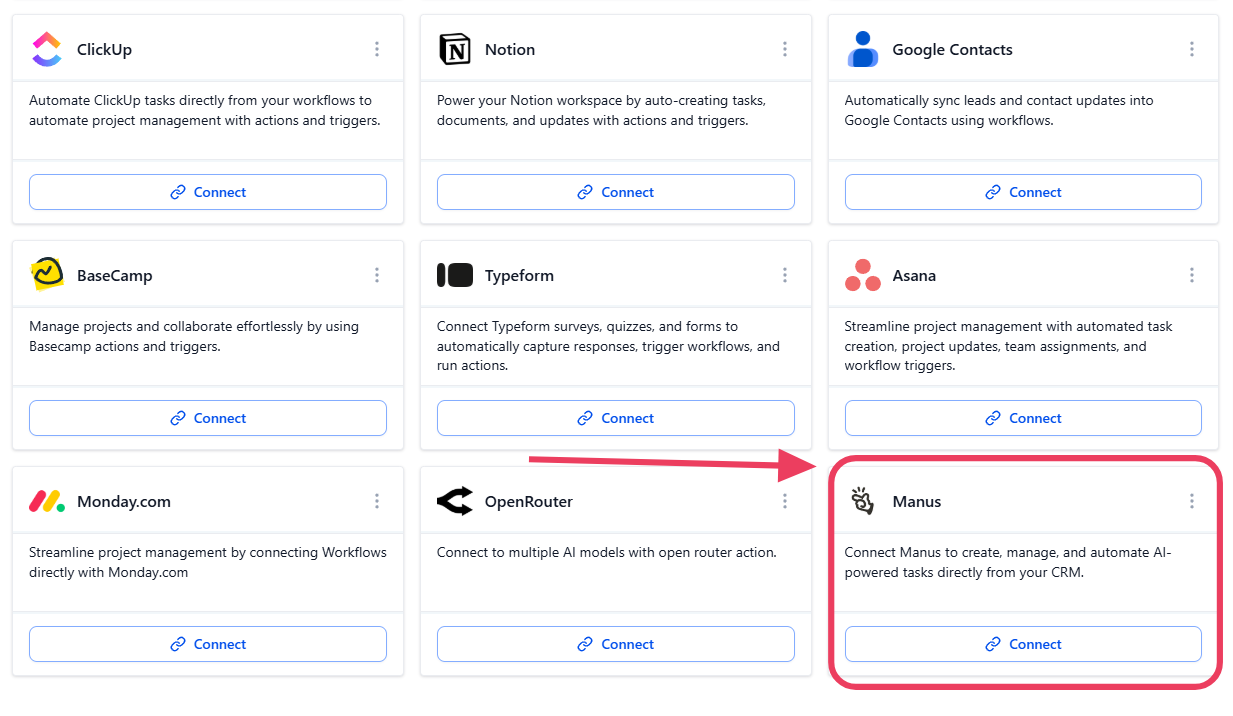
Step 2: From Workflow Builder
Section titled “Step 2: From Workflow Builder”Open your workflow under Automation > Workflows.
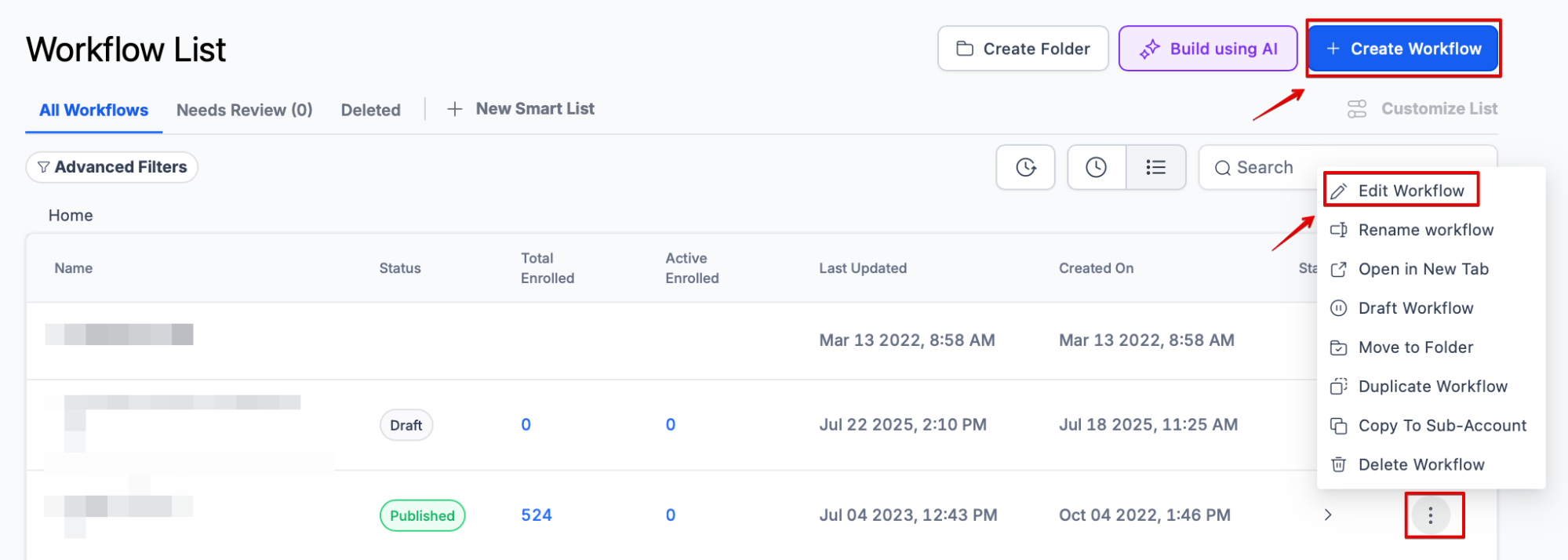
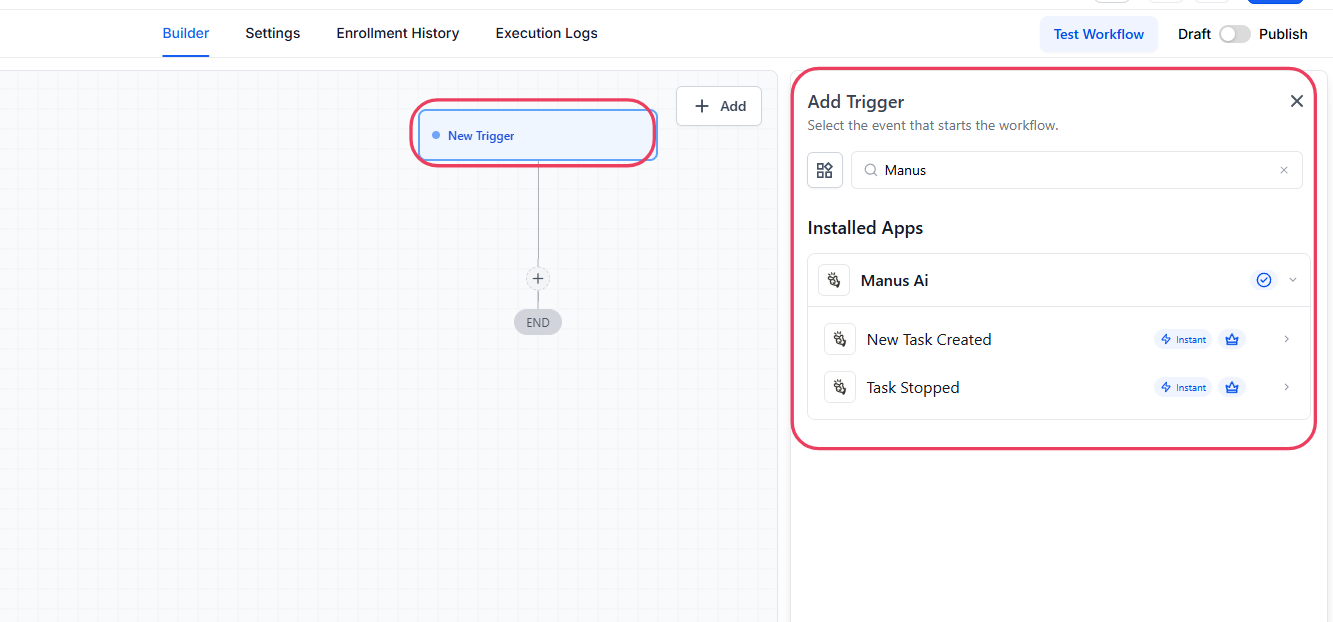
Add a new AI-related trigger or action step.
Click the Connect Now prompt.
Input your API key to verify the account.
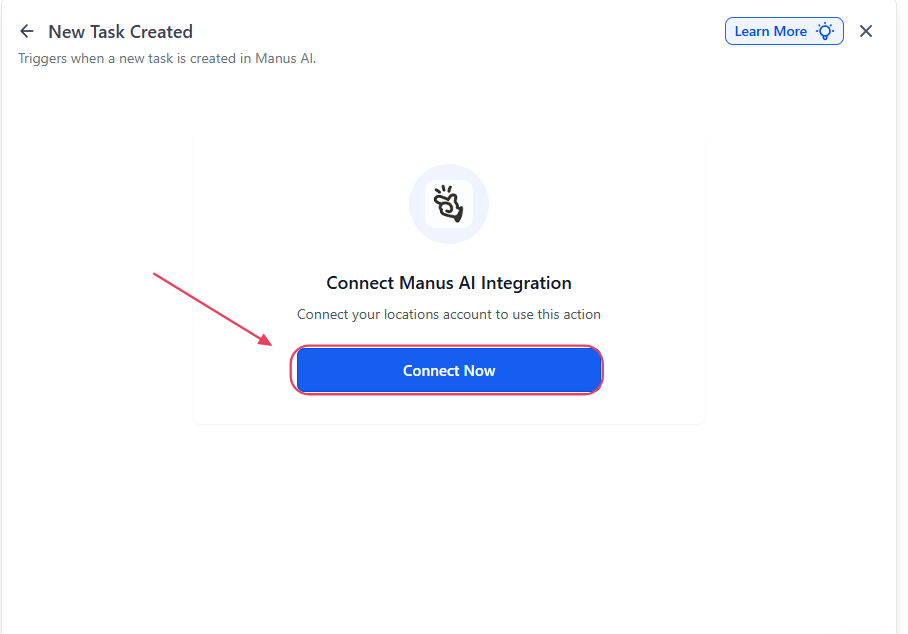
Step 3: Configuring Triggers
Section titled “Step 3: Configuring Triggers”You can initiate workflows based on AI activity. The available triggers include:
- Task Created: Activates a workflow the moment a new task is successfully initiated.
- Task Stopped: Fires when a task reaches its conclusion or is manually halted.
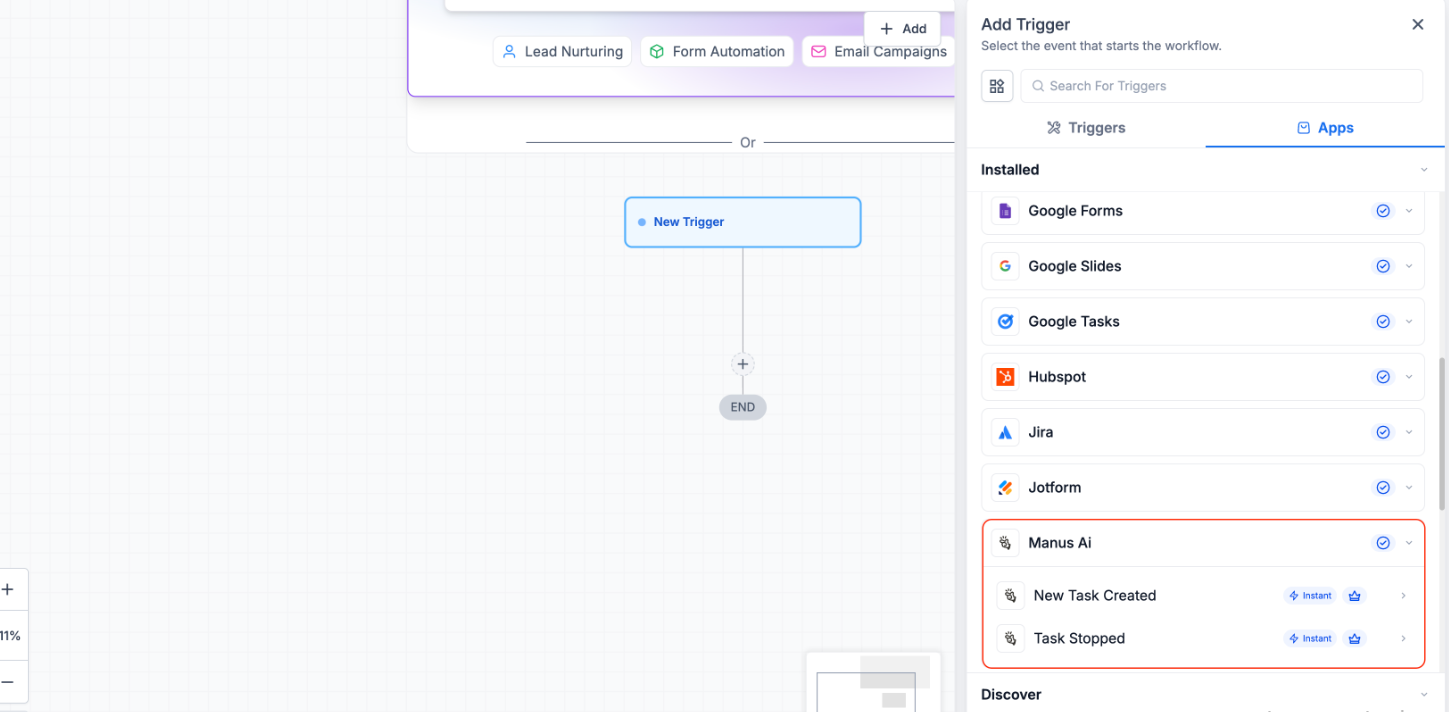
- Note: These triggers specifically monitor tasks generated within your automation builder, rather than those created manually inside the AI application itself.
Step 4: Implementing Actions
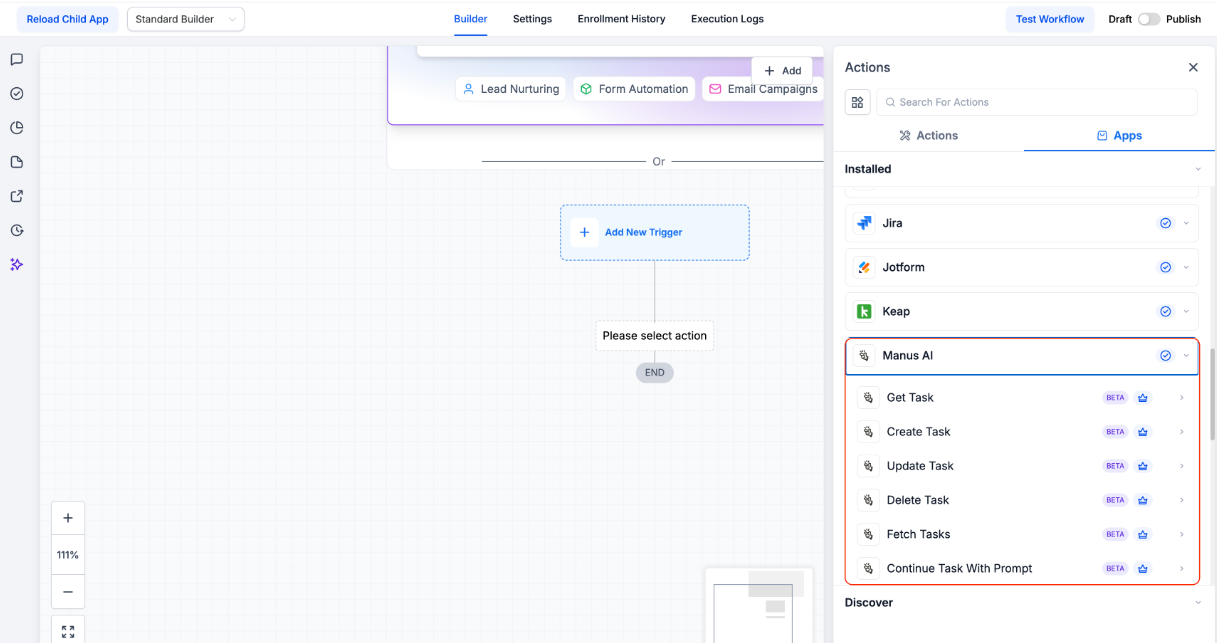
Section titled “Step 4: Implementing Actions”Add actions to your workflow to manage the AI lifecycle:
- Create Task: Start a new process with an initial prompt.
- Get Task: Retrieve specific data or outputs from a previously created task.
- Update Task: Modify metadata or parameters of an existing task.
- Delete Task: Remove a task record when it is no longer needed.
- Continue Task with Prompt: Send additional instructions to an active task to further process information.
Pro Tips for Advanced Implementation
Section titled “Pro Tips for Advanced Implementation”- The Task ID Strategy: Always store the Task ID returned from the “Create Task” action in a Contact Custom Field. This ID is the unique “key” required for every subsequent action (Get, Update, Continue, or Delete). Without saving this ID, you cannot reference that specific AI instance later in the workflow.
- Polling Awareness: Be mindful that triggers check for updates approximately every 5 minutes. Design your follow-up steps with this interval in mind to ensure a smooth user experience.
- Execution Logs: If a task does not appear to be moving forward, check your Workflow Execution Logs. This area provides specific error codes, such as authorization failures or invalid IDs, which are essential for troubleshooting.
Question: Where can I view the full output and history of a task? Answer: Full task details, including prompt history and lifecycle status, are available within the dashboard of the AI service. The automation builder primarily handles the initiation and retrieval of these tasks via the Task ID.
Question: How do I retrieve the specific AI output to use it in an email or SMS? Answer: You should use the Get Task action. By referencing the stored Task ID, the system will fetch the data, which can then be inserted into your communication templates using custom values.
Question: Why might an AI task fail to trigger a workflow? Answer: Common reasons include the integration being disconnected, the use of an invalid or expired Task ID, or the task being stopped before the workflow could process it. Ensure your API key is active and that the Task ID is correctly mapped to a custom field.
Question: Are there specific credits required for these actions? Answer: These are considered premium workflow steps. While the automation platform handles the logic, the actual AI usage is billed separately by the AI service provider according to their specific rates.
Question: Can I use these triggers to react to tasks I created manually in the AI app?
Answer: No. To maintain data integrity and security, the triggers only respond to lifecycle events of tasks that were originally created through a workflow action.