WhatsApp Media Messaging
Effective communication often requires more than just text; it requires the ability to share visual and document-based context. This article explains the enhanced media messaging capabilities available within the conversation interface of . By leveraging these advanced features, users can deliver a more professional and comprehensive experience to their customers, ensuring that all shared assets are informative, accessible, and organized.
Key Features and Benefits
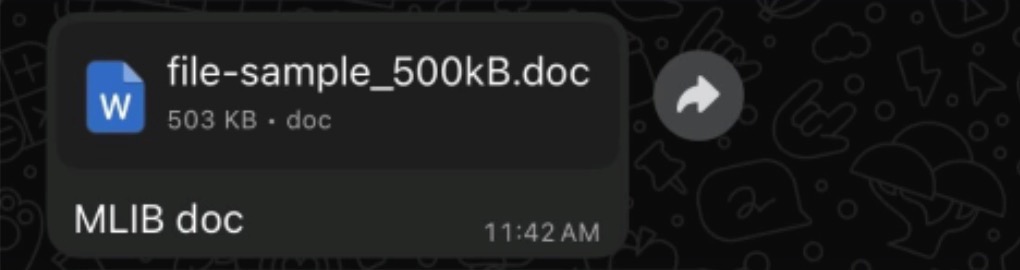
Section titled “Key Features and Benefits”- Media Captions for Context: Users can attach descriptive text directly to media files. This ensures that every image, video, or document sent is accompanied by the necessary explanation, preventing confusion and reducing the need for follow-up questions.
- Expanded File Support: The system supports the full spectrum of file formats allowed by the messaging API. This includes high-resolution images, video files, audio clips, and a wide variety of professional document formats (PDF, Excel, PowerPoint, Word, and more).
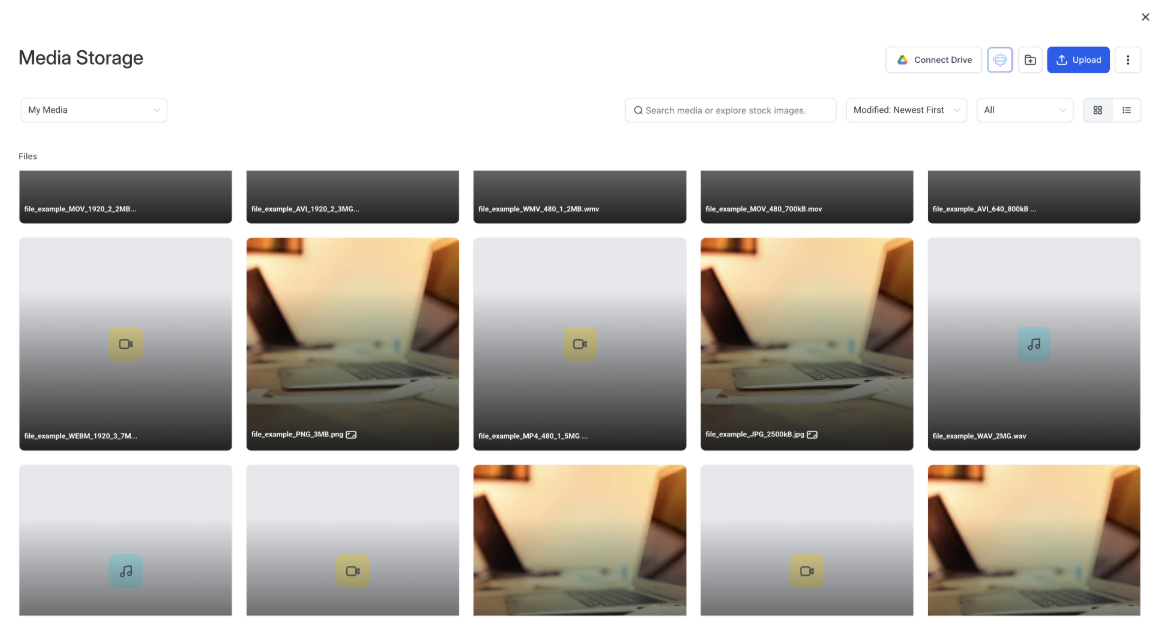
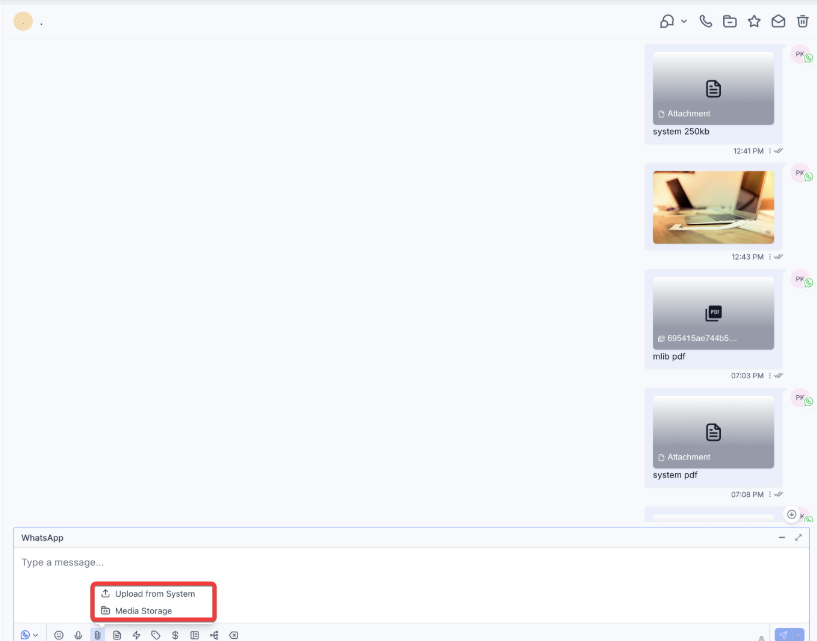
- Integrated Media Storage: Direct access to your centralized media library within the chat interface allows for the quick reuse of approved assets. This eliminates the need for repetitive manual uploads and ensures brand consistency.
- Asset Preservation: To prevent media from expiring or being lost, important attachments can be saved directly to the contact’s document storage within the system.
- Message Reliability: Significant backend improvements ensure that thumbnails display correctly, filenames are preserved during transmission, and messages containing both text and media are delivered as a single, cohesive unit.
Supported File Types and Limits
Section titled “Supported File Types and Limits”To ensure successful delivery, please adhere to the following file size guidelines:
- Images: PNG, JPG, JPEG (Up to 5MB)
- Videos: MP4, 3GP (Up to 16MB)
- Audio: AAC, AMR, MP3, M4A (Up to 16MB)
- Documents: PDF, DOCX, XLSX, PPTX, TXT, etc. (Up to 100MB)
How to Use Rich WhatsApp Media Messaging
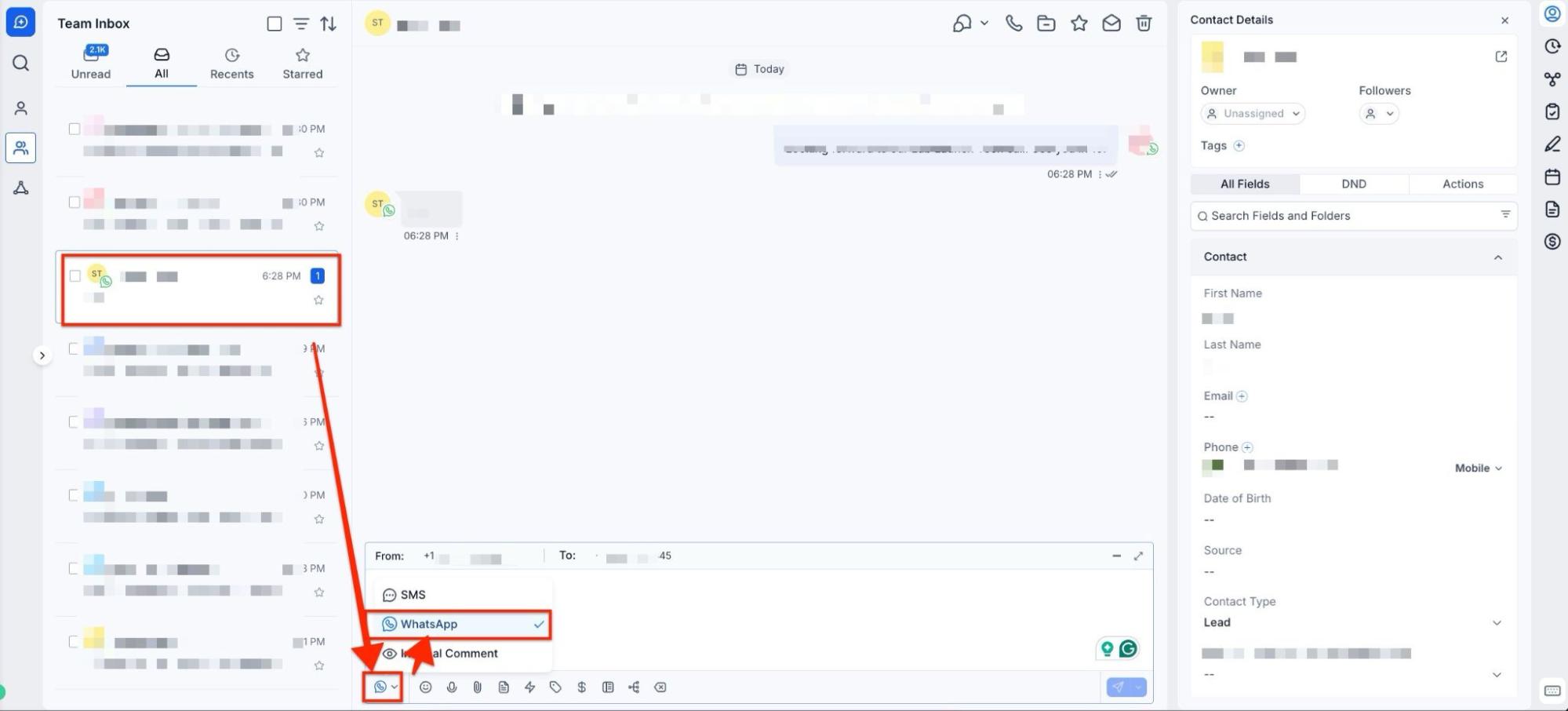
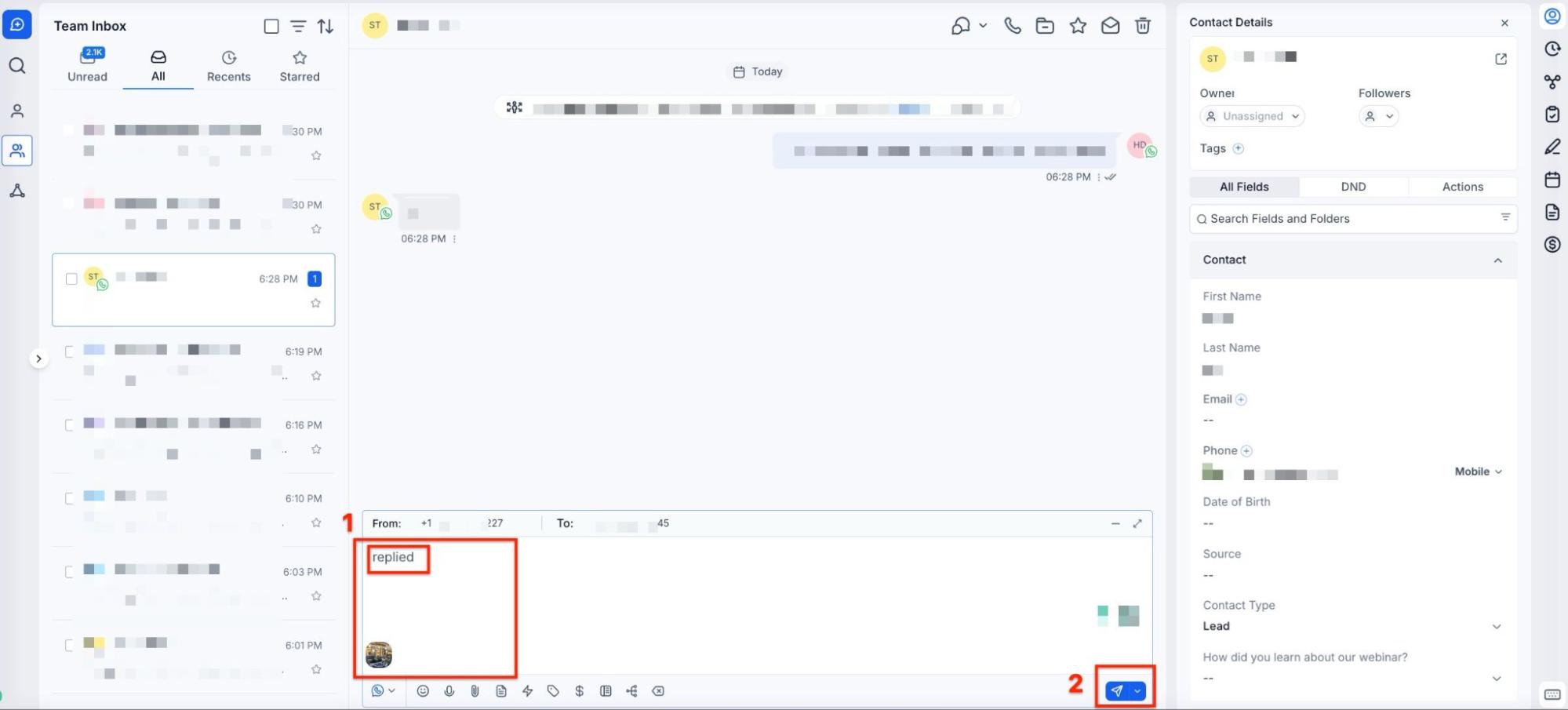
Section titled “How to Use Rich WhatsApp Media Messaging”1. Navigate to Conversations: Open the relevant contact thread within the conversation dashboard and ensure that the messaging option is toggled to WhatsApp (as shown in the screenshot below).
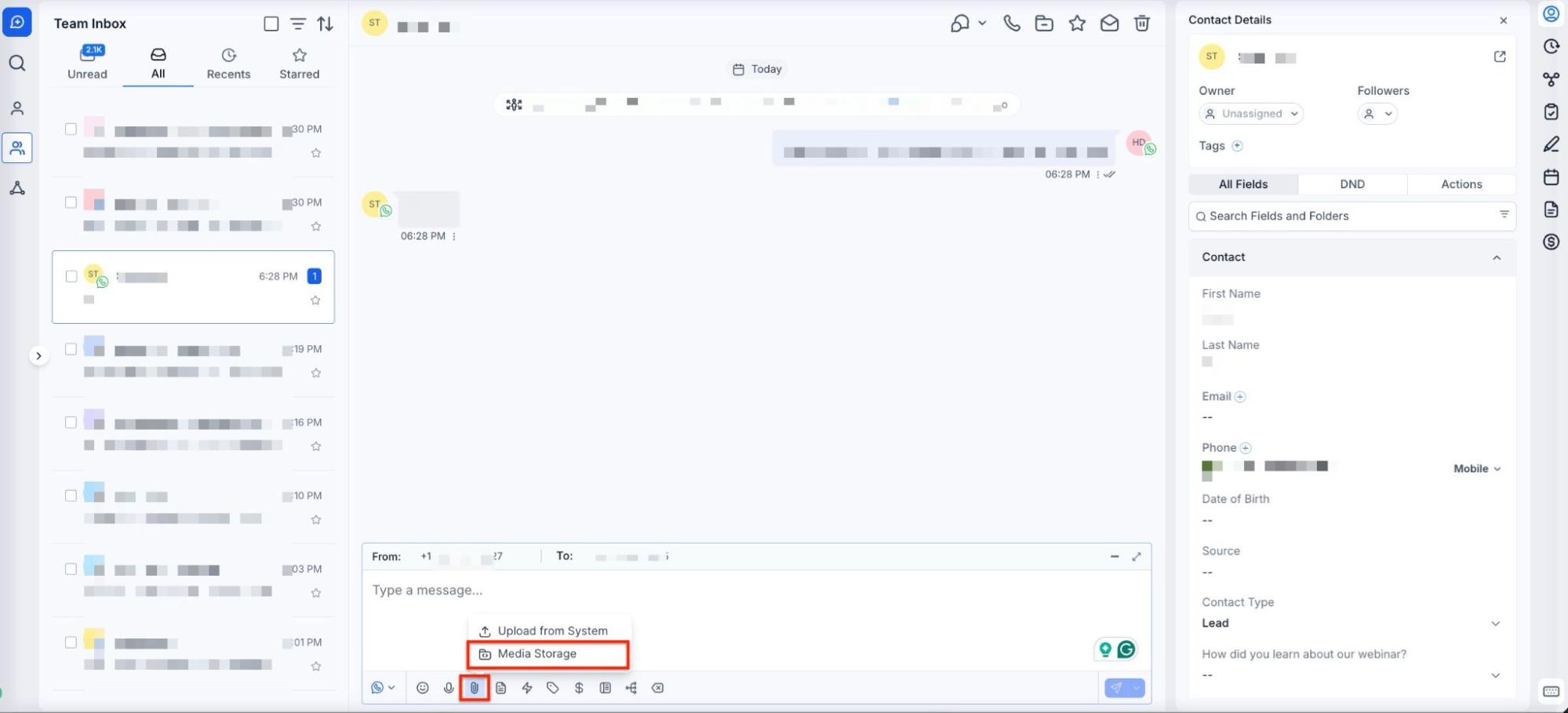
2. Select Media Source: Click the attachment icon in the composer. You may choose to upload a file directly from your local device or browse your existing Media Storage.
3. Add Your Caption: Once the file is selected, type your descriptive text into the composer. If you are sending multiple attachments, the text you enter will automatically be applied as the caption for that media bundle.
4. Send the Message: Review the layout to ensure the attachment and text appear correctly, then click send. The recipient will receive a clean, unified message with the media and caption integrated.
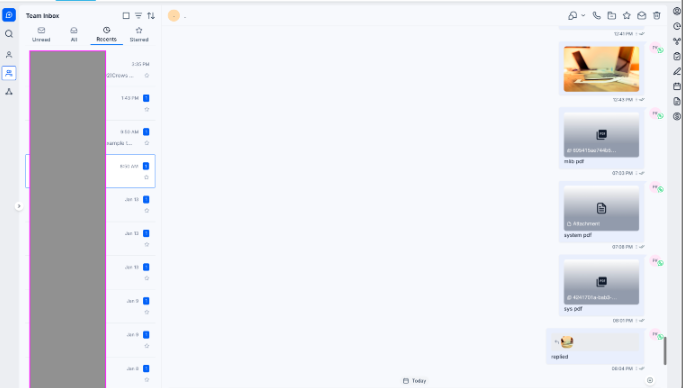
5. Store for Long-Term Access: For important incoming or outgoing assets, use the “Add to Documents” option to save the file permanently to the record.
Pro Tips
Section titled “Pro Tips ”- Original Filenames: When sending documents from Media Storage, the system preserves the original filename. Ensure your files are named professionally (e.g., “Onboarding_Guide.pdf” instead of “Scan_123.pdf”) to build better trust with your clients.
- Batch Captions: If you need to send a series of images or documents, uploading them together allows you to use one comprehensive caption to describe the entire set, keeping the conversation thread organized.
- Explainer Videos: Take advantage of the 16MB video limit to send short “How-to” clips or personalized greetings. Adding a caption like “Here is a quick walkthrough of your new dashboard” provides immediate value before the user even clicks play.
Question: Can I send a document and a text message at the same time?
Answer: Yes. When you attach a file and type a message in the composer, the system sends them as a single cohesive unit, with the text serving as a caption for the document.
Question: What happens if I send multiple images at once? Answer: If you send multiple attachments in a single action, the text you have written in the message box will be applied as the caption for that entire group of media.
Question: Is there a limit to how many files I can send from my Media Storage? Answer: There is no specific limit on the number of attachments you can send from your internal storage, provided individual files stay within the supported size limits (e.g., 100MB for documents).
Question: Why do some files show up as “Untitled” to my customers?
Answer: This typically happens with manual uploads of unnamed files. To avoid this, use the Media Storage feature, which preserves the original professional filename during the transmission process.
Question: Can I save a photo a customer sent me so it doesn’t disappear later? Answer: Yes. You can use the “Add to Documents” feature within the conversation to save any incoming media asset safely inside the contact record in .
Question: Is there a way to explain what a file is before the customer opens it?
Answer: Yes. You can use the Media Captions feature to attach descriptive text directly to the file in the composer, providing immediate context and reducing the need for follow-up questions.