Native WhatsApp Voice Notes with Transcriptions
This article explains the functionality and benefits of native voice messaging within the communication interface. By integrating these capabilities, businesses can ensure that their outbound voice communications are as seamless and interactive as standard mobile messaging, fostering better engagement and clearer communication with their audience.
Key Features and Benefits
Section titled “Key Features and Benefits”- Native Playback: Voice notes are delivered in a native format, allowing recipients to play the audio instantly within the chat interface without needing to download external files.
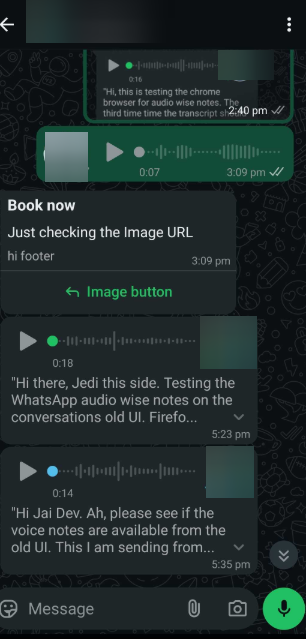
- Automatic Transcription: When enabled by the recipient, audio messages can be converted to text directly within the messaging app, allowing for quick reading when listening is not possible.
- Enhanced Accessibility: Transcriptions provide a vital alternative for users in noisy environments or those with hearing impairments, ensuring the message is always understood.
- Personal Connection: Voice notes add a human touch to business interactions, making conversations feel more authentic and personal compared to standard text.
- Streamlined Experience: By eliminating the friction of “downloadable attachments,” businesses see higher engagement rates and faster response times from their contacts.
How to Use Voice Messaging
Section titled “How to Use Voice Messaging”To utilize native voice notes within , follow these simple steps:
1. Open Conversations: Navigate to the communication or “Conversations” tab and select the specific contact you wish to message.
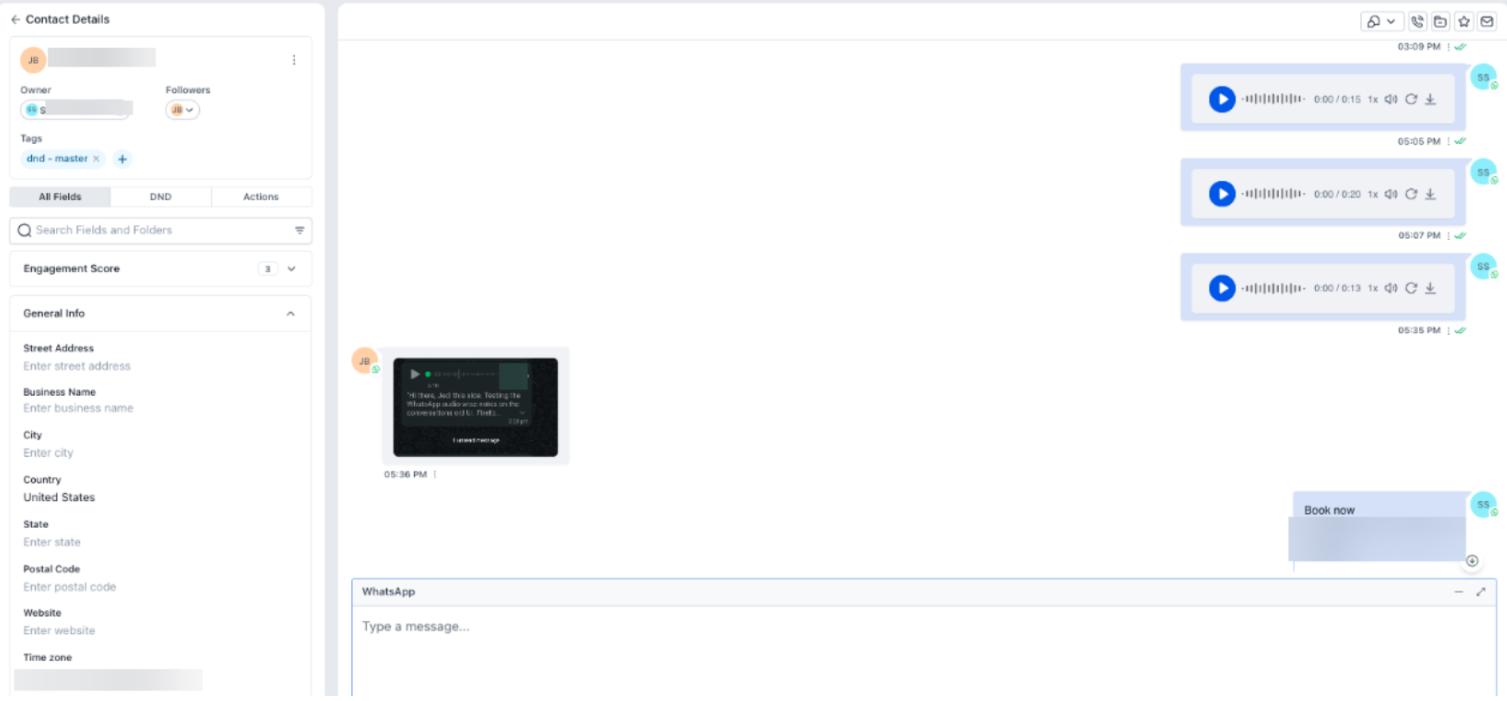
2. Select Voice Note: Click on the microphone icon or the option to record a voice message within the WhatsApp channel.
3. Record and Send: Record your message and hit send. The system automatically handles the formatting (OGG format) to ensure it is recognized as a native voice note by the recipient’s device.
4. Recipient Interaction: The end customer will receive the message as a playable audio bar. If they have transcriptions enabled in their device settings, they can simply tap “Transcribe” to see the text version of your audio.
Question: Do I need to change any settings in my account to enable native voice notes? ** Answer: No. This functionality is handled automatically by . Any outbound voice message sent via the appropriate channel is formatted to be delivered as a native note rather than an attachment.
Question: Why can’t some of my customers see the transcription text? Answer: Transcription is a feature controlled by the recipient’s mobile device and messaging app. If they have not enabled “Voice message transcripts” in their app settings, or if their device software is outdated, the transcription option may not appear.
Question: What audio format is used for these voice notes? Answer: Outbound messages are sent in the OGG format. This specific format is required for the messaging service to recognize the file as a native voice note and to trigger the built-in transcription tools.
Question: Can I see the transcription of the voice note I sent within my own dashboard?
Answer: Currently, the transcription feature is primarily a recipient-side tool designed to help the end customer read the message. The sender will see the audio file within the conversation history of .
Question: Is there a limit to how long the voice note can be for transcription to work?
Answer: While the platform allows for longer recordings, the messaging provider’s transcription service may have internal limits on audio length. For the best results and most accurate text conversion, it is recommended to keep messages focused and brief.