Troubleshooting Guide: Dedicated Email Sending Domains Overview & Setup
Troubleshooting Guide: Dedicated Email Sending Domains Overview & Setup
Integrating a dedicated email-sending domain is a critical step in maintaining brand consistency and improving email deliverability. This guide addresses common issues that users face while setting up their dedicated email-sending domains and provides troubleshooting steps to help you resolve them quickly and effectively.
FAQs: Troubleshooting Dedicated Email Sending Domains
Section titled “FAQs: Troubleshooting Dedicated Email Sending Domains”Question: Why am I receiving an error that says “Domain already pointing to email server”? Answer: This error occurs when the domain you’re trying to use for your dedicated email sending is already configured to point to a different email server.
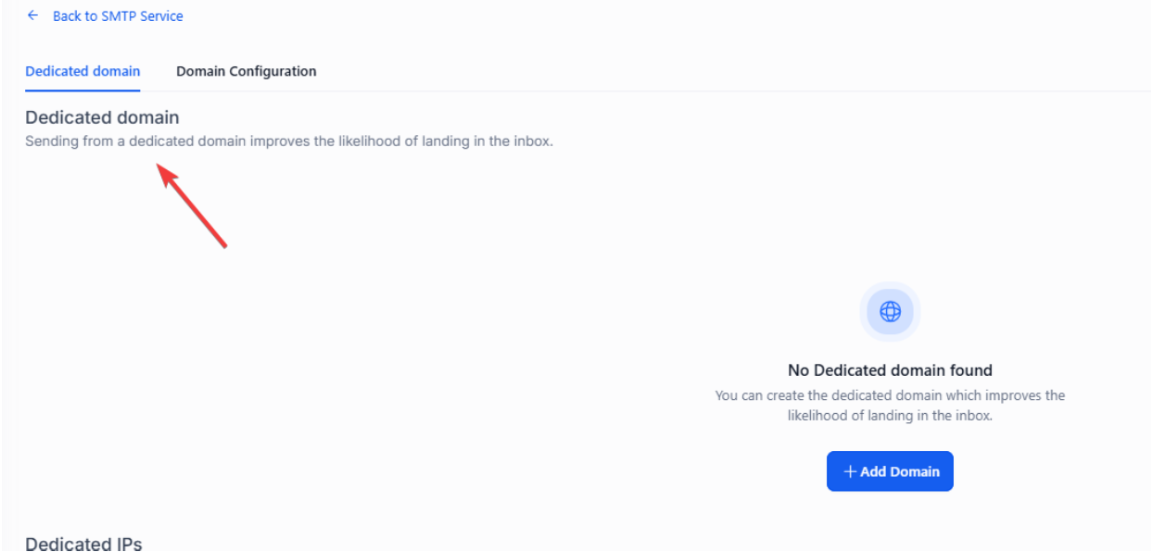
How to fix it:
- Check DNS Records:
- Use a tool like MXToolbox to check the MX and SPF records of your domain. If they are pointing to another service, this will cause the issue.
- Disconnect Current DNS Records:
- Log in to your domain hosting provider and remove any existing MX or SPF records that conflict with the new email-sending configuration.
- Reattempt Setup:
After clearing the records, go back to your Settings > Email Services, and try adding your domain again.
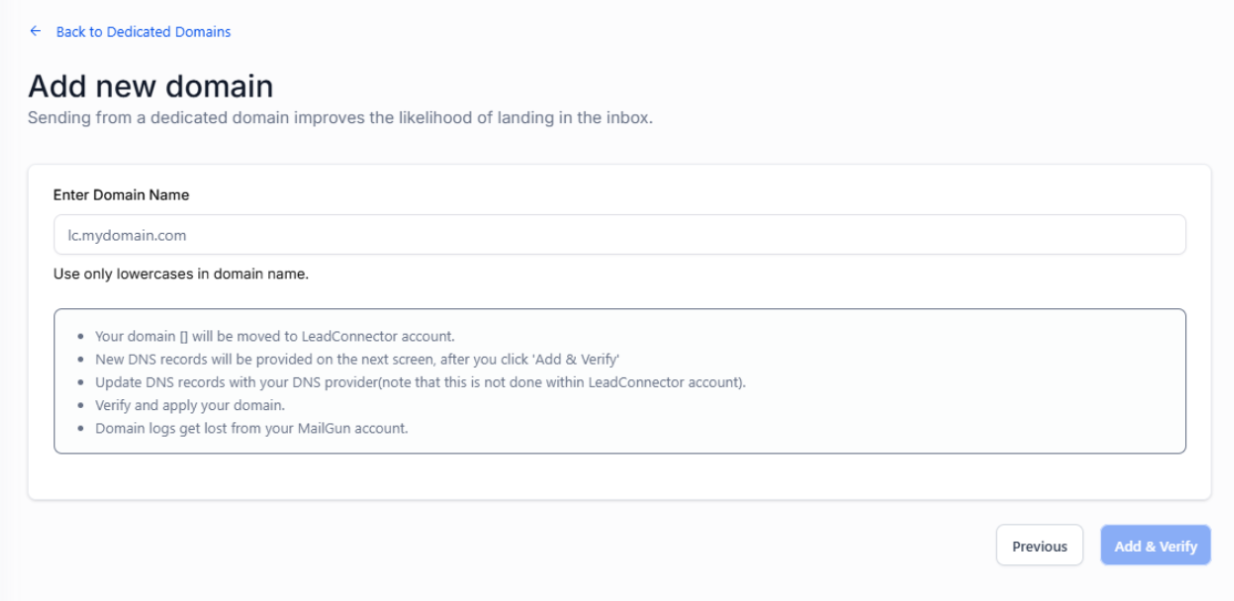
Fix: If this does not resolve the issue, you may need to contact your hosting provider to help resolve the conflict.
Question: I cannot verify my domain’s DNS records. What should I do?
Section titled “Question: I cannot verify my domain’s DNS records. What should I do?”Answer: If the DNS records for your dedicated sending domain aren’t verified, it could be due to incorrect setup or propagation delays.
How to fix it:
1. Force the Verification Process:
Manually trigger the verification process by going to Settings > Email Services > Dedicated Domain and IP and clicking the verification option.
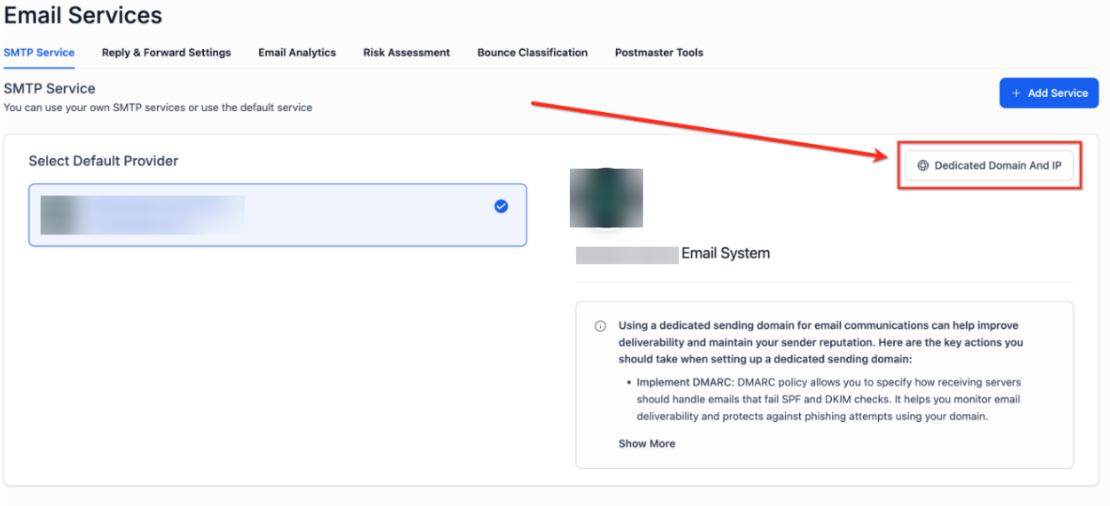
2. Check for Propagation:
- DNS propagation can take up to 24 hours, so if you’ve just updated your records, wait a bit and try again.
3. Contact Hosting Provider:
- If the problem persists after waiting, contact your hosting provider and ask them to check for issues with the DNS records.
Fix: After forcing verification and ensuring proper propagation, your DNS should be successfully verified.
Question: My domain is not showing the SSL certificate after verification. How can I fix this?
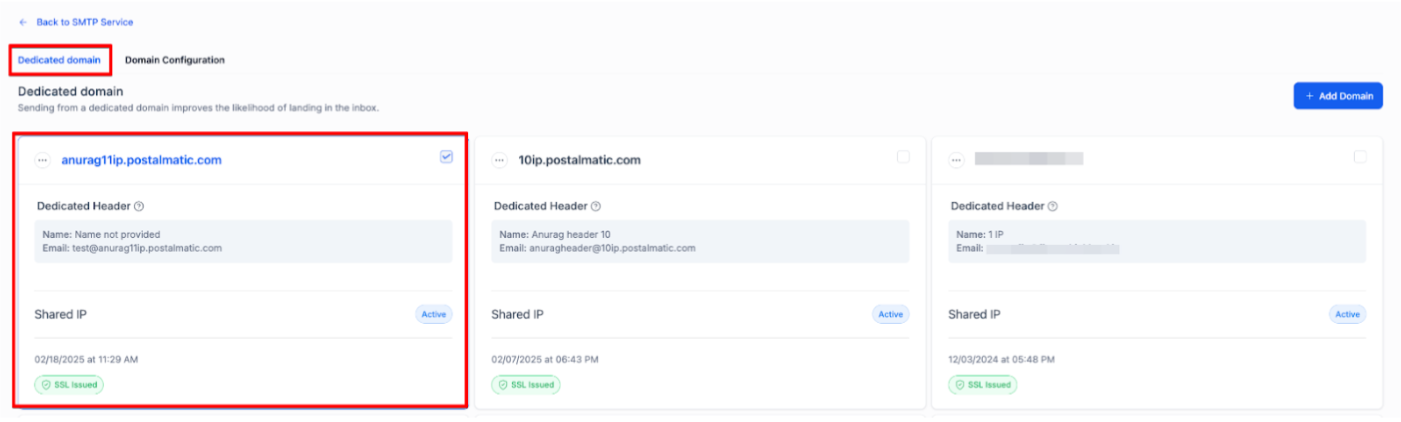
Section titled “Question: My domain is not showing the SSL certificate after verification. How can I fix this?”Answer: If the domain is verified but the SSL certificate is missing, it could be due to an incomplete verification or an issue on the hosting provider’s side.
Check SSL Status
SSL Issued: No additional steps are needed; your domain is secure.
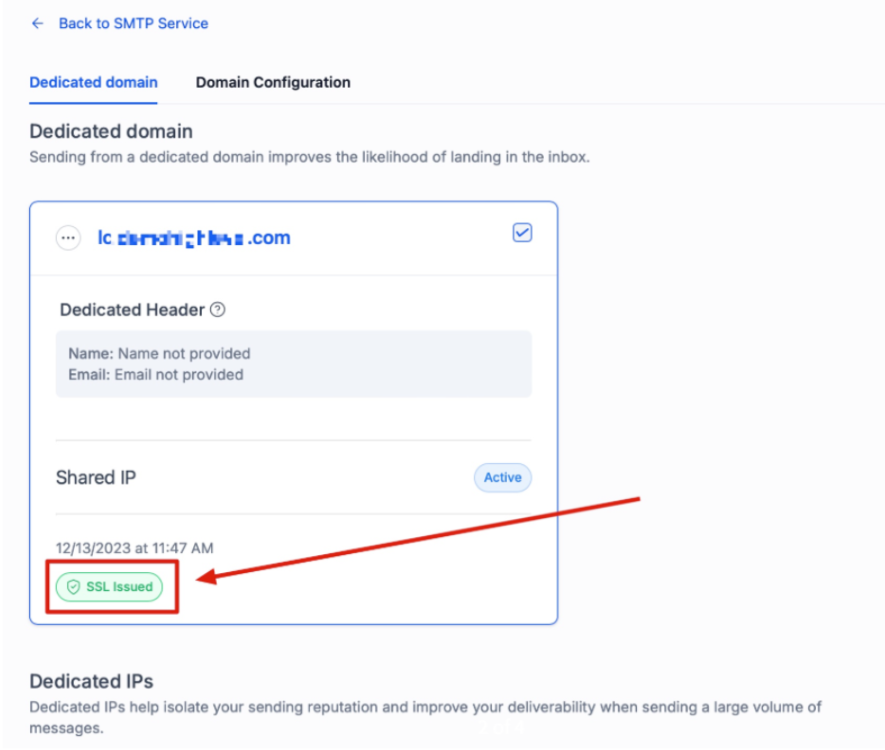
- SSL Pending: Reverify your domain by following the steps above to ensure the SSL certificate is generated successfully.
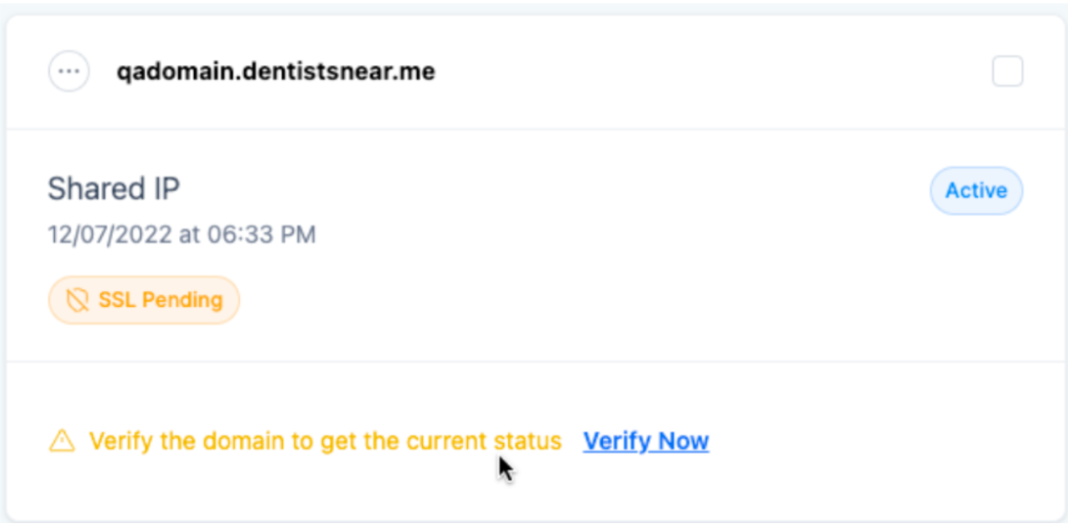
- SSL Unknown: Repeat the domain verification process. If SSL remains unknown after verification, review your DNS settings and attempt to issue the SSL certificate again.
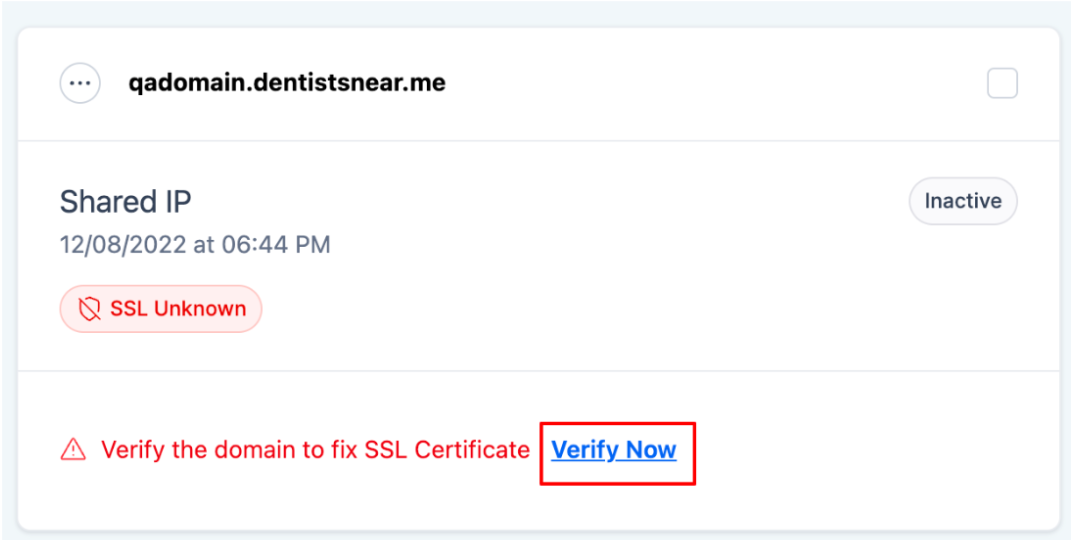
How to fix it:
- Re-verify Your Domain:
- Go through the domain verification process again to ensure that all steps were completed successfully.
- Check with the Hosting Provider:
- If the SSL certificate still isn’t showing up, contact your hosting provider to ensure they can generate and install the SSL certificate for your domain.
Fix: Completing the re-verification process should generate the SSL certificate. If not, the hosting provider will be able to assist in resolving this issue.
Question: How do I choose the best subdomain for my dedicated sending domain?
Section titled “Question: How do I choose the best subdomain for my dedicated sending domain?”Answer: Choosing a subdomain is an important part of setting up your dedicated sending domain. The subdomain should be unique to avoid conflicts with other parts of your domain.
How to fix it:
1. Select a Unique Subdomain:
Use a name that is specific to email communications, such as “emails.yourbrand.com” or “no-reply.yourbrand.com”. This helps with brand consistency and ensures that your sending domain is dedicated only to email purposes.
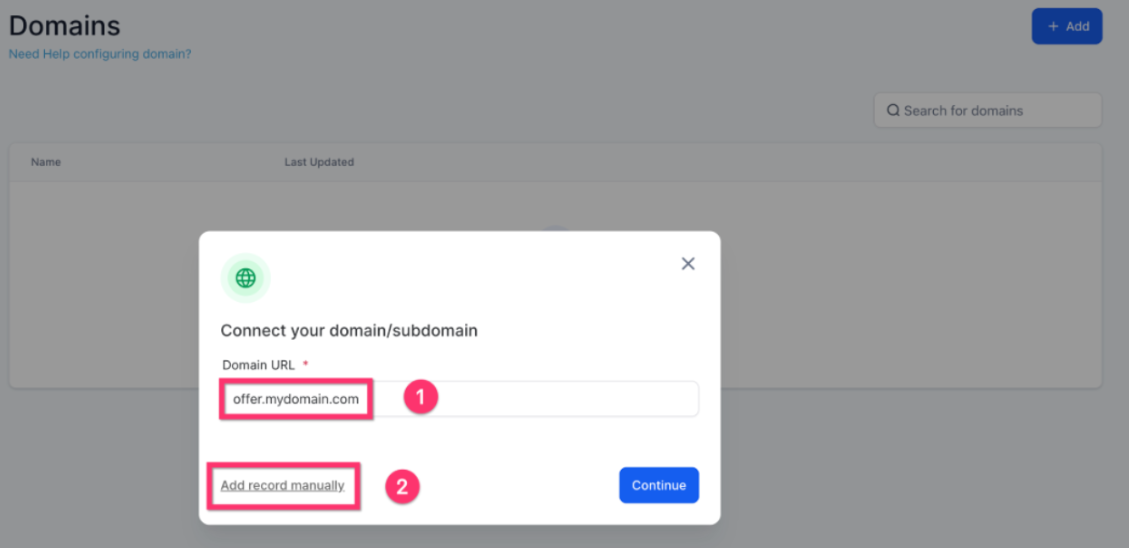
2. Avoid Common Subdomains:
- Make sure the subdomain isn’t already in use for other services, such as a website or other communication channels.
Fix: Create a unique subdomain specifically for email to avoid any conflicts and improve deliverability
Question: How do I set up a dedicated IP address for my sending domain? Answer: Setting up a dedicated IP address ensures that your emails are sent from a unique address, which can improve deliverability and protect your reputation.
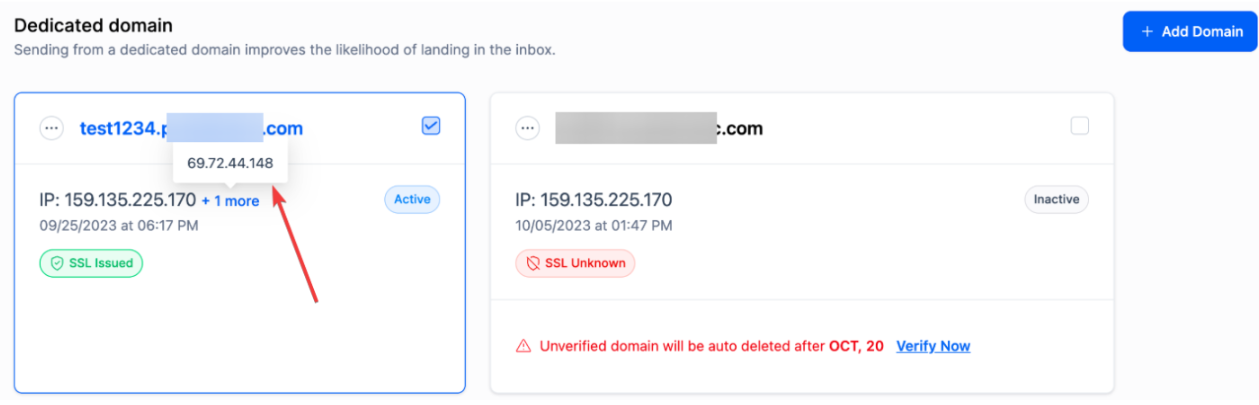
How to fix it:
- Separate IP for Email:
- You can configure a dedicated IP address through your email service provider. This step is typically handled separately from the domain setup.
- Contact Support:
- If you’re unsure how to set this up, reach out to customer support for your email service provider to ensure your dedicated IP address is correctly configured for email sending.
Fix: Setting up a dedicated IP can be a separate process, but it’s essential for maintaining email performance and deliverability.
Question: What do I need to do if I see a warning about missing SPF records? Answer: Review the domain-specific warning, identify the affected domain(s), and update the SPF record accordingly. Once updated, the warning will no longer appear.
Question:Can I resolve all domain issues on my own? Answer: Most DNS and subdomain issues can be fixed by updating records and re-verifying the domain. For SSL or IP-related issues, contacting your hosting provider or email service support may be necessary.
Question:How do I set up a dedicated IP address for my sending domain? Answer: Configure a dedicated IP through your email service provider. This improves deliverability and protects your sender reputation. Contact support if unsure how to set this up.
Question: What should I do if my DNS records are correct but the system still won’t verify them? Answer: This is often caused by DNS propagation delays. DNS changes do not happen instantly and can take time to spread across the internet.
Question: What tools can I use to verify if my MX and SPF records are pointing to the wrong server?
Answer: You can use a third-party tool like MXToolbox to check your domain’s current records. This will help you identify if they are still pointing to a previous email service, which causes the “Domain already pointing to email server” error.
Question: What should be my first step if I see the “Domain already pointing to email server” error?
Answer: You should immediately check your current DNS records using a tool like MXToolbox. If you find existing MX or SPF records pointing to another provider, you must log in to your domain host and remove those conflicting records before re-attempting the setup.