Troubleshooting Guide: Custom URL Redirection after signing a Contract
This guide provides troubleshooting steps for resolving common issues related to custom URL redirection after document signing or payment completion. Whether you want to direct users to a thank-you page, a scheduling link, or upsell additional services, this guide will help you ensure a smooth, branded user experience. Follow the steps and solutions to fix issues related to setting up or using redirection in your documents.
Question: How do I enable global custom URL redirection for all my documents?
Section titled “Question: How do I enable global custom URL redirection for all my documents?”Answer: To enable global redirection for all documents, follow these steps:
1. Navigate to the Document SettingsGo to the Payments → “Documents & Contracts” section in your system.
2. Access SettingsClick the Settings button (gear icon) in the top-right corner.
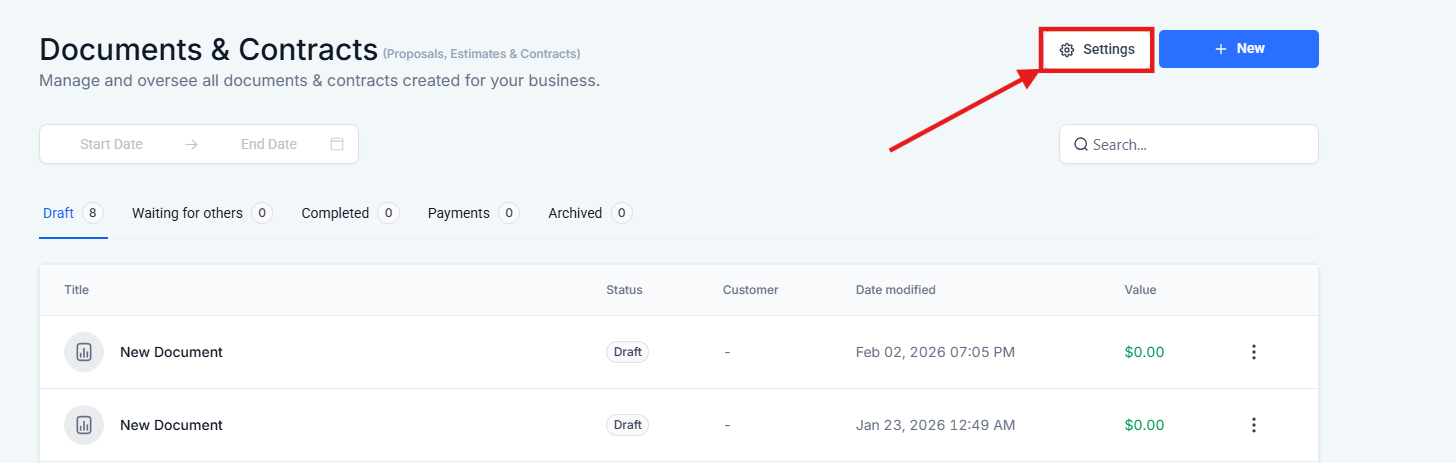
3. Toggle Redirection OnSelect “Document Settings” from the sidebar and toggle on the option to “Redirect to a Custom URL.”
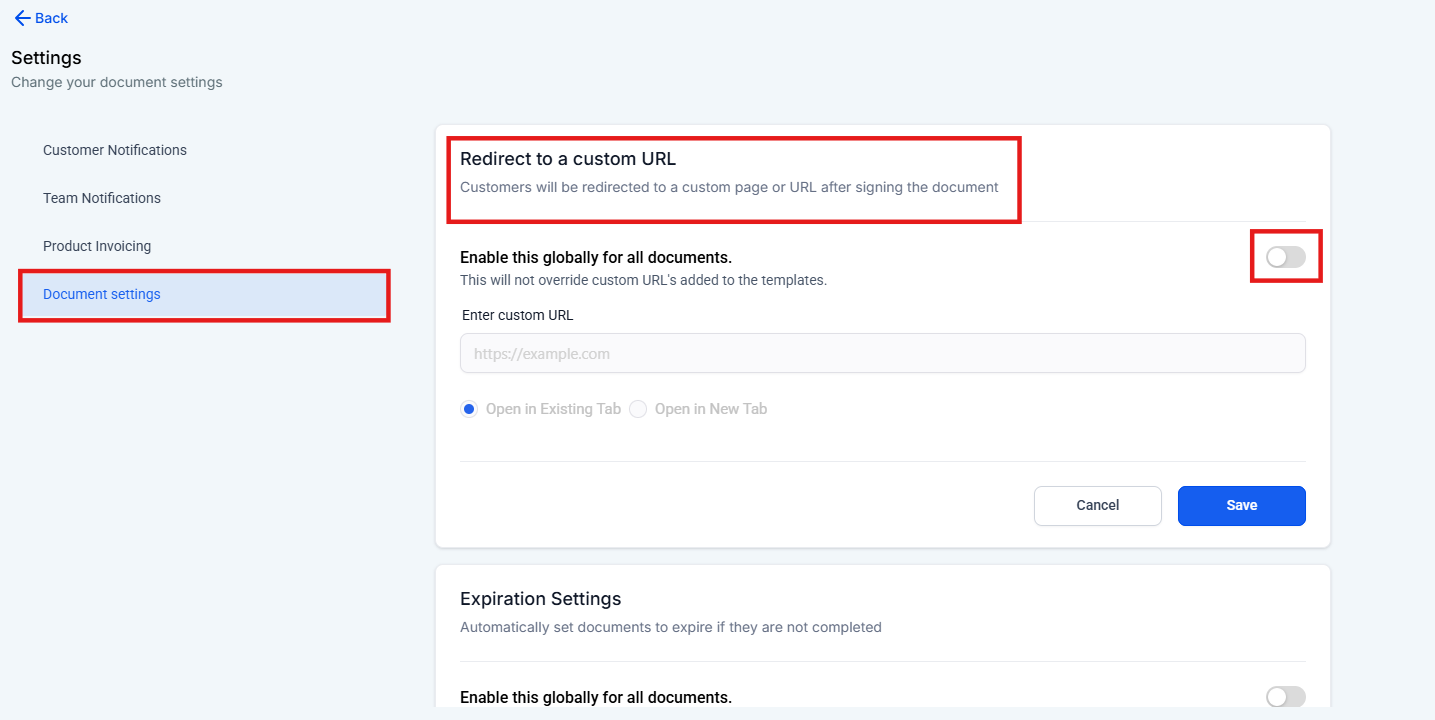
4. Enter the URLProvide the desired URL (e.g., https://example.com). You can also choose whether the URL opens in the same tab or a new one.
5. Save ChangesBe sure to click “Save” to confirm your changes.
**Tip:**Global settings won’t override any custom URL added to individual documents. If you’re experiencing issues with the redirection not working, check the document-specific settings for overrides.
Question: How can I set a custom URL for individual documents?
Section titled “Question: How can I set a custom URL for individual documents?”Answer: If you want to apply a custom URL redirection to a specific document, follow these steps:
1. Create or Edit a DocumentIn the “Documents & Contracts” section, either create a new document or open an existing one.
2. Access Document SettingsClick “Settings” at the top of the document, then choose “Document Settings.”
3. Enable Redirection & Enter URLToggle on the “Enable redirection to custom URL” option and enter your desired URL.
4. Select Tab BehaviorChoose whether the URL should open in the same tab or a new tab.
5. Save DocumentClick “Save” or “Send” depending on your action.
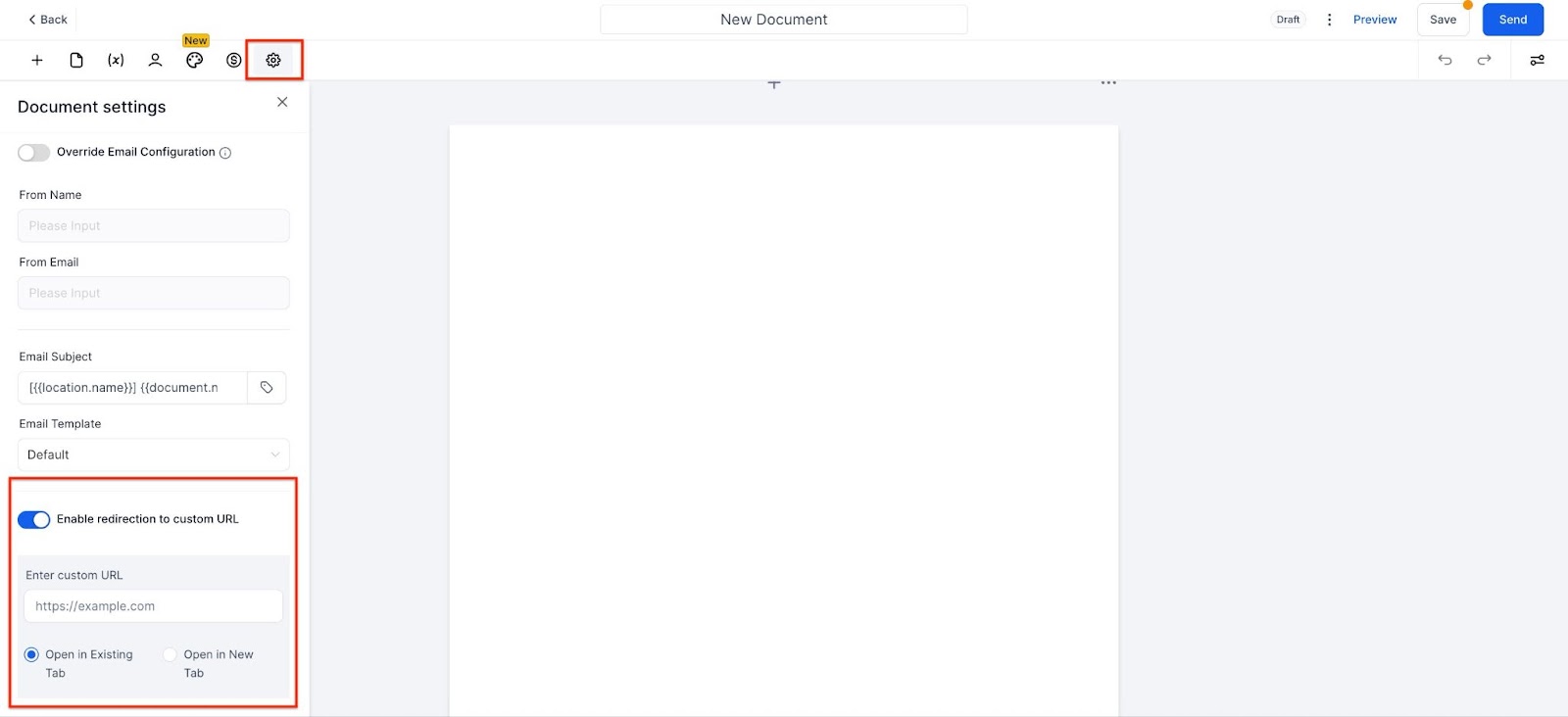
**Tip:**If you want a specific redirect for one document but have global redirection enabled, remember that the document-level setting will take priority.
Question: What should I do if the redirect isn’t working after a payment is made on a document?
Section titled “Question: What should I do if the redirect isn’t working after a payment is made on a document?”Answer: If the redirection isn’t functioning after payment, follow these steps to troubleshoot:
1. Confirm Global SettingsCheck if global redirection is enabled by navigating to “Documents & Contracts” → “Settings” → “Document Settings.” If not, toggle it on and provide the desired URL.
2. Check Document-Level SettingsIf you’ve set a specific redirection URL for the document, ensure that it is correctly configured. Document-level settings will override the global redirection.
3. Test the Payment ProcessUse the preview option in your system to simulate a payment and ensure the redirection works as expected after the payment is processed.
**Tip:**If you’re using a custom URL for a document, disable the global redirect to ensure it doesn’t interfere with your specific settings.
Question: How can I ensure that the redirection works correctly for different use cases (e.g., thank-you pages, onboarding, upsells)?
Section titled “Question: How can I ensure that the redirection works correctly for different use cases (e.g., thank-you pages, onboarding, upsells)?”**Answer:To ensure the redirection works for your specific use cases, follow these best practices:
1. Set Up Use-Case Specific URLsFor thank-you pages, input a URL that leads to a custom confirmation page. For onboarding, direct users to a page that guides them to the next steps.
2. Enable Document-Level RedirectionIf you want each document to have a unique redirection (such as for upsells), make sure to configure the redirect settings per document and test them.
3. Test Each Use CasePreview your document and test the redirection for different scenarios, ensuring that users are directed to the appropriate page (e.g., upsell, thank you, or onboarding).
**Tip:**Use clear calls-to-action on your redirection pages to maximize the effectiveness of upsells or lead users through the next steps.
Question: What should I do if my document-specific URL is not working?
Section titled “Question: What should I do if my document-specific URL is not working?”**Answer:If your document-specific URL is not working as expected, follow these troubleshooting steps:
- Check for URL TyposEnsure that the URL entered is correct and formatted properly.
- Disable Global RedirectionIf both global and document-specific redirects are enabled, the global setting might override the document-specific one. Turn off the global setting to use only the document-level redirection.
- Test the DocumentUse the preview option to check that the redirect works as expected. If the redirection still doesn’t work, try re-entering the URL or adjusting the settings.
**Tip:**Test the redirection in a live environment to ensure it behaves as expected for your customers.
Question: How do I troubleshoot if the redirect doesn’t open in a new tab as expected?
Section titled “Question: How do I troubleshoot if the redirect doesn’t open in a new tab as expected?”**Answer:If the redirect is not opening in a new tab, follow these steps:
- Review SettingsCheck that the “Open in New Tab” option is selected when you set the custom URL in the document settings.
- Browser SettingsEnsure the browser you are using allows pop-ups and new tabs. Some browsers may block automatic redirects.
- Test in Different BrowsersTest the redirect in different browsers to confirm if the issue is browser-specific.
**Tip:**Browsers with strict pop-up blockers may prevent the redirection from opening in a new tab. Ensure that pop-up blockers are disabled in the browser settings.
Question: Can global redirection override document-specific URLs?
Answer: Yes, if both global and document-specific URLs are enabled, the document-level URL usually takes priority, but conflicts may occur. Test each scenario to ensure the correct behavior.
Question: If I have both a global redirect URL and a specific URL set on an individual document, which one will my customer see?
Answer: The document-specific URL will take priority. The system is designed so that individual document settings override the global default. If you want a specific document to follow your global settings, you must ensure the redirect toggle is turned off or the URL field is empty within that specific document’s settings.
Question: Does the system allow me to use redirection for things other than a simple “Thank You” page?
Answer: Absolutely. The redirection feature is designed to support various post-signing or post-payment workflows, such as sending users to a scheduling link, an onboarding page, or even a page to upsell additional services.