Billing Address Field for Ecommerce Store Checkout
Billing Address Field for Ecommerce Store Checkout
This Billing Address field for E-commerce Stores allows store owners to capture billing information separately from shipping addresses. This provides greater flexibility, compliance, and control over how customer data is managed during the checkout process.
Key Features:
Section titled “Key Features:”- Enable/Disable Billing Address: Store owners can easily toggle the “Enable Billing Address” option in checkout settings.
- Same as Shipping Address: A checkbox under the Shipping Details section lets customers quickly use their shipping address for billing.
- Text Customization: Customize the billing address headline text, checkbox text, and field labels, including Full Name, Phone Number, Address, Country, State, City, and Zip Code.
How to Use It:
Section titled “How to Use It:”1- Open Store Builder: Navigate to the Checkout Page in your store builder.
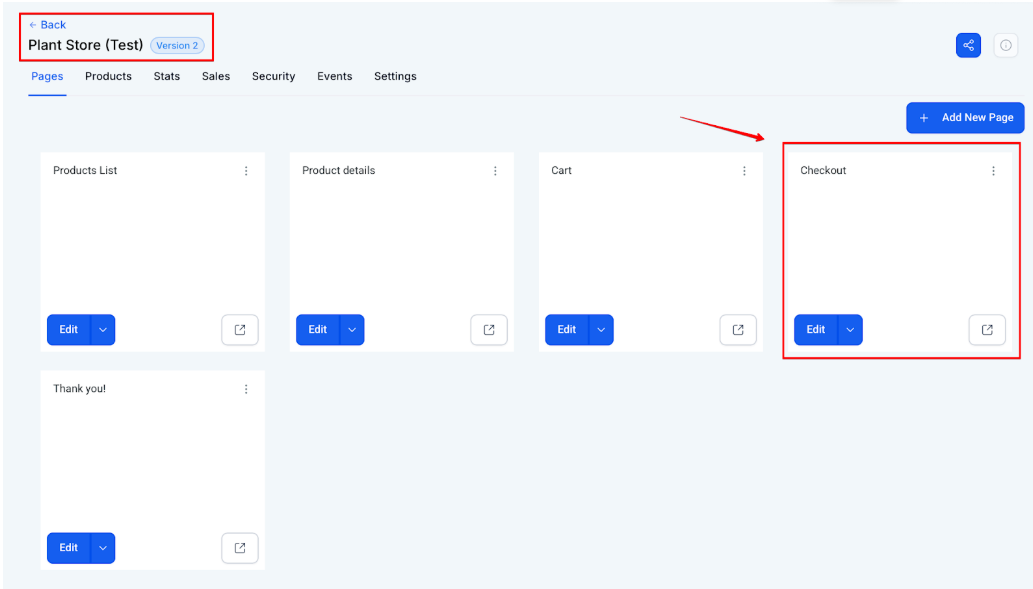
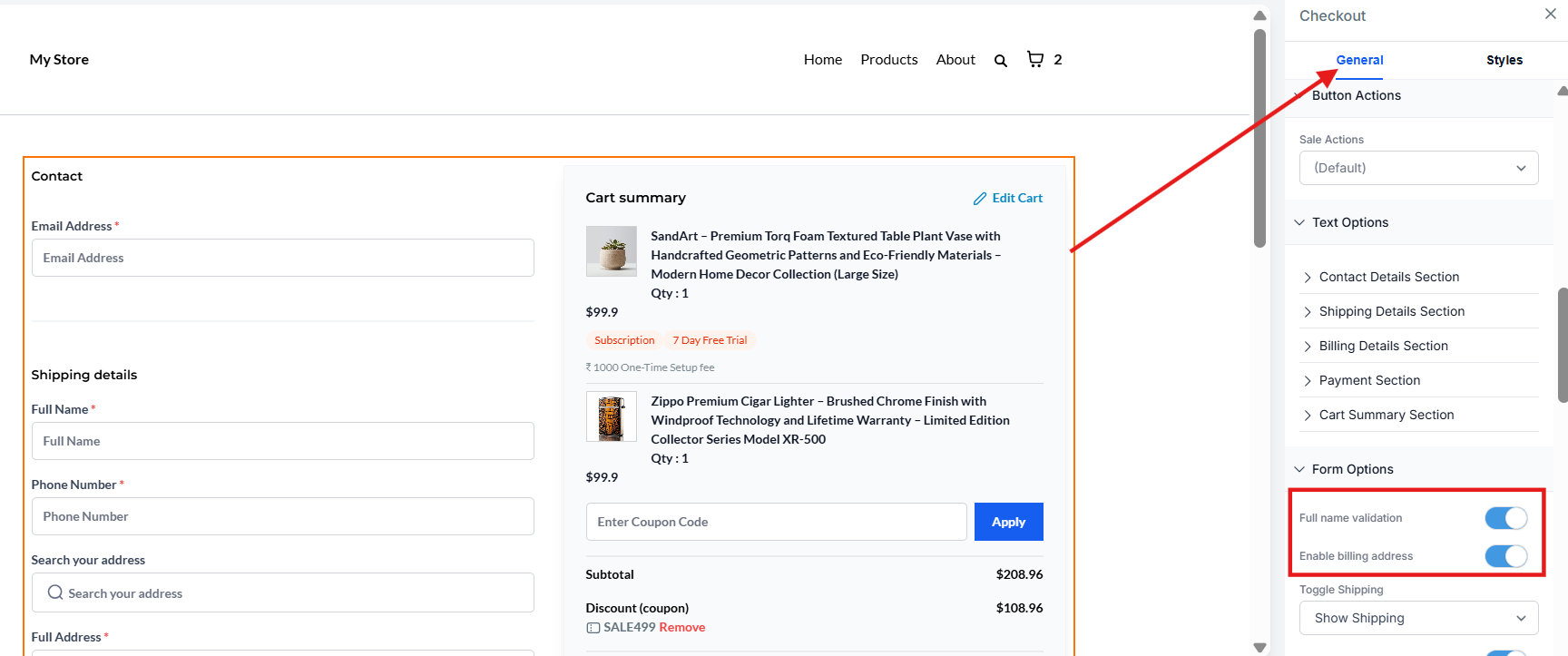
2- Select the Checkout Element: Click on the Checkout element and go to the General Section in Settings.
3- Enable Billing Address: Toggle on “Enable Billing Address” under Form Options.
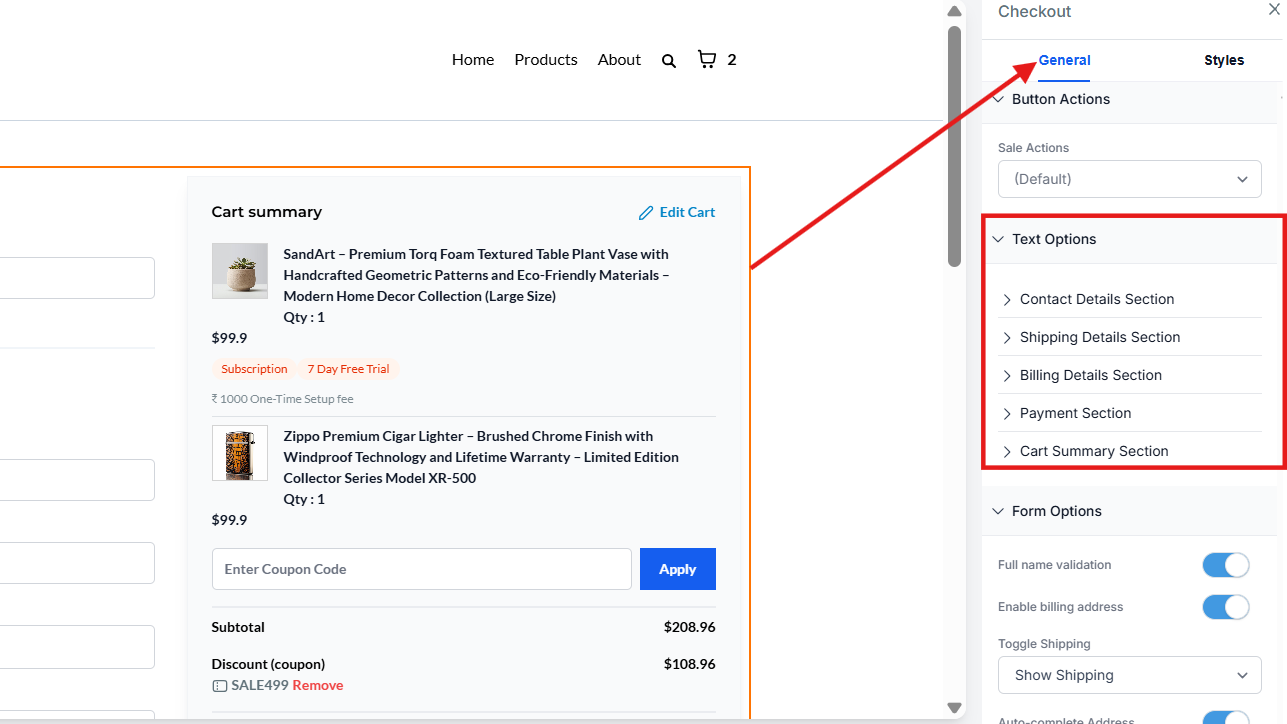
4- Customize Text: Under Text Options in General Settings, customize the billing address headline and checkbox text.
5- Save and Publish: Save your changes, and your checkout page will now capture billing address details.
Additional Information:
Section titled “Additional Information:”- Order Details Page: Billing address details are displayed separately below the shipping address.
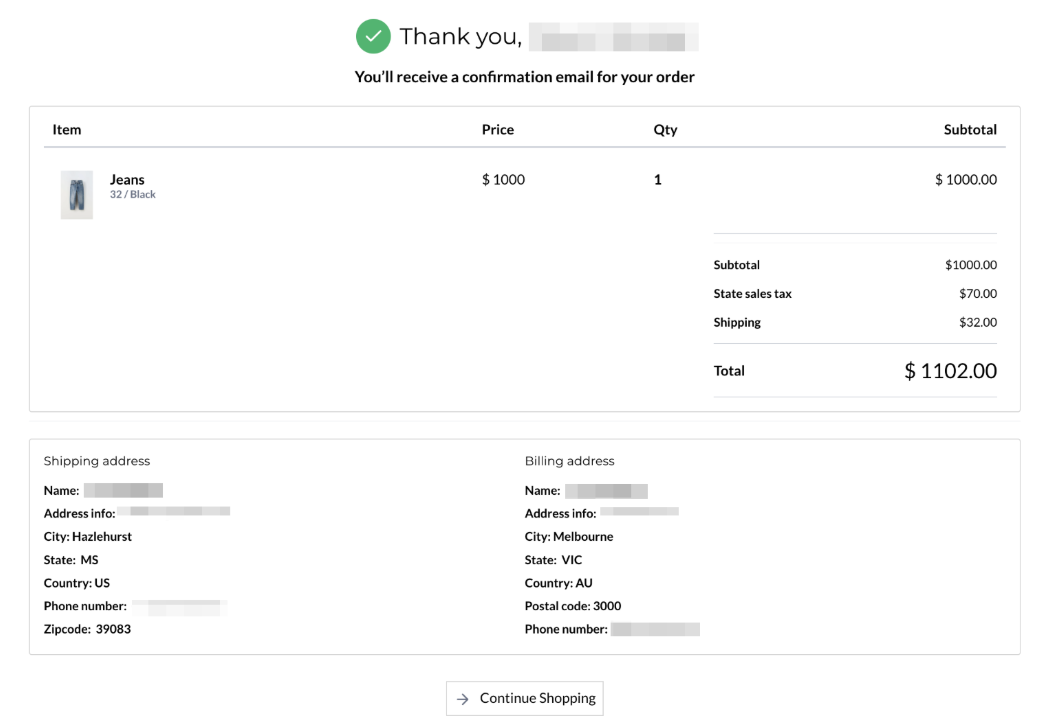
- Customer Access Center (CAS): Customers can see the billing address in their Order Details section.
- Packing Slips and Thank You Pages: Both shipping and billing information are included.
- Order Confirmation Email: The billing address is included in the order confirmation email sent to customers.
Important Notes:
Section titled “Important Notes:”- New Locations: Billing address is enabled by default when a new store location is created.
- Existing Locations: Billing address is disabled by default; enabling it creates custom fields automatically.
- Custom Fields: Custom fields for billing are non-editable and non-deletable after creation. If any existing fields share the same keys, they will be used.
- Tax Calculations: The billing address section is not yet connected to tax calculations.
Question: How do I enable the billing address field on the checkout page? Answer: Go to Store Builder > Checkout Page > Advanced Settings > Enable Billing Address under Form Options.
Question: Can I customize the billing address text? Answer: Yes, you can customize the headline, checkbox text, and field labels for the billing address in the Text Options section.
Question: Will the billing address be included in the packing slips? Answer: Yes, billing details are included alongside shipping information on packing slips and thank you pages.
Question: Can I delete the billing address fields after enabling them? Answer: No, the billing address fields are non-deletable and non-editable once created.
Question: Will billing information impact tax calculations? Answer: As of now, the billing address section is not connected to tax calculations.
Question: Can I turn off the billing address after enabling it?
Answer: Yes, you can disable the billing address toggle, but the custom fields created will remain in the system and cannot be deleted.
Question: Is the billing address automatically enabled for new store locations? Answer: Yes, the billing address is enabled by default when a new store location is created. However, for existing locations, it is disabled by default.