Social Planner: Category Queues
Consistency and efficiency are the cornerstones of a successful content strategy. Enter Category Queues, an innovative feature that allows you to organize, schedule, and repurpose your content seamlessly. With Category Queues, you can maximize the reach of your evergreen posts, maintain a consistent online presence, and save time by automating the management of your content.
Key Features and Benefits
Section titled “Key Features and Benefits”1. Streamlined Content Organization
Section titled “1. Streamlined Content Organization”- Categorized Management: Group your posts into specific categories, such as Blog Posts, Tips, Promotions, or Announcements, for tailored scheduling and easy management.
- Simplified Workflows: Access and manage your evergreen content with intuitive tagging and categorization.
2. Optimized Scheduling
Section titled “2. Optimized Scheduling”- Targeted Timing: Assign specific posting days and times to each category, ensuring your audience sees the right content at the right moment.
- Automated Consistency: Let Category Queues handle your posting schedule, keeping your content pipeline active without constant manual effort.
3. Content Repurposing Made Easy
Section titled “3. Content Repurposing Made Easy”- Revive Valuable Posts: Republish high-performing evergreen content to extend its lifecycle and reach.
- Focus on Innovation: Free up your time for new content creation while your existing posts continue working for you.
4. Flexibility and Control
Section titled “4. Flexibility and Control”- Pause and Resume: Manage your queues on your terms, pausing or resuming categories as needed.
- Editable Content: Update and refine previously published posts before re-queuing them for maximum impact.
How to Use Category Queues
Section titled “How to Use Category Queues”Follow these steps to get started with Category Queues:
Step 1: Prepare Your Content (Pre-requisite)
Section titled “Step 1: Prepare Your Content (Pre-requisite)”Navigate to the Marketing tab on the left> Social planner on the top right>Create a new post or edit an existing post:
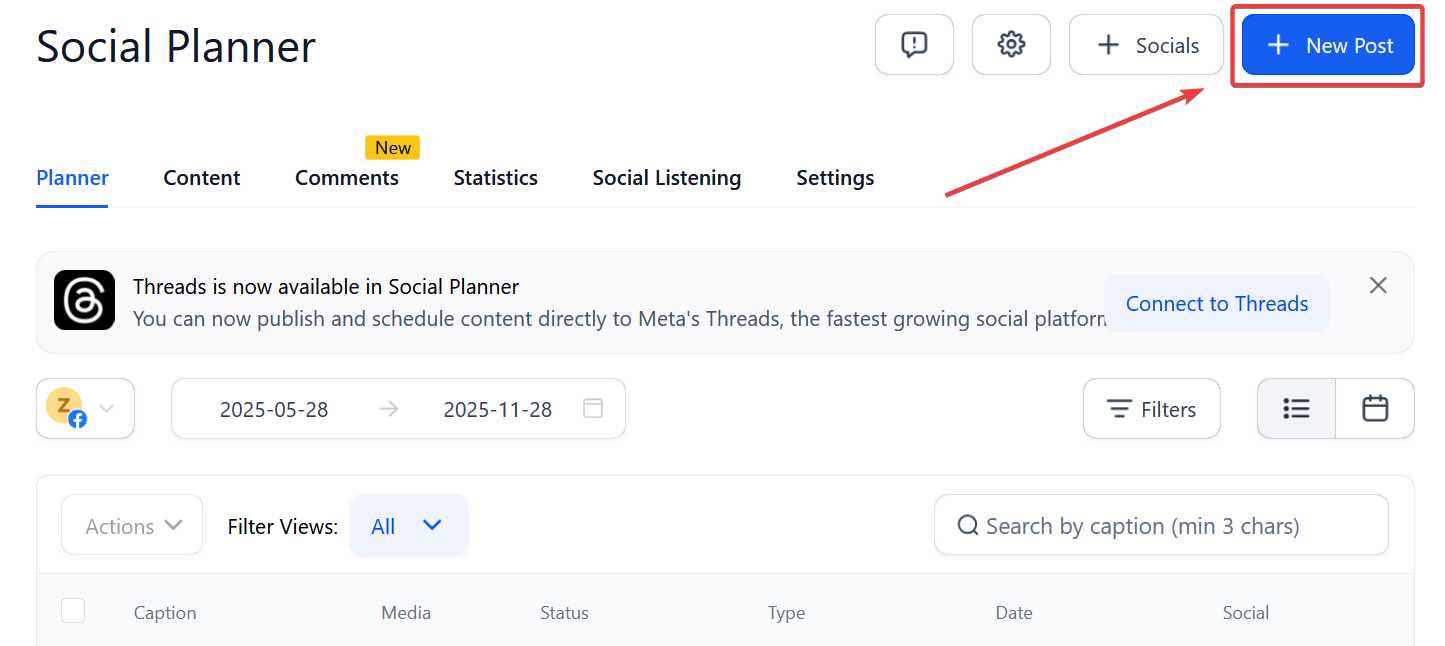
Ensure your existing posts are tagged with appropriate categories. Categories act as the foundation for organizing and scheduling your posts.
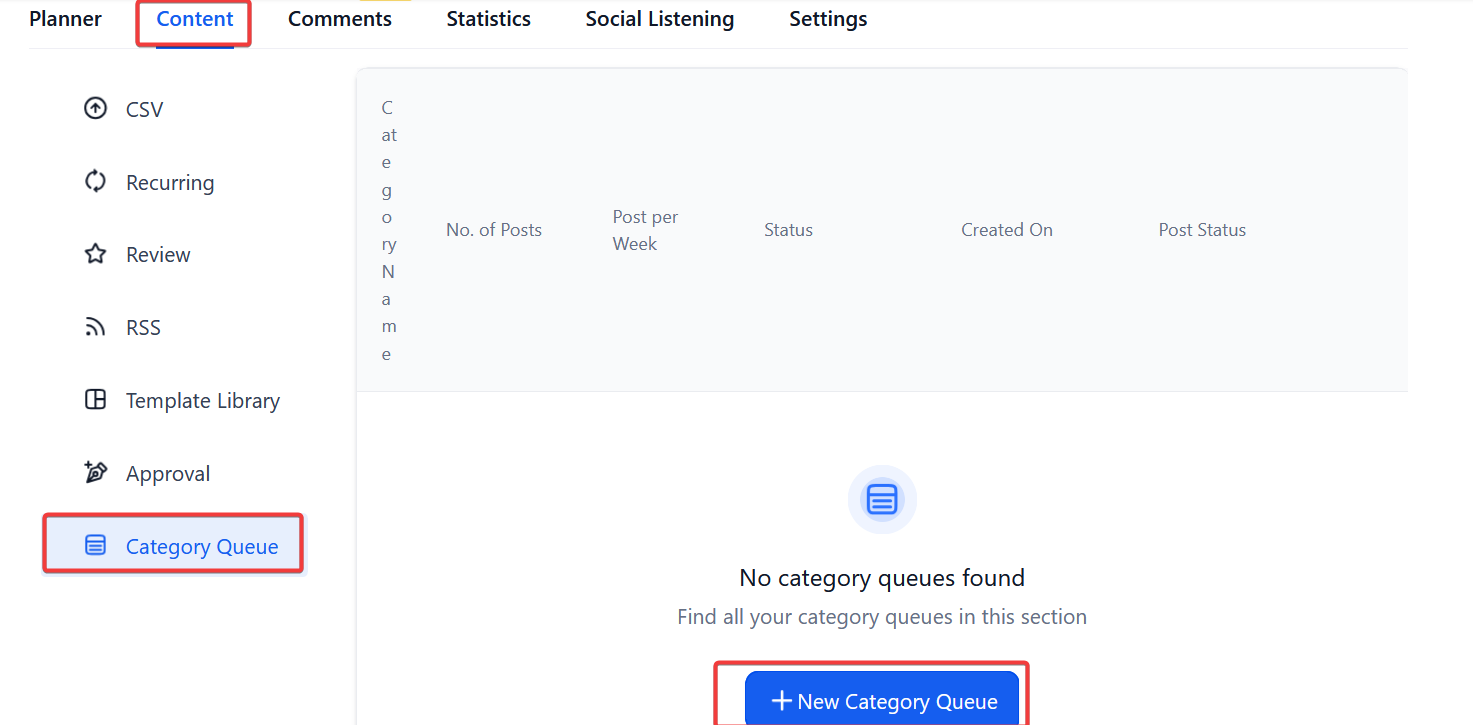
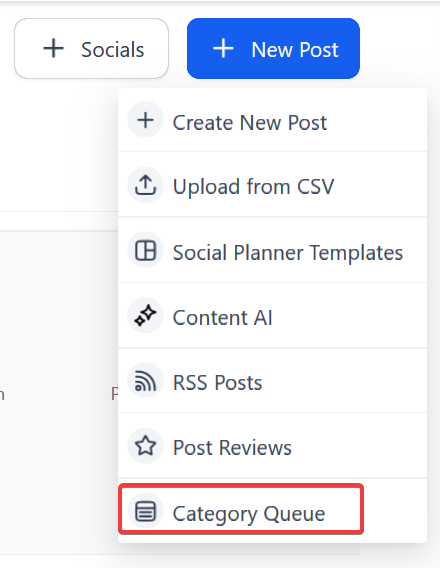
Step 2: Navigate to the Category Queue Option
Section titled “Step 2: Navigate to the Category Queue Option”- Access the New Post section.
- Choose the Category Queue option to begin setup.
Step 3: Select a Category
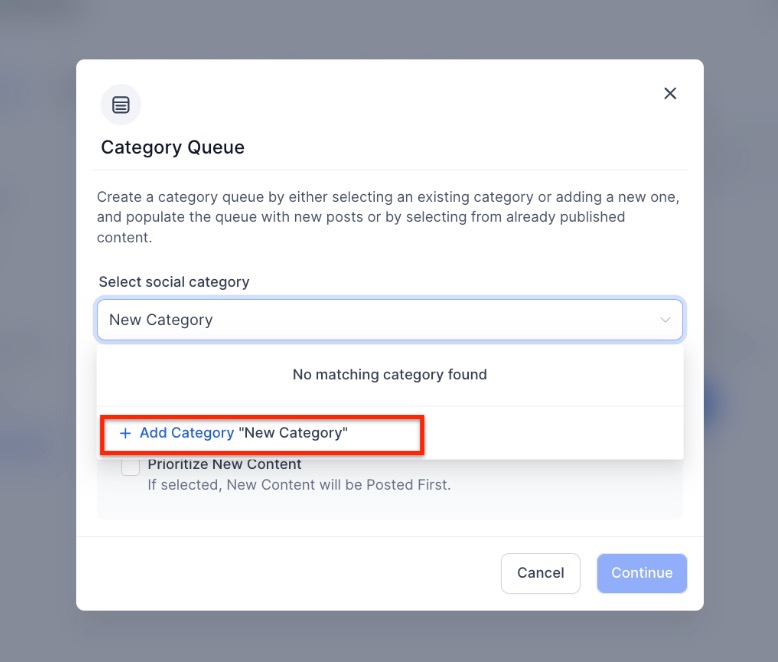
Section titled “Step 3: Select a Category”Select or create a new category on the first screen via the dropdown. Choose the relevant category for which you want to create a queue. For example, you can have categories like “Promotions” or “Tips.”
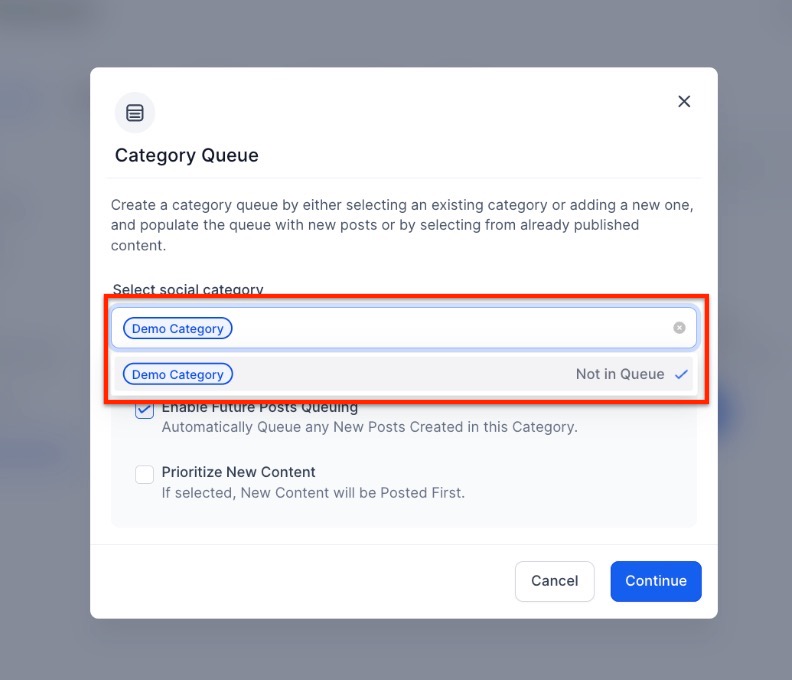
Step 4: Enable Preferences
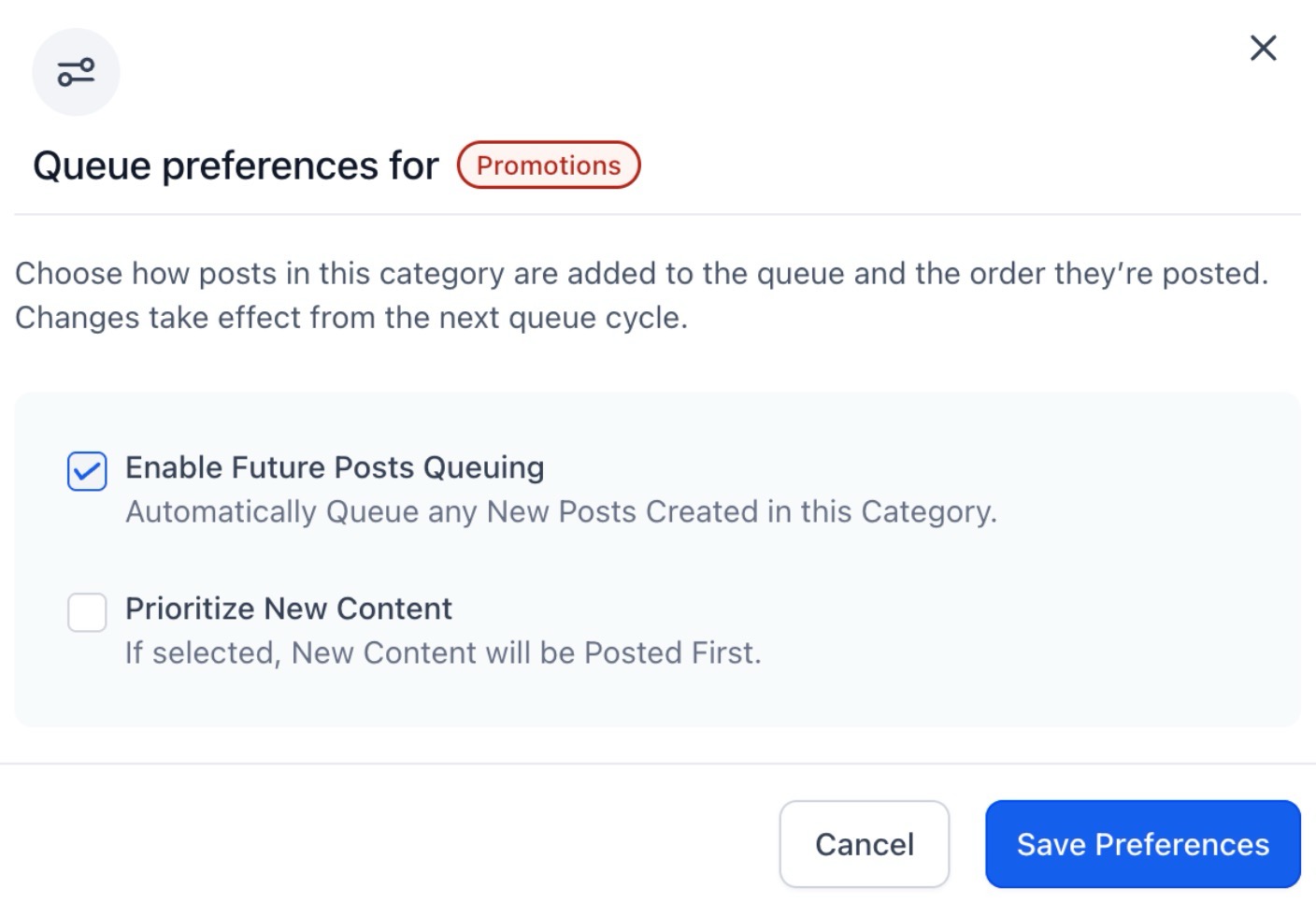
Section titled “Step 4: Enable Preferences”Customize your queue with the following options:
- Future Posting: Automatically includes new posts tagged to the category in the queue.
- Prioritize Content: When checked, new content is added to the top of the queue; when unchecked, it is appended to the end.
Step 5: Set a Posting Schedule
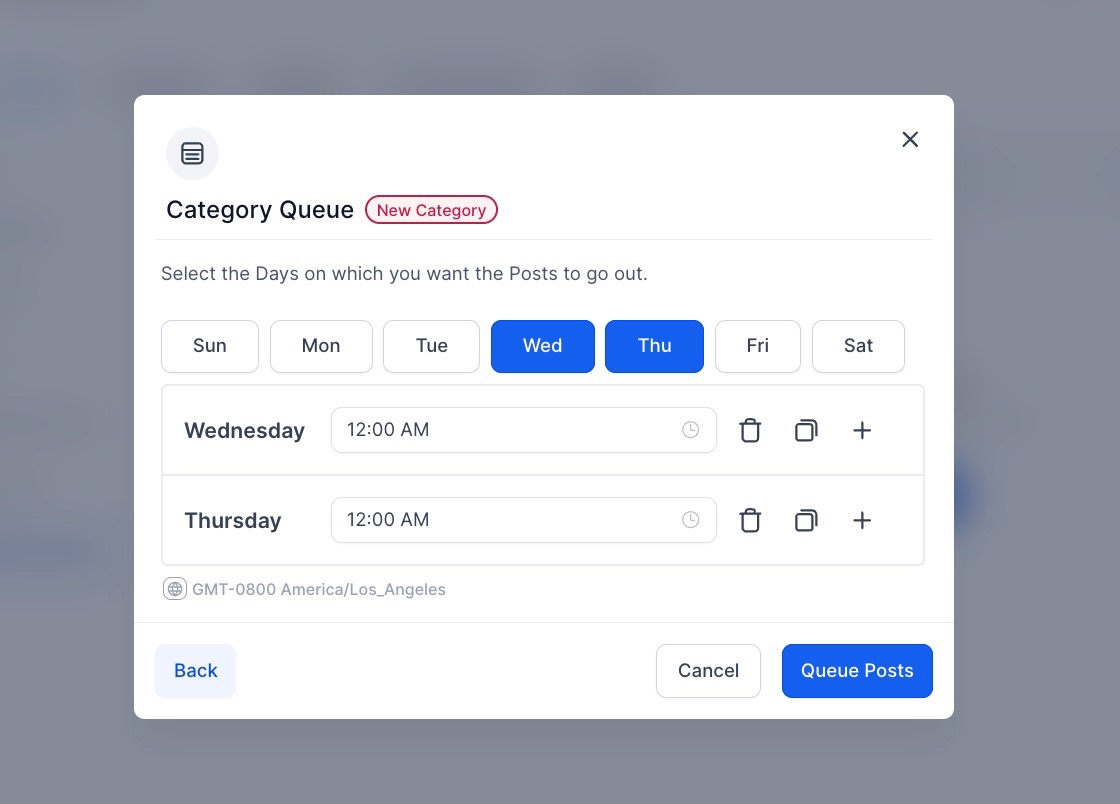
Section titled “Step 5: Set a Posting Schedule”- Select specific days and times for your posts to go live.
- Ensure your schedule aligns with audience engagement patterns for optimal visibility.
Step 6: Review and Edit
Section titled “Step 6: Review and Edit”- You can visualize your queue in a Weekly or Monthly Calendar View.
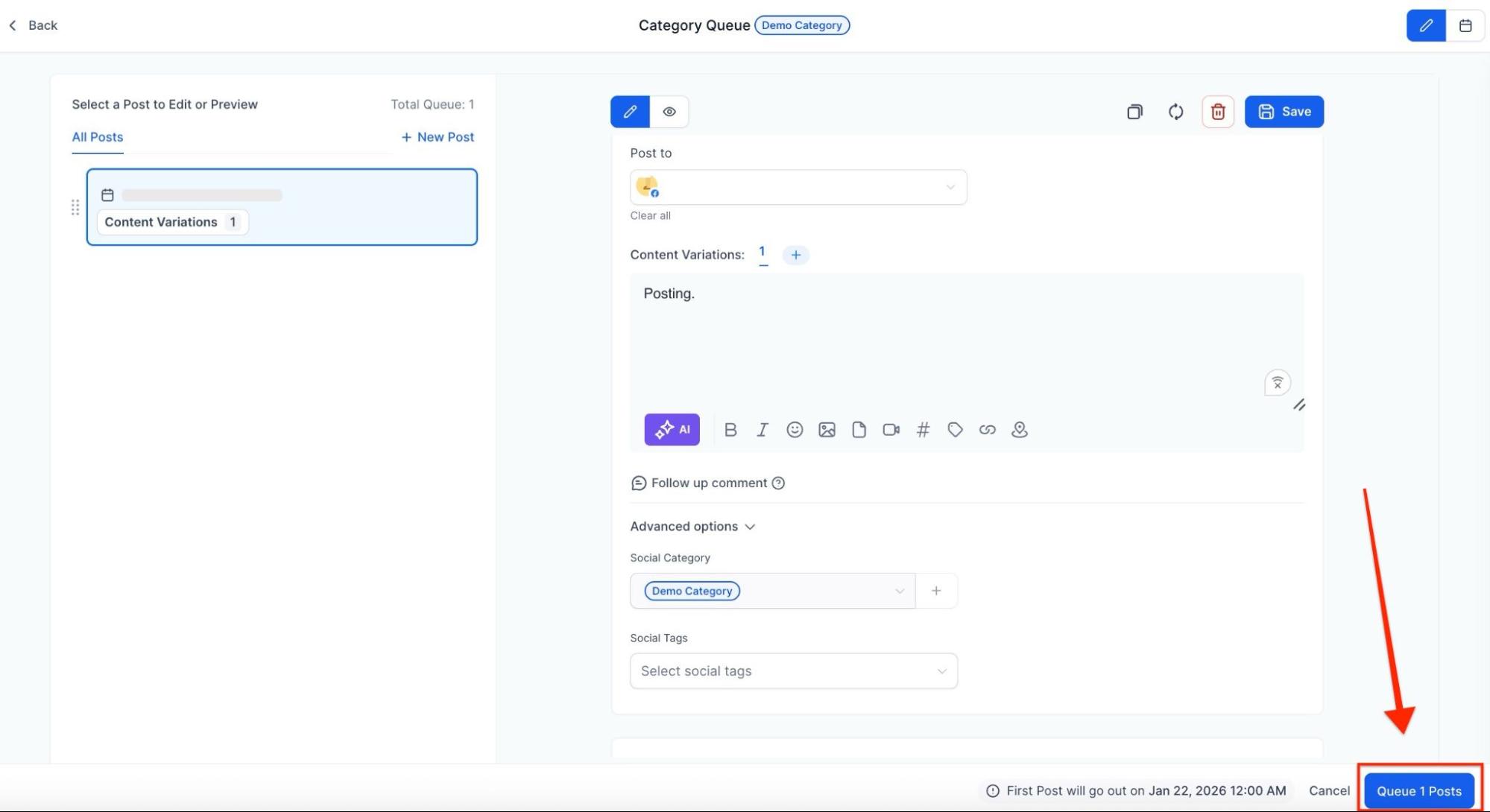
- Use the drag-and-drop feature to change the post order or use the Reschedule Queue tool to shift the entire timeline to a new start date.
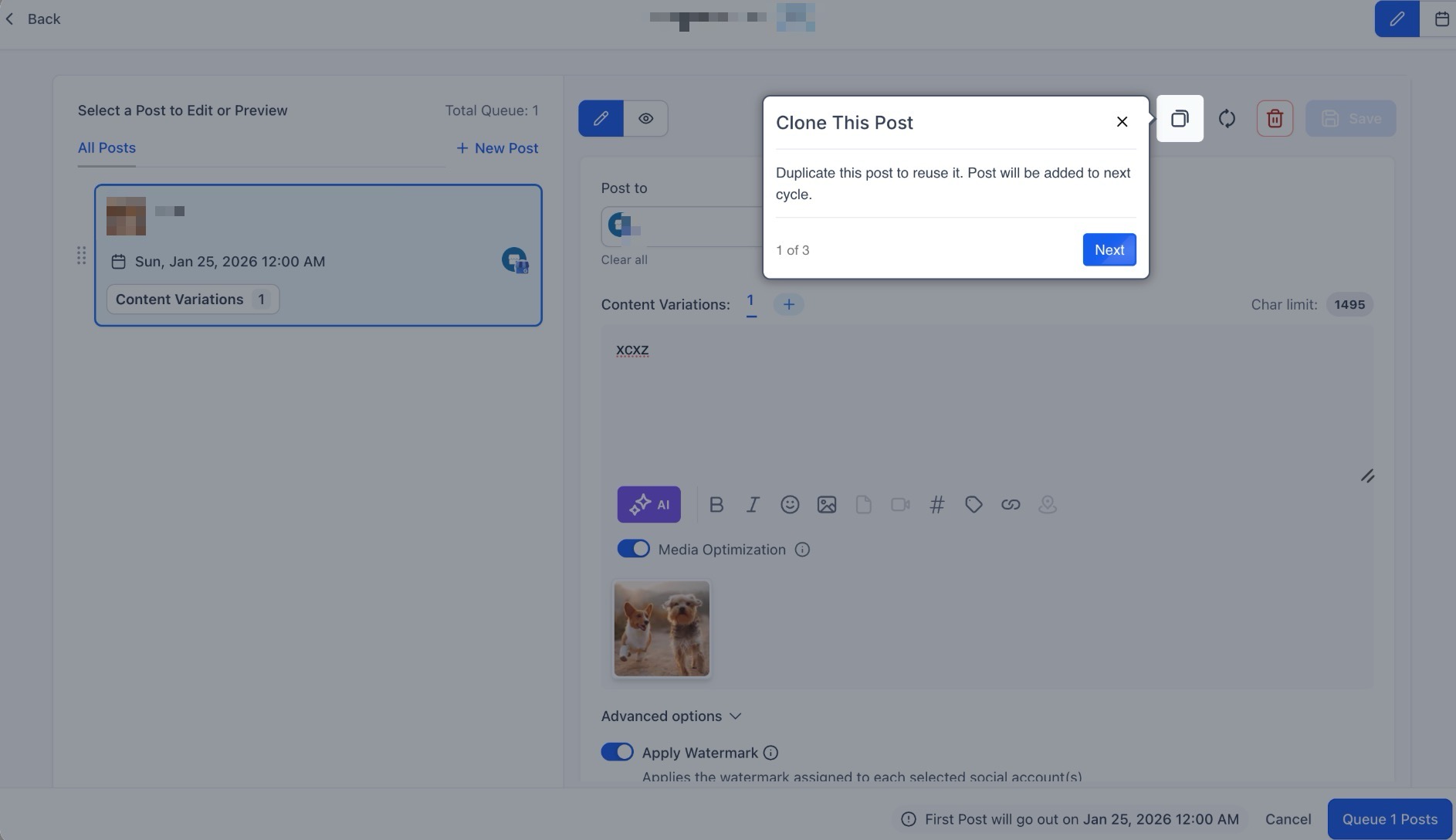
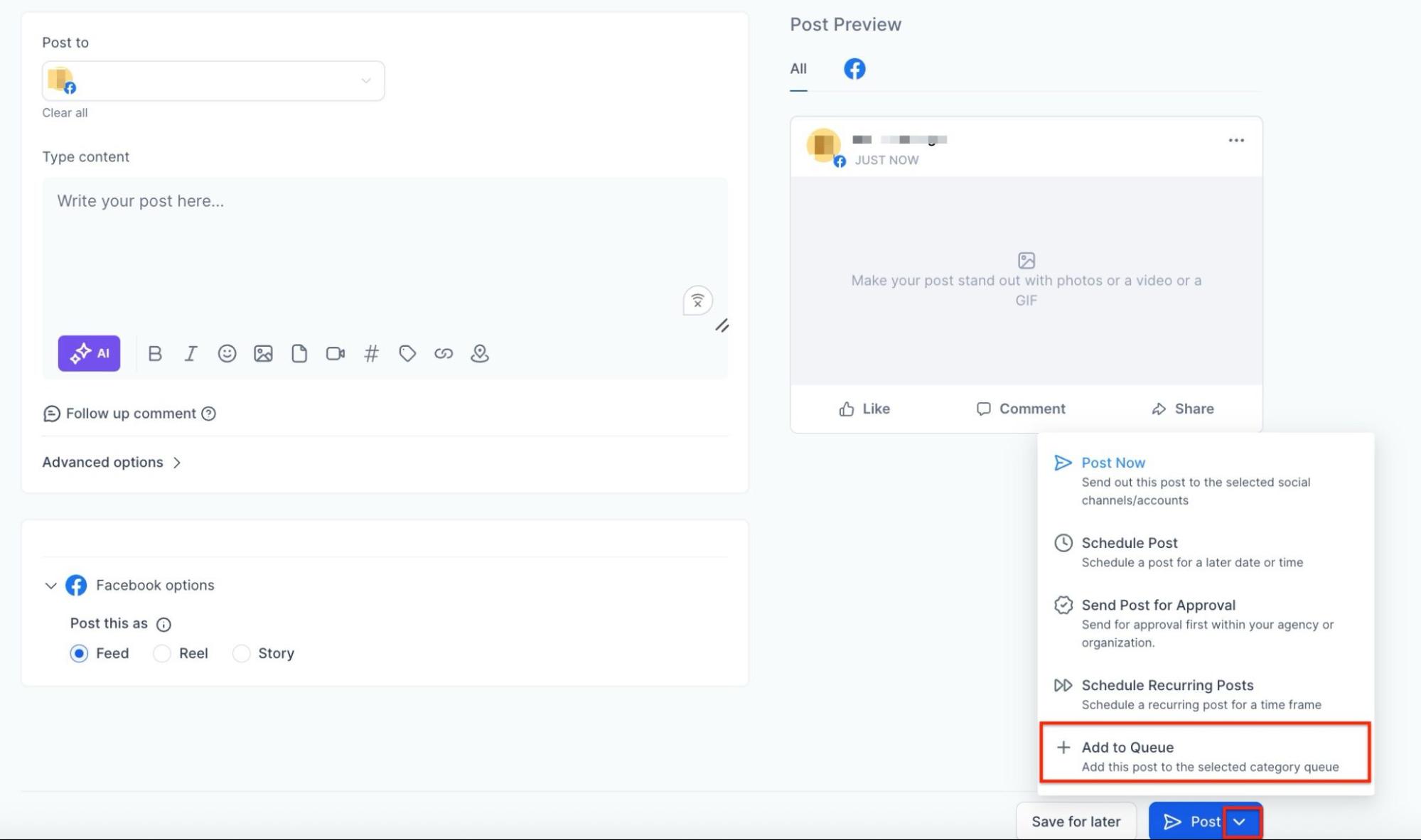
- While creating a new post you can also add it to the existing queue
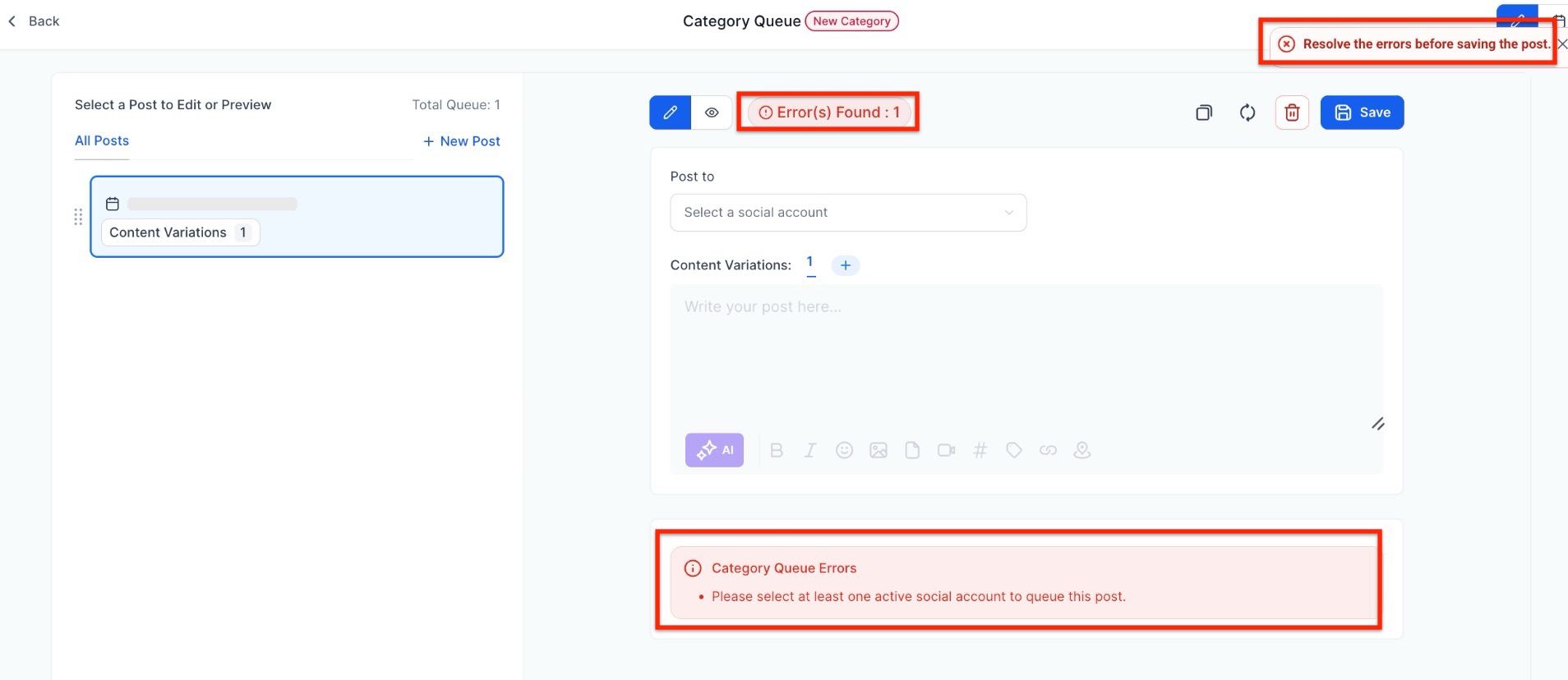
- Address any flagged errors before finalizing the queue.
Step 7: Finalize the Queue
Section titled “Step 7: Finalize the Queue”- Click Queue Post to schedule posts or save them as drafts for future editing.
- Confirm your queue to activate consistent posting.
Step 8: Manage Your Queue
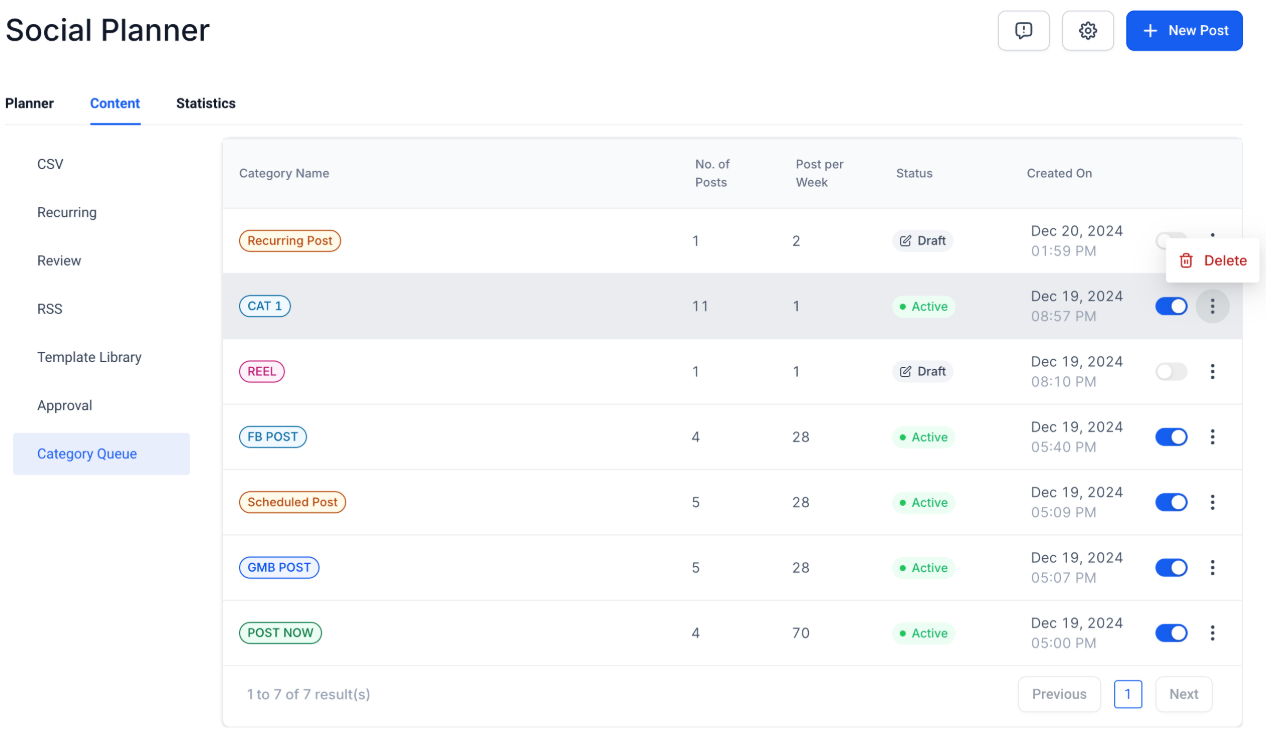
Section titled “Step 8: Manage Your Queue”Pause or resume the queue anytime using the toggle in the content management tab.
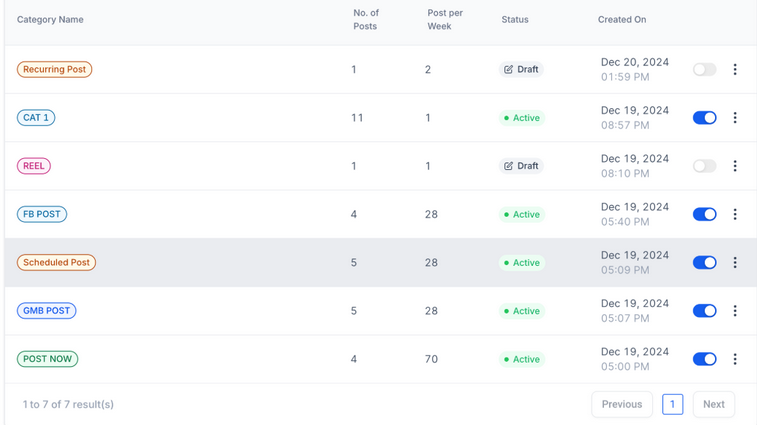
- Delete queues when no longer needed, or adjust your strategy by creating new ones.
Important Notes:
- The created category queue cannot currently be edited or rescheduled for a different timeframe.
- Category queues can be created for previously published content that is assigned to a specific category.
- The content of previously published posts can be edited or updated during the creation of a category queue.
Pro Tips
Section titled “Pro Tips”- Diversify Content: Create multiple categories to cover a range of topics and ensure a balanced posting schedule.
- Leverage Analytics: Use performance insights to refine your categories and posting times.
- Regular Updates: Periodically refresh the content in your queues to keep your posts relevant and engaging.
- Engage Your Audience: Tailor categories based on audience preferences, ensuring your content resonates with their interests.
- Prioritize Seasonal Content: Use queues to schedule timely posts, such as holiday promotions or special events.
Question: Can I edit posts in a Category Queue?
Answer: Yes, you can update the content or media of posts before finalizing the queue.
Question: What happens to new posts tagged to a category?
Answer: New posts automatically get added to the queue, in case the new posts need to be added to the front of the queue, please select the option ‘Enable Future Posting’ and ‘Prioritise Content’.
Question: Can I change the schedule for an existing queue?
Answer: Currently, the schedule for a queue cannot be edited once created. If adjustments are needed, you’ll need to create a new queue.
Question: Can I pause or delete a queue? Answer: Yes, you can pause or resume a queue at any time. If a queue is no longer needed, it can also be deleted.
Question: What if there’s an error in my queue? Answer: Errors will be flagged during setup, allowing you to address them before confirming the queue.
Question: Do Category Queues work with all social media platforms?
Answer: Yes, any platform supported by the Social Planner will follow the queue’s schedule, as long as the post meets platform-specific requirements.
Question: If I pause a queue, does it lose its place? Answer: No. When you toggle a queue to Pause, it simply “freezes” exactly where it is. When you click Resume, it picks up with the very next post in line according to your schedule.
Question: Can I change the date of just one single post within my queue? Answer: No, while you can reorder posts or reschedule the entire queue’s timeline, single-post rescheduling within a queue is not currently supported.