RSS Publishing & Scheduling in Social Planner
The purpose of this article is to provide a comprehensive guide on how to leverage RSS and Atom feeds to automate social media content distribution. By connecting a dynamic content source to your social channels, you can ensure a consistent posting schedule, reduce manual overhead, and keep your audience engaged with the latest updates from your blogs, podcasts, or news cycles.
Key Features and Benefits
Section titled “Key Features and Benefits”Integrating an RSS feed into your social media strategy transforms a manual task into a streamlined, “set-and-forget” workflow. By using the social management tools, you can experience the following advantages:
- Automated Content Sharing: Save hours of manual labor by allowing new content to publish automatically to your connected social accounts the moment it goes live.
- Content Curation: Aggregate high-quality content from various industry sources into a single feed to provide continuous value to your followers.
- Consistent Posting Cadence: Maintain a steady presence on social media without the need to log in daily to create posts.
- Reduced Information Overload: Consolidate multiple content streams into one centralized automation hub.
- Platform-Aware Formatting: Ensure your content respects the character limits and formatting requirements of different social networks automatically.
Prerequisites
Section titled “Prerequisites”Before beginning the setup, ensure you have the following ready:
- A valid RSS/Atom feed URL (typically ending in .xml or /feed).
- Social media accounts connected within the platform (e.g., Facebook, Instagram, LinkedIn, Google Business Profile, or Pinterest).
Note: Due to external API restrictions, posting to Twitter/X via RSS automation is currently not supported. All other major networks are compatible.
How to Locate an RSS Feed URL
Section titled “How to Locate an RSS Feed URL”While many modern websites do not prominently display RSS icons, most still generate these feeds. Here is how to find them:
- WordPress Sites: Append /feed to the end of the domain (e.g., website.com/feed).
- Tumblr: Append /rss to the URL.
- Blogger: Add feeds/posts/default to the end of the URL.
- Medium: Insert /feed/ before the publication name (e.g., medium.com/feed/example-site).
- YouTube: You can use the direct URL of a YouTube channel as an RSS source.
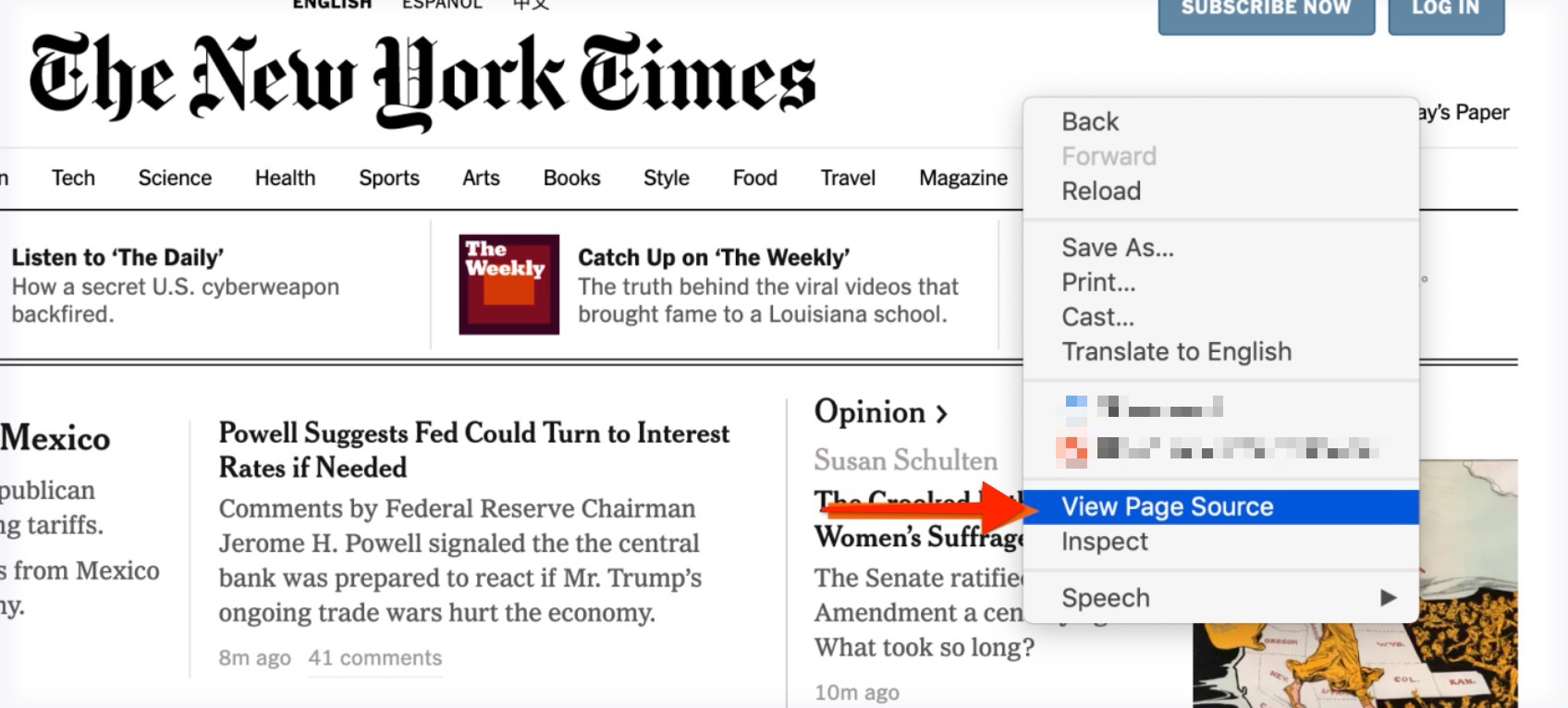
Pro Tip: If you cannot find the link, right-click the webpage and select “View Page Source.” Use Ctrl+F (or Cmd+F) to search for “RSS” or “Atom” to find the hidden feed URL in the code.

How to Create Posts Using RSS Feeds
Section titled “How to Create Posts Using RSS Feeds”Follow these steps within the interface to automate your publishing:
Step 1: Navigate to RSS Settings
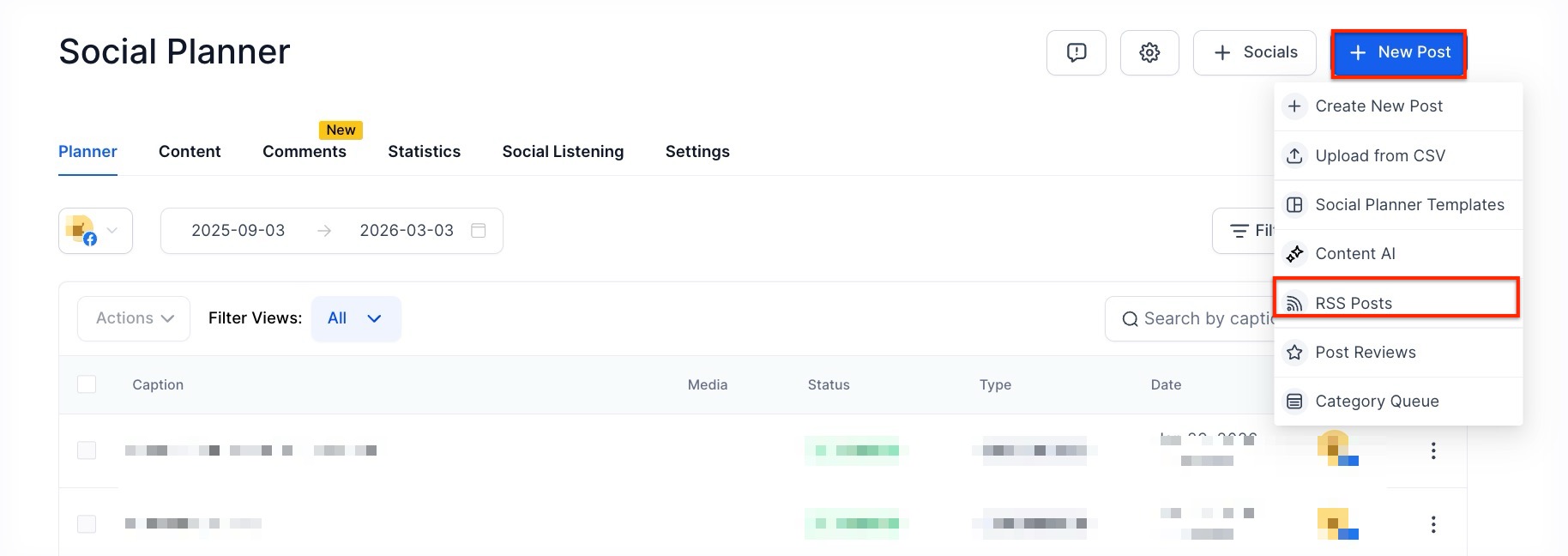
Section titled “Step 1: Navigate to RSS Settings”Access the Marketing section and locate the Social Planner. Click on the option to create a New Post and select RSS Post.
Step 2: Add Your URL
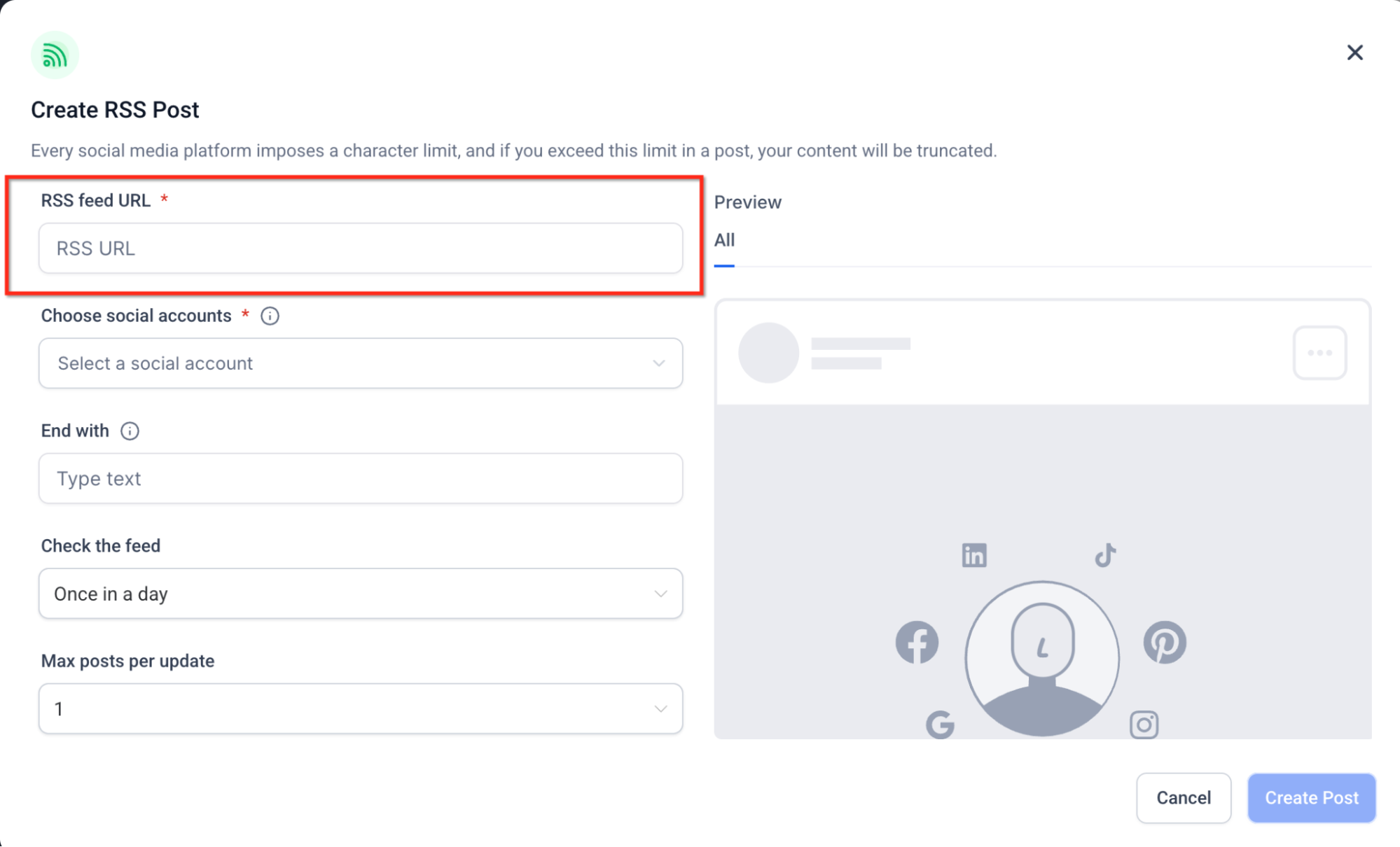
Section titled “Step 2: Add Your URL”Paste the valid RSS Feed URL into the provided field. The system will validate the link to ensure it can pull data correctly.
Step 3: Select Social Channels
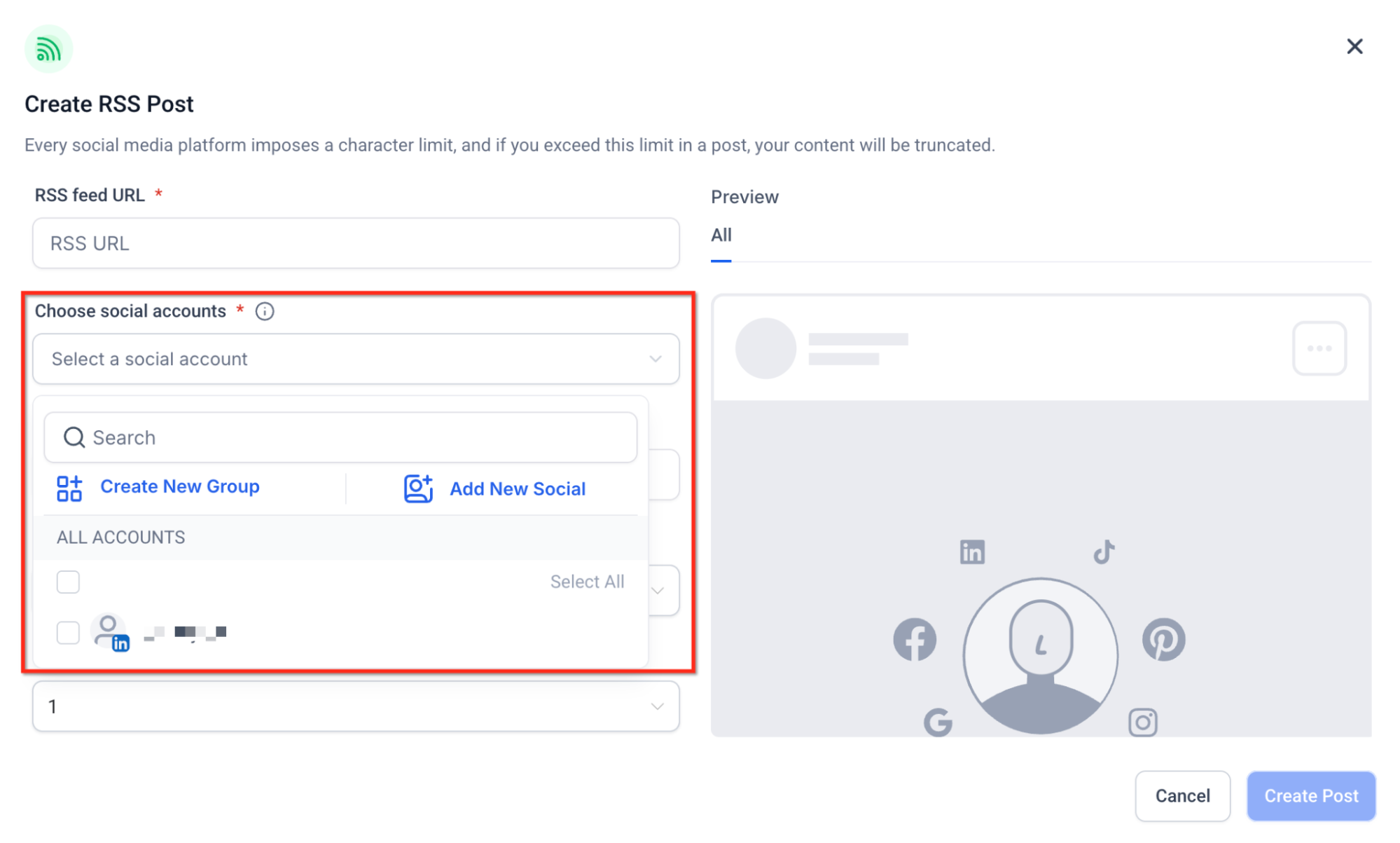
Choose the specific social media profiles where you want the feed items to appear. You can select multiple platforms at once.
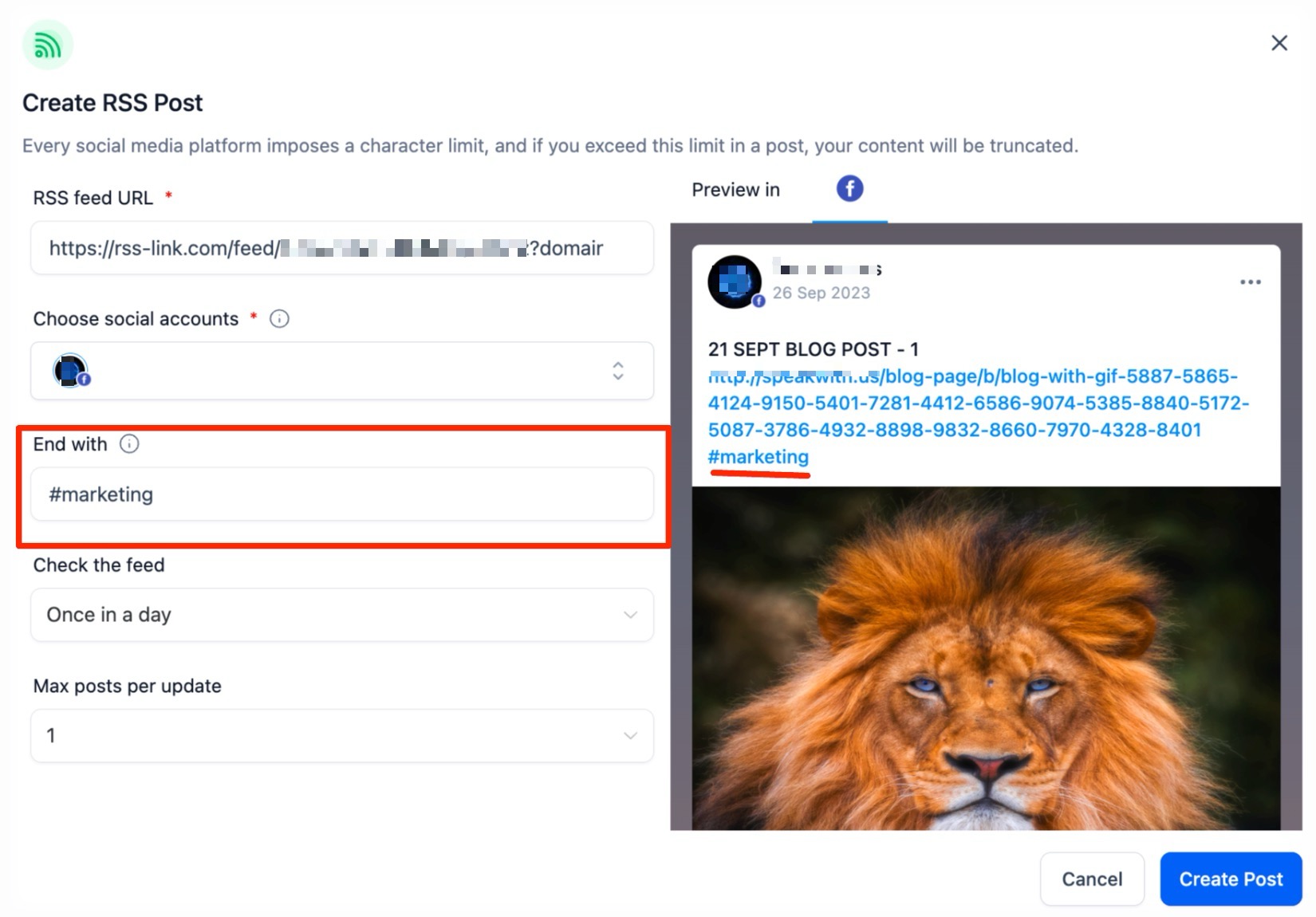
Step 4: Add Ending Text (Optional)
Use the “End with” option to append a standard signature to every post, such as specific hashtags, a brand tagline, or a link to your main website.
Step 5: Define Update Frequency
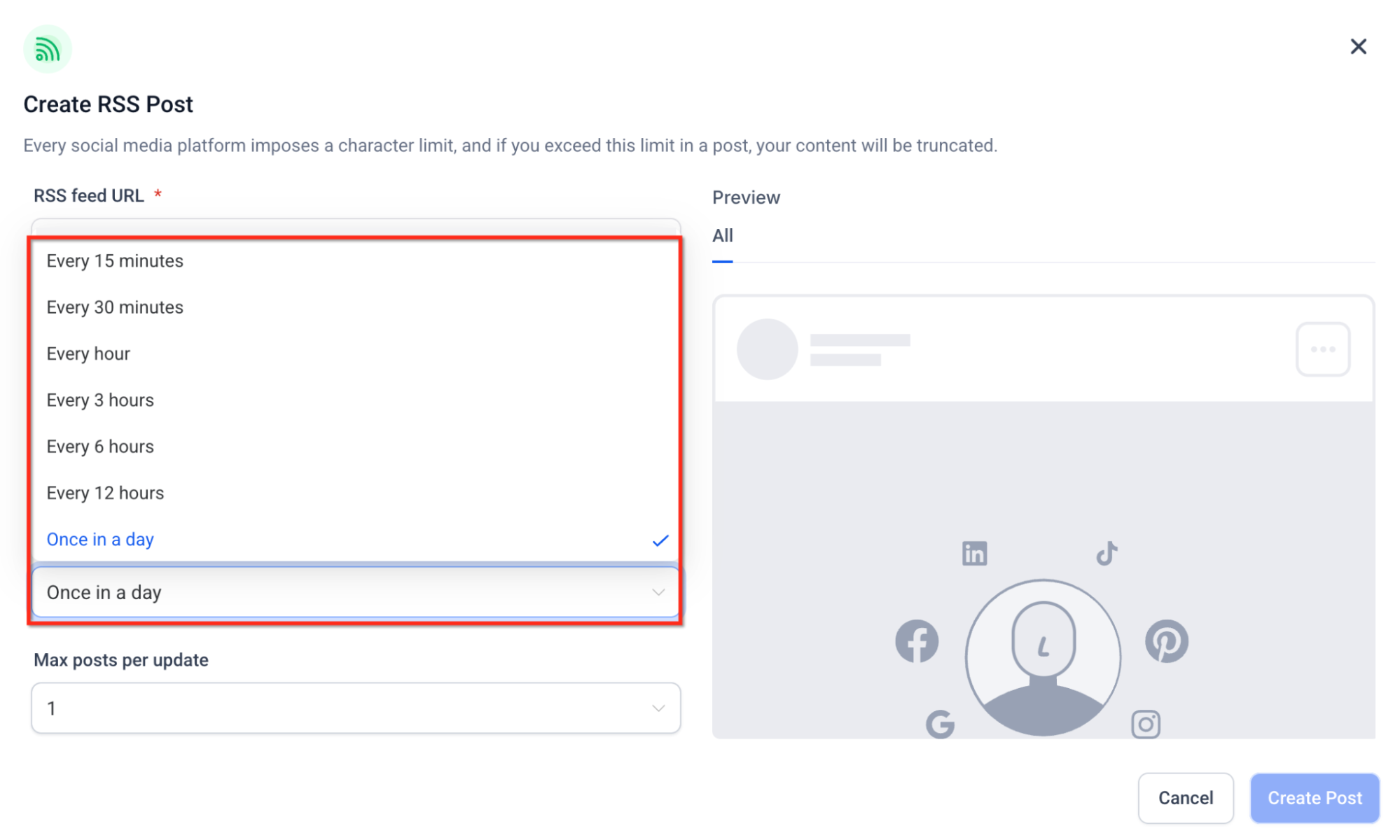
Section titled “Step 5: Define Update Frequency”Select how often the system should check your feed for new content. Options range from every 5 minutes for high-frequency news to once per day.
Step 6: Select Maximum Posts
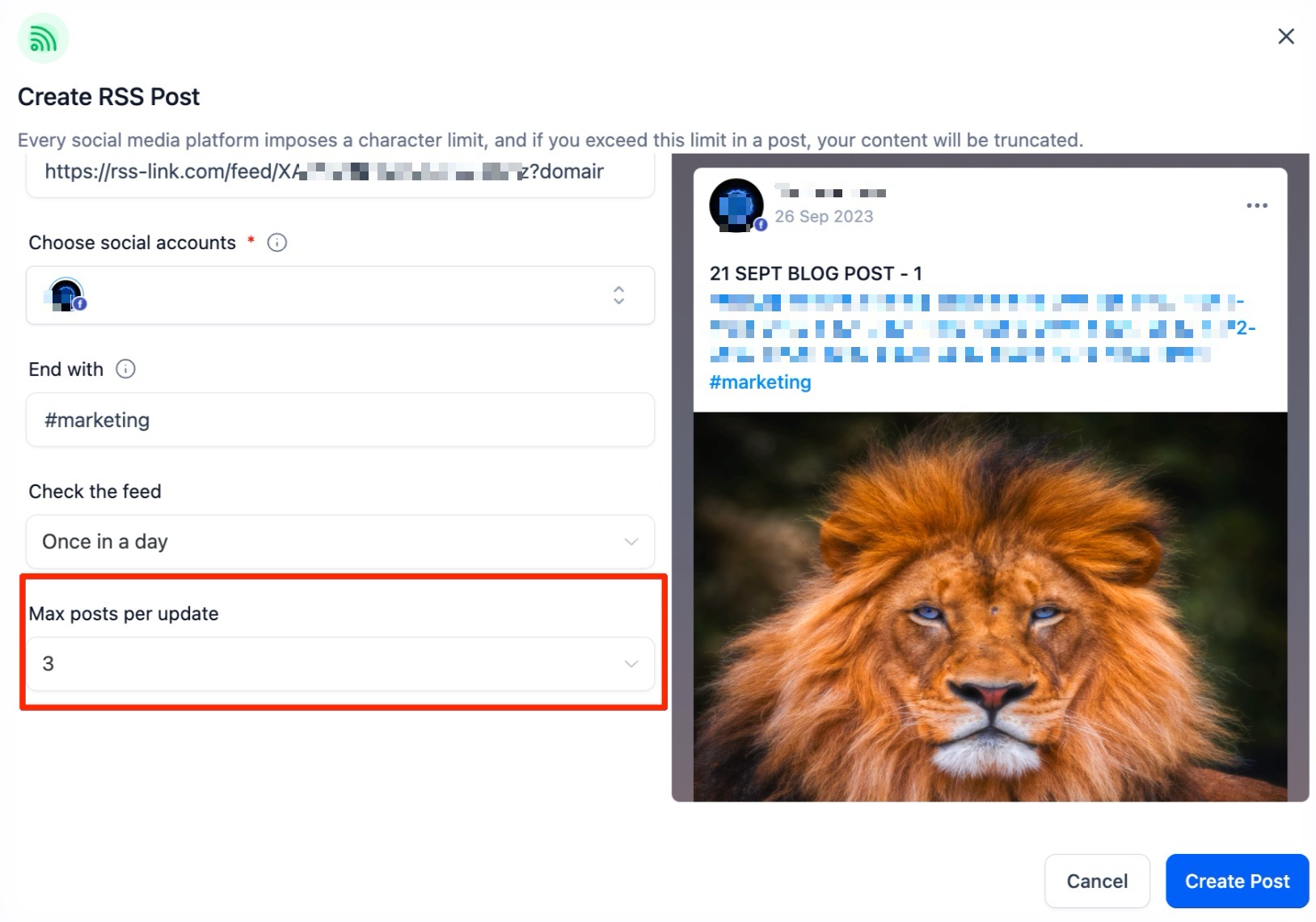
Choose the number of unique items (between 1 and 5) to be fetched during each check. If you select ‘3’, the system will pull the three most recent items it hasn’t posted yet and publish them as individual posts.
Step 7: Configure Descriptions and Previews
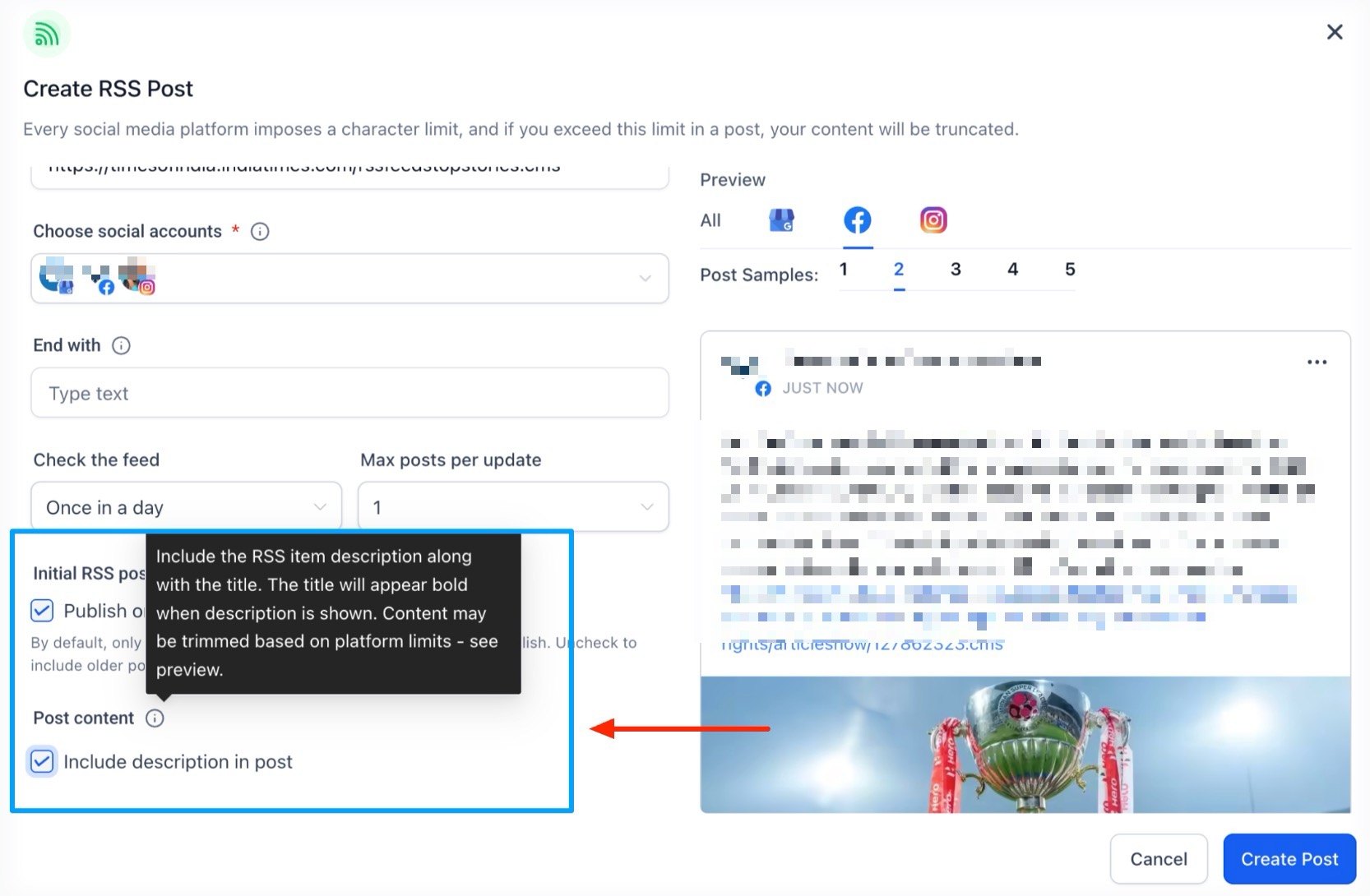
You can toggle the Include Description feature on or off.
- ON: Publishes both the title and a snippet of the content description.
- OFF: Publishes the title only. Use the multi-item preview to see how the next five posts will look across different platforms before finalizing.
Pro Tips for Advanced Users
- Platform Awareness: Our system automatically respects the character limits of different platforms. If a description is too long for one platform but fits another, it will be truncated intelligently to ensure the post does not fail.
- Visual Integrity: Always use the preview tool to check how images associated with your RSS feed items appear. High-quality featured images in your blog posts generally result in better-looking social posts.
- Batching: If you publish many articles at once, set your “Maximum Posts” to a higher number to ensure the automation doesn’t miss older items in favor of only the newest one.
**Question:Why isn’t my RSS feed posting to Twitter/X?
Answer: Due to current API restrictions imposed by Twitter/X, RSS-to-social automation is not supported for that specific platform.
**Question:Will the same RSS item be posted multiple times?
Answer: No. The system tracks which items have already been published and will only fetch and share new, unique items from your feed.
**Question:Can I add my own hashtags to every RSS post?
Answer: Yes. You can use the “Add Ending” step to include static hashtags or text that will be appended to the end of every post generated by that feed.
**Question:What happens if my RSS description is too long for a platform?
Answer: The system uses platform-aware summary generation to truncate the text based on the specific character limits of the social network while attempting to preserve links and your “ending” text.
**Question:Can I preview how the posts will look before they go live?
Answer: Absolutely. The setup process includes a preview of up to 5 real items from your feed, allowing you to see the formatting and content flow across your selected channels.
Question: Can I automate my YouTube channel content to post to my social media accounts using this tool? Answer: Yes. You can use the direct URL of a YouTube channel as an RSS source within the Social Planner to automatically distribute your new videos to your connected social media platforms.