Publish Instagram Stories via Push Notifications
This article provides a comprehensive guide on utilizing the push notification workflow for scheduling and publishing social media stories. This method is designed to facilitate advanced planning of visual content while ensuring users retain full access to high-engagement native features such as music, stickers, and interactive links. By integrating a mobile reminder system, businesses can maintain a consistent posting schedule without sacrificing the creative flexibility required for effective social media marketing.
Key Features and Benefits
Section titled “Key Features and Benefits”-
Advanced Content Planning: Prepare and schedule your stories in advance to maintain a consistent digital presence.
-
Mobile Notification System: Receive a timely alert on your mobile device when it is time to go live, ensuring you never miss a posting window.
-
Full Creative Flexibility: By finalizing the post within the native social application, you can utilize interactive elements like polls, stickers, trending audio, and external links that are often restricted in automated posting.
-
Team Collaboration: Streamline the workflow between content creators who schedule the posts and team members responsible for mobile publishing.
-
Automated Asset Handling: The system automatically handles media downloads and text copying, reducing the manual effort required to move content from the planner to the social platform.
How to Use the Push Notifications:
-
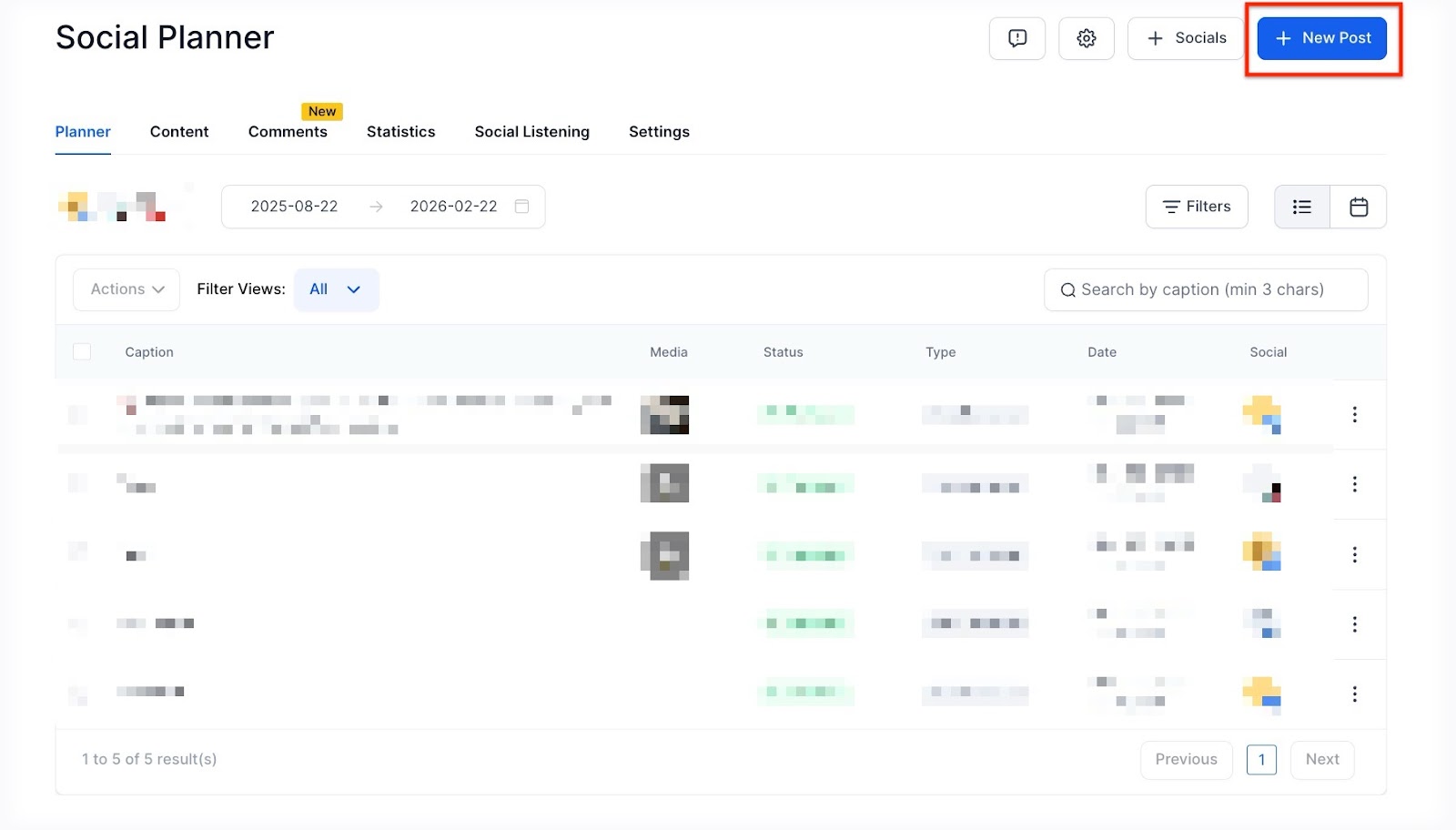
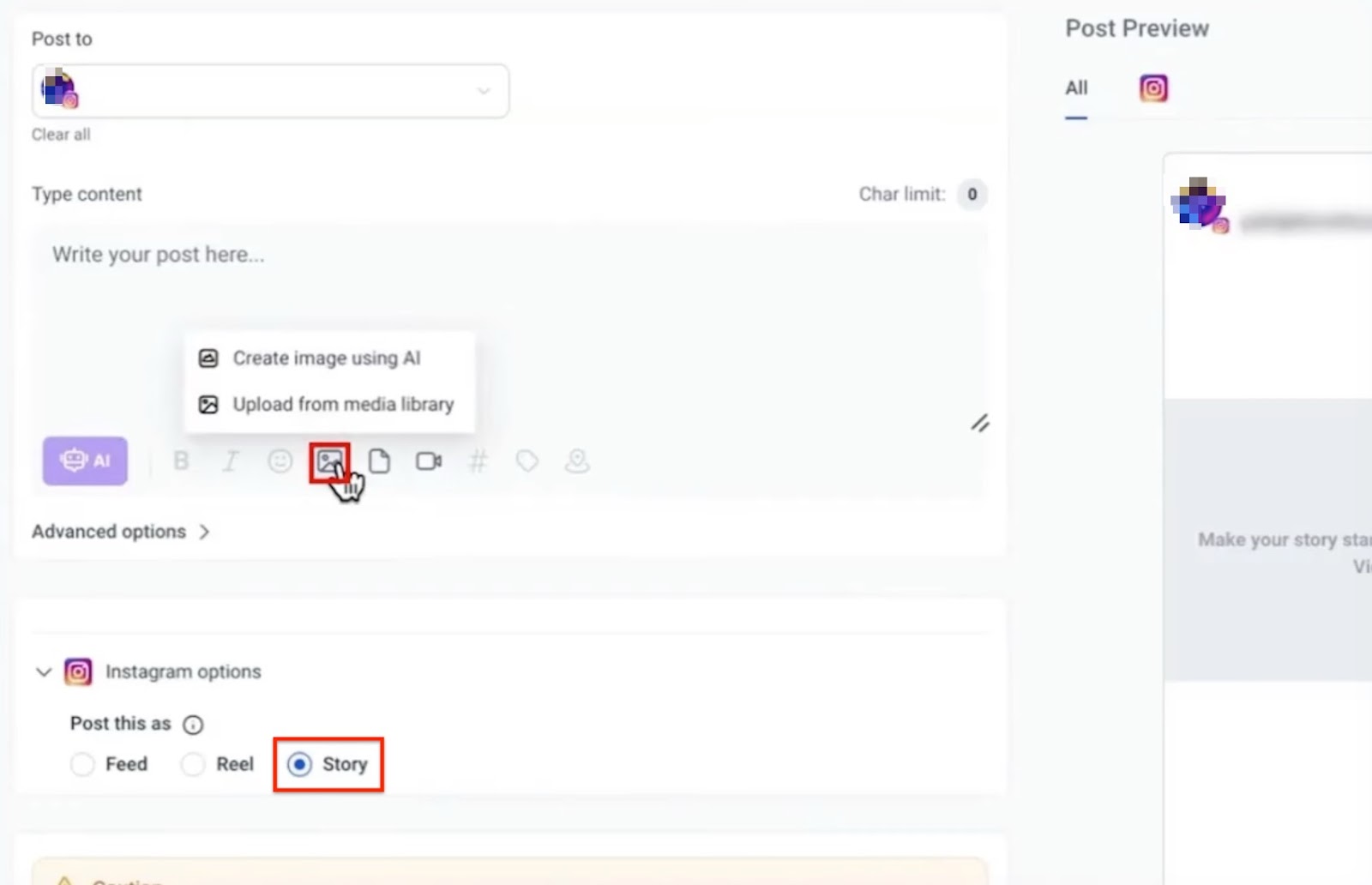
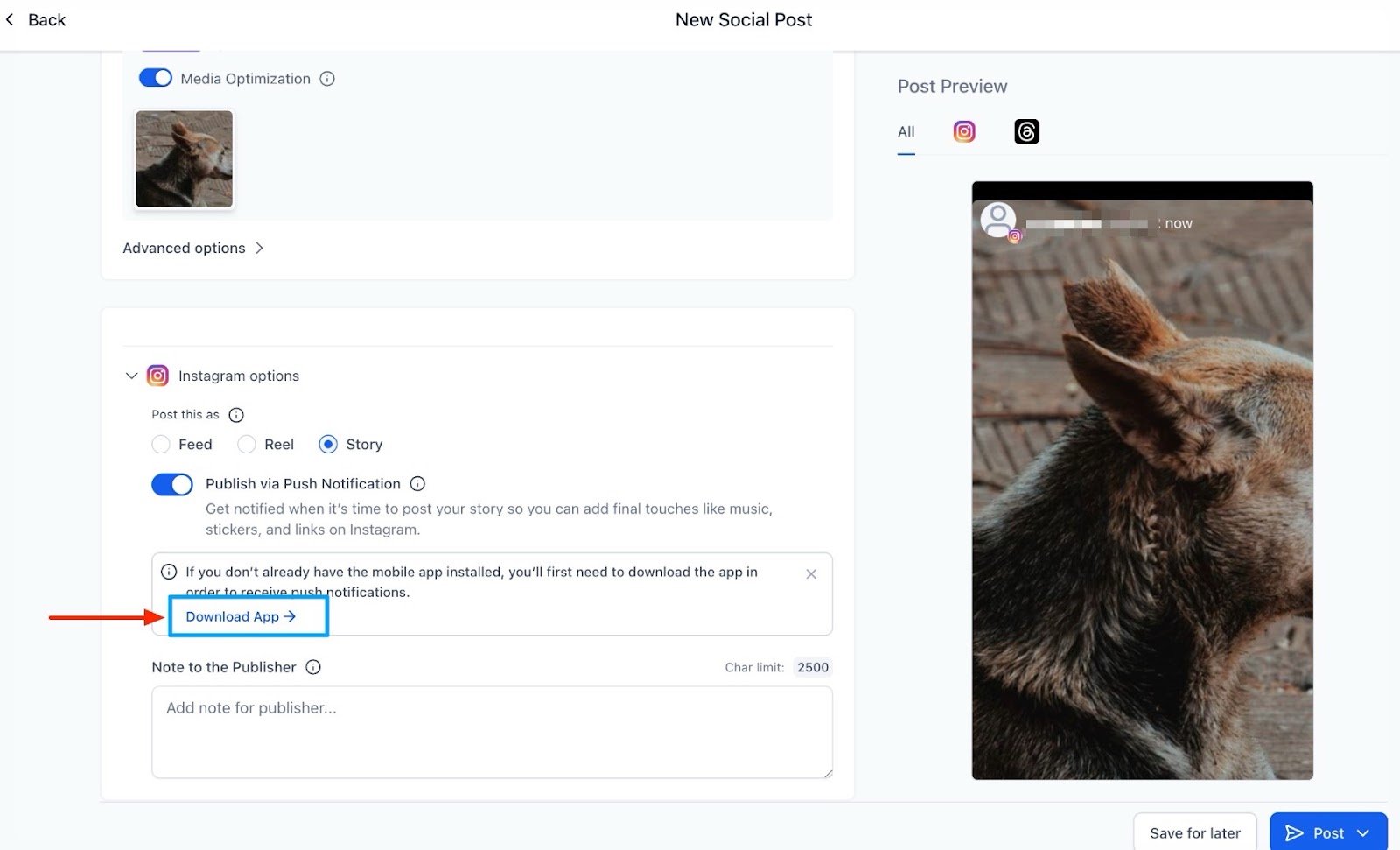
Choose Instagram Story in the Post Composer in Marketing > Social Planner.
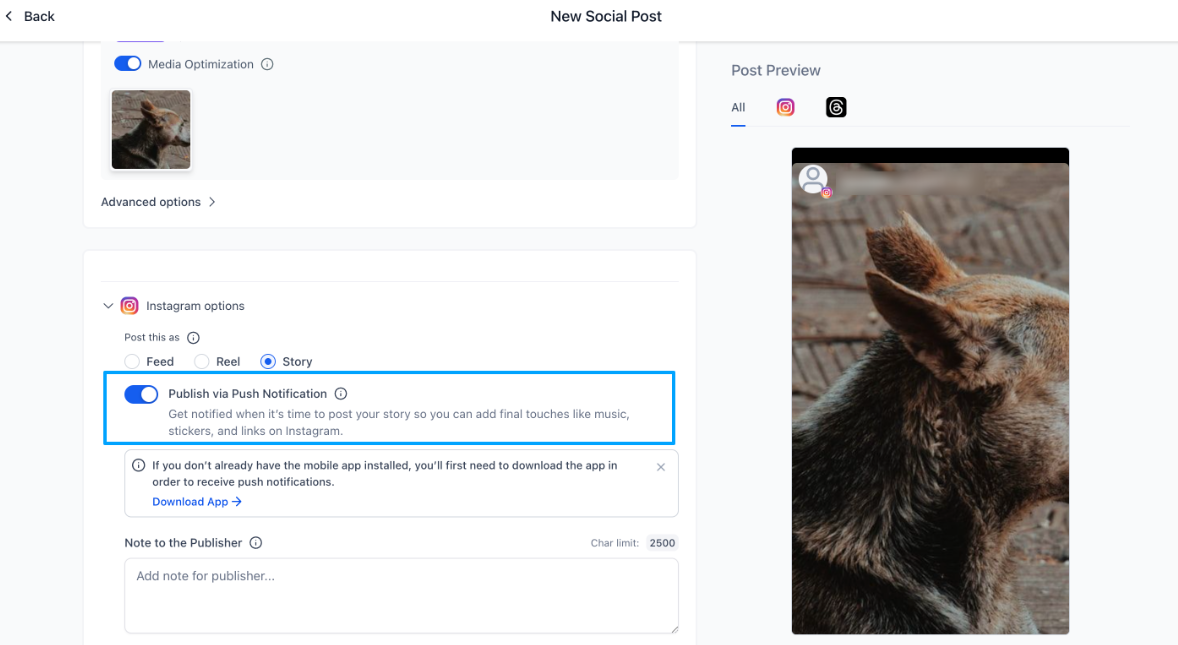
- Select Publish via Push Notification.
- Attach media and add a caption.
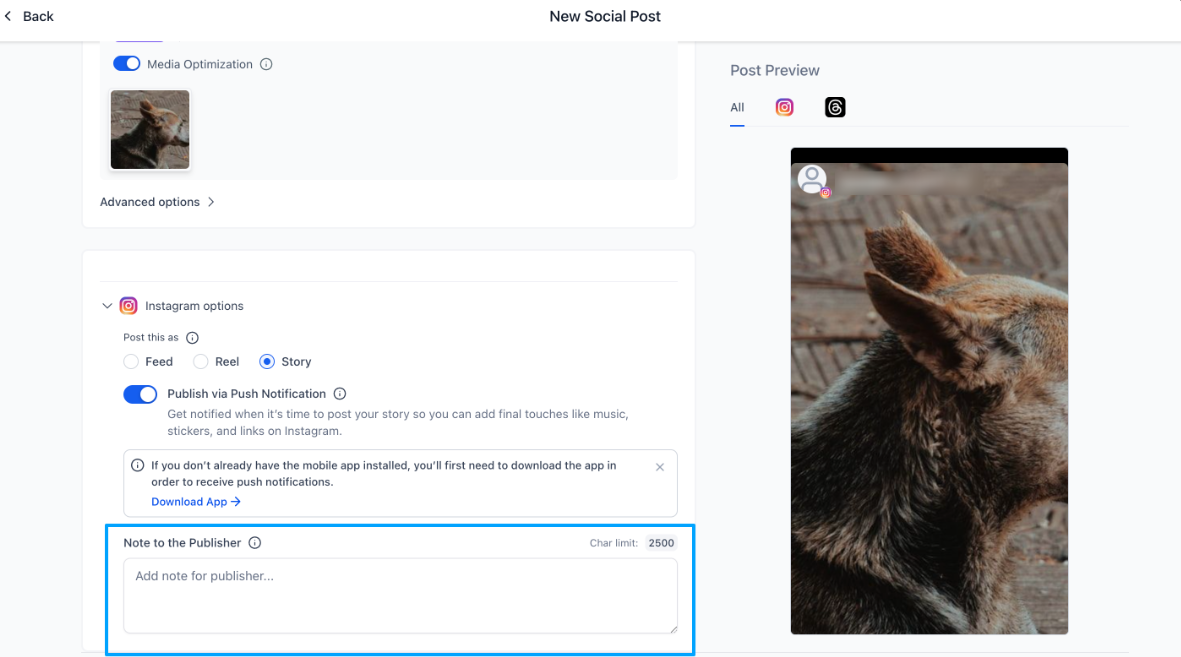
- Include optional instructions or notes for the teammate responsible for publishing.
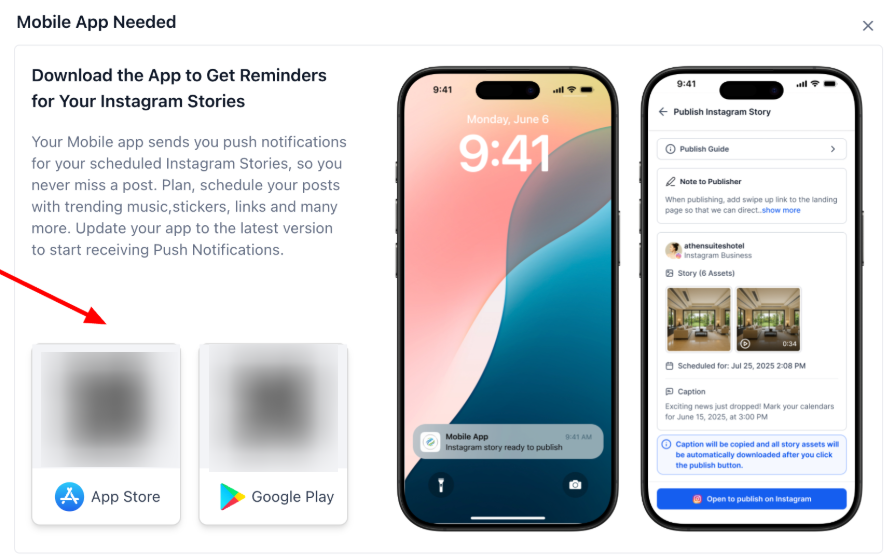
- Scan the mobile app QR code or tap the Download App button if the app is not already installed.
Pro Tips
Section titled “Pro Tips ”- Internal Notes: Use the “Notes” section in the scheduler to specify which trending audio or link stickers should be used. This is particularly helpful for teams where the person scheduling is not the one publishing.
- Batch Planning: Schedule your stories for an entire week in one sitting. The push notification system will act as your automated assistant, reminding you exactly when to post so you don’t have to keep track of the calendar manually.
Question: Why do I have to use push notifications instead of automatic posting?
Answer: Automatic posting often limits your ability to use high-engagement features like music, stickers, and polls. This workflow gives you the best of both worlds: the organization of scheduling and the creative power of native tools.
Question: What happens to my caption when I tap the notification?
Answer: The system automatically copies the caption you wrote to your mobile device’s clipboard. You can simply “Paste” it into the story editor within the social app.
Question: Can multiple team members receive the push notification? Answer: The notification is typically sent to the user logged into the mobile app who is associated with the account. Ensure the team member responsible for publishing has the app installed and notifications turned on.
Question: Will the media expire if I don’t tap the notification immediately? Answer: While the notification stays on your phone, it is recommended to post close to the scheduled time. The media is downloaded to your phone’s gallery upon tapping the alert for easy access.
Question: How do I get the mobile app if I don’t have it yet? Answer: Within the social planner interface, you can typically find a “Download App” button or a QR code that will direct you to the appropriate app store for your device.
Question: How do I make sure the person publishing knows which link or music to use?
Answer: You can use the Internal Notes section in the scheduler. This allows the person planning the post to leave specific instructions for the mobile user, such as which trending audio or link stickers to add before going live.