Measure Link Performance Inside Social Planner
This article provides an overview of the advanced link tracking capabilities available within the social media management suite. The purpose of this guide is to help you understand how to monitor engagement, attribute traffic to specific campaigns, and refine your digital strategy through data-driven insights.
Key Features and Benefits
Section titled “Key Features and Benefits”Understanding how your audience interacts with shared content is vital for any digital strategy. By utilizing integrated URL tracking, you gain a transparent view of your content’s journey after it is posted.
- Comprehensive Click Metrics: View total clicks for every shared URL to gauge overall interest.
- Platform-Wise Breakdown: Identify which social networks drive the most traffic by seeing performance data segmented by specific platforms.
- Trend Visualization: Use visual data representations to see how link engagement fluctuates over time, allowing for better timing of future posts.
- Advanced Filtering: Quickly sort through data by selecting specific social accounts or time ranges to find the exact insights you need.
- Centralized Attribution: Eliminate the need for external spreadsheets or third-party trackers by keeping all performance data within your primary workspace.
- ROI Optimization: Identify high-performing content types and double down on the strategies that lead to actual conversions.
How to Use URL Tracking
Section titled “How to Use URL Tracking”Follow these steps to begin measuring your link performance:
- Navigate to Analytics: Open your dashboard and head to the Marketing section. Select the Social Planner and then click on the Statistics tab.
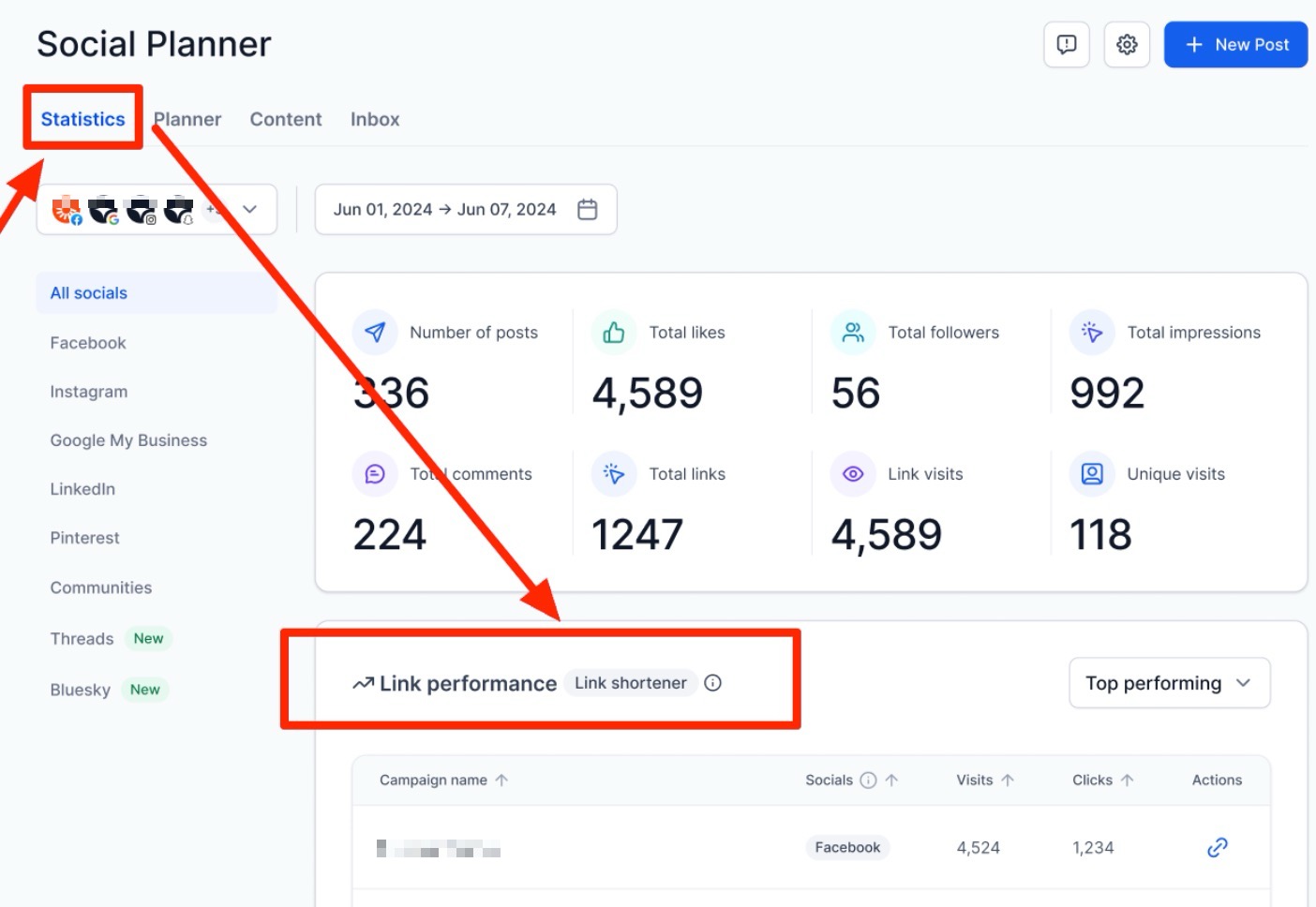
2. Access URL Tracking: Within the statistics view, locate and select the URL Tracking option.
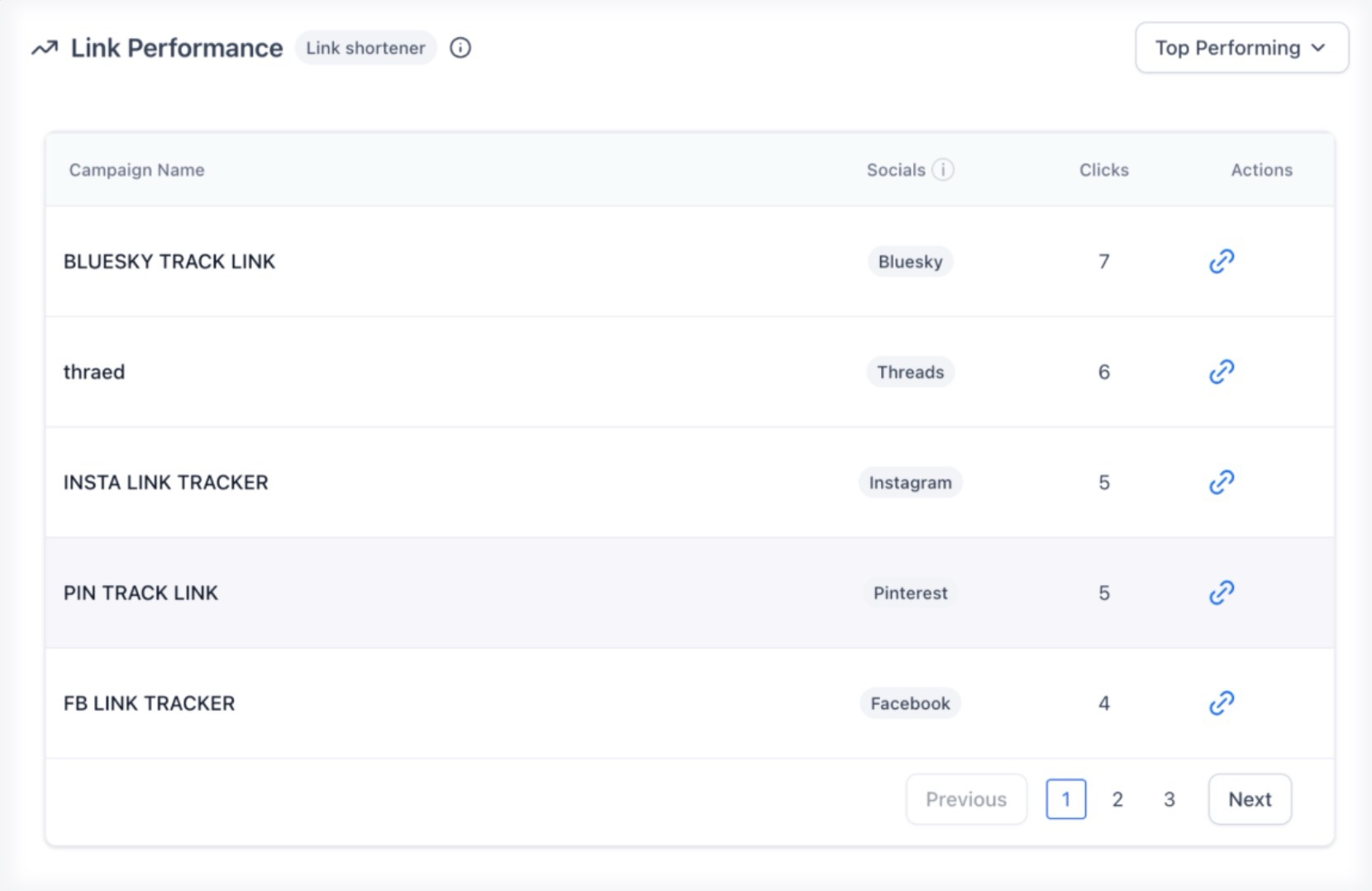
3. Assign Campaign Names: When composing a new post, assign a unique Campaign Name to your link. This groups all posts using that specific link and campaign name together for easier comparison.
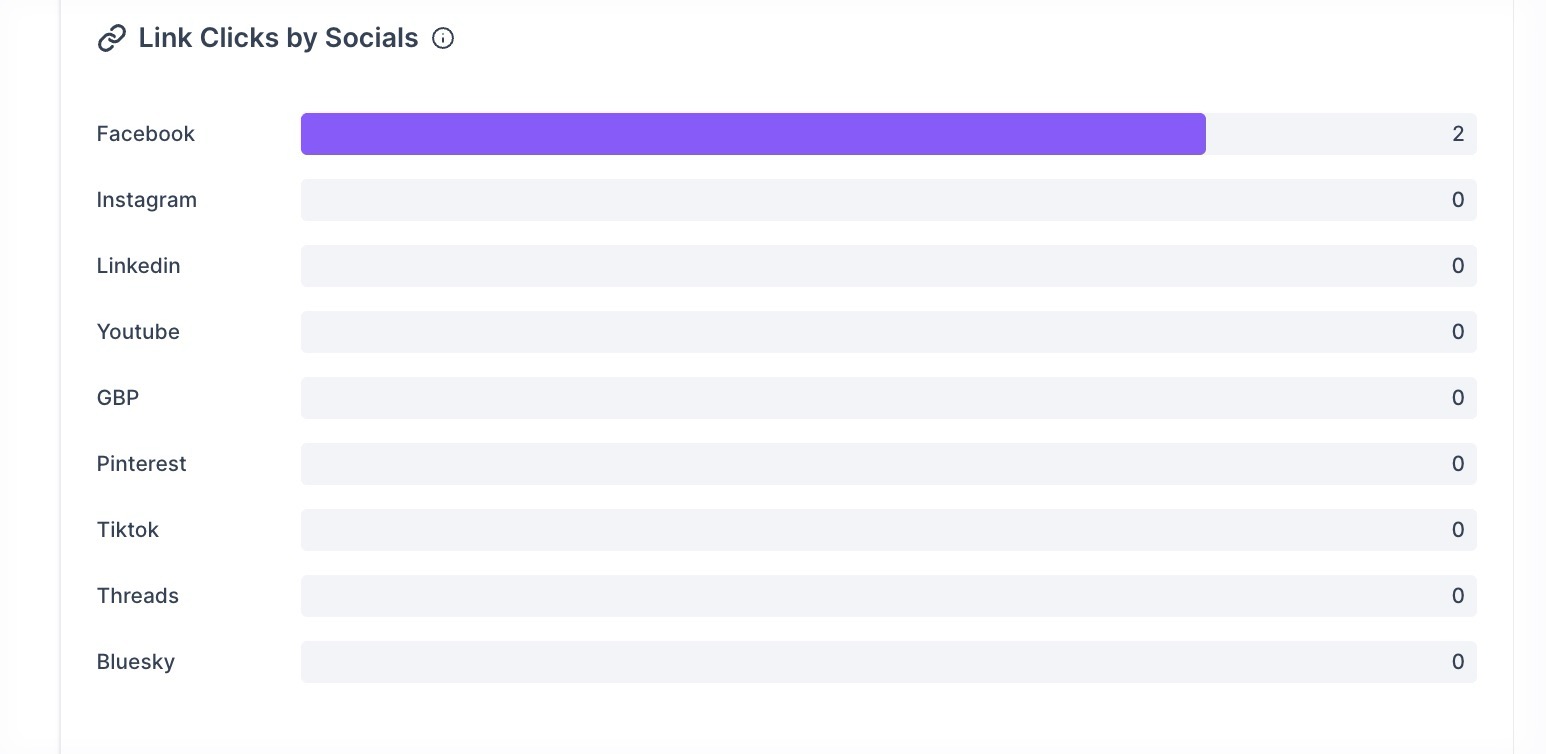
4. Review Insights: Once your posts are live, return to the URL Tracking dashboard to view total clicks and platform-wise performance.
Pro Tips for Advanced Users
Section titled “Pro Tips for Advanced Users”- Consistent Naming Conventions: Establish a standard naming format for your campaigns (e.g., Summer_Sale_202X). This ensures that your data remains clean and easy to search as your library of tracked links grows.
- A/B Testing Content: Use the same tracked link in two different post styles (e.g., an image post vs. a video post) under the same campaign name. This allows you to see which media format earns a higher click-through rate.
- Historical Benchmarking: Regularly export or note your top-performing URLs each month to create a “performance baseline.” This helps you recognize when a new strategy is truly outperforming your historical average.
Note: Every URL shared through the Social Planner is quite measurable. This functionality ensures that you can track total clicks on both shortened and original URLs, providing a clear picture of engagement across all connected social channels.
Question: Where do I find the data for my shared links?
Answer: You can find these insights by navigating to Marketing, selecting Social Planner, and then viewing the URL Tracking section under Statistics.
Question: What specific metrics can I see for my URLs?
Answer: You can view total clicks, a breakdown of performance by platform, and a visualization of trends over time.
Question: How does assigning a Campaign Name help me?
Answer: Assigning a Campaign Name groups all posts using that same link and campaign together, which helps you compare and understand performance across different posts and channels.
Question: Can I track both shortened and original URLs?
Answer: Yes, the system allows you to track total clicks on each shortened or original URL shared through the platform.
Question: What platforms are included in the platform-wise breakdown?
Answer: The breakdown includes performance data for various platforms such as Facebook, Instagram, LinkedIn, and others where the link was shared.
Question: How can I compare the performance of different media formats (like images vs. videos) using link tracking? Answer: You can perform A/B testing by using the same tracked link and the same Campaign Name across different post styles. By comparing the click-through rates of an image post against a video post within that specific campaign, you can identify which media format drives higher engagement.