Instagram Direct Messaging Integration
Instagram Direct Messages (DMs) are a great way to communicate with leads and contacts. Now you can integrate your Instagram account to , to give you additional options for automating workflows and communicating directly with leads in the Conversations tab. Follow the steps below to learn how to integrate your Instagram account for DMs.
Navigation
Section titled “Navigation”Step 1: Connect your Facebook and Instagram accounts
Section titled “Step 1: Connect your Facebook and Instagram accounts”- To use Instagram Direct Messaging, you’ll need to have your Instagram Account connected to a Facebook page. Copy and paste this URL for Instagram’s instructions on how to do this: https://help.instagram.com/176235449218188
NOTE: You will also need to ensure you have correctly enabled your Instagram messaging connection across other apps and systems. This is done through Facebook/Instagram directly, within your settings. Check out Facebook/Instagram’s article on how to ensure your settings are properly enabled to take advantage of this feature. Click here to access the Facebook/Instagram details: https://www.facebook.com/help/instagram/791161338412168
Step 2: Integrate your Facebook and Instagram accounts into
Section titled “Step 2: Integrate your Facebook and Instagram accounts into”- Navigate to Settings > Integrations
- Click Connect under your Facebook and Instagram to connect both. (To start, the icons will both be grayed out and turn colorful once the integration is complete.)
NOTE: If you already have Facebook integrated, the “F” icon will be highlighted in blue, as shown below.
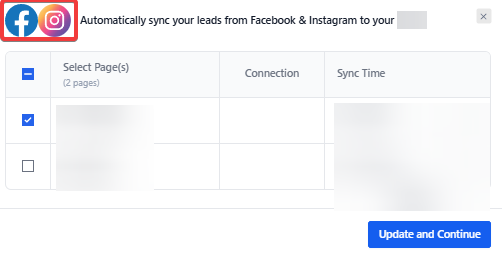
- Follow the instructions in the pop-up window to complete the integration. You may need to log in to your Facebook and/or Instagram account to accept the permission requests and complete the integration.
Step 3: Start using the Instagram DM features
Section titled “Step 3: Start using the Instagram DM features”- There are a few options within for taking advantage of the Instagram DM features:
- First, you can navigate to Conversations. Here you can communicate directly with contacts who have sent you an Instagram DM.
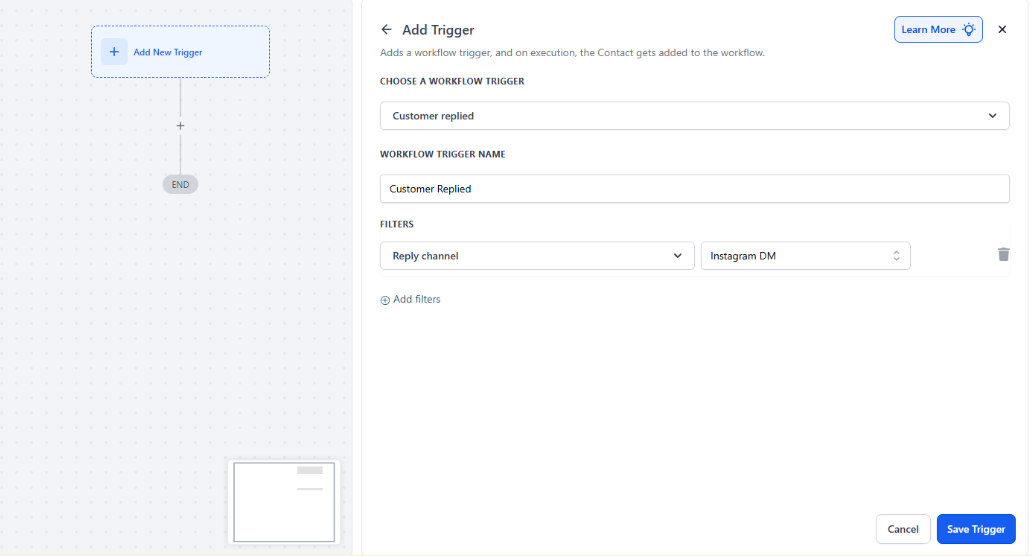
- You can also navigate to Workflows, select the trigger Customer Replied and filter by “reply channel,” and choose “Instagram DM” to set up the trigger based on Instagram DMs coming in.
Note:
To manage your Instagram messaging connections across apps:
- Navigate to the mobile Instagram app.
- Go to your Instagram business or creator profile.
- Select Settings.
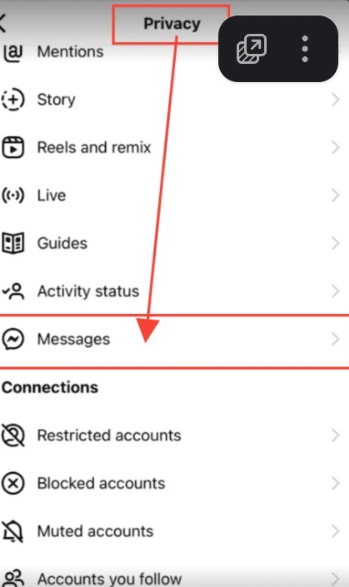
- Select Privacy.
- Select Messages.
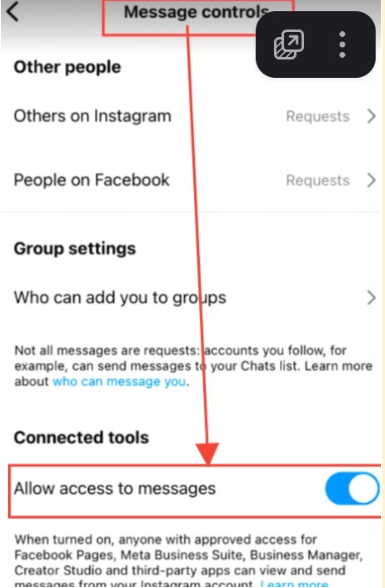
- Under Connected Tools, you can toggle on or off “Allow Access to Messages.”
- If you toggle on this access, anyone with approved access to your Facebook Business Suite, Creator Studio, or other connected third-party apps can view or manage your Instagram Direct Messages.
- If you toggle off, you’ll only be able to view your Instagram Direct Messages on Instagram.
If you’d like to connect your Instagram Business account with your Facebook account please follow the steps in the article titled “How to Connect Your Instagram Business Account With Your Facebook Account”
Question: What if I have issues connecting my Instagram account to ?
Answer: If you encounter issues, ensure that your Instagram account is properly connected to a Facebook page and that all messaging permissions are correctly set. Verify your settings through Facebook/Instagram as detailed in their support articles, and try reconnecting by following the integration steps in ’s Settings > Integrations.
Question: Is it possible to disconnect my Instagram DMs from ?
Answer: Yes, you can disconnect your Instagram account from by navigating back to Settings > Integrations and selecting the option to disconnect. This will stop any direct message integration between Instagram and .
Question: Can I use Instagram DMs in for automated responses?
Answer: Yes, by integrating Instagram DMs with , you can set up workflows that include automated responses or other actions triggered by Instagram messages, enhancing your ability to manage and engage with leads efficiently.
Question: Are there any restrictions on what I can do with Instagram DMs in ?
Answer: While you can manage and respond to Instagram DMs within , the specific features available may be subject to Instagram’s platform policies and settings. Ensure that your business account settings are fully enabled for messaging across connected apps for full functionality.
Question: Will my Instagram DMs still be available on Instagram if I connect with ?
Answer: Yes, your Instagram DMs will still be accessible on Instagram. The integration with simply adds additional ways to manage and respond to messages through the platform’s Conversations tab.
Question: What should I do if my Instagram DMs are not showing up in ?
Answer: If Instagram DMs are not appearing in , check that your accounts are properly connected and that messaging permissions are enabled in Instagram’s settings. Revisit the integration steps in ’s Settings > Integrations and ensure that all connections are correctly set up.
Question: Are there any limitations to using Instagram DMs in ?
Answer: Feature availability may depend on Instagram’s platform policies and your account settings. Ensure your business or creator account has messaging enabled across connected apps for full functionality.
Question: What happens if I toggle off “Allow Access to Messages” in the Instagram app? Answer: The integration will immediately stop working. Messages will no longer flow into , and your workflows will not trigger. You will only be able to see and reply to messages from within the Instagram app itself.
Question: What happens if I toggle off “Allow Access to Messages” in the Instagram app? Answer: The integration will immediately stop working. Messages will no longer flow into , and your workflows will not trigger. You will only be able to see and reply to messages from within the Instagram app itself.