Facebook & Instagram Chat Widgets
In today’s fast-paced digital world, businesses strive to provide seamless, real-time communication with their customers. One effective way to achieve this is through chat widgets that allow for instant messaging. With the growing popularity of Meta platforms such as Facebook and Instagram, businesses can now integrate these popular messaging channels directly into their websites or funnels. This article explores the key features and benefits of Facebook and Instagram Chat Widgets, along with easy-to-follow setup instructions for incorporating them into your business strategy.
Key Features & Benefits
Section titled “Key Features & Benefits”-
New Chat Widget TypesTwo new chat types are available for businesses seeking to engage with customers via Facebook Messenger or Instagram Direct Messages (DMs).
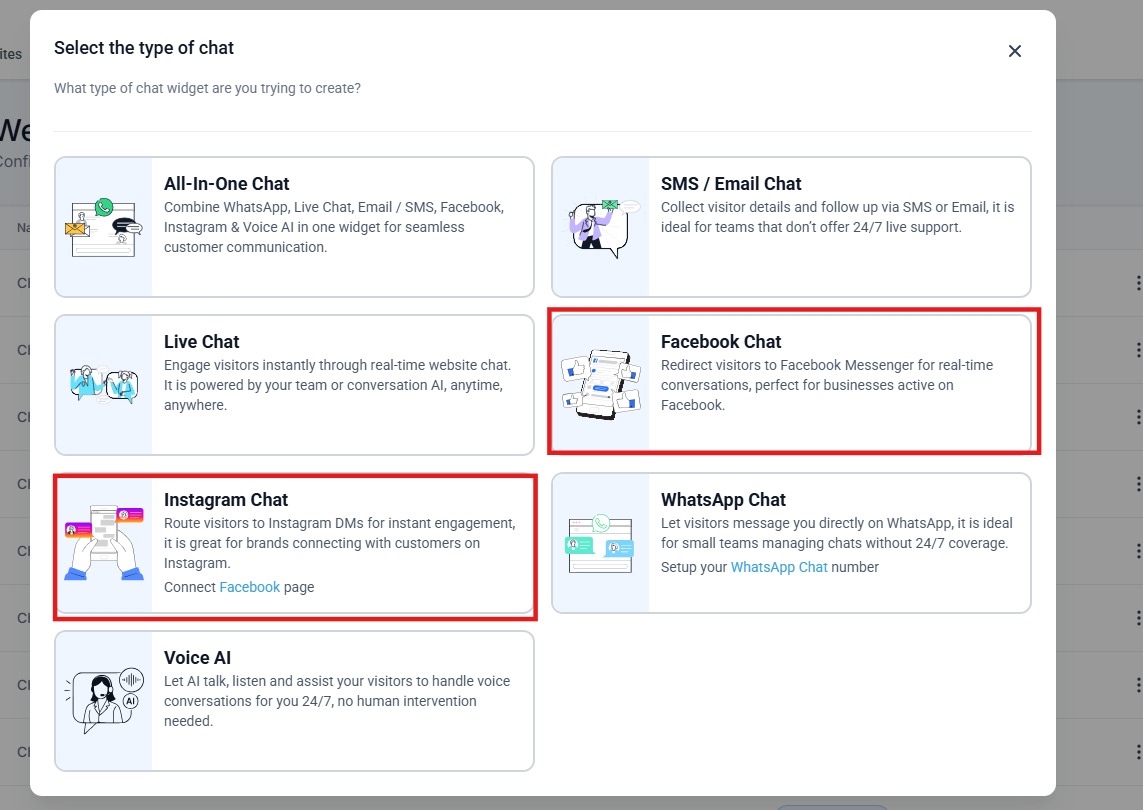
- Facebook Chat: Direct visitors to Facebook Messenger for live conversations, leveraging the vast reach of the platform.
- Instagram Chat: Route visitors to Instagram DMs for instant engagement, tapping into the growing number of users who prefer communication through Instagram.
-
Enhanced Setup ExperienceThe setup process for both Facebook and Instagram chats has been streamlined, offering an intuitive interface:
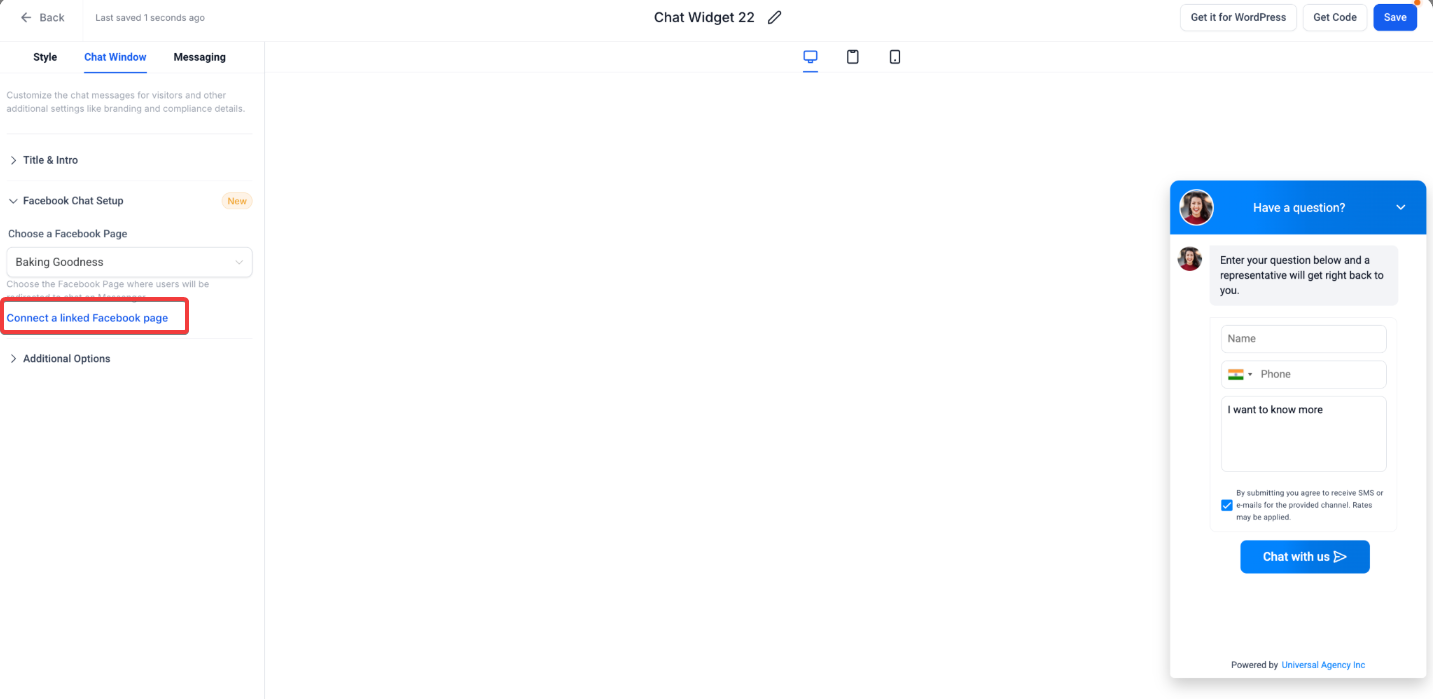
- Facebook Chat Setup: Under the “Chat Window” tab, you can easily select a connected Facebook Page from a dropdown. If no pages are linked, a simple button allows you to connect them directly.
- Instagram Chat Setup: Similarly, the “Chat Window” tab for Instagram chat offers the ability to select from connected Instagram accounts or link a new account in just a few steps.
-
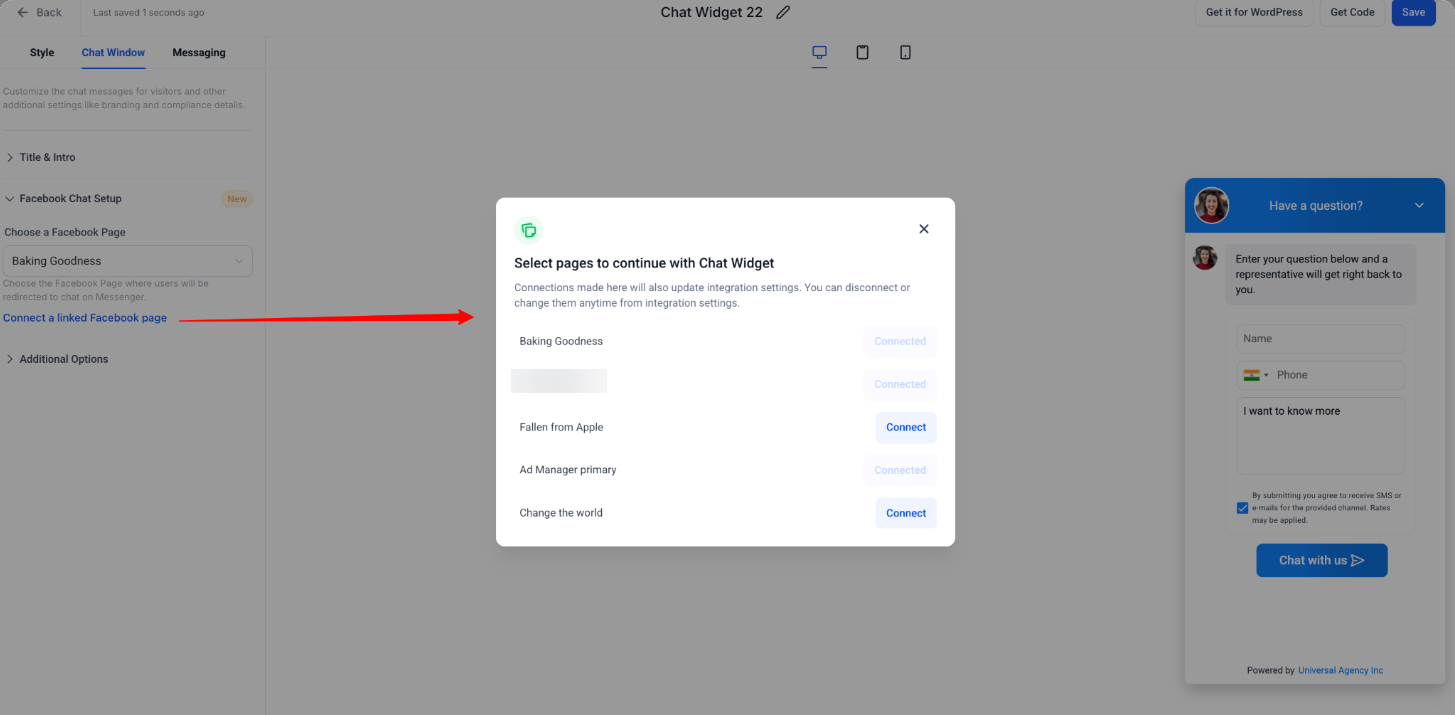
Updated Meta Page/Account Connection ModalWhen setting up Facebook or Instagram chat widgets, users are presented with an improved modal interface. This modal:
- Displays a list of all available connected pages/accounts.
- Highlights pages/accounts already connected.
- Allows for additional connections without leaving the widget setup, maintaining a seamless experience.
-
Seamless Integration with WebsiteOnce the widget is created, businesses can easily embed the chat widget on their website or funnel using a “Get Code” option. Visitors interacting with the widget will be automatically redirected to Messenger or Instagram DM, providing real-time engagement.
How to Use the Facebook & Instagram Chat Widget
Section titled “How to Use the Facebook & Instagram Chat Widget”Follow these steps to set up the Facebook or Instagram Chat widget on your website:
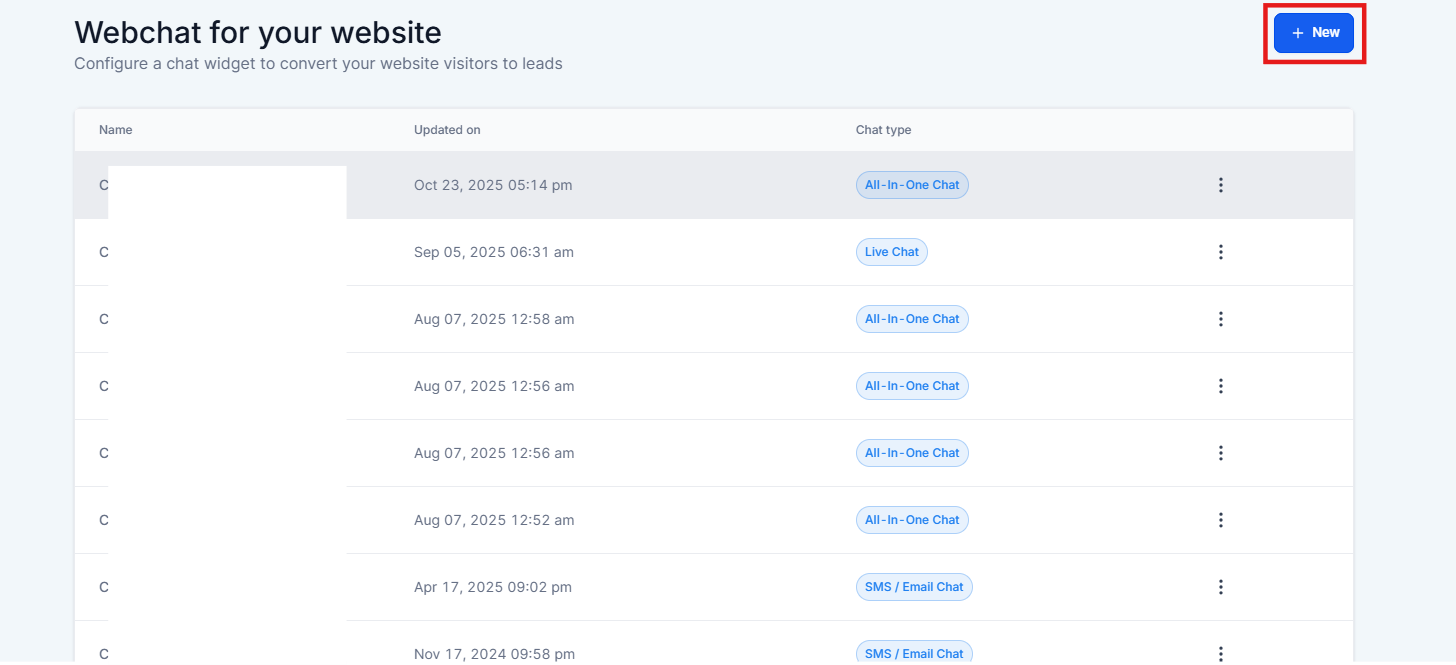
- Access the Widget BuilderNavigate to Sites on the left, the chat widgets section on the top right and select “New” to create a fresh widget.
2. Choose the Chat TypeIn the chat type modal, choose either Facebook Chat or Instagram Chat based on your preference.
3. Navigate to Chat Window tab.
4. Set Up the Chat Window
For Facebook Chat: Choose a connected Facebook Page from the dropdown. If no pages are linked, click the button to connect a Facebook page.
- For Instagram Chat: Select a connected Instagram account or use the button to connect a new account.
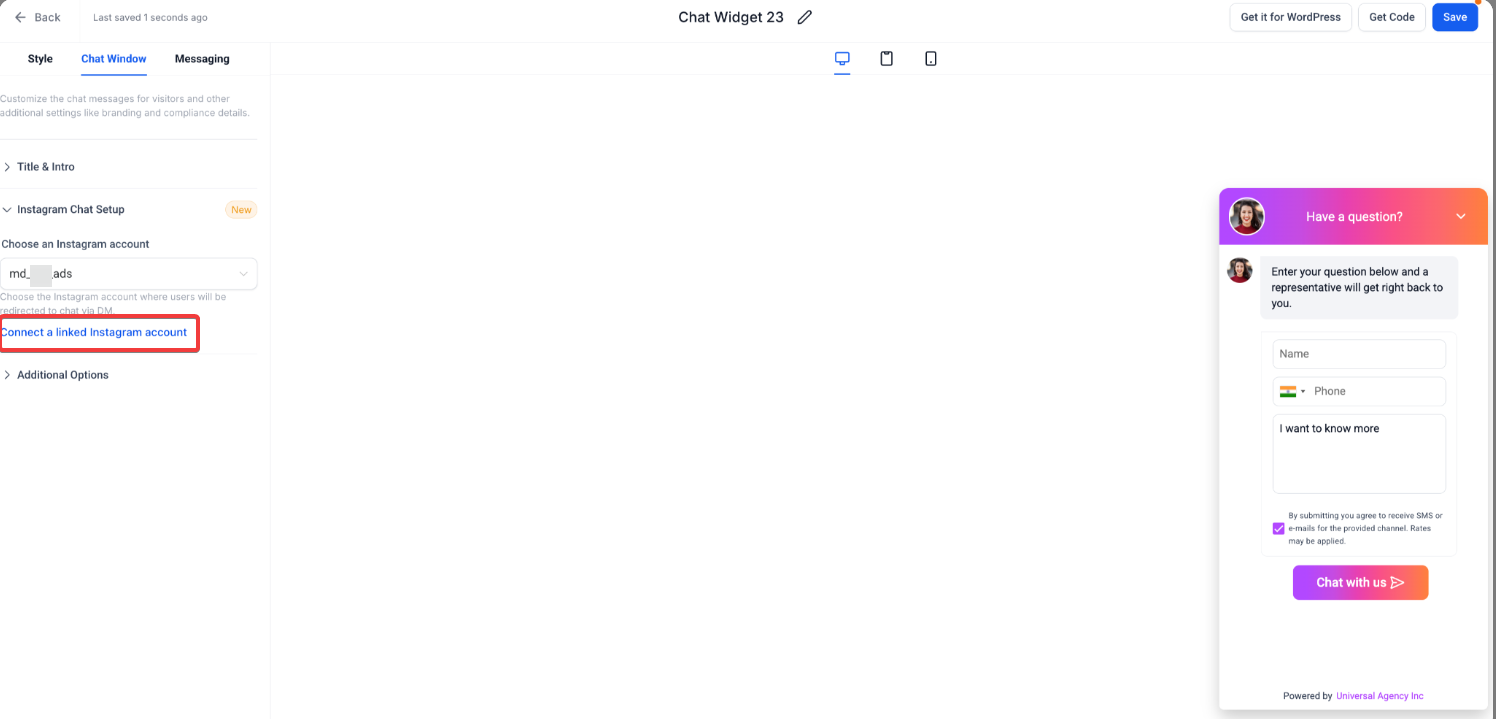
5. Customize & Save the WidgetAfter selecting your account or page, customize any styling options (if needed), and save the widget. Use the “Get Code” feature to generate the embed code.
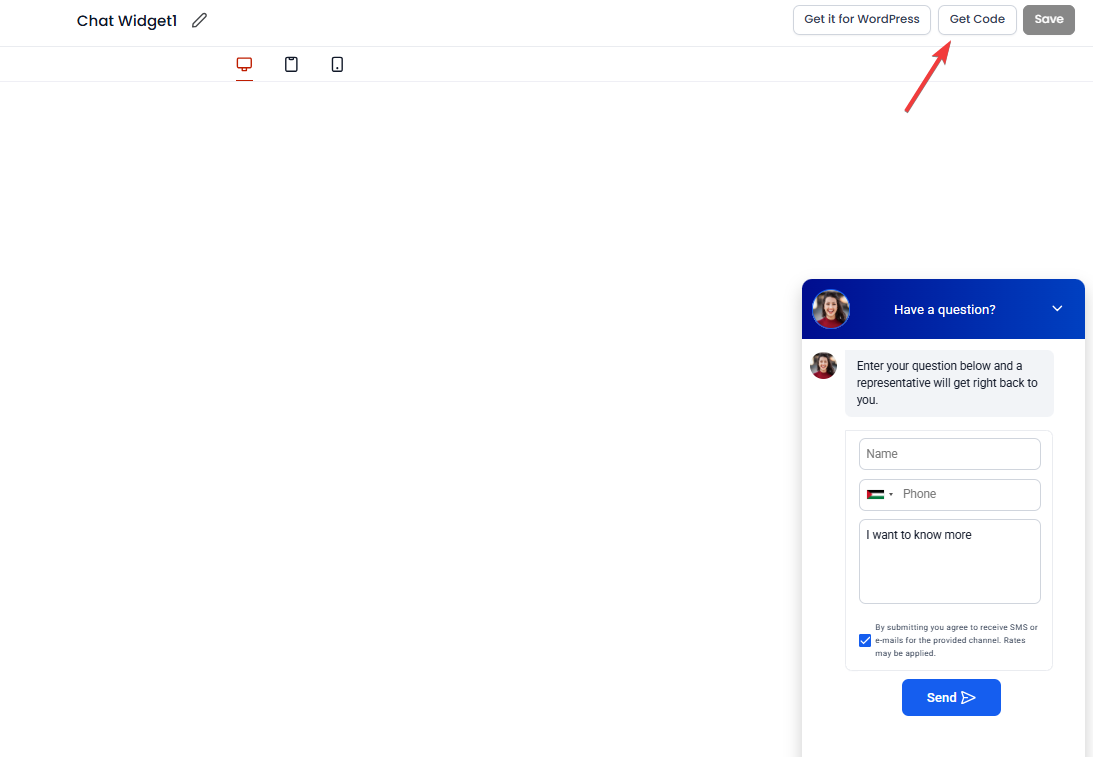
6. Embed the WidgetCopy the generated code and paste it into your website or funnel where you want the chat widget to appear.
Why Use Facebook & Instagram Chat Widgets?
Section titled “Why Use Facebook & Instagram Chat Widgets?”Integrating these chat widgets offers several key benefits:
- Leverage Existing Social Media Presence: If your business already has an established presence on Facebook or Instagram, these widgets allow you to continue the conversation with your customers directly on the platforms they are most comfortable with.
- Increase Engagement and Response Rates: With instant messaging on widely used platforms, customers are more likely to engage, leading to faster response times and increased satisfaction.
- Streamlined Setup and Management: The unified setup process for both Facebook and Instagram chat widgets makes it easy for businesses to manage multiple messaging channels from a single platform.
Pro Tips
Section titled “Pro Tips”- Use Clear Call-to-Actions: Encourage your website visitors to engage with the chat widget by offering a clear call-to-action, such as “Chat with us on Facebook Messenger” or “Send us a DM on Instagram.”
- Monitor and Respond Promptly: With real-time engagement now available, be sure to actively monitor your chat messages and respond as quickly as possible to maintain customer satisfaction.
- Customize the Chat Experience: Take advantage of the customization options available to match the chat widget with your brand’s voice, ensuring a consistent user experience across all channels.
Question: What happens if I don’t have a connected Facebook or Instagram account? Answer: If no accounts are connected, you will be prompted to connect one before proceeding with the widget setup.
Question: Can I customize the appearance of the chat widget? Answer: Yes, the chat widget’s style, position, and behavior can be fully customized to suit your website’s design.
Question: How can I add more Facebook Pages or Instagram accounts after setup? Answer: You can always connect additional Facebook Pages or Instagram accounts by clicking on the “Connect a linked Facebook Page” or “Connect a linked Instagram account” buttons in the widget builder.
Question: Will visitors be redirected immediately after clicking the widget? Answer: Yes, once the chat widget is clicked, visitors will be automatically redirected to either Facebook Messenger or Instagram DM based on your configuration.
Question: Can I use the same widget for both Facebook and Instagram? Answer: No, you need to choose one chat type (either Facebook or Instagram) per widget. However, you can create separate widgets for each platform on the same website.
Question: Is there a specific way to handle the messages once the widget is live?
Answer: To maintain customer satisfaction, you should actively monitor your messages and respond promptly, as visitors expect real-time engagement when using these specific social media channels.
Question: How do I actually get the widget onto my live website? Answer: Once you have customized and saved your widget, use the “Get Code” feature to generate an embed snippet. Copy this code and paste it into the backend of your website or funnel builder.