Adding the Review Widget to your Funnel or Website
Building trust with your audience is essential, and displaying your customer feedback is one of the best ways to do it. This article explains how to easily add a review widget to your site, allowing you to showcase your best ratings and use AI to create quick summaries of what clients love about your business.
Key Benefits of Review Widgets
Build Instant Trust: Showing real feedback from happy customers makes new visitors feel safe and confident about choosing your business.
All Your Best Reviews in One Place: Easily gather reviews from different sites like Google and Facebook and filter them so only your top-rated feedback is on display.
Matches Your Style: You can change the colors, fonts, and layout so the reviews look like a natural part of your website, not an out-of-place add-on.
Works on Autopilot: Once set up, the widget pulls in new reviews by itself. You don’t have to manually update anything to keep your site looking current.
Ready-to-Use Designs: Use professional templates to get your reviews live in minutes without needing any technical or coding skills.
AI-Powered Highlights: Use smart technology to summarize your reviews into quick bullet points, helping busy customers see your best qualities at a glance.
Navigation
Section titled “Navigation”Part 1: Customizing your review widget
Section titled “Part 1: Customizing your review widget”Navigate to Reputation on the left side menu, then go to the Widgets section.
On the right side, you will see a panel that will allow you to create a new widget or select one from the templates.
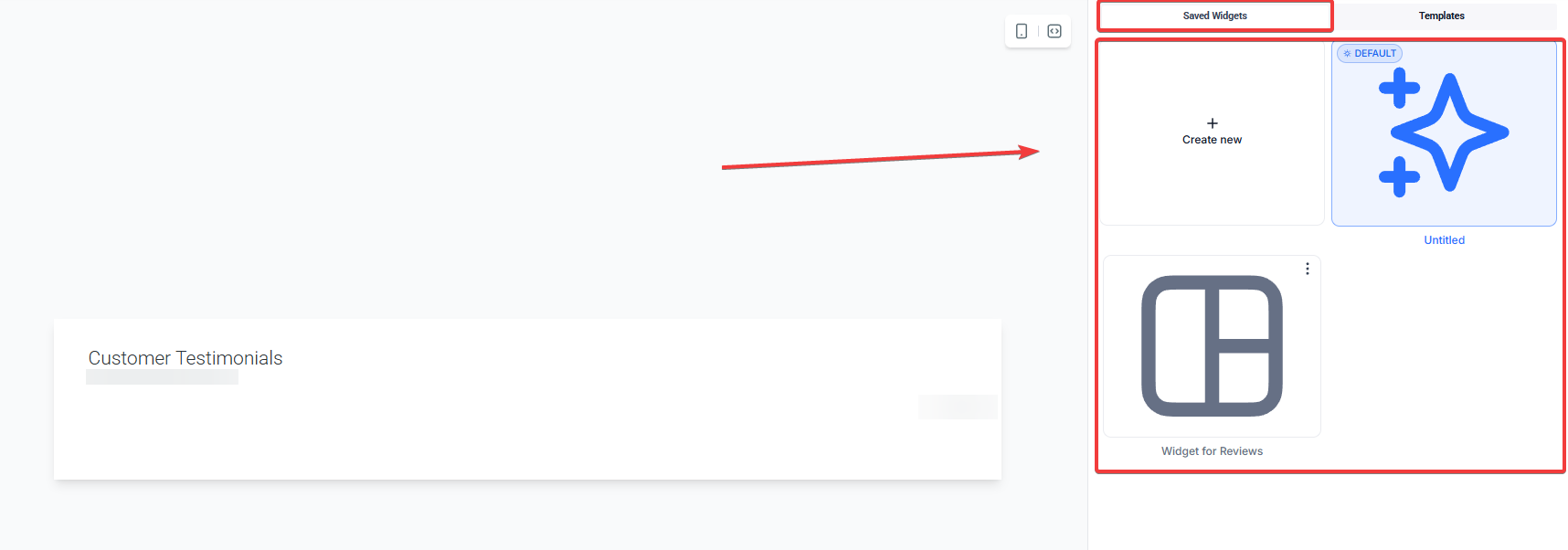
Click on Create New to create the widget.
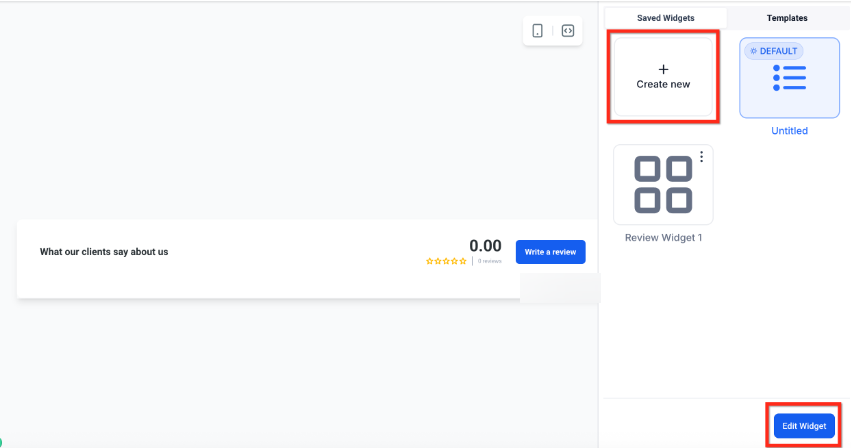
You can customize your widget layout, content, appearance, and settings.
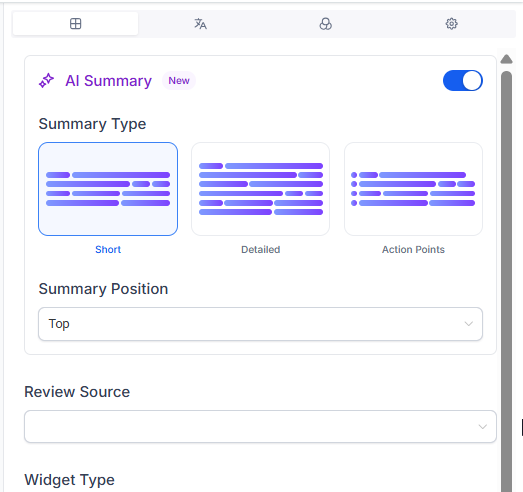
AI review summary: Customize how reviews are summarized and displayed in widgets. Choose from three different summary types:
- Short Summary: A brief 1–2 sentence overview of the review.
- Detailed Summary: A more comprehensive 3–4 sentence summary, providing more context and details from the review.
- Action Points: Bullet points that highlight key takeaways or actionable insights from the review.
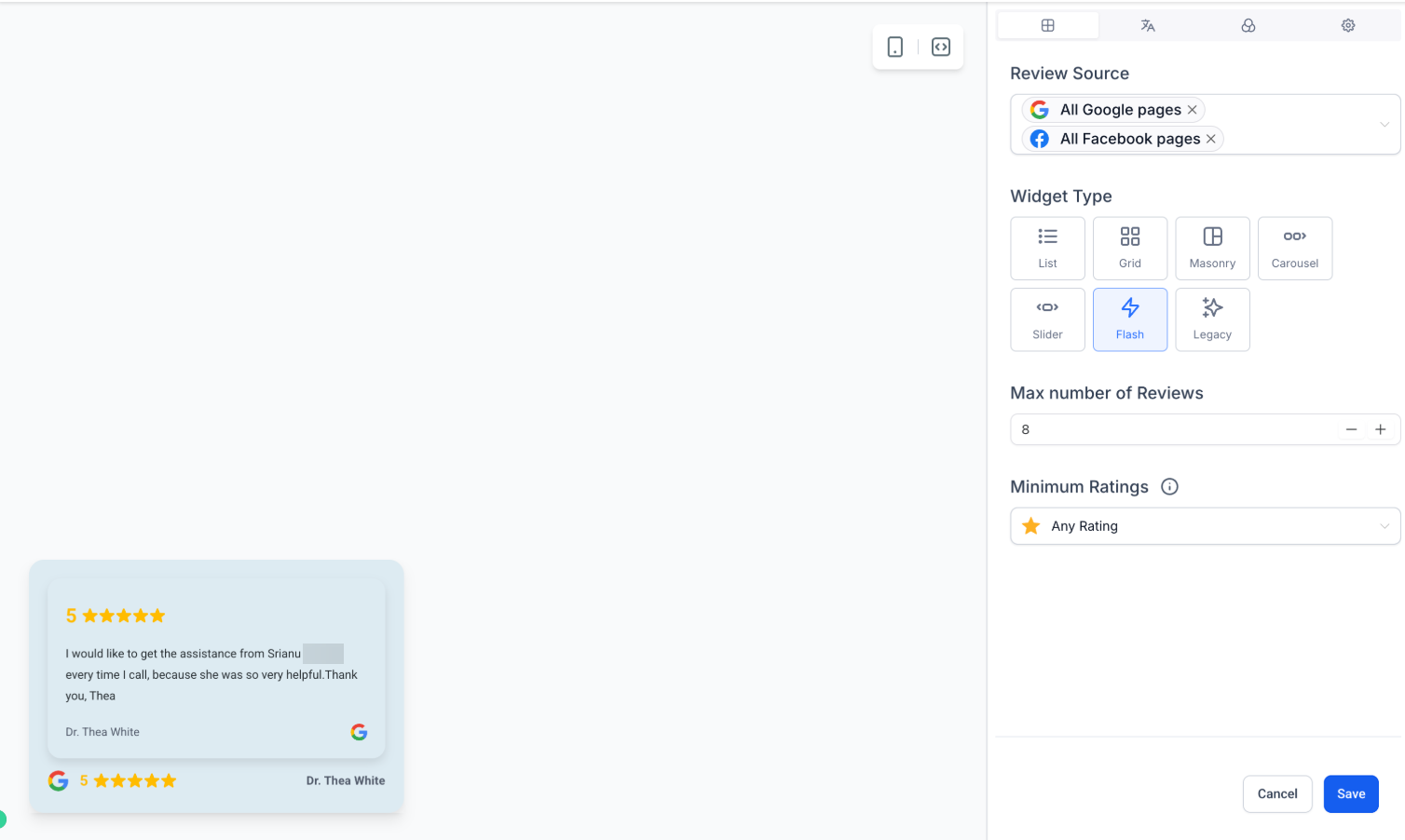
- Layout: Select the widget type you prefer, choose the source of your reviews (GMB or/and FB), define the maximum number of reviews you want to show, and toggle on or off the Powered by message.
- Content: Add the widget title and description, in the header section enable or disable the rating, total review count, and the “Write a review” button.
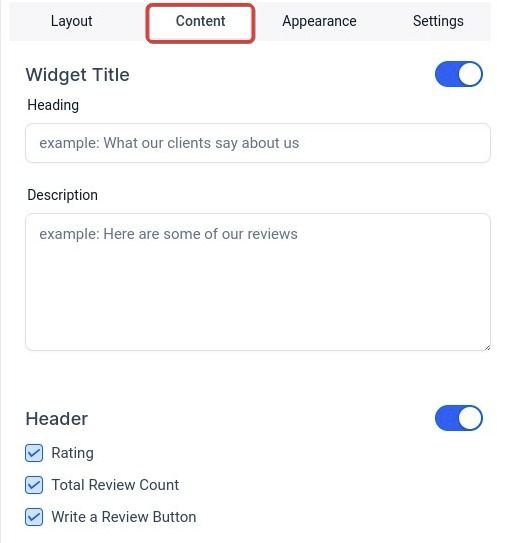
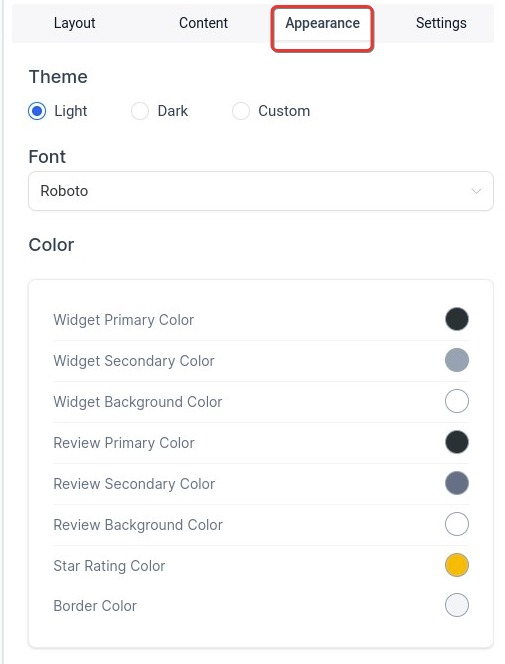
Appearance: Choose from the themes Light, Dark or Custom. If you choose Custom you can customize the heading, reviews, stars, and background colors.
Settings: Enable or disable the review date and icon, and exclude reviews that don’t have a description. You can also generate the embed code for your website. Copy the code, and paste it to the HTML element in your website.
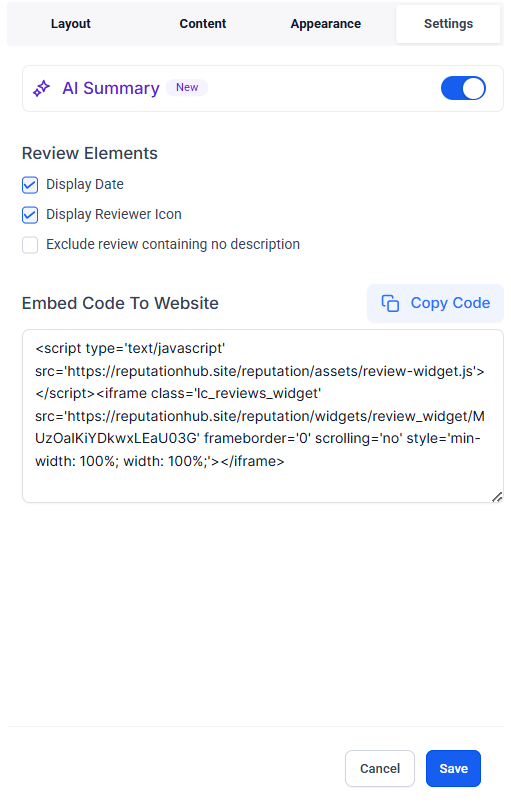
- Save your widget and give a name for your reference.
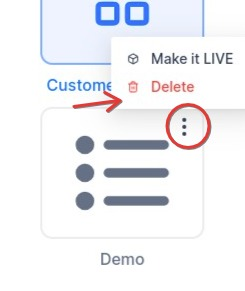
Note: You can also delete widgets you no longer require by clicking on the triple-dot menu at the widget’s upper corner.
Part 2: Adding the widget to your Funnel or Website
Section titled “Part 2: Adding the widget to your Funnel or Website”For this example, we’ll add it to a Funnel, but the process is the same for both.
- Navigate to the Funnel or Website page editor for the site to which you’d like to add this.
- Add a new section, row, and column, then select the + sign
- Scroll down to the Custom elements, click, drag and drop the Review element
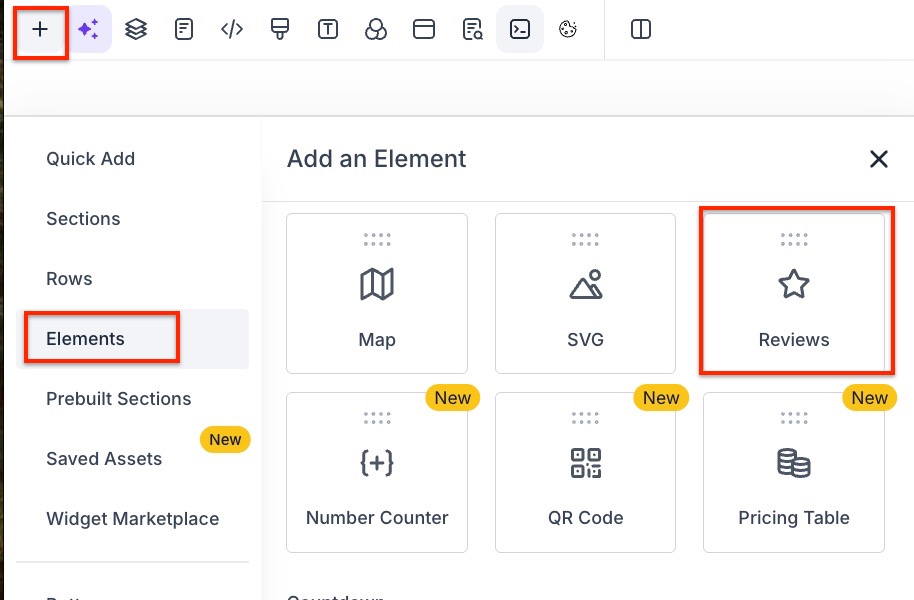
- Save
Question: Can I display reviews from both Google Business Profile and Facebook? Answer: Yes, you can choose to display reviews from either or both Google Business Profile (GBP) and Facebook by selecting the sources during the widget setup.
Question: Can I exclude certain reviews from being displayed? Answer: Yes, in the Settings, you have the option to exclude reviews that do not have a description.
Question: How do I generate the embed code for the Review Widget? Answer: In the widget settings, you can generate the embed code by clicking on the relevant option. Copy the code and paste it into the HTML element on your website or funnel page.
Question: What are the different themes available for the widget’s appearance? Answer: You can choose from Light, Dark, or Custom themes. The Custom theme allows you to adjust the colors for the heading, reviews, stars, and background.
Question: How do I delete a Review Widget? Answer: To delete a widget, click on the triple-dot menu at the upper corner of the widget and select the delete option.
Question: Can I preview the Review Widget before adding it to my site? Answer: Yes, during the customization process, you can preview the widget to see how it will appear on your site.
Question: Can I limit the number of reviews displayed in the widget? Answer: Yes. Within the Layout settings of the Review Widget, you can define the maximum number of reviews you want to show to ensure the display fits your website’s design.