A Step-by-Step Guide to Managing SEO Sites
Search Engine Optimization (SEO) is a fundamental pillar of digital marketing, determining how easily potential customers can find a business online. This article provides a comprehensive overview of the integrated SEO solution within . This built-in suite allows business owners to audit, optimize, and track website performance directly from their dashboard.
Key Features and Capabilities
- Multi-Site Dashboard: Manage and track SEO performance across several websites from one centralized location.
- AI-Powered Optimization: Automatically resolve critical errors such as missing meta descriptions, title tag issues, and absent image alt text.
- Keyword Intelligence: Research high-performing keywords, analyze difficulty, and track up to 1,000 rankings in real-time.
- Technical Website Audits: Identify and fix duplicate content, broken links (404 errors), and schema markup issues.
- Content Genius: Utilize AI to review content for semantic relevance, NLP usage, and internal linking strategies.
- Local SEO Heatmaps: Visualize Google Maps rankings across specific geographic locations to dominate local search.
- Backlink Analysis: Assess the quality of your link profile and monitor new or lost backlinks to refine your link-building strategy.
How-to-Use Steps
Section titled “How-to-Use Steps”Step 1: Access the Dashboard
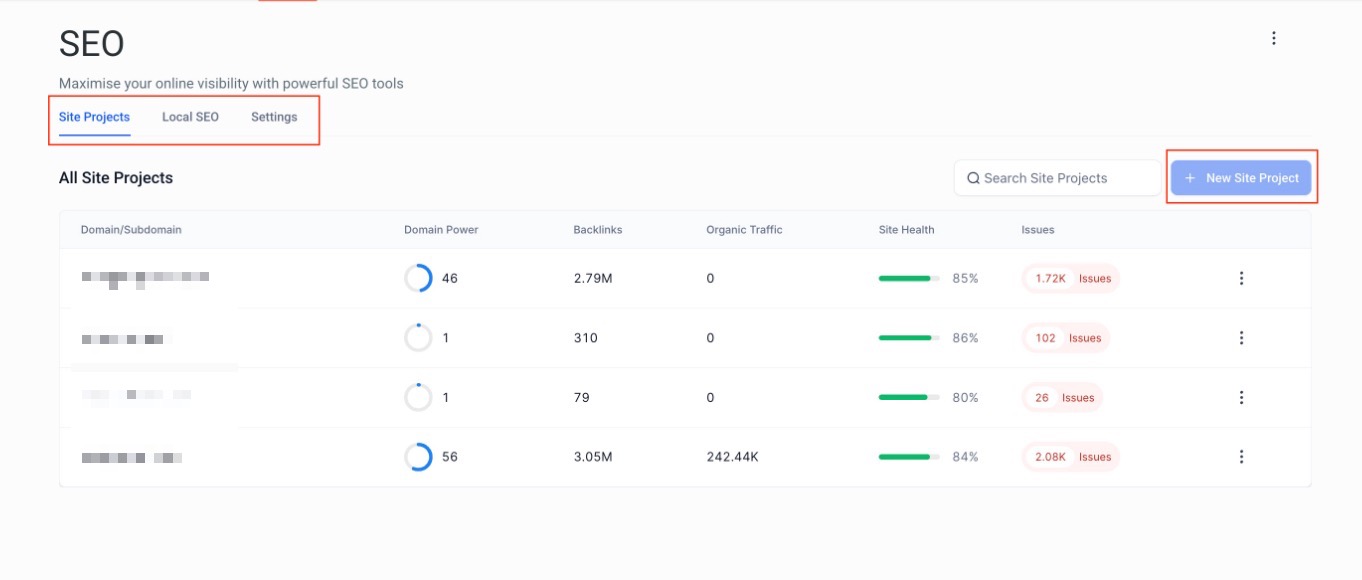
Log in to your and navigate to Sites > SEO. Here you will see the primary tabs: Site Projects (for domain monitoring), Local SEO (for Google Maps rankings), and Settings (for quota tracking).
Step 2: Add a Site Project
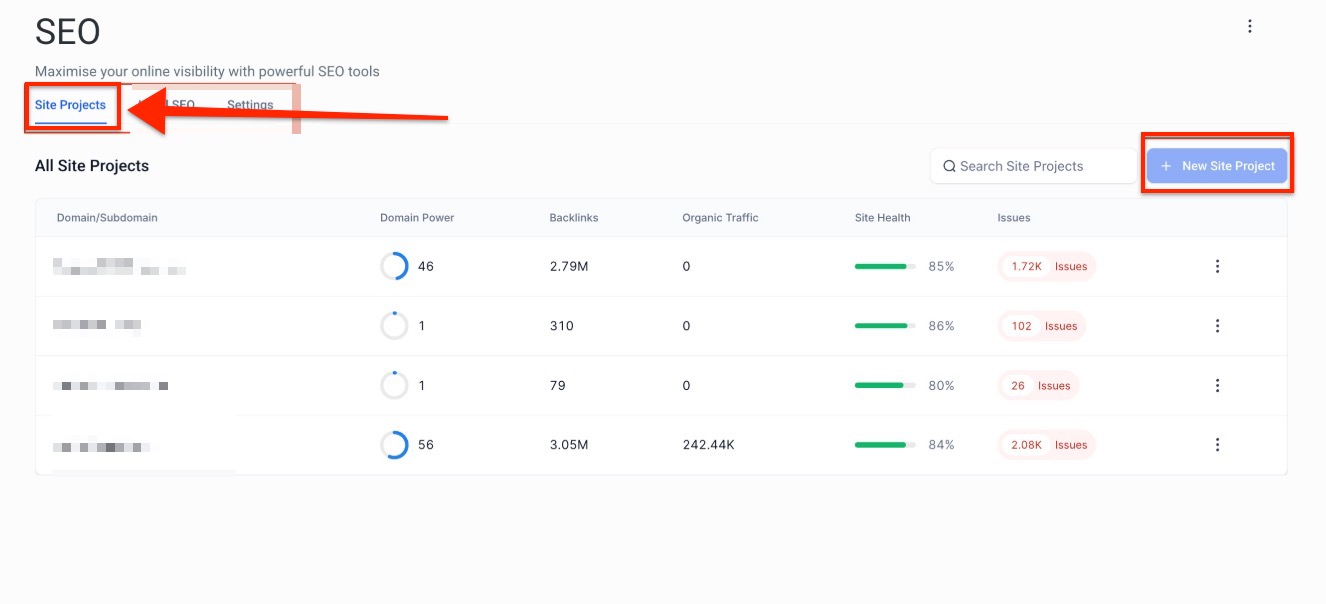
Click the option to add a new site project. The system will automatically begin pulling data for site audits and explorer metrics.
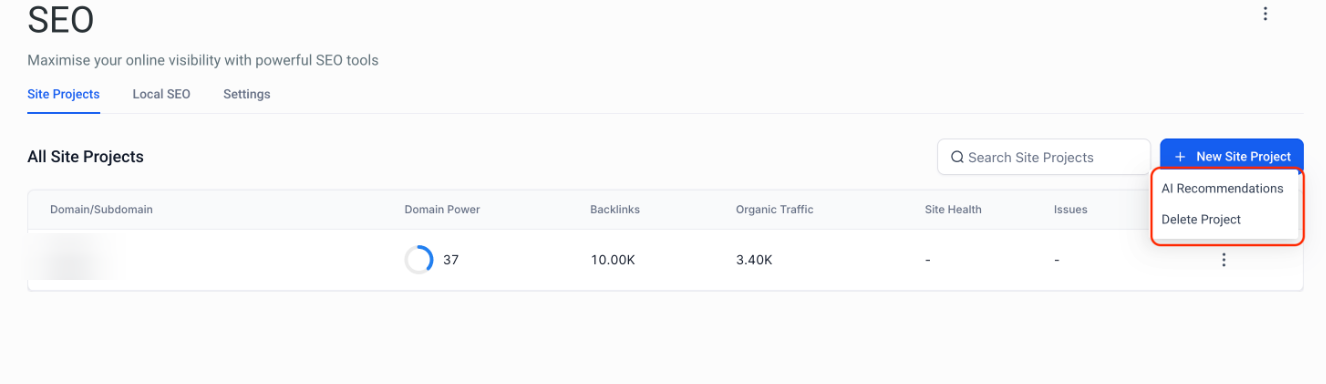
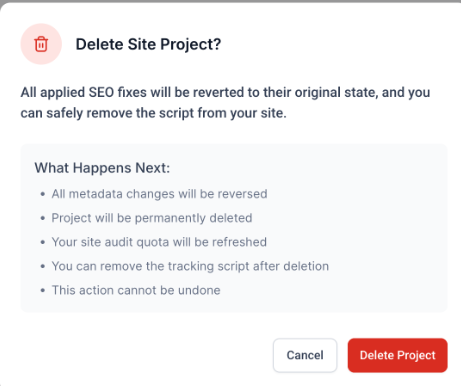
Note: You can delete the added site project by clicking the three-dot button and clicking “Delete Project.” The system will immediately process the removal and update your available slots.
Step 3: Launch Advanced Tools
For in-depth analysis and content planning, click the “Launch Advanced SEO” button. This opens an expanded toolkit in a new window for advanced reporting and content strategy.
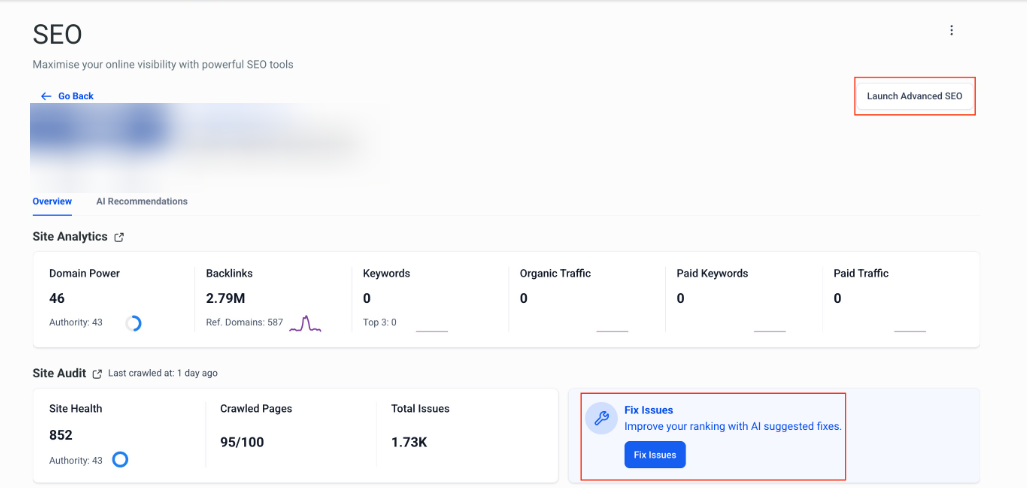
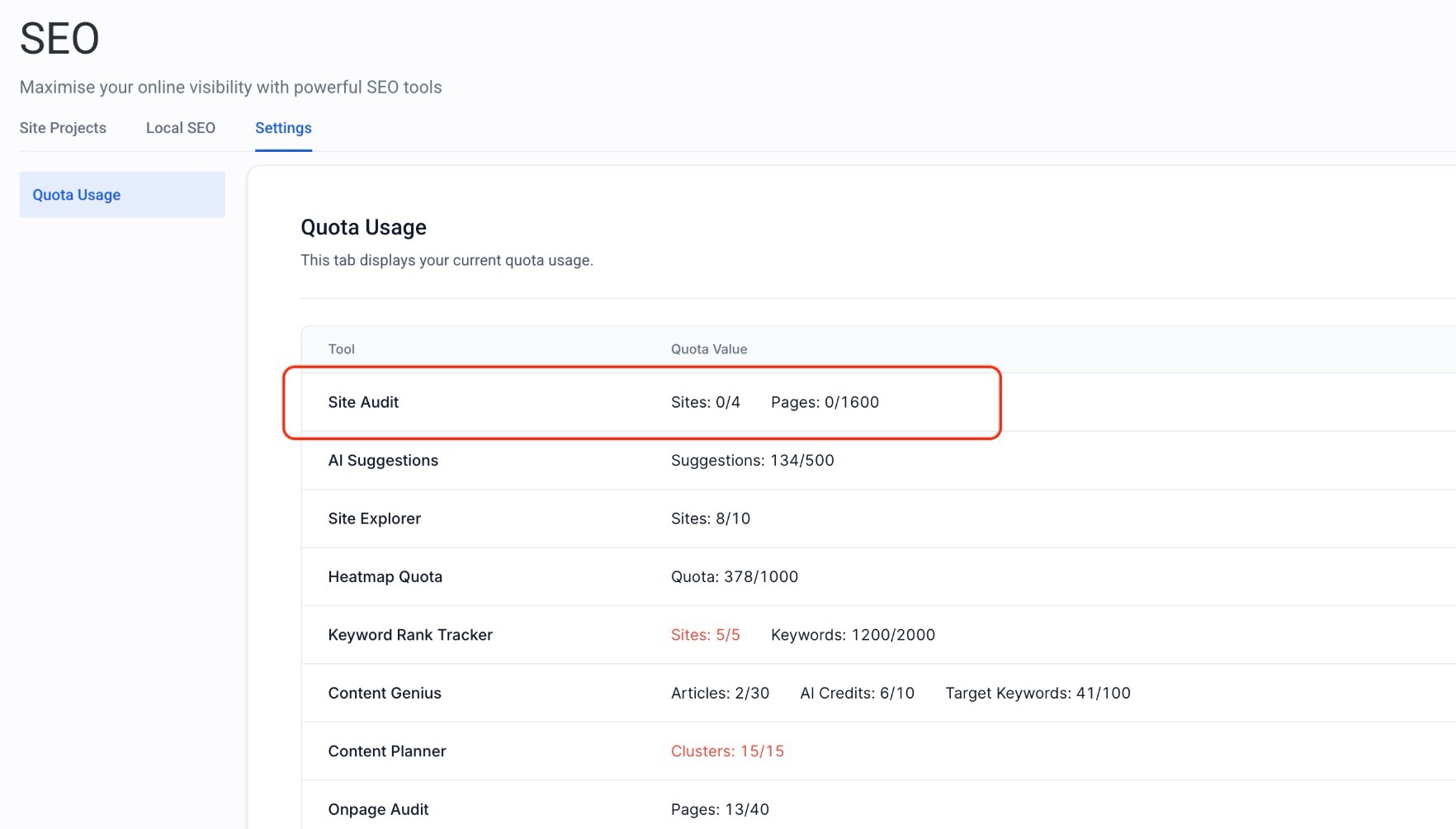
Important to note: When you delete a Site Project, several changes take place immediately. The first thing you will notice is your Quota Restoration, as your project limit is instantly updated to allow for a new site. You can check your available capacity at any time by navigating to Settings and then Quota Info. However, it is important to remember that all SEO Fixes previously applied through the project will be rolled back. This means that any funnel path fixes, blog path fixes, or external fixes will be removed from your site right away. Finally, please keep in mind that this is a Permanent Action. Once you confirm the deletion, the project and all its associated optimizations are gone forever and cannot be recovered.
Question: Can I manage multiple websites for different clients?
Answer: Yes. allows you to track and optimize multiple websites from a single dashboard, with the ability to assign site-specific strategies for each.
Question: What happens to my site if I delete an SEO Site Project? Answer: Deleting a project restores your quota so you can add a new site, but it also rolls back any automated fixes (like meta tags or image alt text) that were applied through the tool.
Question: How many keywords can I track simultaneously?
Answer: You can track up to 1,000 keywords across various search engines and multiple sites within the Rank Tracker.
Question: How often do the feature quotas refresh?
Answer: Most usage quotas, such as the Premium AI Quota and Keyword Research Lookups, refresh on a monthly basis. However, some quotas like “Site Projects” are total caps and only refresh if a project is deleted.
Question: Do I need a Google Business Profile to use the Local SEO tools?
Answer: To get the most out of the ranking data and heatmaps, you should have a verified Google Business Profile. The tool integrates with your profile data to show you real-world rankings as they appear to customers in those specific locations.
Question: Where can I check how much of my SEO usage or project limit I have left?
Answer: You can monitor your current capacity and available slots at any time by navigating to the Settings tab within the SEO menu and selecting Quota Info.