Understanding Sub-Account Level User Roles and Permissions
Managing user access across multiple levels of your organization can be complex. This guide will help you understand account-level roles, their permissions, and how to manage them effectively, ensuring the right users have the right access.
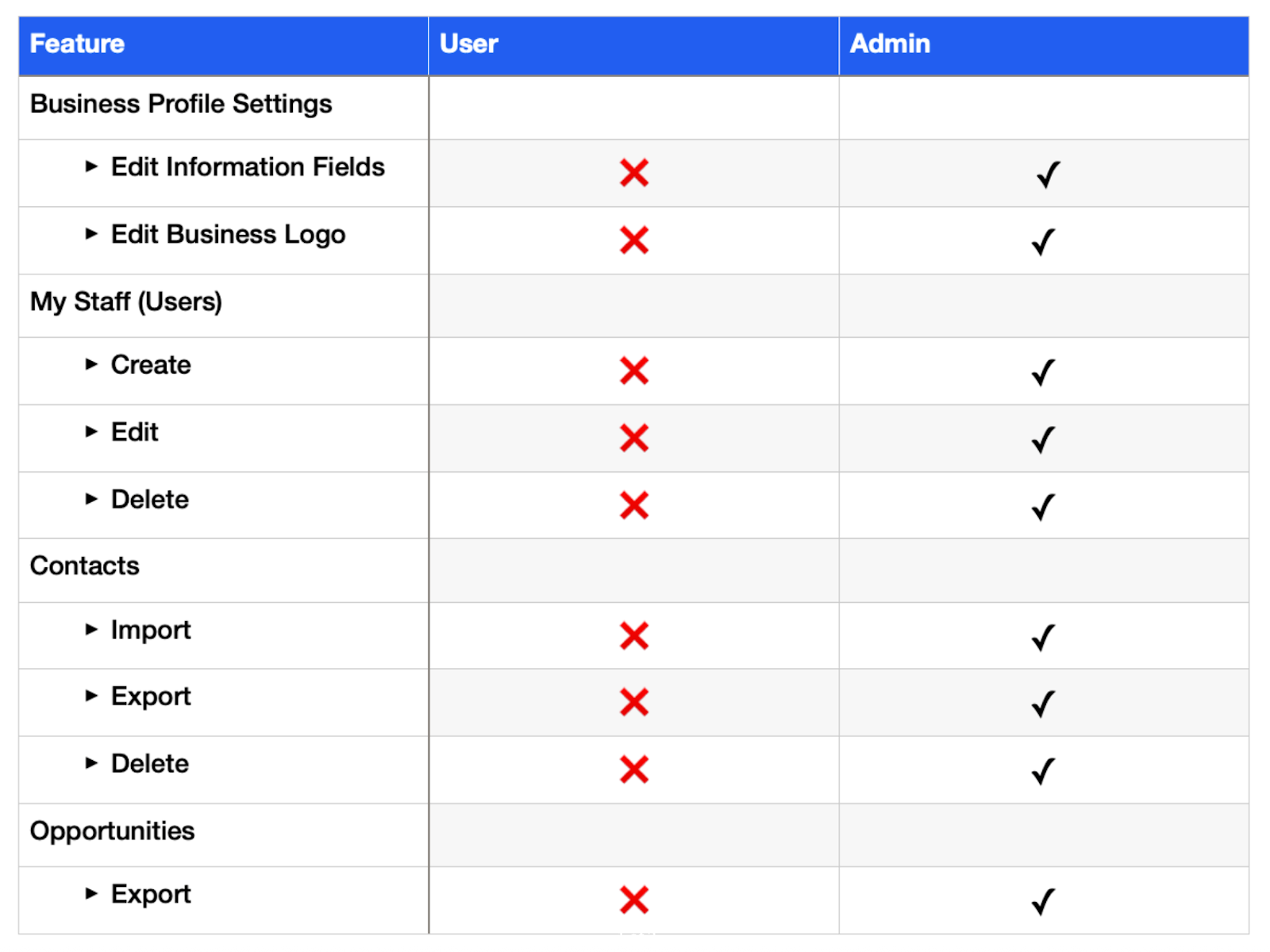
How to Change User Roles
Section titled “How to Change User Roles”Admins can modify a user’s role in a few steps:
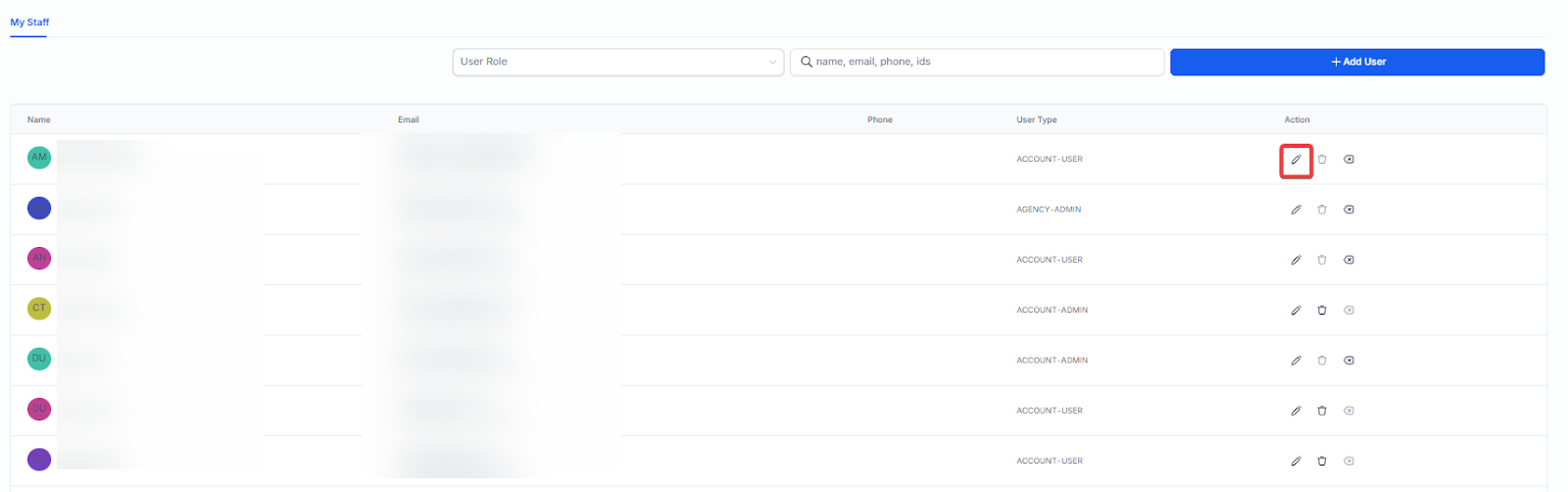
1- Navigate to Settings > My Staff.
2- Click the Edit (pencil) icon next to the user.
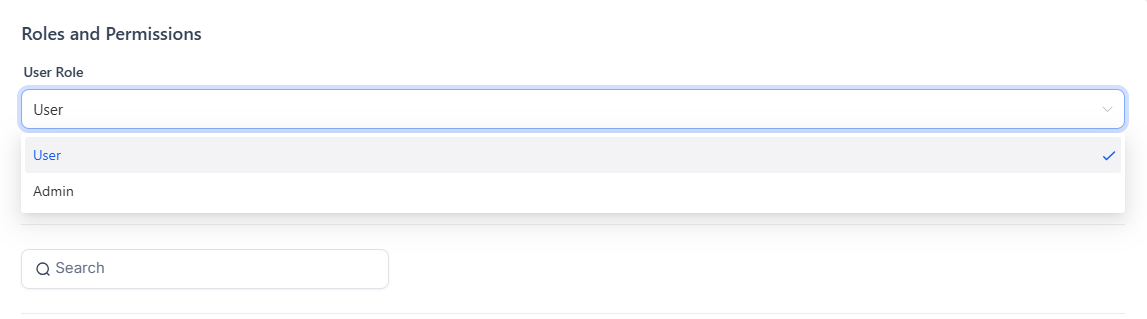
3- Select the user role under the Roles & Permissions tab.
4- Select the appropriate role for the user.
5- Save your changes.
This ensures users have permissions appropriate to their responsibilities and prevents unauthorized access.
FAQs
Question: Where do I go to manage my team’s access levels? Answer: You can manage all user access by navigating to the Settings menu and selecting the My Staff section.
Question: Who has the authority to change a user’s role? Answer: Only users with Admin privileges have the ability to modify roles and permissions for other staff members.
Question: Can I change a user’s role after they have already been added to the system?
Answer: Yes. You can update a user’s role at any time by clicking the Edit (pencil) icon next to their name in the My Staff list.
Question: What specific tab should I access within the user settings to update their role?
Answer: To update a user’s role, you must navigate to the User Permissions (or Roles & Permissions) tab after clicking the edit icon.