How to Reset 's Password
In this article, you will learn how to reset your account password if you forget it or just want to change it.
Depending on your user permissions, you will either need to reset your password in
Settings > My Profile or in Settings > My Staff.
Option 1 - Settings > My Profile
Section titled “Option 1 - Settings > My Profile ”If you don’t see the “My Staff” tab in your account settings, use the My Profile section to reset your password.
- Navigate to Settings > My Profile.
- In the Change Password section, enter the Current password.
- Type in a new Password.
- Confirm the new Password.
- Click Update Password to save.
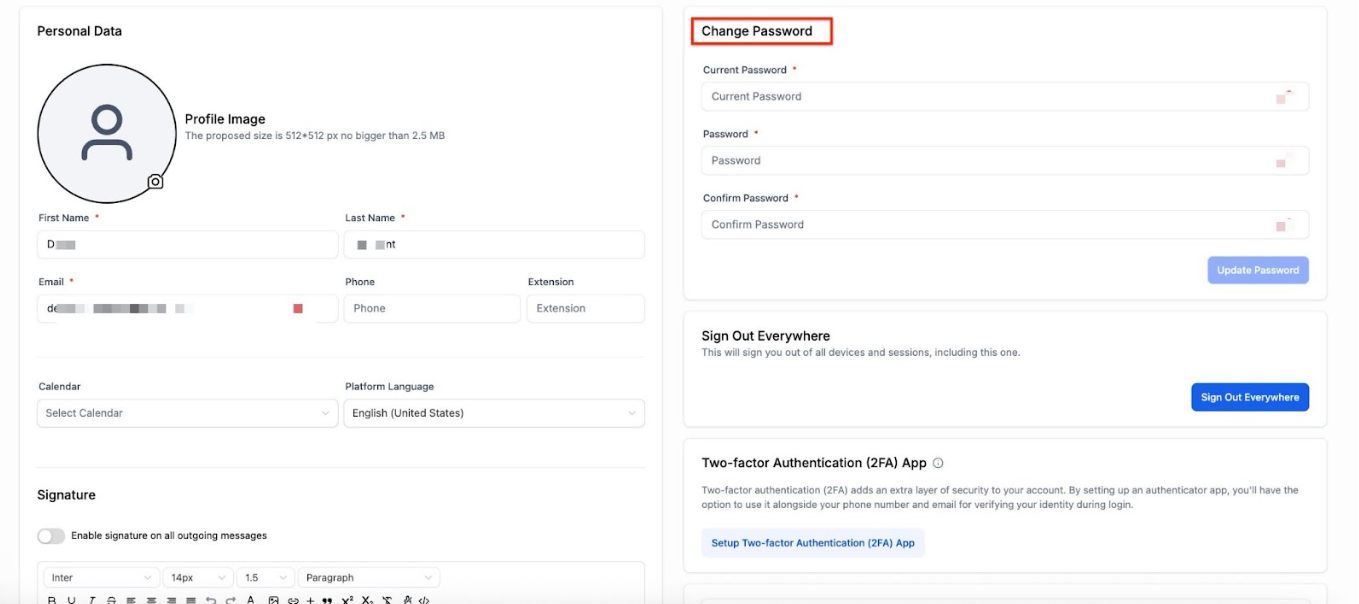
Note: The password must be more than 8 characters including uppercase, lowercase, numbers, and special characters.
Option 2 - Settings > My Staff
Section titled “Option 2 - Settings > My Staff ”You can also reset your password here:
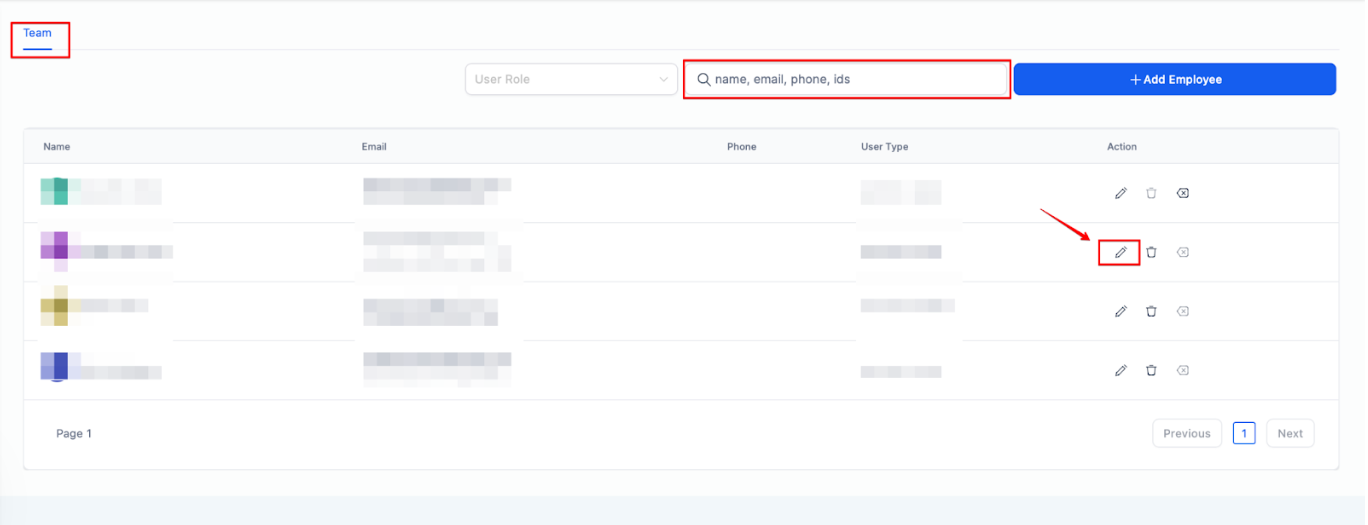
- Navigate to Settings > My Staff.
- Choose the correct user.
- Edit > User Info.
- Click on Forgot Password
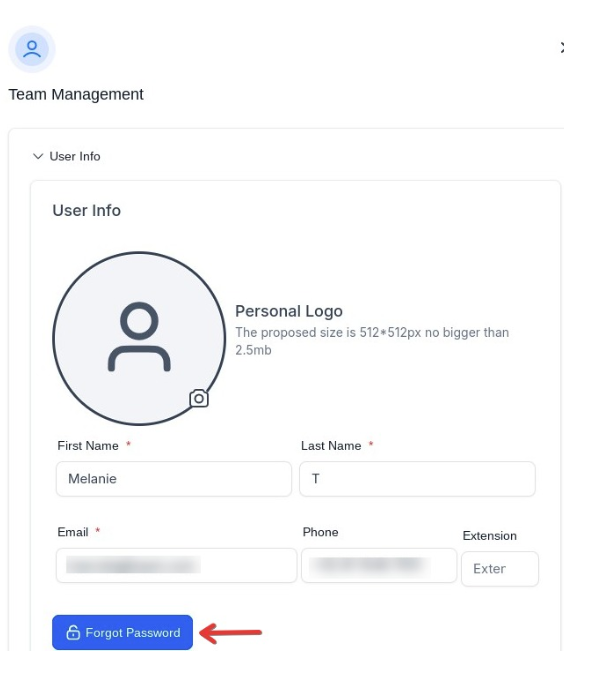
- Check your email and restore your password using the link
- Save.
Question: How can I reset my account password? Answer: You can reset your account password through two options:
- Option 1: Navigate to Settings > My Profile if the “My Staff” tab is not visible in your account settings.
- Option 2: Navigate to Settings > My Staff if you have access to the “My Staff” tab.
Question: What should I do if I cannot see the “My Staff” tab in my settings?
Answer: If the “My Staff” tab is not visible, you should use the My Profile section under Settings to reset your password.
Question: What are the password requirements? Answer: Your new password must be more than 8 characters, including:
- Uppercase letters
- Lowercase letters
- Numbers
- Special characters
Question: Why am I being asked for my “Current Password” in the My Profile section? Answer: For security purposes, if you are logged in and resetting your password via the My Profile tab, the system requires your current password to verify that the account owner is the one making the change. If you have forgotten it, use the “Forgot Password” flow via the login screen or the My Staff section.
Question: How do I complete the password reset process if I use the “My Staff” option?
Answer: After clicking the “Forgot Password” button in the My Staff section, you must check your email and use the restoration link sent to you to finalize the new password. Ensure you click “Save” to complete the process.