Company Notes
Overview:
Notes are digital memos that allow you to track interactions, project updates, and internal reminders. In , notes are shared across your team, ensuring that anyone who opens a contact or company record has the full context of previous conversations.
Practical Use Case:
Imagine a team member is out of the office and a client calls with an urgent question. Instead of searching through emails, you can open the company record in to see the latest progress notes left by your colleague. This allows you to assist the client immediately without missing a beat.
Instructions (Step-by-Step):
Viewing Contact and Company Notes
Section titled “Viewing Contact and Company Notes”- To open your database, click Contacts on the left-hand menu.
- To see business-level records, click Company at the top of the screen.
- To view details, click on the name of your desired Company.
- To see all the history left by your team, click the Notes tab.
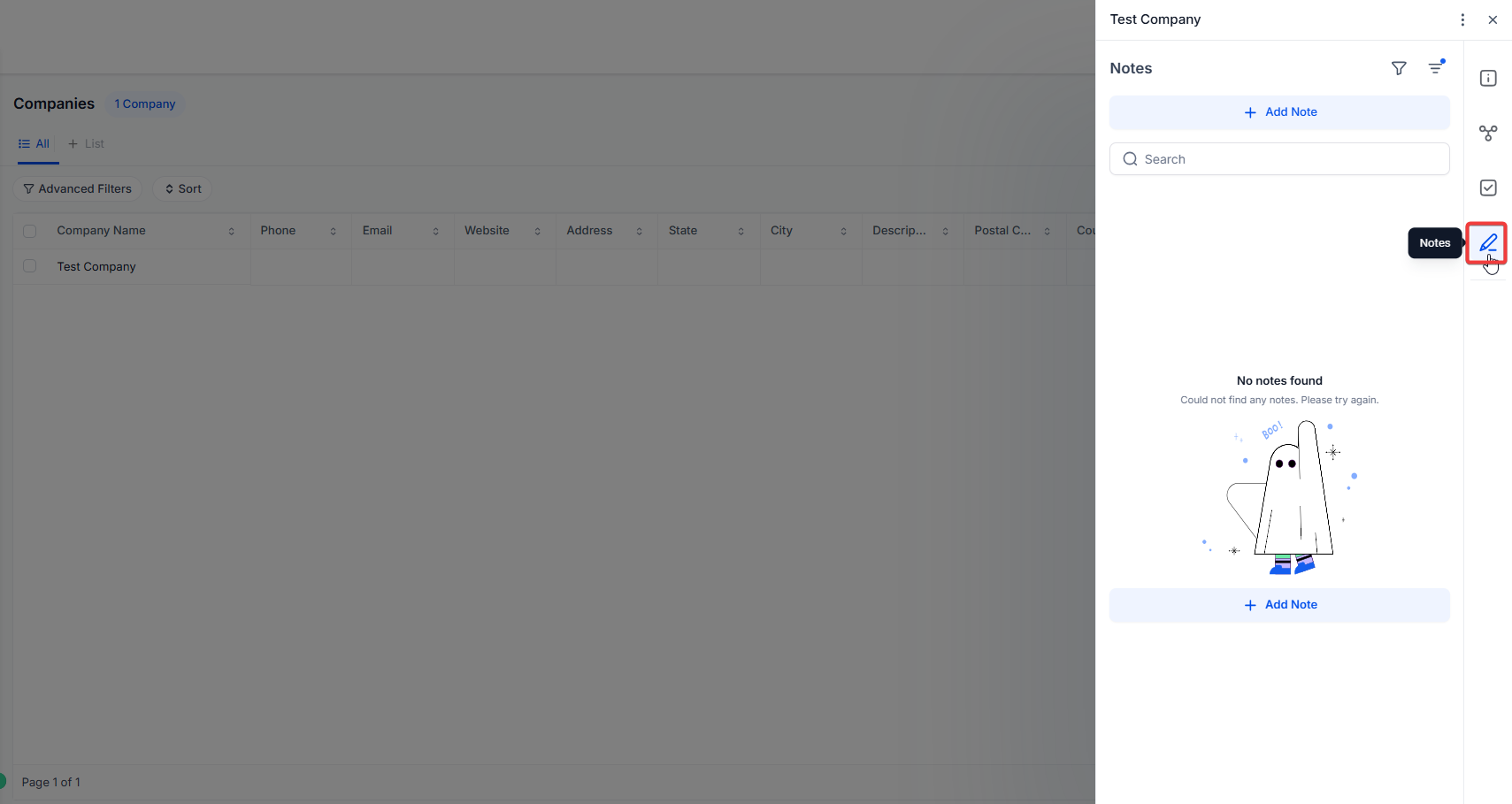
Adding Notes Manually
Section titled “Adding Notes Manually”- To start a new entry from the company view, click the Add Note button in the top right corner.
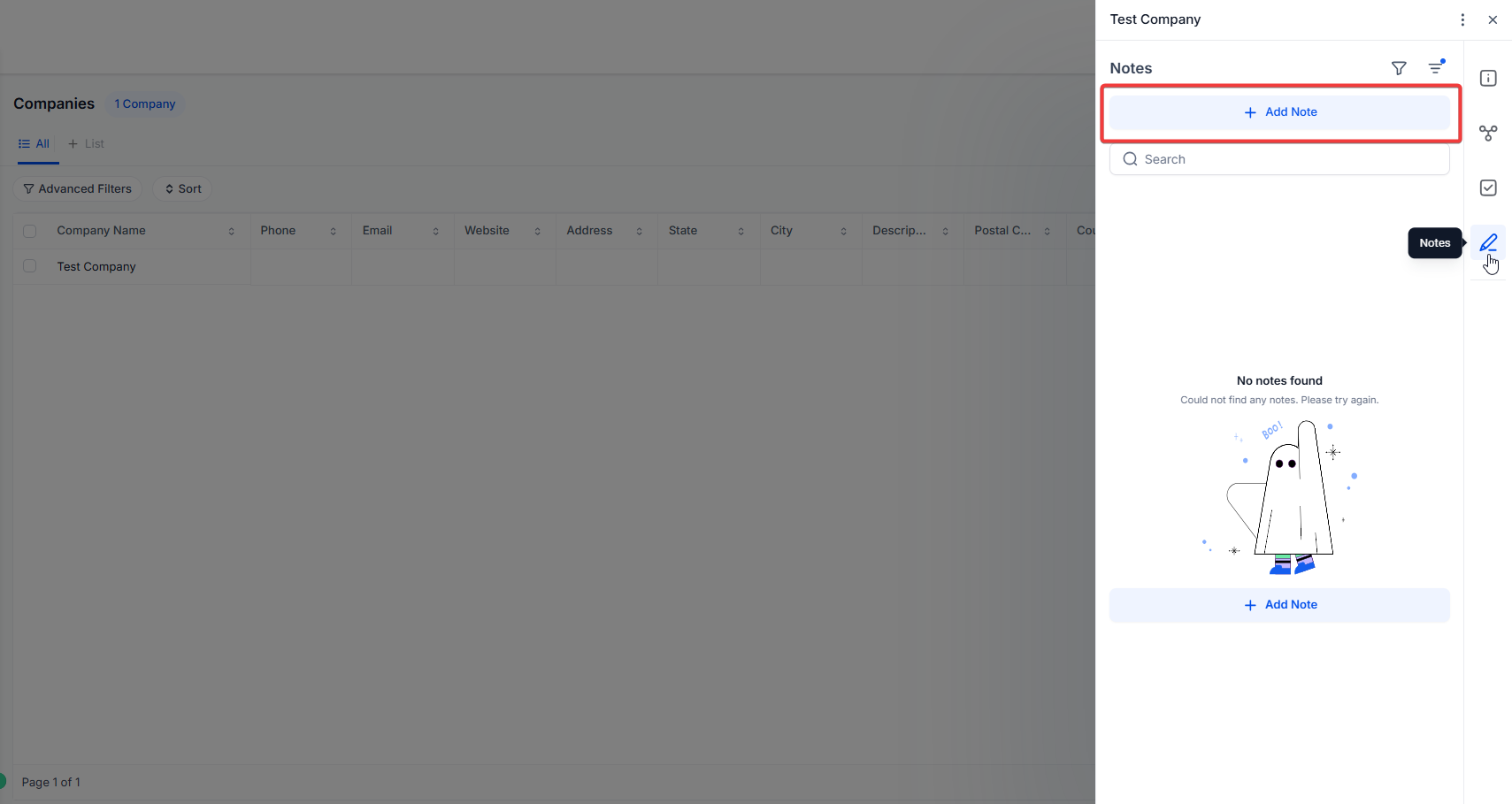
2. To link the note to a person, select the specific Contact from the dropdown menu.
3. To record your update, type your message in the text field.
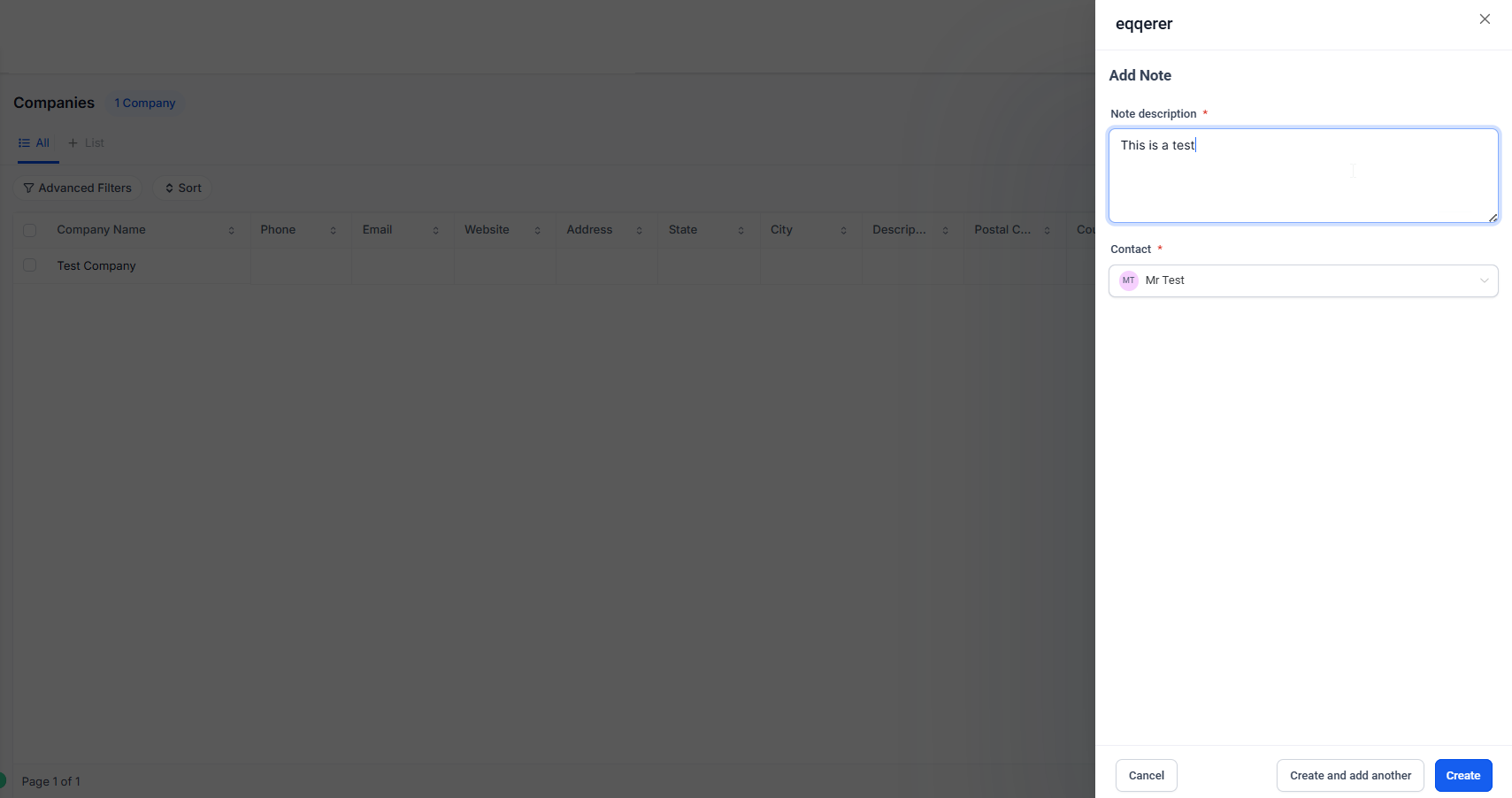
4. To finish, click Save.
Adding Notes from a Contact’s Page
Section titled “Adding Notes from a Contact’s Page”- To find a specific person, search for the Contact within the company record or main list.
- To add information, click Add Note directly on that individual’s contact page.
- To ensure the team sees it, click Save. This note will now automatically appear in the main Company notes section as well.
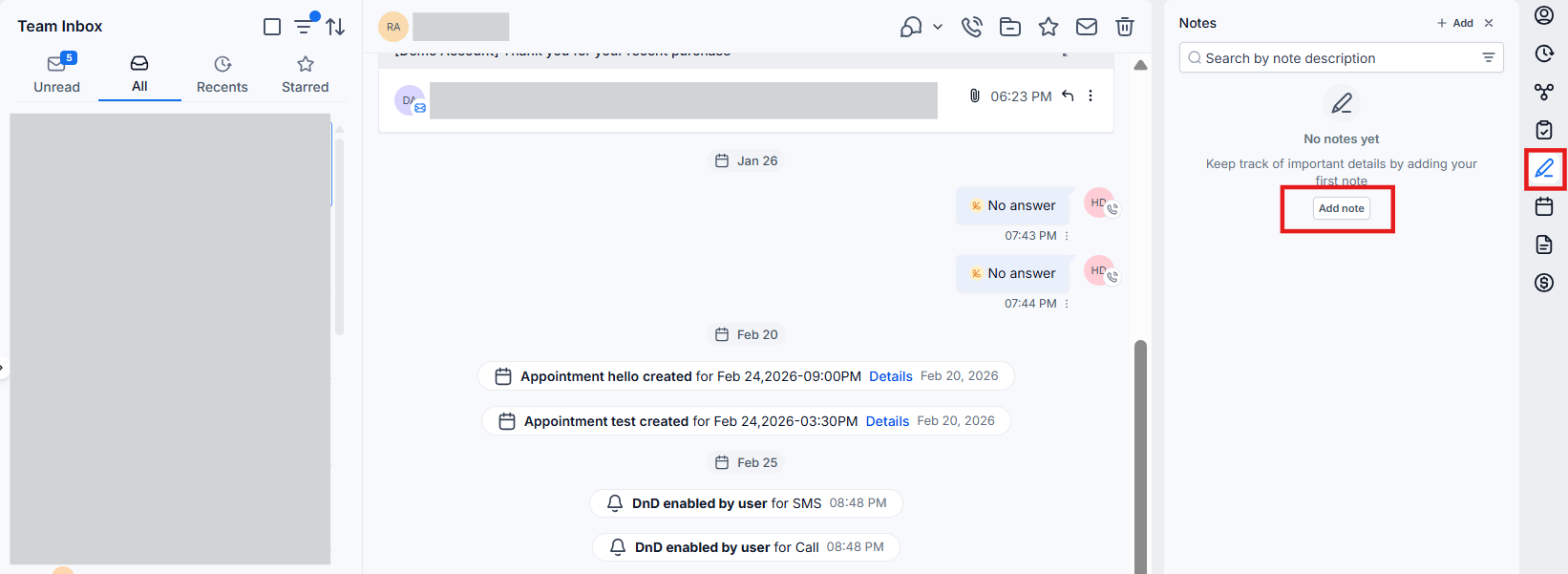
Filtering and Organizing Notes
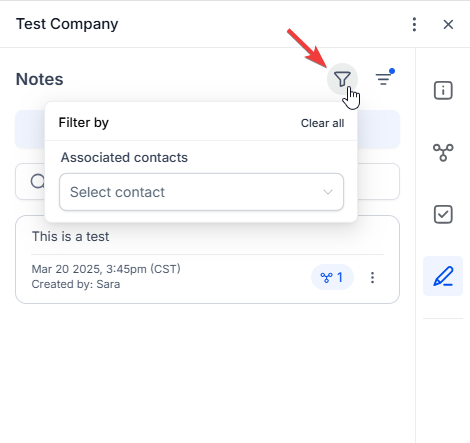
Section titled “Filtering and Organizing Notes”- To find specific information, click the Filter icon in the notes section.
- To narrow your results, sort by Contact Name or Creation Date.
- To update your view, click Apply.
Collaborating and Staying Updated
Section titled “Collaborating and Staying Updated”Using notes effectively transforms into a central “source of truth” for your business. Use these entries to keep team members informed about project milestones and critical client shifts. When every team member records their updates, you eliminate communication gaps and ensure everyone stays on the same page during collaborative tasks.
FAQs
Question: How do I view contact notes for a company?
Answer: To view contact notes for a company, navigate to the Contacts section from the left menu. Select Company at the top, choose the desired company, and click on the Notes tab to see all notes added by the team.
Question: How can I add a note manually to a contact?
Answer: Click the Add Note button in the top right corner of the company’s notes section. Select the contact, type your note, and click Save.
Question: Can I add a note directly from a contact’s page?
Answer: Yes. If you add a note while viewing a specific contact’s page, will also display that note in the general Company notes section for easier tracking.
Question: How do I filter notes by contact name or creation date?
Answer: Use the Filter option within the notes section. You can choose to sort by the name of the person who the note is about or the date the note was originally written.
Question: Are notes specific to each contact or visible to the entire company?
Answer: Notes are linked to specific contacts but roll up into the company’s master notes section. This ensures all relevant team members can access important history in one place.
Question: Can I edit or delete notes once they are added?
Answer: Yes. You can manage existing entries by clicking the three dots icon next to the note. This allows you to update the text or remove the note entirely.
Question: What is the best way to use notes for ongoing projects?
Answer: Regularly update notes with progress reports and meeting summaries. You can also use them to document specific tasks and maintain a clear, organized history of all project activities.
Question: What should I do if a note I added doesn’t appear?
Answer: First, try refreshing your browser page. Then, check your filters to ensure a specific date range or contact name isn’t hiding the note. If it still doesn’t appear, contact your administrator to verify your permissions.
Question: Are notes private to the user who created them?
Answer: No. Notes are a collaboration tool. Any team member with access to that contact or company record can see them, which helps your team provide seamless service if a specific account manager is unavailable.