Workflow Triggers: Service Booking
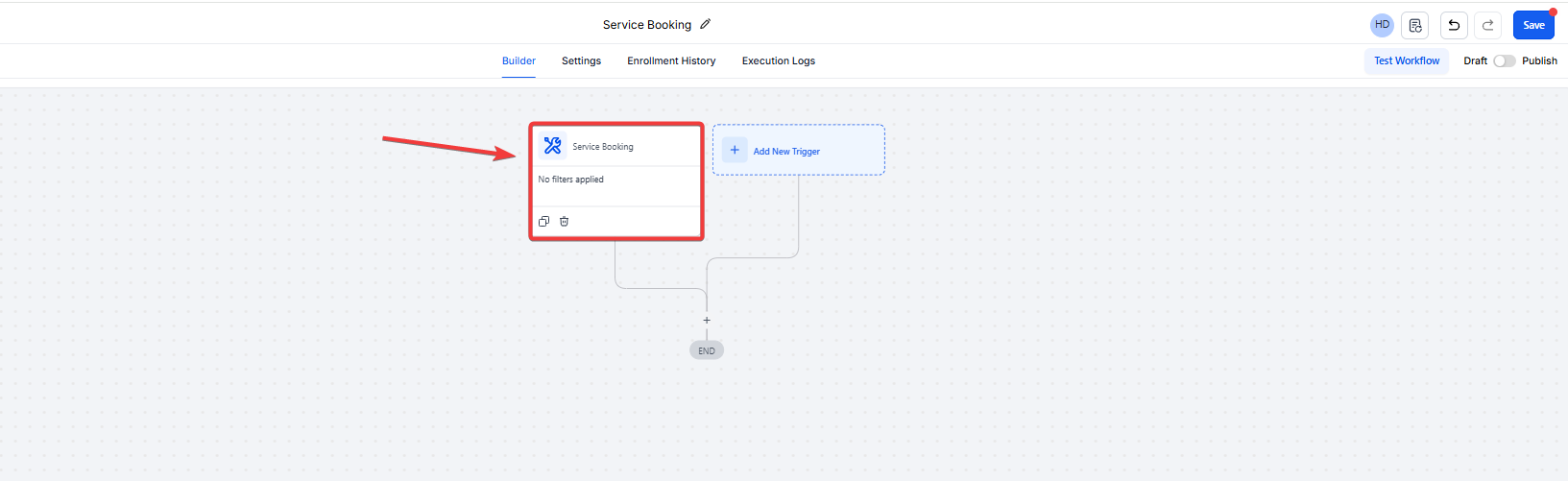
The Service Booking trigger enables the automation of workflows whenever a booking containing one or multiple services is created or updated. Unlike standard appointment triggers that fire for every individual item, this feature operates at the primary booking level, ensuring that customers who schedule multiple services in a single session trigger the workflow only once. This consolidated approach prevents communication fatigue by sending a single, comprehensive summary instead of multiple repetitive alerts.
Key Features and Benefits
Section titled “Key Features and Benefits”The Service Booking trigger allows you to automate workflows whenever a booking—which may include multiple services or appointments—is created or updated. Unlike standard appointment triggers, this operates at the “main booking” level.
- Avoid Duplicate Messages: If a customer books three services at once (e.g., a haircut, facial, and massage), the workflow triggers only once. This keeps your communication clean and professional.
- Personalized Communication: Access granular booking details such as service name, date/time, duration, assigned staff, and add-ons to provide customers with exact summaries.
- Targeted Audience Filtering: Use robust filters like booking status, specific service categories, or tags to ensure the right messages reach the right people.
- Multi-Service Summaries: You can list every booked service and its respective add-ons in a single confirmation email, reducing confusion and the need for multiple follow-ups.
When It’s Triggered
The workflow activates whenever a new Service Booking is created through the following channels:
- Booking Page: When a customer self-books via an online portal.
- User Initiation: When a staff member manually creates a booking within the system.
How Service Booking Trigger is different from Appointment Status
Section titled “How Service Booking Trigger is different from Appointment Status”It is easy to confuse booking-level automation with appointment-level triggers, but they serve different purposes. Understanding these core behaviors will help you keep your workflows organized and efficient.
- The Appointment Status Trigger is strictly for individual calendar appointments.
- The Service Booking Trigger is designed specifically for Services (v2) bookings.
Handling Multiple Services
Section titled “Handling Multiple Services”If a client chooses to schedule several items at once, such as five different services in a single session, the Service Booking workflow initiates only one time. This prevents the system from triggering five separate instances of the same automation.
Practical Application
Section titled “Practical Application”Consider a scenario where your workflow is set to “Send Email.” Because the trigger recognizes the entire booking as one event, the client receives a single email summarizing all their scheduled services. To ensure all details appear correctly, make sure you are utilizing the specific Service Booking custom values in your templates.
Available Filters
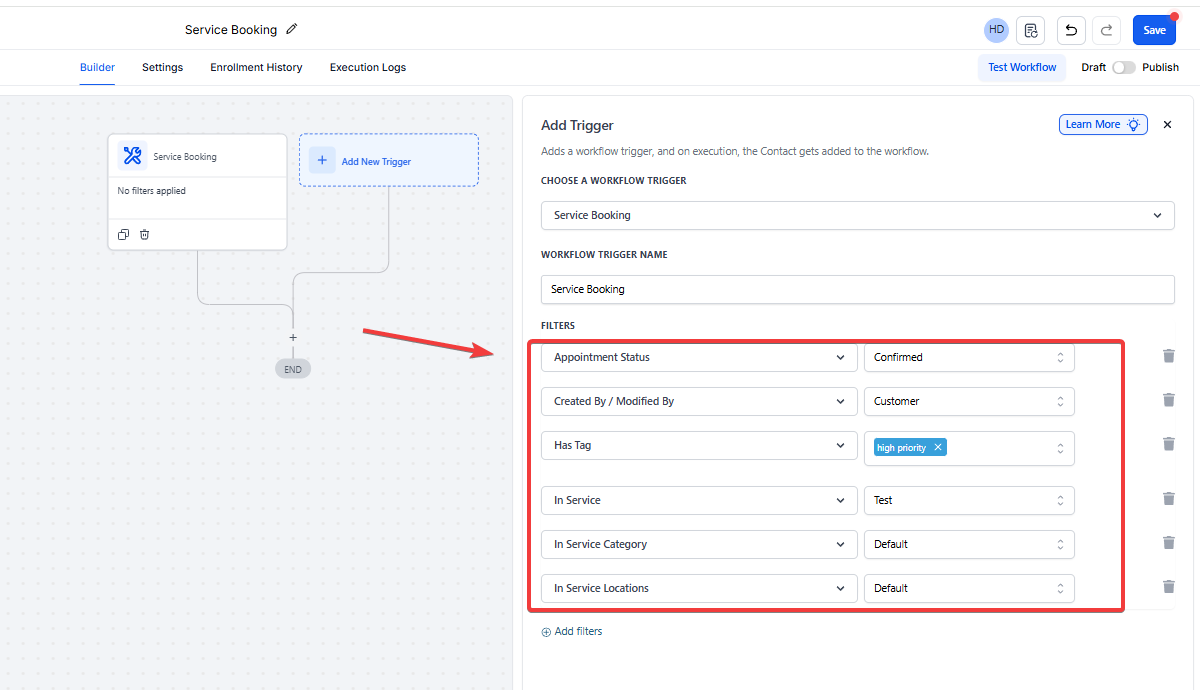
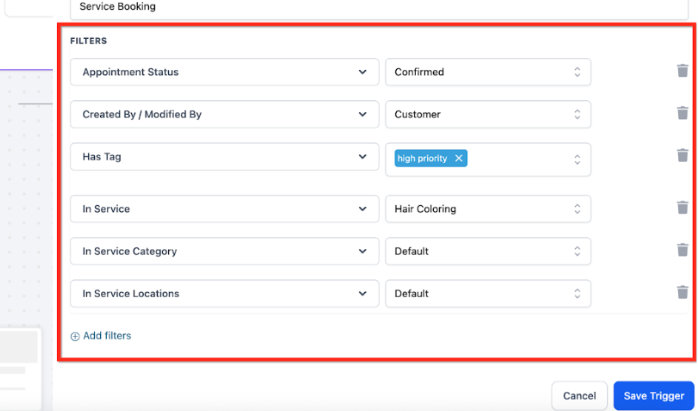
Section titled “Available Filters”To keep your automation precise and focused, you can use filters to define exactly which bookings should kick off the workflow. You have several options to choose from:
- Appointment Status Use this to target specific booking outcomes like Unconfirmed, Confirmed, Showed, No Show, Cancelled, or Invalid.
- Created By / Modified By
- Has Tag
- In Service
- In Service Category
- In Service Location
Order Submission Trigger Behavior with Service Bookings
When a Service Booking is created, the system automatically generates a corresponding Order. To keep things clean and avoid duplicate automations, the Order Submitted trigger is set to ignore these specific orders by default.
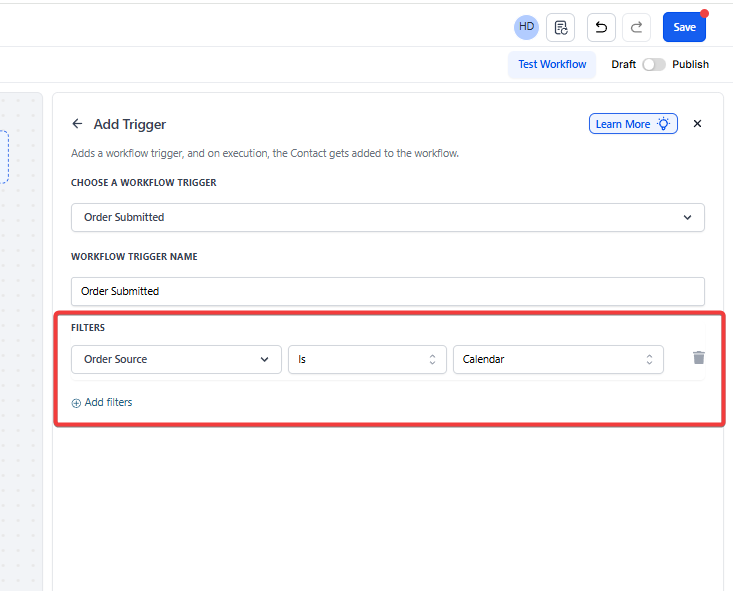
If you need your workflows to include orders from service bookings, you can enable this by adding a specific filter.
Navigation Steps
Section titled “Navigation Steps”- Open your workflow and select the Order Submitted trigger.
- Click on Add Filters.
- Select the filter Order Source is Calendar.
Available Appointment Actions
Action
Status
Notes
Update Appointment Status
✅ Supported
Based on Service Booking ID.
Create Appointment Note
✅ Supported
Based on Service Booking ID; notes apply to the Service Booking as a whole.
Book Appointment
❌ Not supported
N/A
Conversation AI Booking Bot
❌ Not supported
N/A
Eliza Booking
❌ Not supported
N/A
Using Custom Values with Service Bookings
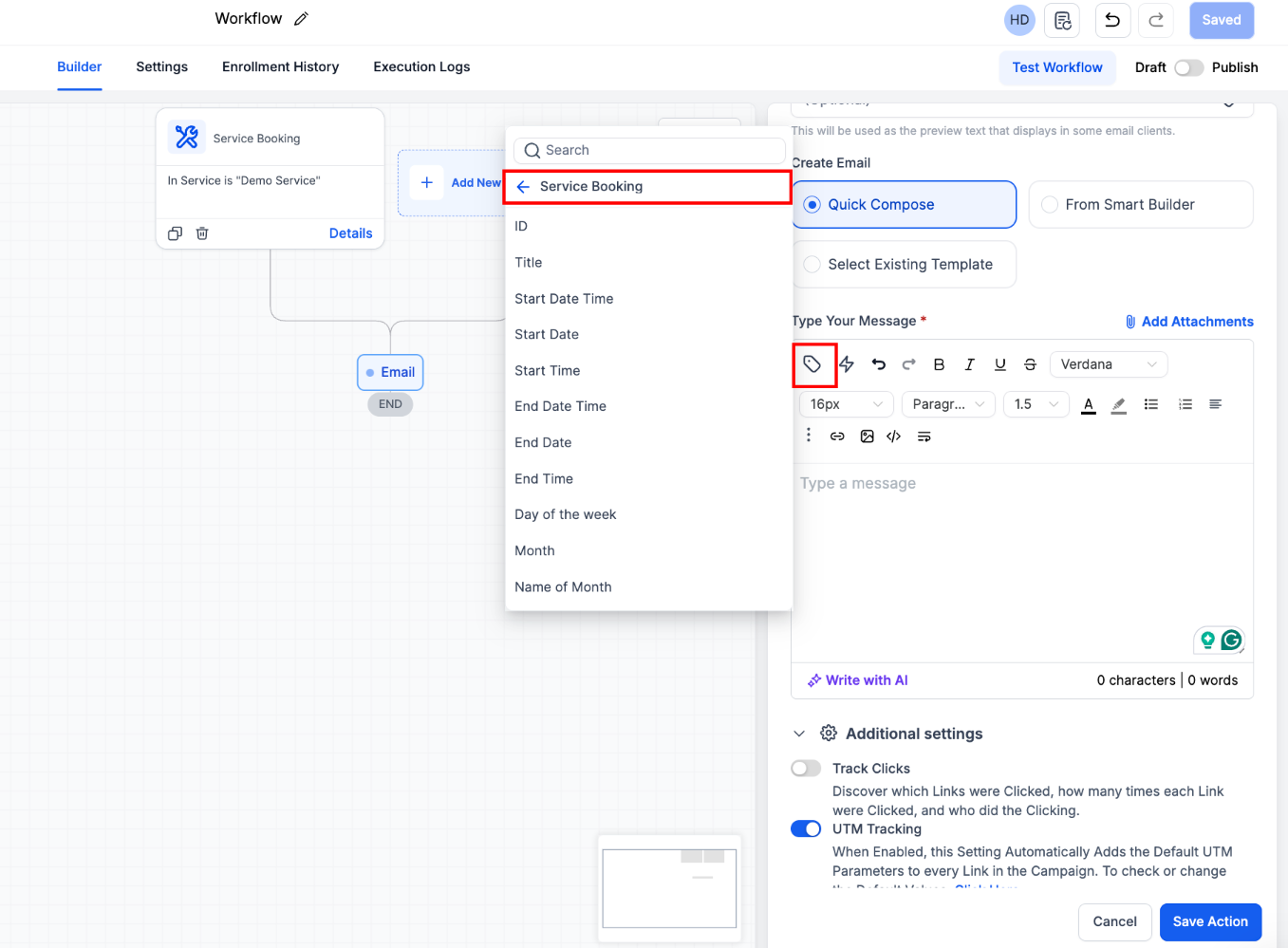
Section titled “Using Custom Values with Service Bookings”When a client books an appointment, you don’t have to manually type out the specifics every time. Instead, you can use custom values to automatically pull in details like the service name, date, time, price, assigned staff, and any add-ons. This ensures your confirmation emails, texts, and reminders stay accurate and personal without the extra manual work.
How to Set Up the Service Booking Workflow Trigger
Section titled “How to Set Up the Service Booking Workflow Trigger”Think of this trigger as the “start” button for your automation. Setting it up correctly ensures that your messages go out to the right customers exactly when they need to, without you having to lift a finger.
Step 1: Create or Open a Workflow
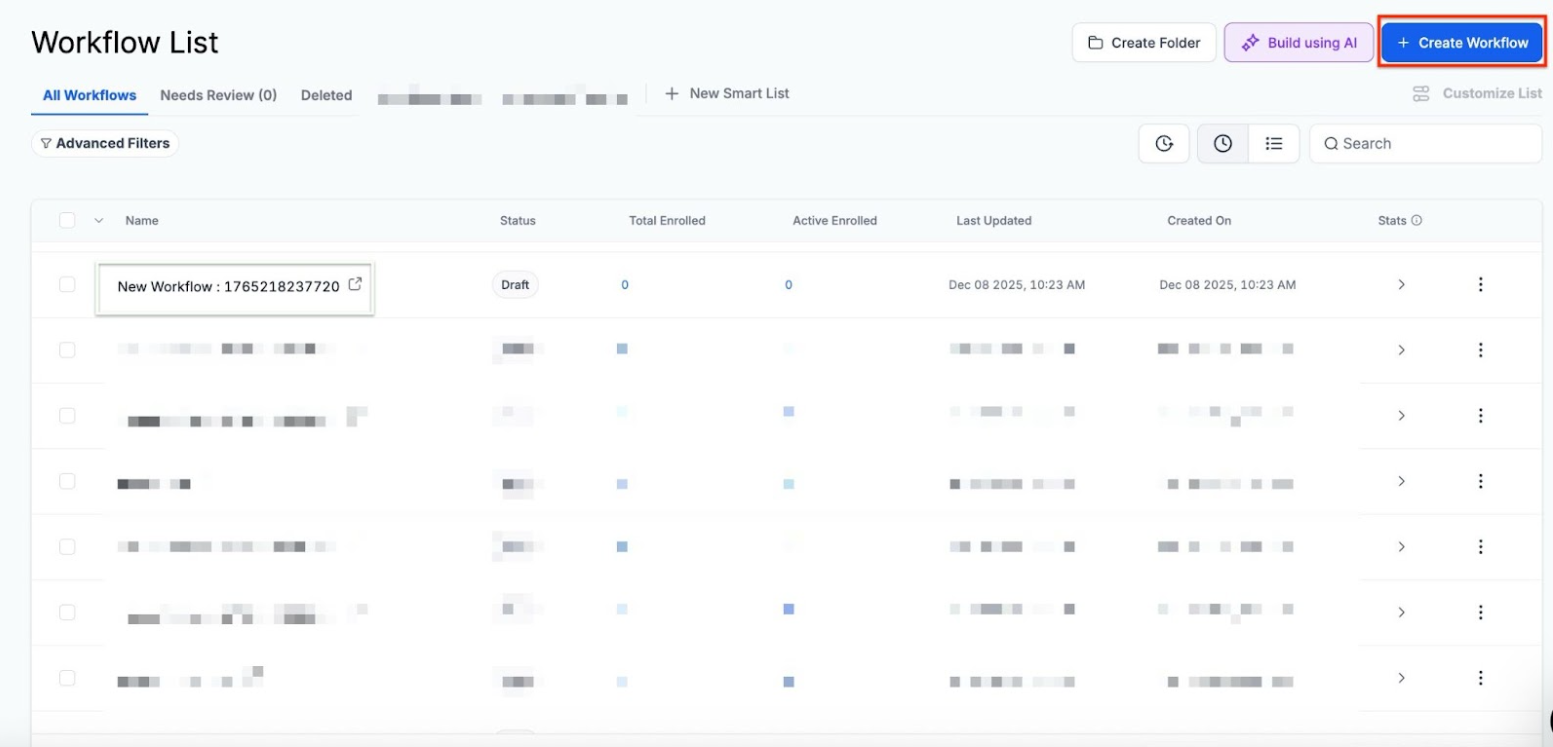
Section titled “Step 1: Create or Open a Workflow”First, you’ll need to head over to the Automation tab, which you can find in the left-hand navigation bar. Once you’re there, you have two options depending on what you need:
- To update an existing process: Simply scroll through your list and click on the specific workflow name you want to edit.
- To start from scratch: Click the + Create New Workflow button in the top corner to open up a blank canvas.
Step 2: Add the Trigger
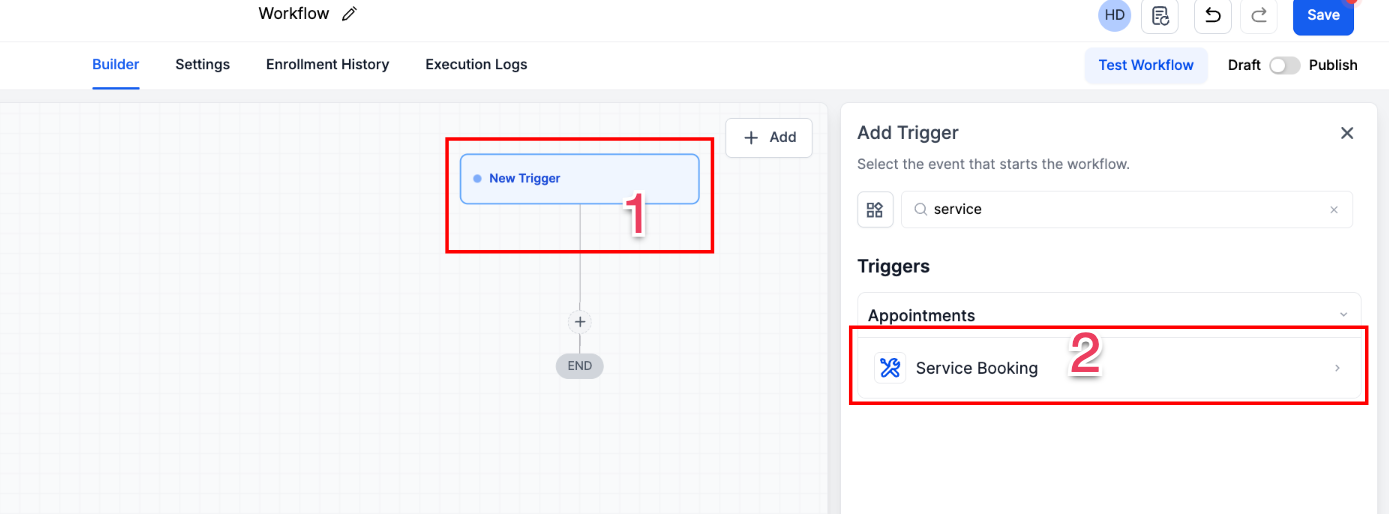
Section titled “Step 2: Add the Trigger”To get things started, you’ll need to set up a new trigger. Just click on + Add New Trigger to open the selection menu.
From there, the quickest way to find what you need is to use the search bar, type in, and select the Service Booking trigger to move forward.
Step 3: Add Filters
Now, it’s time to configure how your trigger behaves. Apply any filters you need to ensure the automation fires exactly when it’s supposed to.
Once you’re happy with the setup, just hit the blue Save Trigger button to lock in your changes.
FAQs
**Question:How does the Service Booking trigger help prevent communication fatigue for customers?
Answer: The Service Booking trigger operates at the primary booking level rather than firing for every individual service. This consolidated approach ensures that if a customer schedules multiple services in a single session, they receive one comprehensive summary or alert instead of multiple repetitive messages.
Question: What are the two ways a Service Booking can be created to activate the workflow?
Answer: The workflow activates when a new booking is created through a customer self-booking via an online Booking Page or when a staff member manually creates a booking through User Initiation.
**Question:How does the Service Booking trigger differ from the Appointment Status trigger?
Answer: The Appointment Status trigger is strictly for individual calendar appointments, whereas the Service Booking trigger is designed specifically for Services (v2) bookings. Additionally, the Service Booking trigger initiates only once even if multiple services are scheduled at the same time, while individual triggers would fire for every item.
**Question:Is the Book Appointment action supported when using the Service Booking trigger?
Answer: No, the Book Appointment action is not supported. Other actions like Conversation AI Booking Bot and Eliza Booking are also listed as not supported for this specific trigger.
Question What step should be taken to ensure that the Order Submitted trigger includes orders from service bookings?
Answer: By default, the Order Submitted trigger ignores service booking orders to avoid duplicates. To include them, you must go to the Order Submitted trigger in your workflow, click on Add Filters, and select the filter Order Source is Calendar.