Services (v2) on Mobile App
Managing service-based bookings while on the move is essential for maintaining a responsive and efficient business. provides a comprehensive mobile interface designed to handle complex scheduling workflows, ensuring that staff and administrators can coordinate appointments, manage team availability, and service diverse client needs from anywhere.
Key Features and Benefits
Section titled “Key Features and Benefits”The mobile service booking suite is built to mirror the power of the desktop environment while prioritizing a fast, touch-friendly experience.
- Multi-Location Support: Seamlessly select from different business branches during the scheduling process.
- Service Variants & Add-Ons: Support different durations (e.g., 30 vs. 60 minutes) and include upsells or enhancements with quantity support.
- Dynamic Staff Pricing: The system automatically adjusts the total cost based on the specific team member assigned to the service.
- Real-Time Availability: Staff hours and date-specific schedules are reflected instantly to prevent double bookings.
- Multi-Service Checkout: Group multiple services into a single appointment for a streamlined client experience.
- Advanced Filtering: Organize your calendar view by filtering specifically for individual services or service groups.
How to Book a Service on Mobile
Section titled “How to Book a Service on Mobile”Follow these steps to create a new service-based appointment using the mobile application:
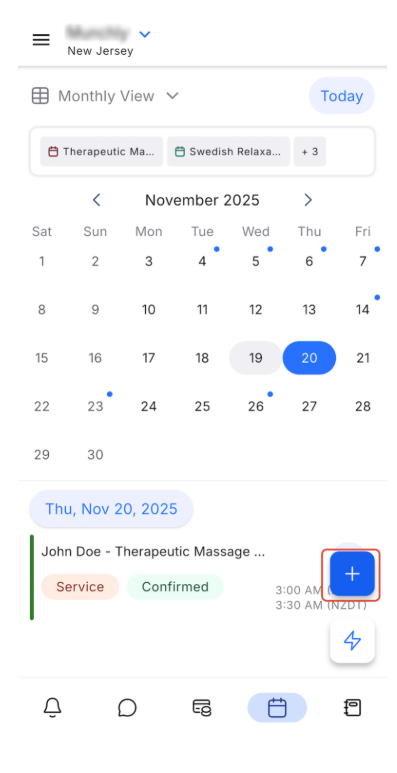
1-Initiate Booking: Open the Calendar module and tap the + (plus) button, then choose New Service Appointment.
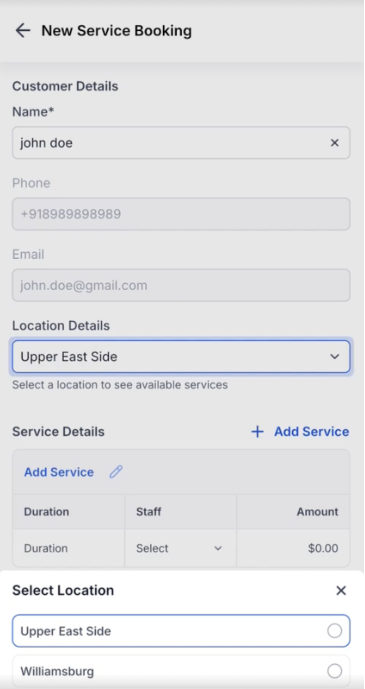
2-Select Contact & Location: Search for the customer record. If your business operates across multiple branches, select the appropriate location for this booking.
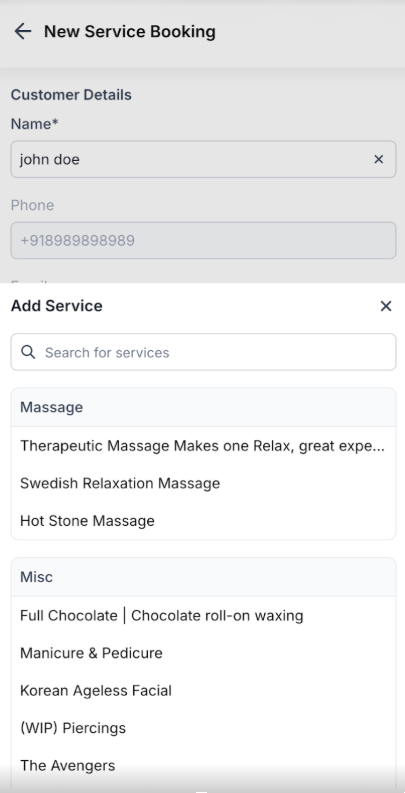
3-Choose Services: Browse your service catalog and select one or more services to include in the appointment.
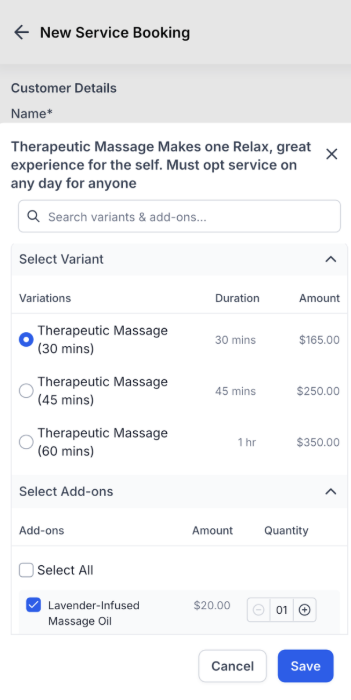
4-Configure Options: Select the desired variant (e.g., duration) and any optional add-ons.
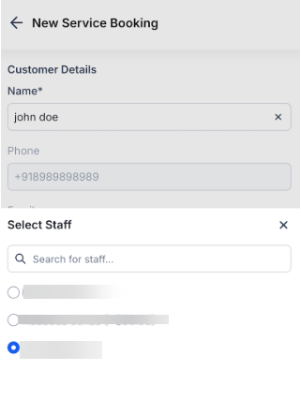
5-Assign Staff: Pick a team member for each service. The pricing will update automatically if staff-specific rates are configured.
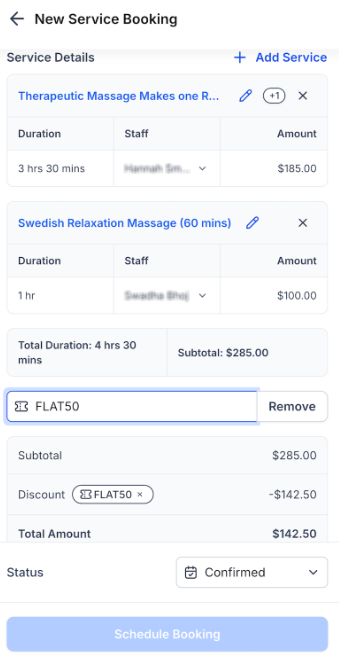
6-Apply Discounts: Enter any valid promo or coupon codes to adjust the final price.
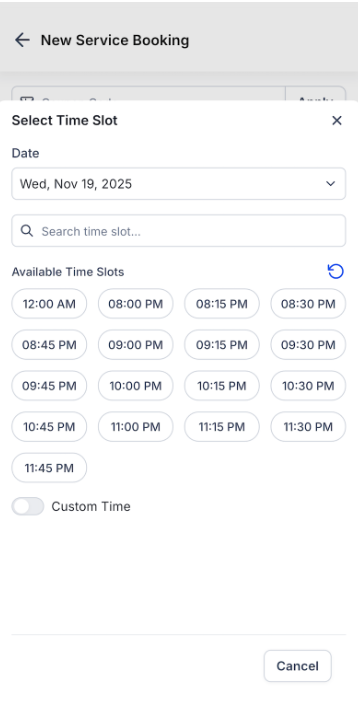
7-Select Time Slot: Choose from the available real-time slots or use a custom time if your permissions allow.
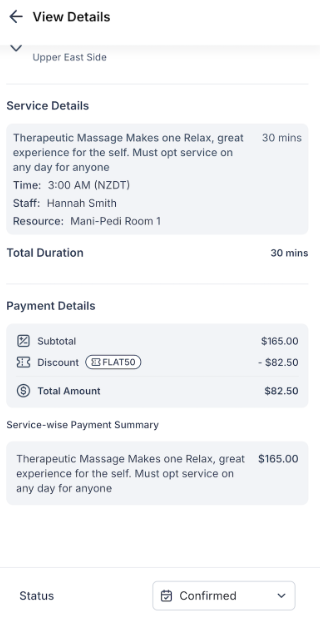
8-Confirm: Review the summary of services, staff, and pricing, then tap Schedule Booking to finalize.
Current Limitations
Section titled “Current Limitations”To ensure smooth operations, please keep the following requirements and limitations in mind:
- Payments: Mobile-created service appointments currently do not generate automated orders or support direct payment collection within the mobile flow.
- Modifications: Appointments created through this flow cannot be edited, rescheduled, or duplicated within the mobile app at this time.
- Financial Itemization: Manual taxes and processing fees are not currently displayed or supported in the mobile booking interface.
- Visibility: You must have at least one calendar configured for services to appear, even if staff and services are already created.
Pro Tip: Quick Filtering
Section titled “Pro Tip: Quick Filtering”You can quickly clean up a cluttered calendar view by tapping the colored labels at the top of your mobile calendar. This opens the filter modal where you can navigate to Calendars > Services to toggle specific services on or off, allowing you to focus only on the appointments that matter most in the moment.
Question: Can I book multiple services for a single client in one go? **
Answer: Yes, the mobile interface supports multi-service checkout, allowing you to add several different services into one appointment window.
Question: Will the app show if a staff member is unavailable on a specific day? **
Answer: Yes, the booking flow reflects real-time, date-specific staff hours to ensure you only select times when the assigned team member is actually working.
Question: Can I use coupon codes when booking for a client on the app? **
Answer: Absolutely. There is a specific step in the mobile booking process where you can enter and apply valid promo codes to the total.
Question: Why can’t I see my services in the mobile calendar? **
Answer: Ensure that you have associated your services with a configured calendar. If no calendars are set up in the system, service appointments may not be visible.
Question: Can I change the price of a service manually during the mobile booking? **
Answer: While you cannot type in a random price, the system will automatically update the price if you select a staff member with a specific rate or apply a valid coupon.
Question: Can I change an appointment’s date or time after I have finished scheduling it on the mobile app?
Answer: No. According to the current limitations, appointments created through the mobile flow cannot be edited, rescheduled, or duplicated within the app at this time.
Question: Can I book an appointment for a branch across town?
Answer: Yes; the app includes multi-location support, allowing you to select different business branches during the scheduling process.