Configuring Staff in Services
Configuring Staff in Services
The purpose of this article is to provide a comprehensive guide on how to manage the individuals responsible for delivering services within your organization. Proper configuration ensures that booking functionality operates smoothly by aligning staff availability, specialized skills, and service assignments with customer needs.
Overview of Staff Management
The staff management interface allows for the precise control of team members who provide services. Only services assigned to active, available staff members can be booked by customers. By defining staff details and working hours, you create a reliable scheduling environment that prevents double bookings and ensures every appointment is handled by the appropriate professional.
Key Features and Benefits of Configuring Staff
Section titled “Key Features and Benefits of Configuring Staff”Organizing staff at the service level ensures that all bookings adhere to the specific capabilities and schedules of your team.
- Staff Visibility: Assigning staff to specific services ensures they appear as options during the customer booking process.
- Centralized Availability: Manage individual working hours and time zones from a single location to maintain organizational order.
- Scheduling Flexibility: Create multiple time slots per day to account for breaks, administrative time, or split shifts.
- Service Specific Pricing: Define unique pricing at the staff level, allowing for variations based on experience or seniority.
- Appointment Limits: Maintain quality of service by capping the number of appointments a staff member can receive daily, weekly, or monthly.
- Real Time Management: Quickly update staff details, roles, and availability to reflect changes in your workforce.
Step 1: Access the Staff Panel
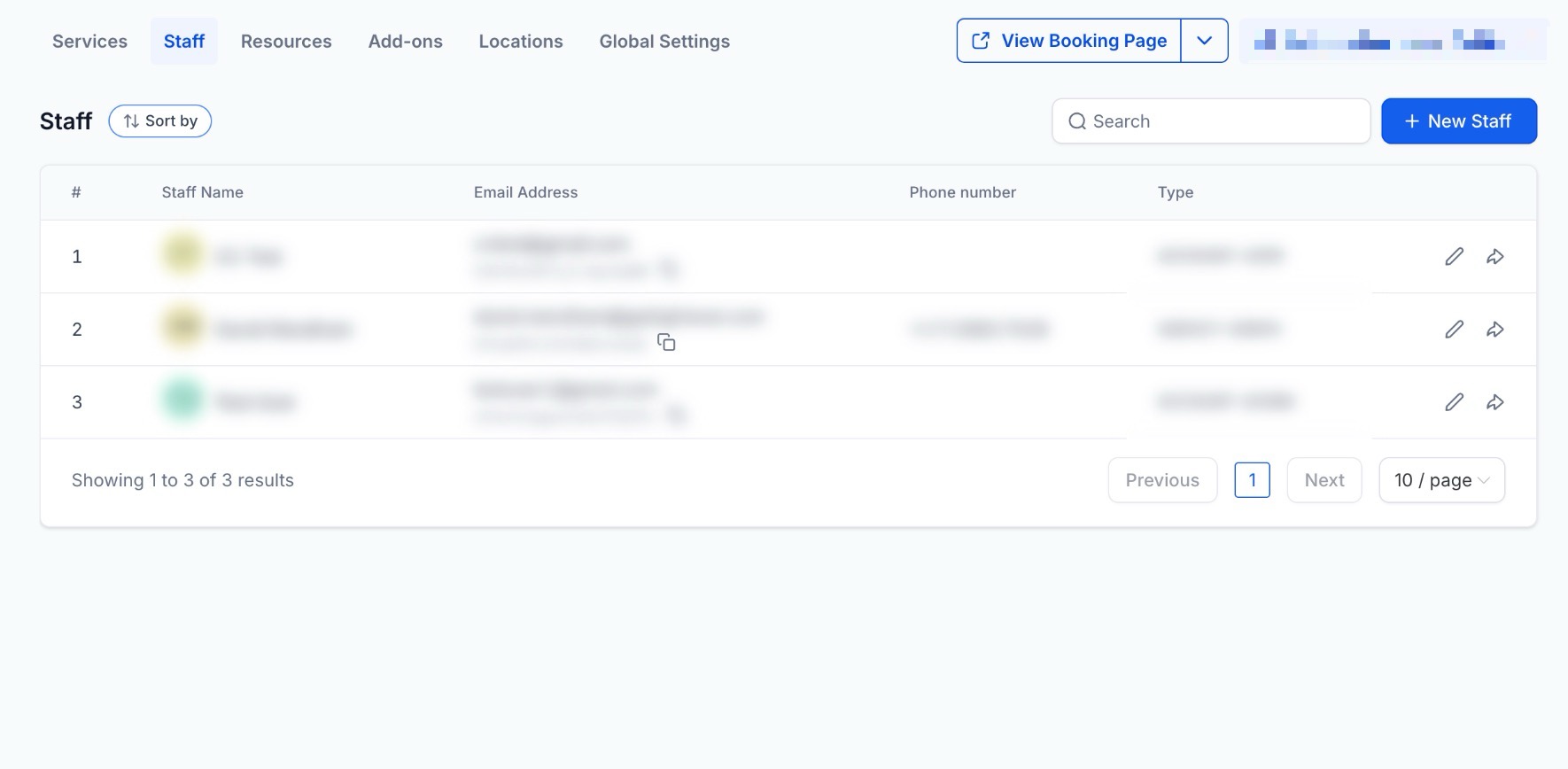
Section titled “Step 1: Access the Staff Panel”To manage your team, go to Calendar > Calendar Settings > Services > Staff.
In the staff panel, you can:
- Track Details: View names, emails, phone numbers, and roles (Admin vs. User).
- Locate Staff: Quickly find individuals using the search bar and sorting tools.
- Update Your Team: Add new members or edit existing profiles.
- Direct Booking: Copy and share unique booking links for specific staff members.
Setting Up Staff Profiles
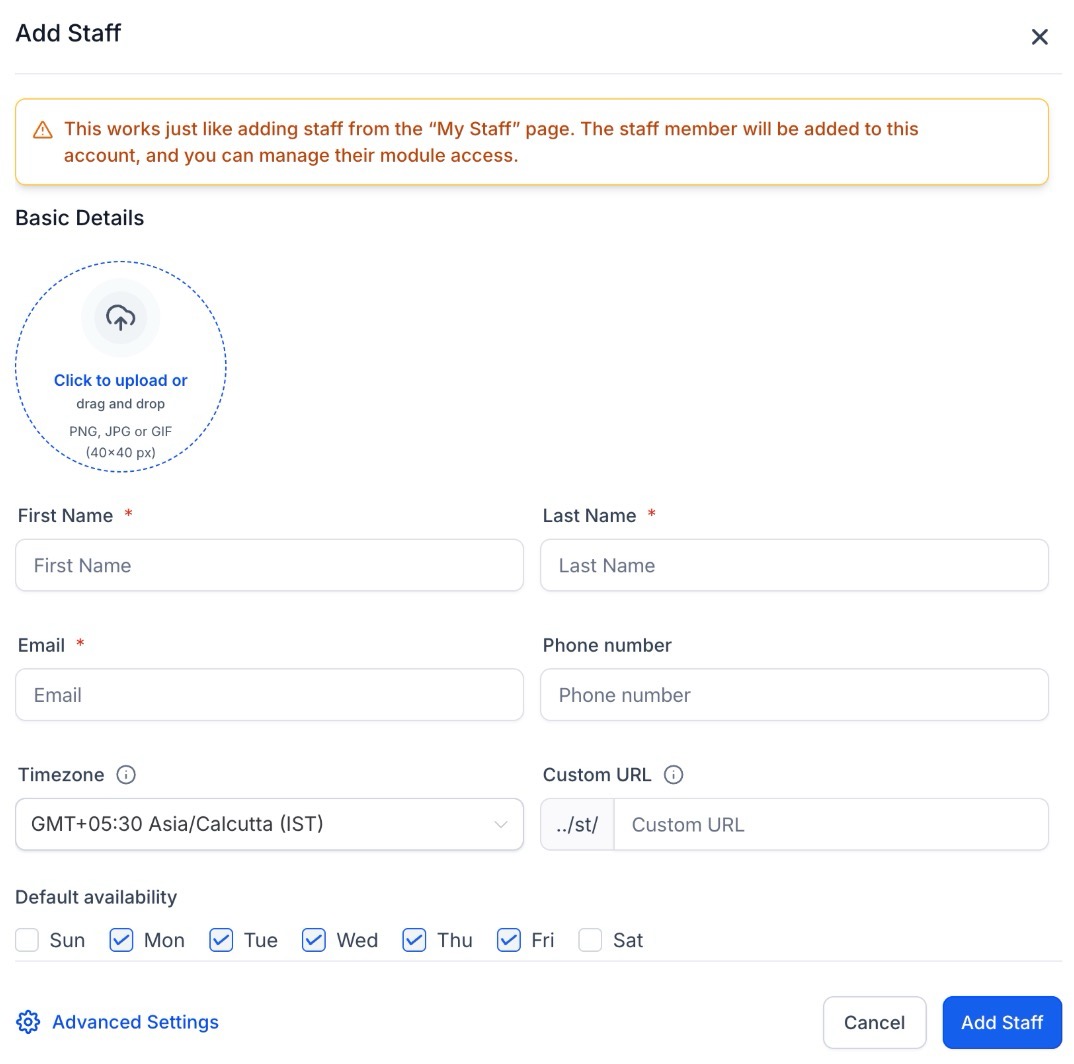
Section titled “Setting Up Staff Profiles”To add or manage a staff member, fill out the following fields. These details control how staff appear to clients and how their schedules are managed.
Basic Information
Section titled “Basic Information”- Profile Picture: An image used to represent the staff member on public booking pages.
- First & Last Name (Required): Displayed both internally and to your clients.
- Email (Required): Used for account login and notifications. Each staff member must have a unique email address.
- Phone Number: Optional contact information.
- Timezone: Sets the local time for the staff member’s working hours.
- Custom URL: Creates a personalized booking link specifically for this staff member.
- Default Availability: Defines the standard working hours (e.g., 9:00 AM – 5:00 PM).
Understanding Default Availability
Section titled “Understanding Default Availability”Default availability serves as the baseline schedule. Whenever a staff member is assigned to a service, the system automatically applies these hours as a starting point.
- Why it matters: A staff member cannot be booked for any service unless availability is set.
- Instant Activation: Setting this up ensures the staff member is immediately bookable across all assigned services.
- Flexibility: You are not locked into these hours. You can customize the schedule later using Weekly Working Hours (for recurring changes) or Date-Specific Hours (for one-time adjustments like holidays or shifts).
Example: If Hannah is set to a default of Mon–Fri, 9:00 AM – 5:00 PM, those hours apply to every service she offers. If she needs to work a half-day next Tuesday or has shorter hours for a specific premium service, you can easily override the default for those instances.
Managing Staff & Advanced Settings
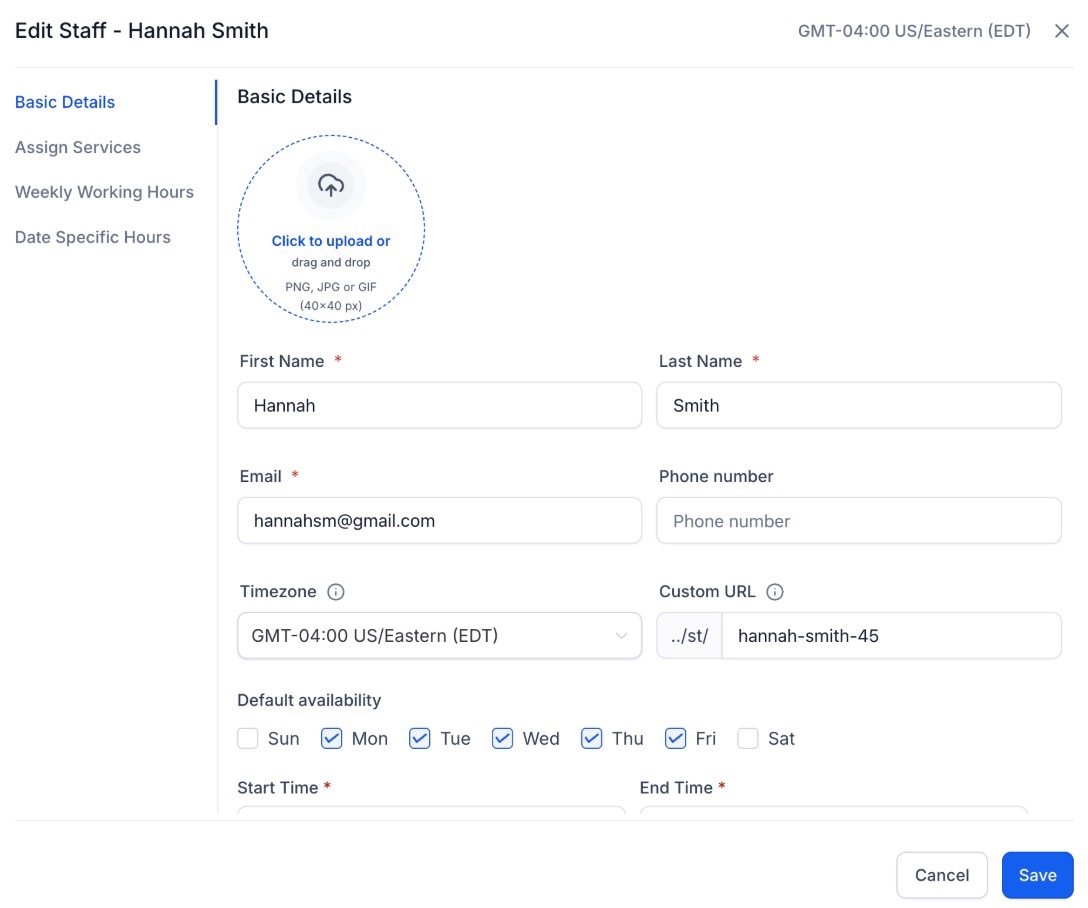
Section titled “Managing Staff & Advanced Settings”To modify a team member’s details, click the pencil icon next to their name. This opens a menu where you can update their profile, assign specific services, manage schedules, and refine advanced configurations.
1. Basic Details Use this tab to manage the staff member’s core identity and settings:
- Contact Info: Update their name, email, phone, or photo.
- Timezone: Adjust local time settings for accurate scheduling.
- Booking Link: Customize their unique appointment URL.
- Standard Hours: Define their primary availability
2. Service Assignment
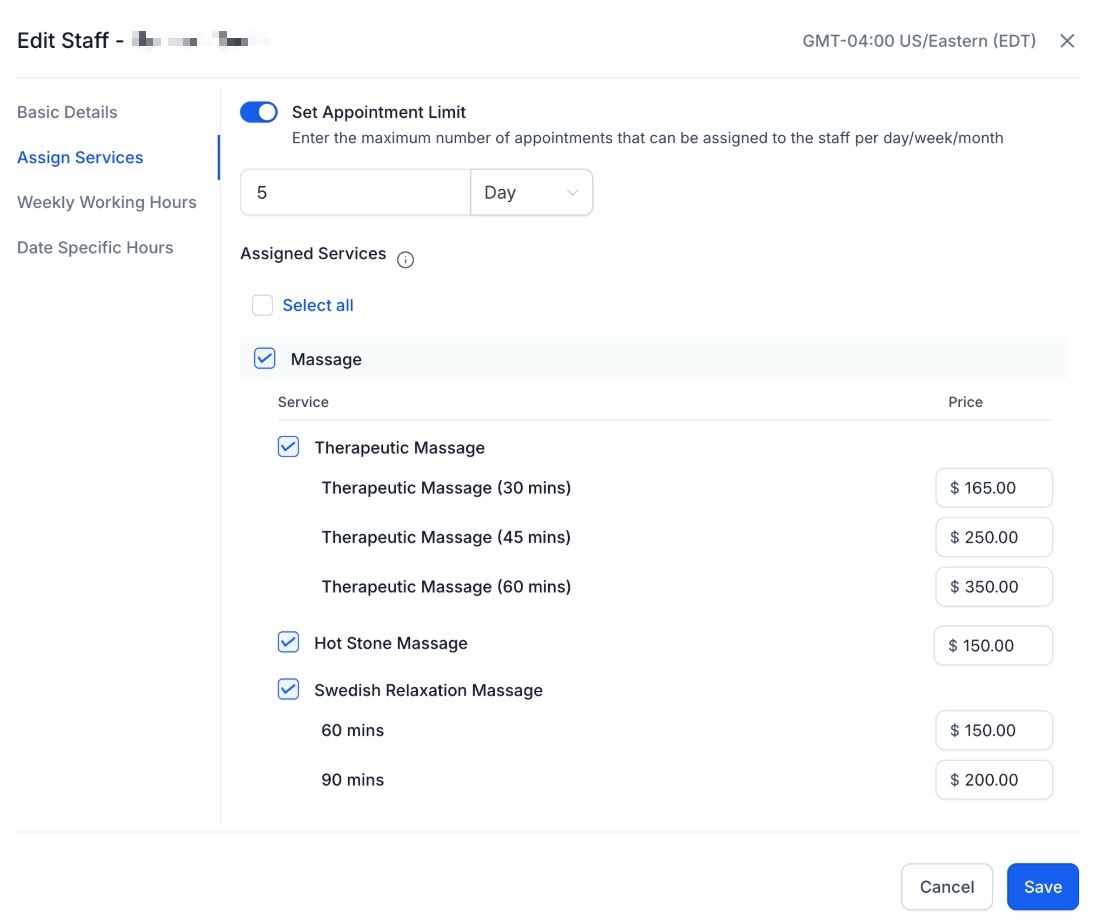
Use the Assign Services tab to select the offerings this staff member provides.
- Custom Pricing: Set unique rates if this staff member’s pricing differs from the standard service fee.
- Booking Caps: Set daily, weekly, or monthly limits on the number of appointments this staff member can accept.
Important: Staff members will not appear in the booking flow until at least one service is assigned.
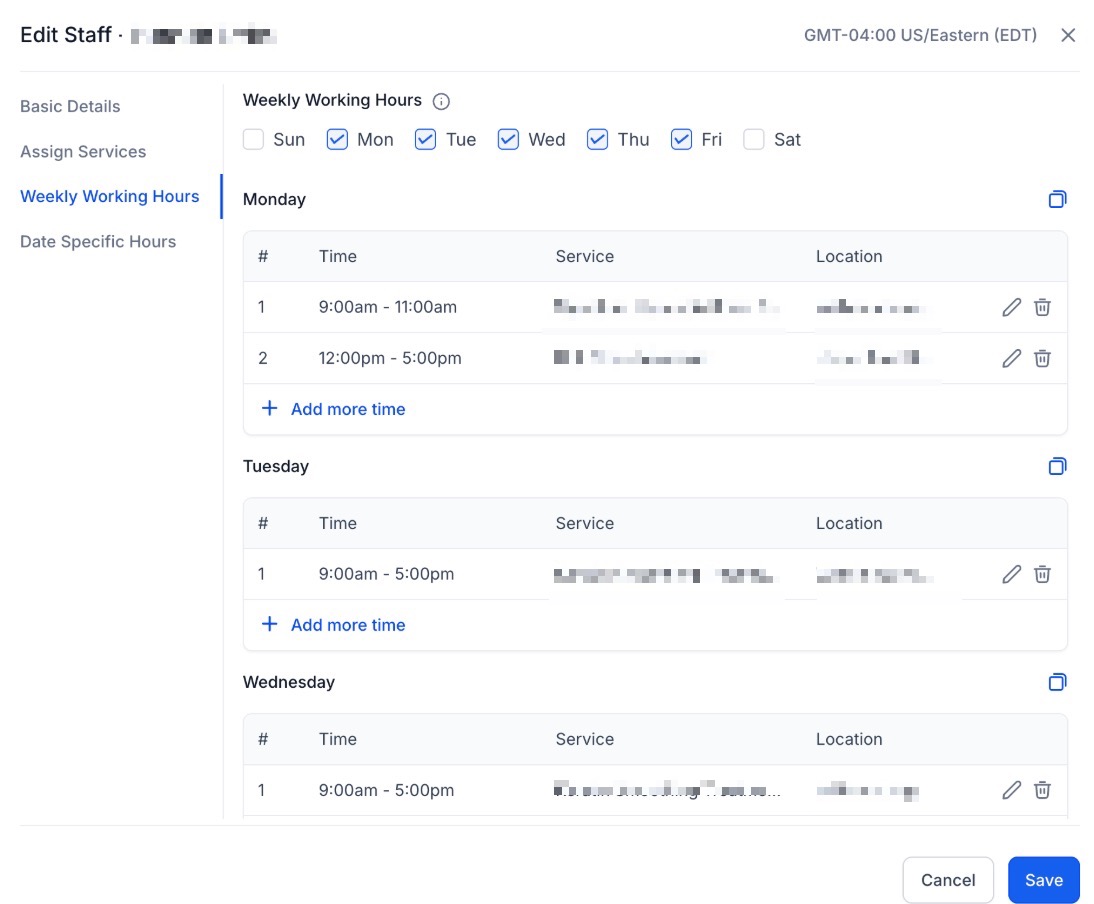
3. Weekly Working Hours Use this tab to define a staff member’s standard schedule. From here, you can:
- Select active workdays for the week.
- Create multiple timeslots per day to accommodate split schedules.
- Link specific services to designated time slots.
- Designate locations for each working period.
Schedule breaks by leaving gaps between time slots (e.g., 9:00 AM – 1:00 PM and 2:00 PM – 6:00 PM).
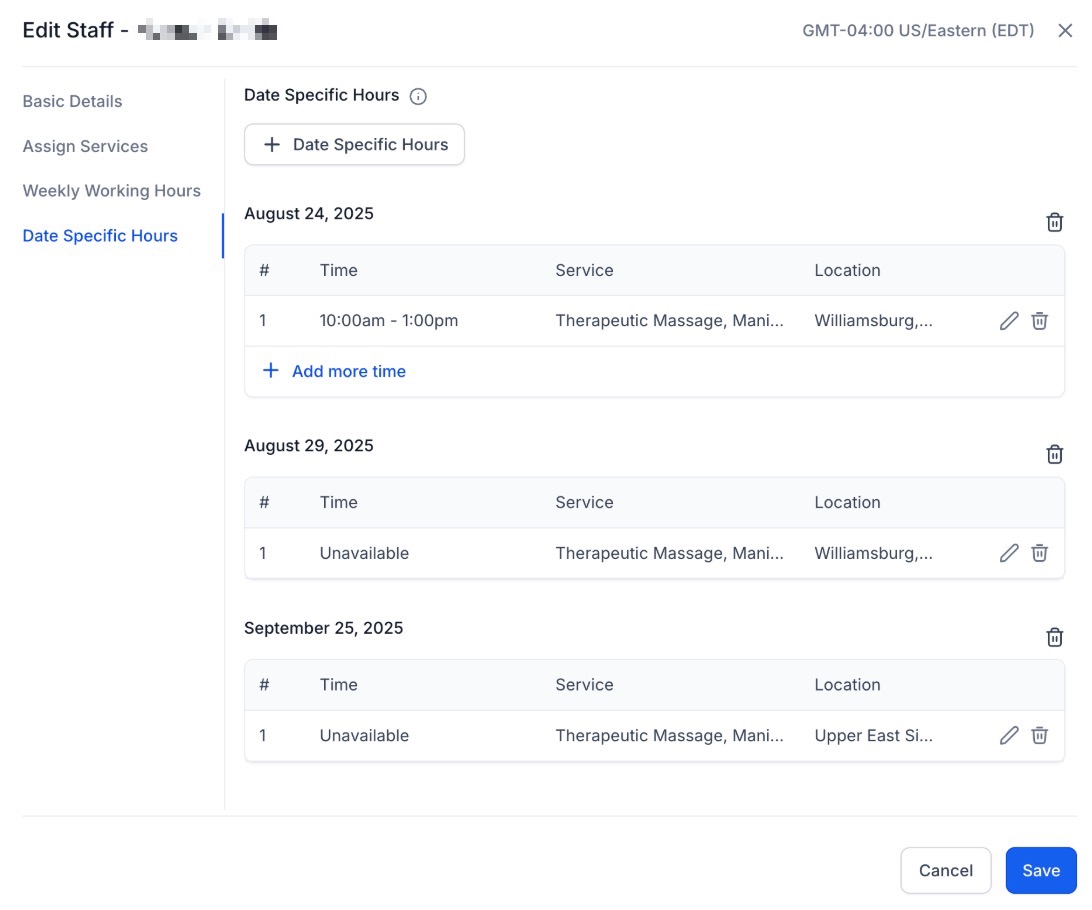
4. Custom Date Overrides: Manage exceptions to your standard weekly schedule for specific calendar dates.
- Flexible Availability: Set staff as available or unavailable for any chosen date or time.
- Tailored Time Blocks: Create custom shifts for unique scheduling needs.
- Contextual Control: Apply overrides to specific locations or services only.
This is perfect for handling holidays, special events, or one-time scheduling adjustments.
Pro Tips for Efficient Scheduling
- Buffer for Transitions: When setting weekly hours, consider ending a shift fifteen minutes early if the staff member requires cleanup time between the final appointment and the end of their day.
- Location Specificity: If your organization operates across multiple physical locations, ensure you assign the correct location to the specific time slots in the Weekly Working Hours tab to avoid logistics errors.
- Unique URLs: Encourage staff to use their custom booking URLs in their email signatures to allow clients to book with them directly.
Question: How do I make a staff member appear as an option for customers to book?
Answer: Staff members will only appear in the booking flow once two conditions are met: they must have at least one service assigned to them in the “Assign Services” tab, and they must have availability (standard or default hours) configured.
Question: Where do I go to add a new team member or edit an existing profile?
Answer: To manage your team, navigate to Calendar > Calendar Settings > Services > Staff. From this panel, you can add new members or click the pencil icon next to an existing staff member’s name to modify their details.
Question: What is the difference between “Default Availability” and “Weekly Working Hours”?
Answer: Default Availability** serves as the baseline schedule and starting point for a staff member across all services. Weekly Working Hours allow for more granular control, such as creating multiple time slots per day for breaks, assigning staff to specific locations, or linking services to designated time blocks.
Question: Can I set different prices for the same service based on which staff member is booked?
Answer: Yes. Under the Service Assignment tab in the staff member’s settings, you can define Custom Pricing. This allows you to set unique rates for a staff member based on their seniority or experience level, independent of the standard service fee.
Question: How can I handle one-time schedule changes, like a holiday or a doctor’s appointment?
Answer: You should use the Custom Date Overrides tab. This feature allows you to set a staff member as available or unavailable for specific dates without changing their recurring weekly schedule. It is designed for handling holidays, special events, or one-time shifts.
Question: Can I create split shifts for a staff member on the same day? Answer: Yes. You can create multiple time slots within a single day using Weekly Working Hours, which is ideal for split shifts, breaks, or administrative time.
Question: How can I help my staff members get direct bookings through their own marketing?
Answer: You can create and copy a Custom URL for each staff member. Pro Tip: Encourage staff to include these unique booking links in their email signatures so clients can book with them directly.