WhatsApp & Text Message Contact GBP
WhatsApp & Text Message Contact for GBP
Effective customer communication plays a crucial role in building trust and driving business success. To support this, the Google Business Profile (GBP) optimization workflow allows businesses to add WhatsApp and Text Message contact options to their listings. This gives customers more flexible, real-time ways to connect, leading to better engagement and improved responsiveness.
Key Features & Benefits
Section titled “Key Features & Benefits”- Multi-Channel Communication: Add WhatsApp and SMS as contact options directly on the Google Business Profile.
- Prioritized Messaging: If both options are entered, Text Message will automatically display as the primary contact method.
- Increased Accessibility: Businesses become more reachable to customers who prefer messaging over phone calls.
- Profile Engagement: Improves the completeness of the GBP listing, which can positively impact search visibility and customer trust.
- Mobile-First Experience: Caters to users who prefer quick messaging rather than traditional communication methods.
How to Use
Section titled “How to Use ”1- Navigate to the Reputation Area:
- Go to the Reputation section from your account dashboard.
2- Access GBP Optimization:
- Within Reputation, select GBP Optimization.
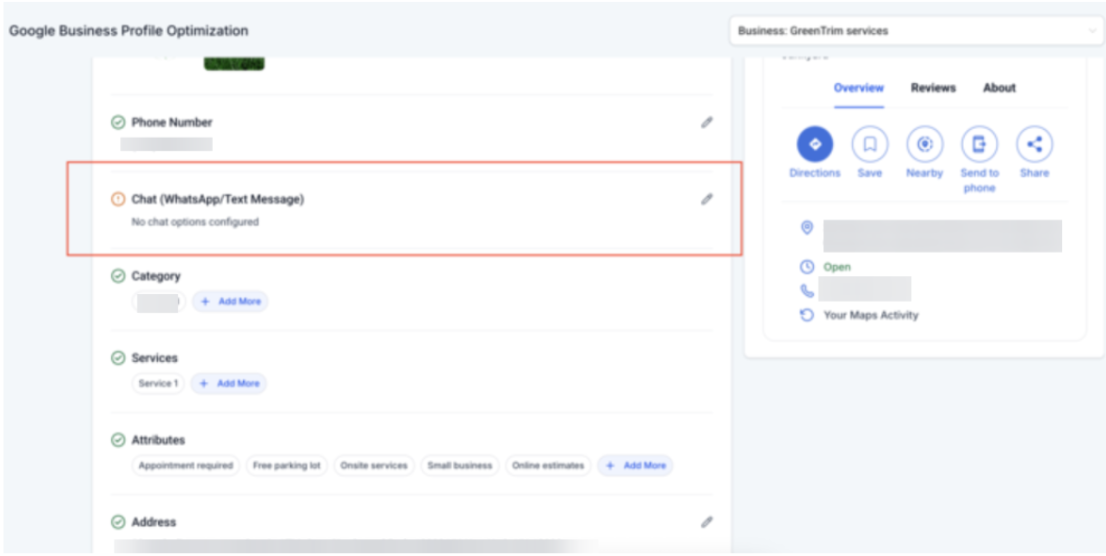
3- Scroll to the Contact Info Section:
-
Just below the Phone Number field, you’ll see two new input fields:
- Text Message Number
- WhatsApp Number
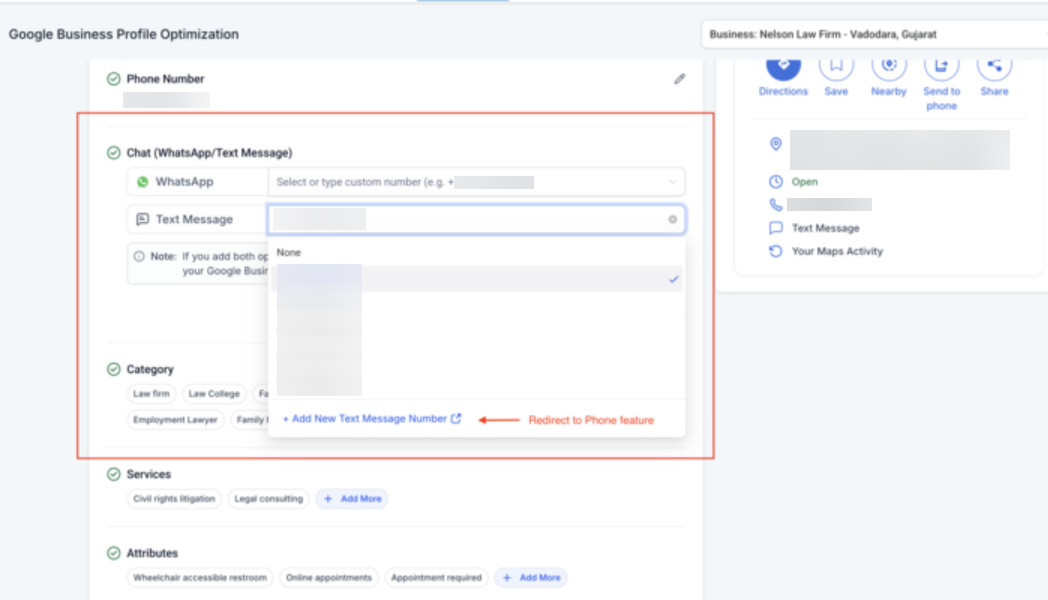
4- Enter Contact Numbers:
- Input the appropriate numbers into the respective fields.
- Note: If both fields are filled, Text Message will be displayed on the GBP listing.
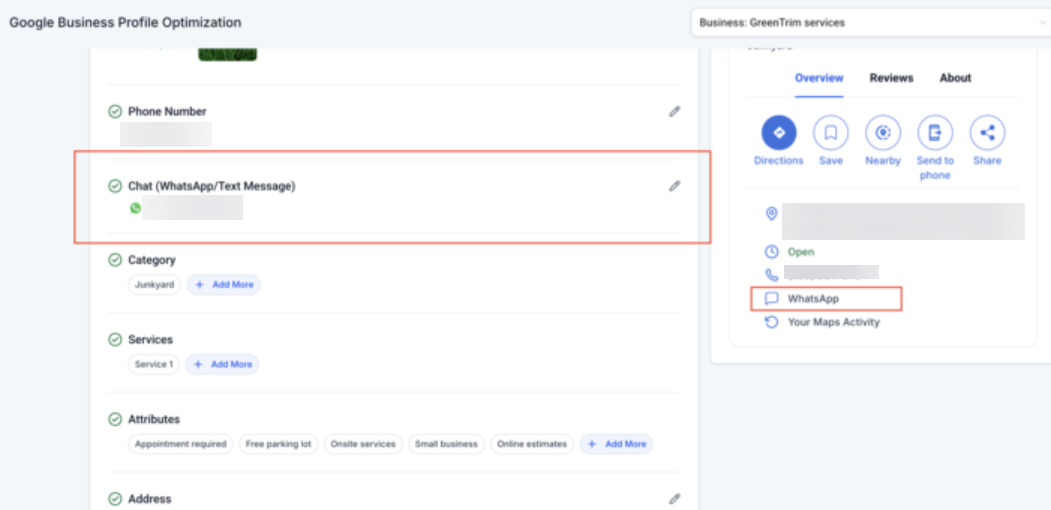
5- Save Changes:
- Once entered, the details are synced with the GBP listing, making messaging options publicly visible to potential customers.
Question: Do I need to verify the WhatsApp or Text Message number before adding it to the profile? Answer: While the system does not enforce verification, it is highly recommended to use active, business-managed numbers to ensure message delivery and customer trust.
Question: Can I change or remove the WhatsApp or Text Message contact later? Answer: Yes, you can update or remove these fields at any time by returning to the GBP Optimization section and editing the corresponding fields.
Question: Will I get notified when a customer sends a message via WhatsApp or SMS? Answer: Yes, message notifications will be delivered through the respective messaging platform (e.g., WhatsApp or your SMS provider). Make sure the number used is actively monitored.
Question: Does this replace the phone call option on Google Business Profile? Answer: No, this does not replace the phone number field. It adds messaging as an additional contact method for customers who prefer texting over calling.
Question: Can I use both WhatsApp and Text Message contact options on my Google Business Profile? Answer: Yes, you can add both WhatsApp and Text Message contact options. However, if both are entered, Text Message will automatically be displayed as the primary contact method.
**Question: Will adding WhatsApp and Text Message options impact my search visibility on Google? Answer: Yes, improving your GBP listing by adding messaging options can positively impact your search visibility. A more complete profile enhances customer trust, which can contribute to better search rankings.
Question: What happens if the Text Message number is unavailable? Answer: If the Text Message number is inactive or not monitored, messages may fail to deliver. Always ensure your primary messaging number is active and regularly checked.
Question: Will my messaging options be visible to the public immediately after I enter them?
Answer: Yes. Once you input the numbers and click Save Changes, the details are synced with your Google Business Profile, making the messaging options publicly visible to potential customers.
Question: If I provide both a WhatsApp and a Text Message number, which one will customers see first?
Answer: The system uses Prioritized Messaging. If both fields are filled, the Text Message option will automatically be displayed as the primary contact method on your Google Business Profile.