Video Testimonials
This article provides a clear, neutral, and adaptable overview of a versatile Video Testimonials feature designed to help users collect, manage, and showcase genuine video feedback from customers. The purpose of this guide is to outline how the feature works, highlight its key benefits, and provide easy-to-follow steps for using it effectively in any business context.
Key Features & Benefits
Section titled “Key Features & Benefits”Customisable Video Collectors
Section titled “Customisable Video Collectors”Create tailored Video Collectors that guide customers through a simple and engaging testimonial flow. Each Collector typically includes:
-
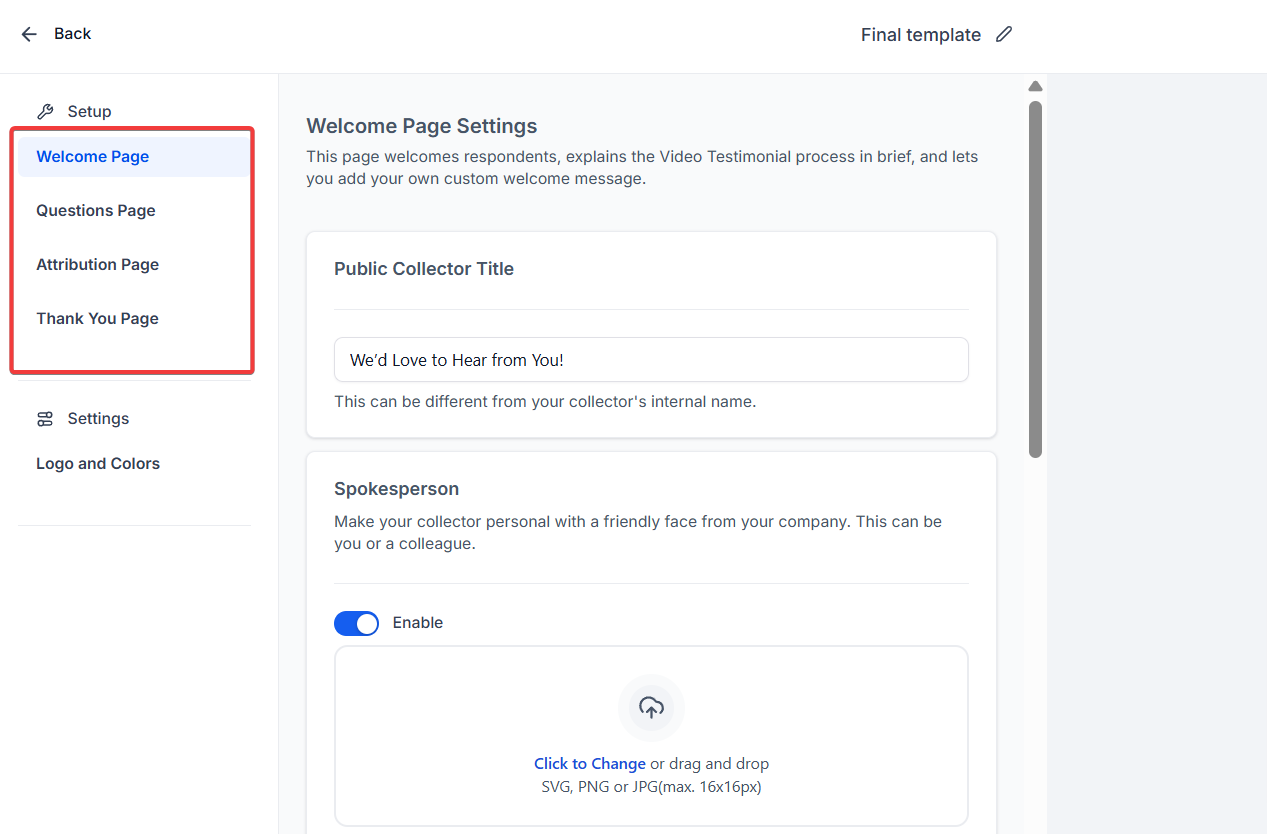
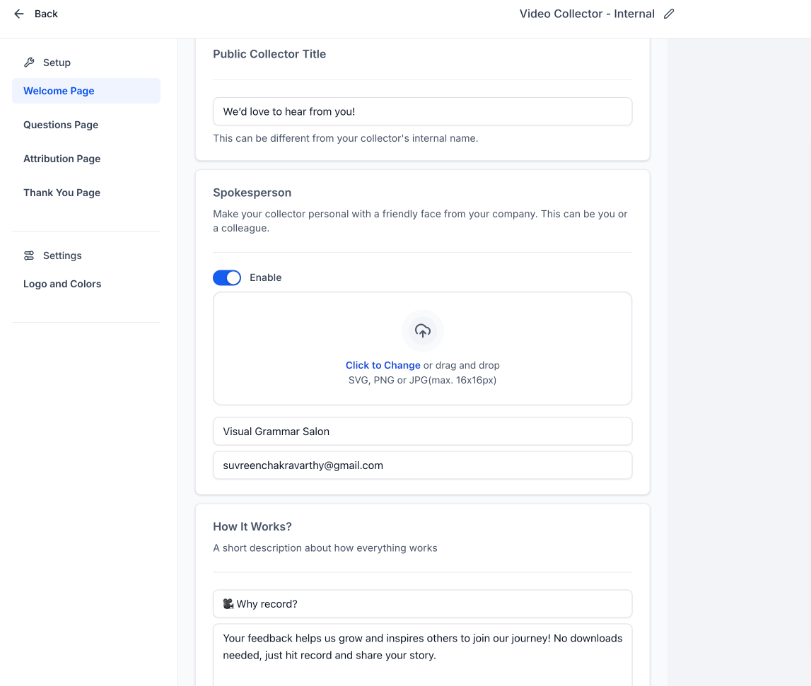
Welcome Page: Briefly introduce your business and invite customers to participate.
-
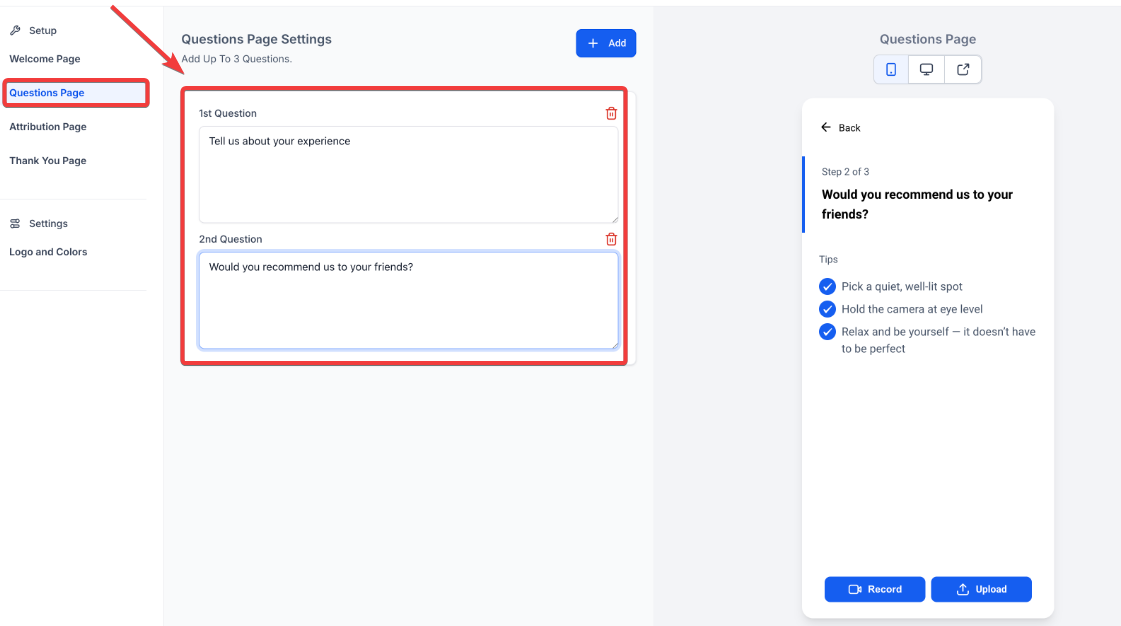
Questionnaire Page: Add up to three questions to help customers share meaningful insights.
-
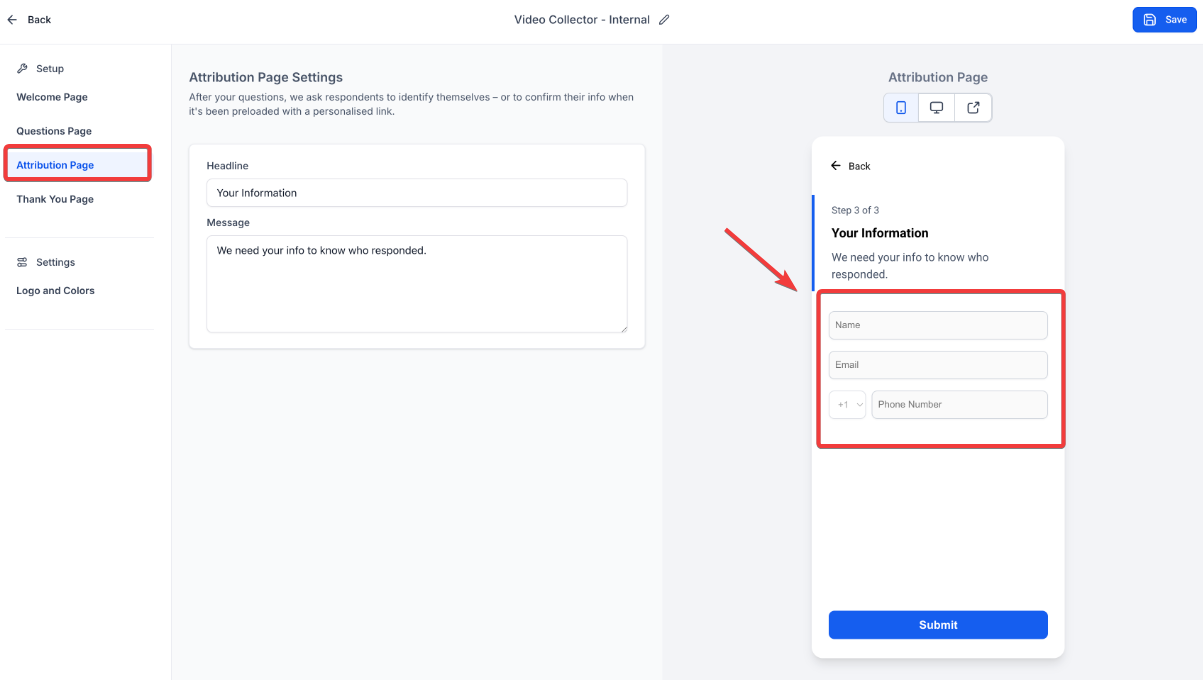
Attribution Page: Gather essential contact details such as name, email, and phone number.
-
Thank You Page: Present a customized closing message once the testimonial is submitted.
Customisation options include logos, backgrounds, text colours, accents, and button styles, helping maintain seamless brand consistency.
Centralised Collector Management
Section titled “Centralised Collector Management”- Create unlimited collectors for each location or department.
- Duplicate existing collectors to speed up setup.
- Easily copy links for sharing or attach them to review request messages.
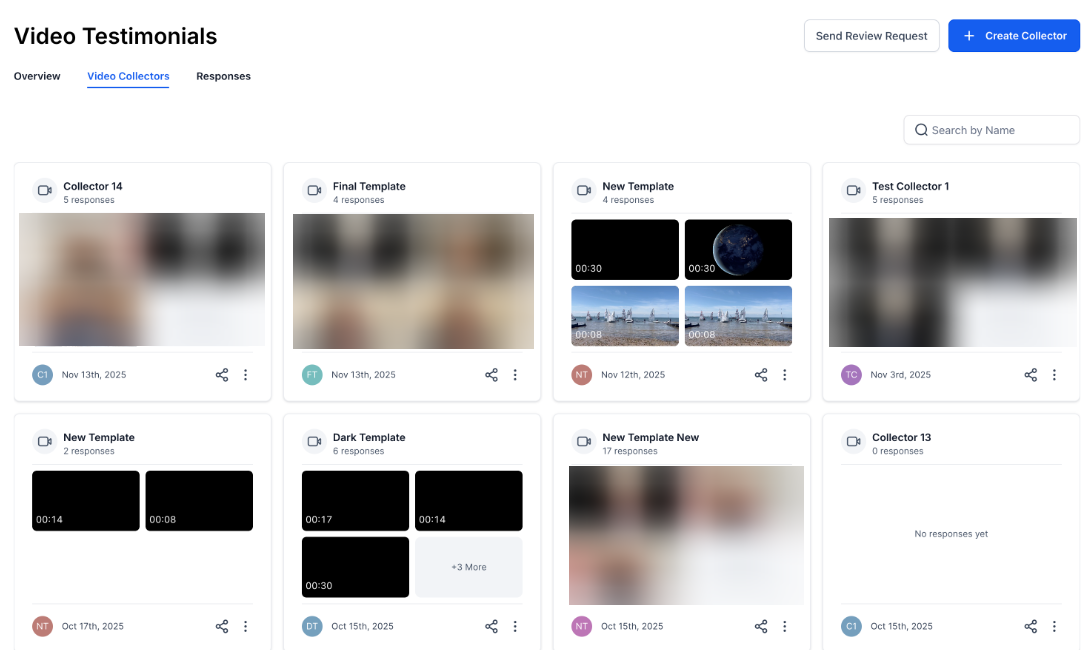
- View all collectors and their related submissions in one organised section.
Simple Review Request Sending
Section titled “Simple Review Request Sending”- Send Collector links via broad communication channels such as email, text-based messaging, or chat applications.
- Allow customers to record or upload video testimonials from desktop or mobile, without needing to download an app.
- Videos can be up to 2 minutes and 30 seconds in length.
Streamlined Response Management
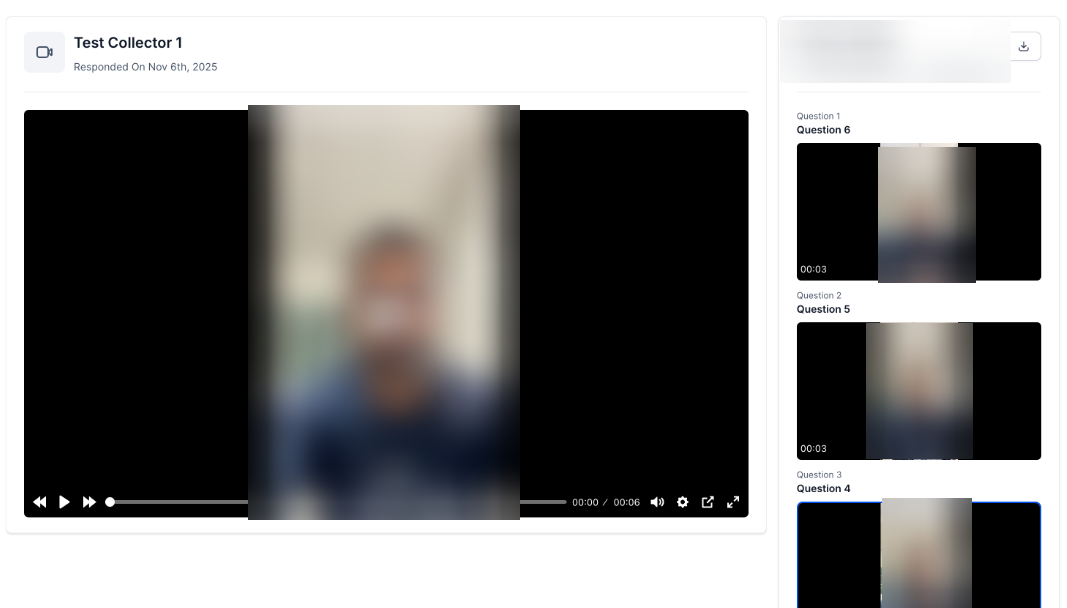
Section titled “Streamlined Response Management”- Access all incoming video submissions through the Responses section.
- Preview or download videos for internal use, marketing, or curation.
Showcase Videos in Review Widgets
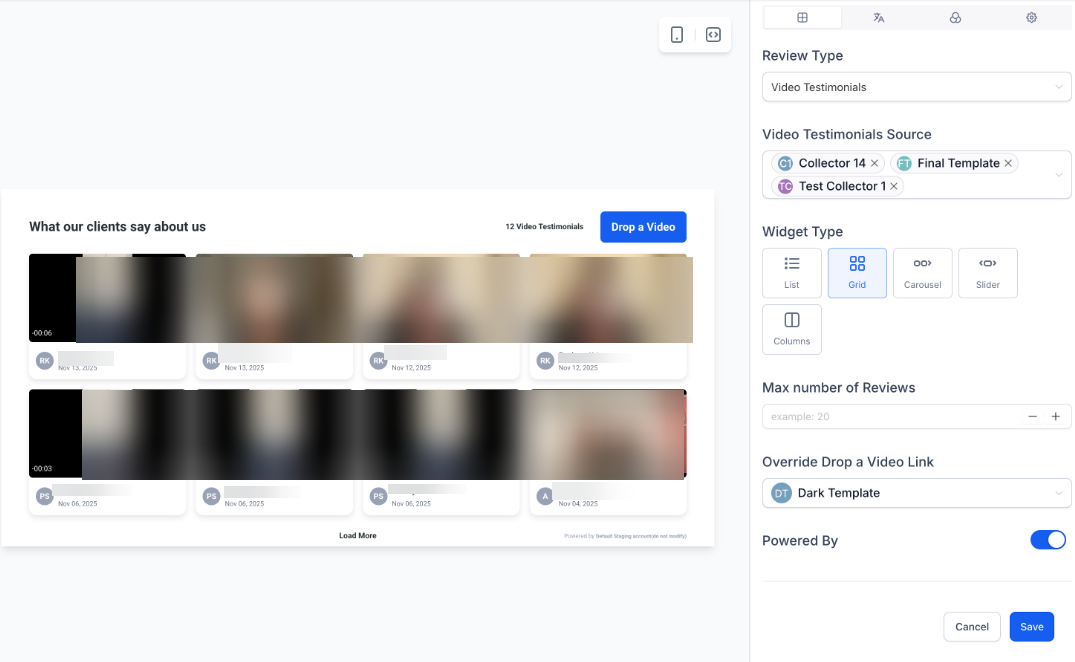
Section titled “Showcase Videos in Review Widgets”- Display selected videos within your Review Widget for public visibility.
- Filter widgets by specific collectors for themed or campaign-focused displays.
- Choose from multiple layout styles such as List, Carousel, Grid, Slider, or Column.
How to Use the Video Testimonials Feature
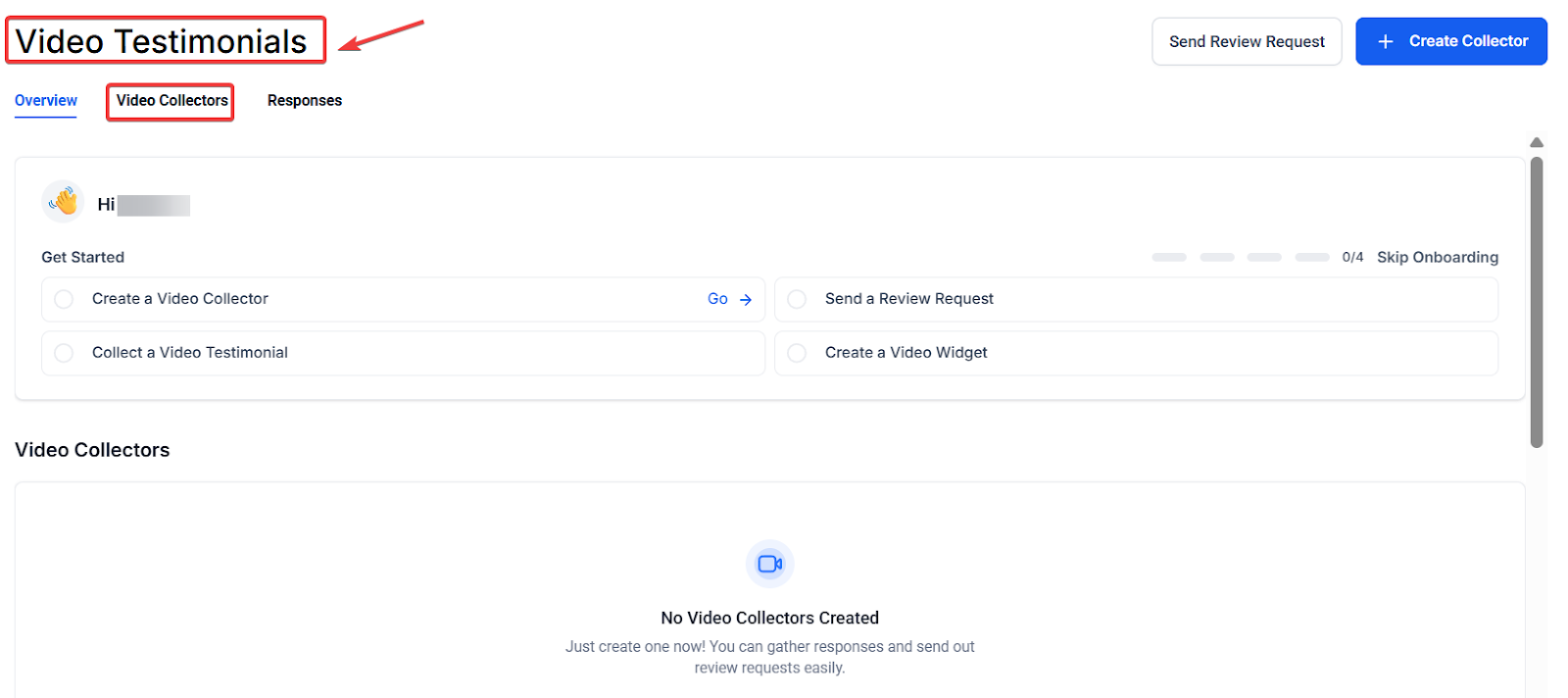
Section titled “How to Use the Video Testimonials Feature”1. Access the Video Testimonials Workspace
Go to the Reputation tab from the Dashboard menu. Select Video Testimonials to view or create collectors.
2. Create a New Video Collector
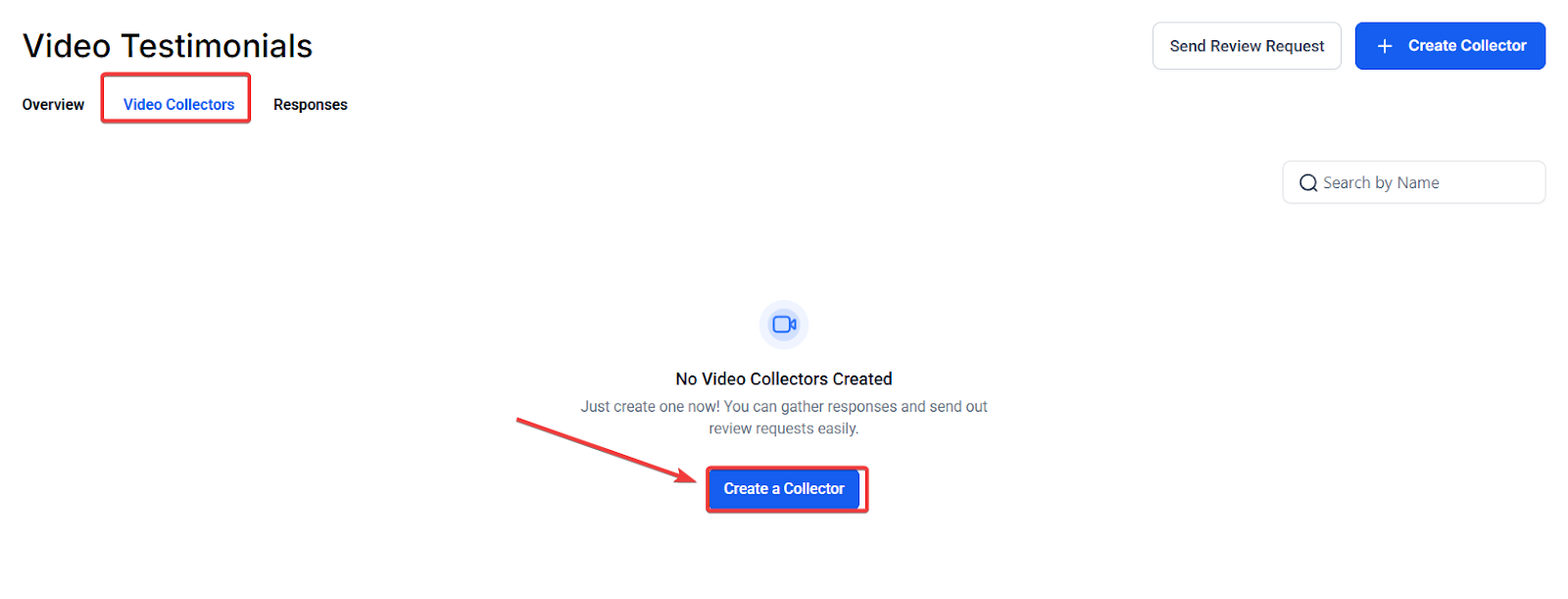
Click Create Collector.
- Add your branding elements, and you can also customize the welcome message.
- Insert up to three guiding questions for the testimonial.
- Add attribution fields such as name, email, and phone.
- Customise your Thank You Page.
3. Share the Collector
Use your sending tools to distribute the link via email, SMS, or other messaging options. Choose the appropriate collector from the available link options.
4. Manage Incoming Videos
Open the Responses tab to review all submissions. Download or tag videos for marketing, analysis, or display.
5. Showcase Testimonials
Open your Review Widget settings. Select which collector’s videos to feature. Choose a layout that best fits your website or display space.
Pro Tips
Section titled “Pro Tips”- Keep questions concise: Short prompts encourage customers to stay relaxed and share natural, meaningful responses.
- Use branded backgrounds: Simple, clean designs increase perceived professionalism without distracting from the customer’s message.
- Test your flow: Preview your Collector before sharing it to ensure everything looks polished and intuitive.
- Encourage authenticity: Remind customers they don’t need perfect lighting or scripts genuine stories resonate most.
- Organize by location or campaign: Creating separate collectors helps you track performance and showcase videos relevant to specific audiences.
Question: Do customers need to install an app to record their video? Answer: No. Customers can record or upload their testimonial directly through a browser on desktop or mobile.
Question: How long can each video be? Answer: Videos can be up to 2 minutes and 30 seconds in duration.
Question: Can I create collectors for multiple business locations? Answer: Yes. You can create an unlimited number of collectors for any location or team structure.
Question: Can I customize the design to match my brand? Answer: Absolutely. You can adjust backgrounds, colours, text, and add your logo for full brand alignment.
Question: How do I display these videos publicly? Answer: Use your Review Widget settings to filter and showcase selected video testimonials using various visual layouts.
Question: How many questions can I ask a customer during the video testimonial process?
Answer: You can add up to three questions on the Questionnaire Page to help guide your customers and ensure they share meaningful insights.
Question: How should I phrase my questions to get the best responses?
Answer: Keep your prompts concise. Short questions help customers stay relaxed and lead to more natural, meaningful feedback rather than scripted answers.
Question: What kind of contact information can I collect from a customer when they submit a video testimonial? Answer: On the Attribution Page, you can gather essential contact details including the customer’s name, email, and phone number.