Workflow Trigger: Quiz Submitted
The Quiz Submitted trigger is a powerful workflow entry condition that activates whenever a contact completes and submits a published quiz. This functionality helps businesses, educators, and marketers automate engagement, respond in real time, and manage quiz-based interactions efficiently. By leveraging this trigger, contacts can be automatically enrolled into workflows as soon as their quiz data is recorded, enabling timely and personalized actions.
Key Features and Benefits
Section titled “Key Features and Benefits”1. Real-Time EngagementRespond instantly when a quiz is submitted, enhancing engagement, boosting open rates, and increasing conversion potential.
2. Advanced Filtering OptionsApply precise conditions such as quiz name, overall scores, category-based scores, or custom fields to target specific participants.
3. Custom ActionsAutomate follow-ups, including emails, SMS notifications, task assignments, or updates, ensuring tailored journeys for each contact.
4. Operational EfficiencyEliminate manual data exports and spreadsheet work; quiz results flow directly into automated workflows.
5. Scalable WorkflowsCombine the trigger with conditional steps, wait timers, and IF/ELSE logic to build complex nurture sequences effortlessly.
Filter Options
Section titled “Filter Options”Filters control when the trigger activates, giving you flexibility to target the right audience:
- Quiz Name: Activate for a specific quiz, include all quizzes, or exclude certain quizzes.
- Overall Score: Set rules such as greater than a threshold or within a range.
- Category Score: Trigger actions based on performance in specific quiz sections.
- Custom Field: Use custom data fields created during quiz setup for specialized conditions.
Use Case Examples
Section titled “Use Case Examples”1. Personalized Feedback for LearnersSend automated feedback emails based on quiz performance to help students improve learning outcomes.
2. Lead Scoring and SegmentationCategorize quiz takers according to their scores, updating records for targeted marketing campaigns.
3. Course or Product RecommendationsSuggest relevant courses, services, or products based on quiz results to enhance engagement.
4. Automated Sales Follow-UpsAssign high-performing quiz participants to sales teams for personalized outreach.
5. Event Participation TrackingTrigger certificates or rewards for participants who complete quizzes and meet specific score criteria.
How to Set Up a Quiz Submitted Trigger
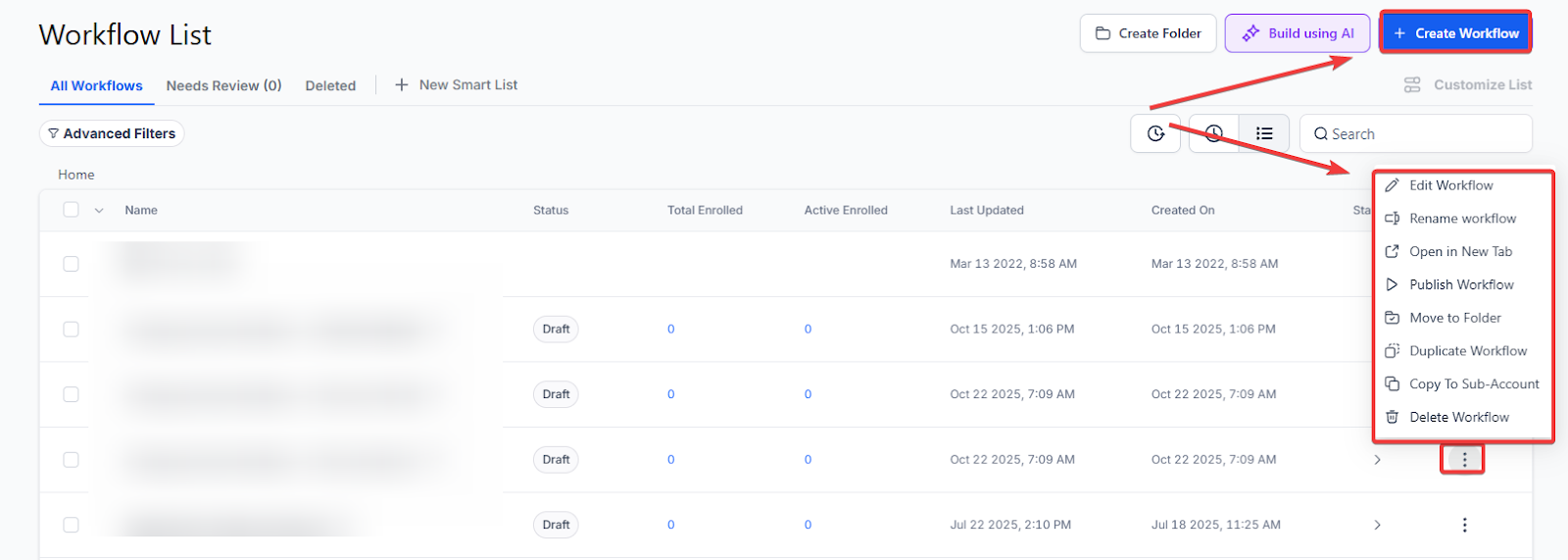
Section titled “How to Set Up a Quiz Submitted Trigger”Step 1: Access Workflow Settings
- Navigate to your workflow automation area.
- Create a new workflow or edit an existing workflow.
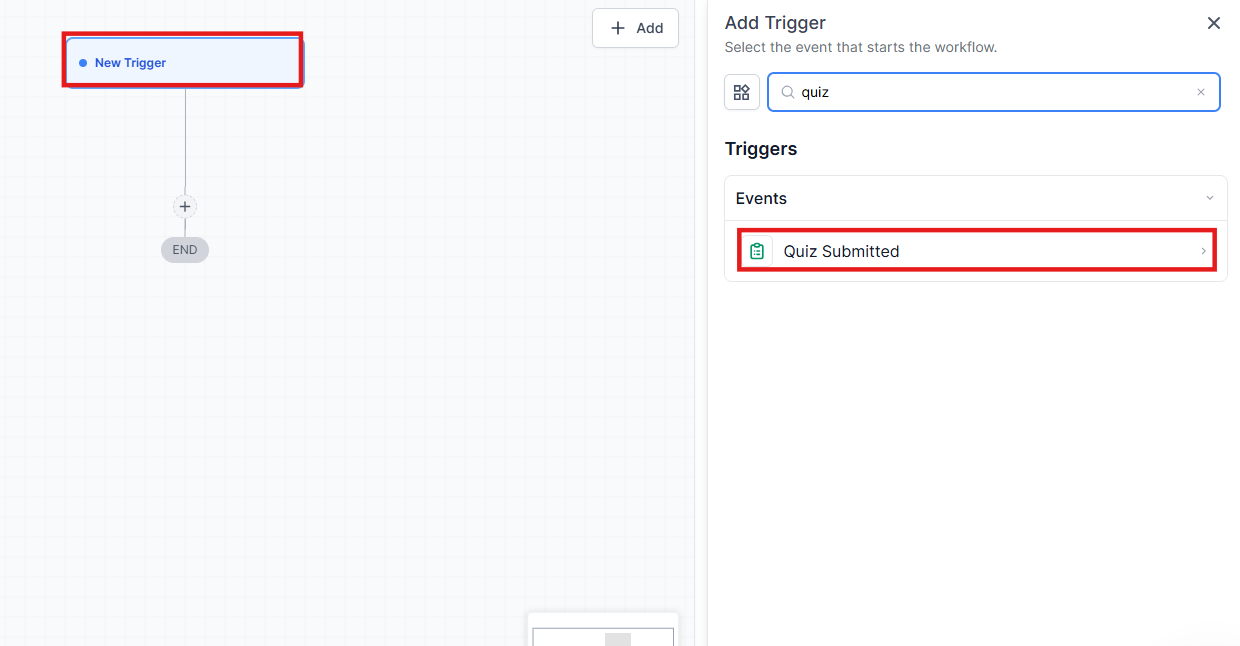
Step 2: Add the Quiz Submission Trigger
- In the workflow editor, click Add Trigger.
- Select Quiz Submitted from the available trigger options.
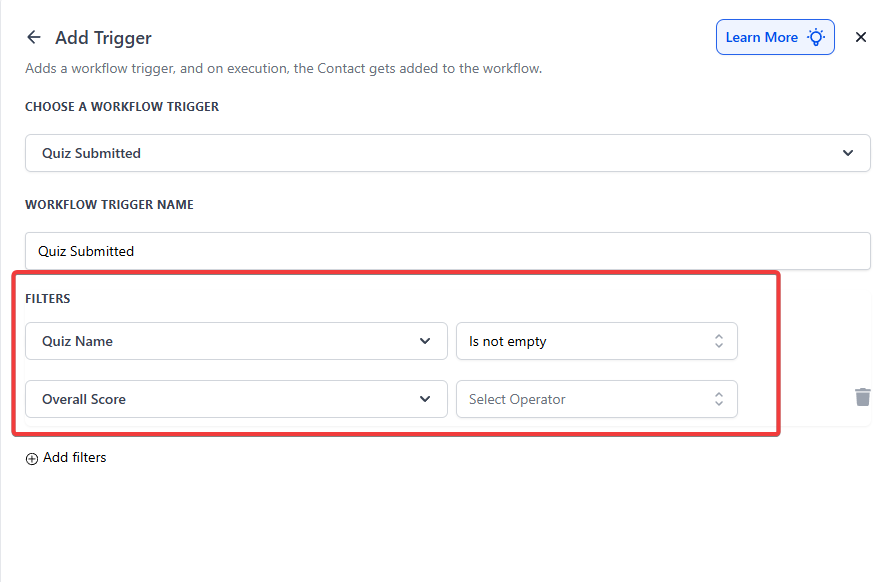
Step 3: Define Conditions
-
Specify filters to determine when the trigger activates:
- Quiz name
- Minimum or maximum score thresholds
- Category-based scores
Step 4: Configure Actions
-
Set automated responses for quiz submissions:
- Send personalized emails or SMS messages
- Assign follow-up tasks to team members
- Update or contact management systems
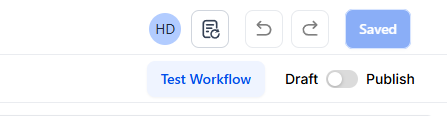
Step 5: Save and Activate
- Save your workflow and publish it to enable automated actions whenever a quiz is submitted.
Pro Tips
Section titled “Pro Tips”- Use Conditional Filters Wisely: Combining multiple filters ensures that only relevant quiz submissions trigger workflow actions.
- Test Workflows: Before going live, test the workflow with sample quiz submissions to verify all actions execute as intended.
- Segment Your Audience: Use score thresholds and category filters to send highly personalized follow-ups.
- Maintain Updated Data: Ensure custom fields and contact records are accurate to improve automation efficiency.
Question: Does this trigger work for all quizzes? Answer: Yes, it can be applied to any quiz created within the system.
Question: Can I integrate the trigger with external tools? Answer: Yes, it can connect with systems, email marketing platforms, and other automation tools via integrations.
Question: Can I use multiple actions in one workflow? Answer: Yes, you can configure multiple actions such as sending emails, updating data, and assigning tasks within a single workflow.
Question: Can I embed a quiz into a webpage or funnel step? Answer: Yes, quizzes can be embedded using custom code elements on webpages or funnel steps.
Question: How do I target only high-performing quiz participants? Answer: Use score-based or category-based filters to define conditions that activate workflow actions for participants meeting specific performance thresholds.
Question: Can I combine multiple filters in one trigger?
Answer: Yes. Combining filters such as quiz name, score thresholds, and custom fields ensures that only relevant submissions trigger workflow actions, allowing for highly personalized automation.
Question: What happens if a contact submits the same quiz multiple times?
Answer: By default, the workflow will trigger every time the quiz is submitted. If you only want the automation to run once per contact, ensure that the “Allow Re-entry” toggle in the Workflow Settings is turned off.