Map Quiz Results Directly to Custom Fields
Understanding your audience better begins with smart data collection, and quizzes are one of the most engaging ways to achieve that. With the Quiz Result to Field Mapping feature, enables quiz outcomes to be automatically stored within contact-level custom fields in your . This turns every quiz submission into actionable data, ready to drive personalization, automation, and smarter segmentation without the need for manual tagging or third-party tools.
Key Features and Benefits
Section titled “Key Features and Benefits”1. Automatic Custom Field CreationWhen a quiz is submitted, the system automatically generates custom fields for:
- Overall Score and Tier
- Category-wise Scores and Tiers
- Highest and Lowest Scoring Categories
This ensures every detail of quiz performance is captured cleanly and consistently.
2. Real-Time UpdatesWhenever a contact resubmits the same quiz, their custom fields are overwritten and not duplicated. This keeps records up-to-date, eliminating clutter or redundancy.
3. Seamless IntegrationMapped quiz fields integrate effortlessly with features such as:
- Contact segmentation
- Conditional workflows
- Automated follow-ups
- Dynamic personalization in emails and campaigns
4. PersonalizationWith quiz data stored in structured fields, you can tailor communications, recommend products, or design workflows based on individual quiz responses or performance tiers.
Auto-Generated Quiz Result Fields
Section titled “Auto-Generated Quiz Result Fields”The system scans quizzes on first submission and generates custom fields with predictable naming patterns:
- {{quiz_name}} – Overall Score
- {{quiz_name}} – Overall Score – Tier
- {{quiz_name}} – {{category_name}} – Score
Default Data Types:
Section titled “Default Data Types:”- Scores → Number fields
- Tiers and Category Names → Text fields
This ensures compatibility with standard filters, workflow conditions, and personalization tools.
Real-Time Updates on Resubmission: If a contact retakes the quiz, existing values are overwritten rather than duplicated, keeping records clean.
Using Quiz Result Fields in Workflows & Automations
Section titled “Using Quiz Result Fields in Workflows & Automations”1. Segment Contacts Filter or group contacts based on quiz performance.
- Example: Create a Smart List of users with “Overall Score ≥ 80.”
- Example: Group users by “Fitness Tier = Beginner” for targeted messaging.
2. Personalize Automations Trigger specific follow-ups based on quiz results.
- Example: Send different nurture emails depending on highest or lowest category.
- Example: Trigger actions when a category score meets a threshold.
3. Power Conditional Logic Use mapped fields to create dynamic paths in workflows.
- Example: If {{quiz_name}} - Diet Tier = Advanced, send an advanced guide.
- Example: If {{quiz_name}} - Fitness Score < 50, enroll the contact in a beginner plan.
How to Set Up Quiz Result Field Mapping
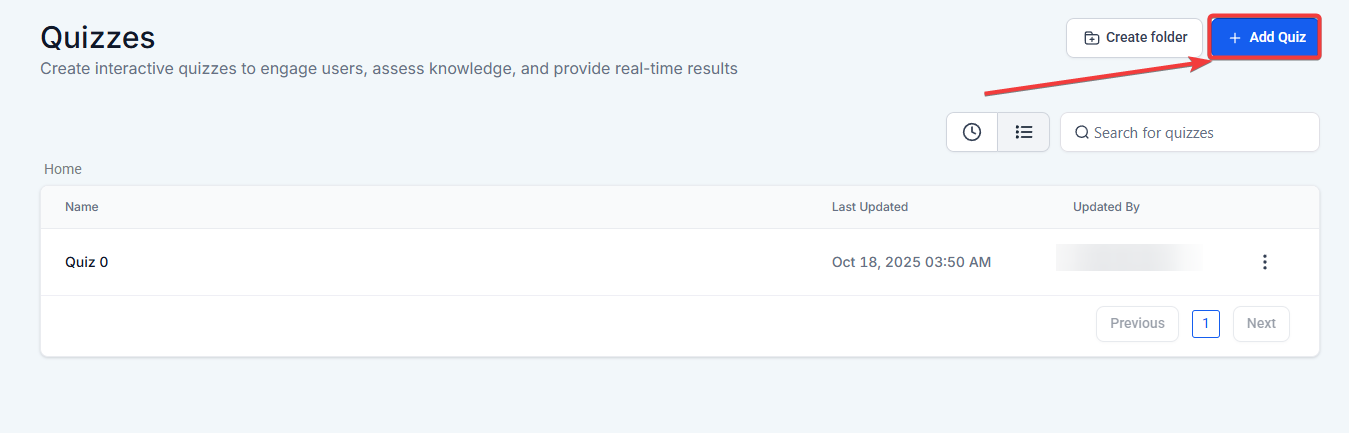
Section titled “How to Set Up Quiz Result Field Mapping”Step 1: Open a Quiz Navigate to Sites → Quizzes. Select an existing quiz or create a new one.
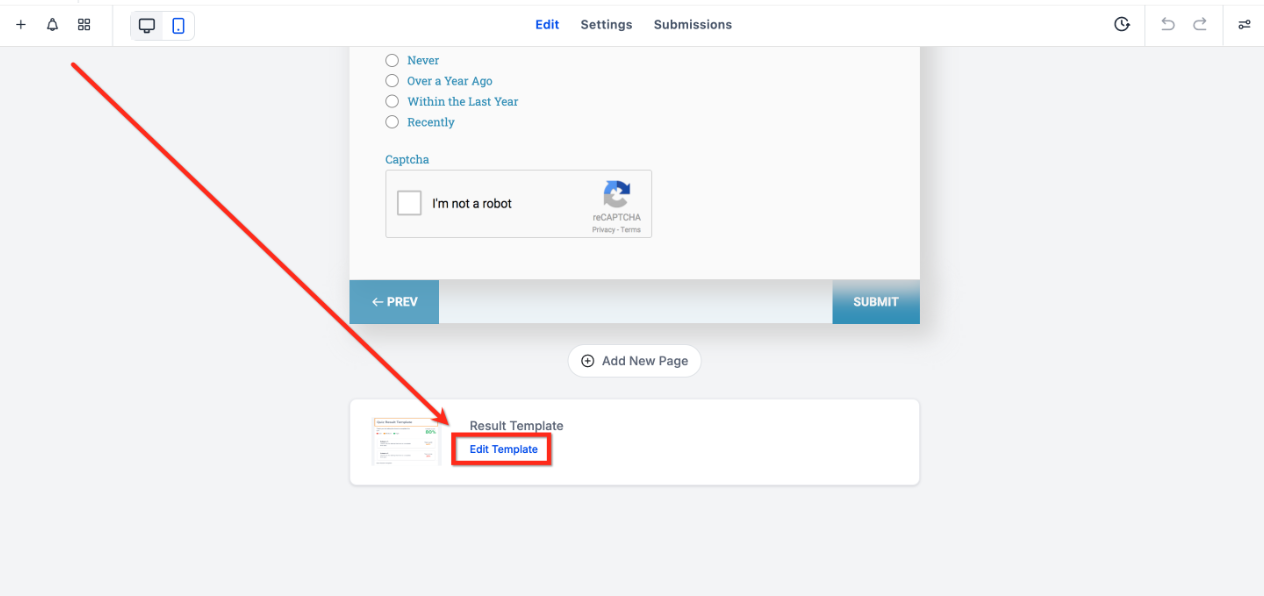
Step 2: Open Results PageScroll to the Results Template and click Edit Template.
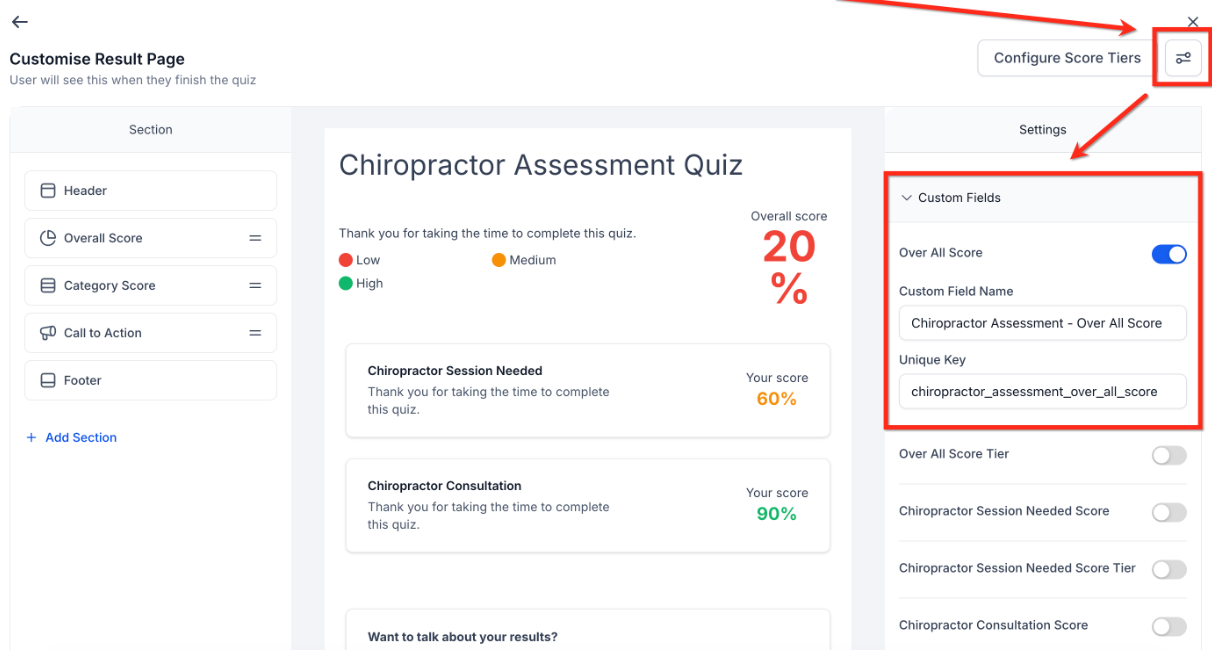
Step 3: Enable Custom Fields
-
Click Settings → expand Custom Fields.
-
Turn on toggles for fields you want to sync:
- Overall Score
- Overall Score Tier
- Category-wise Scores and Tiers
- Highest and Lowest Scoring Categories
-
The system automatically assigns a Custom Field Name and Unique Key.
-
Click Save.
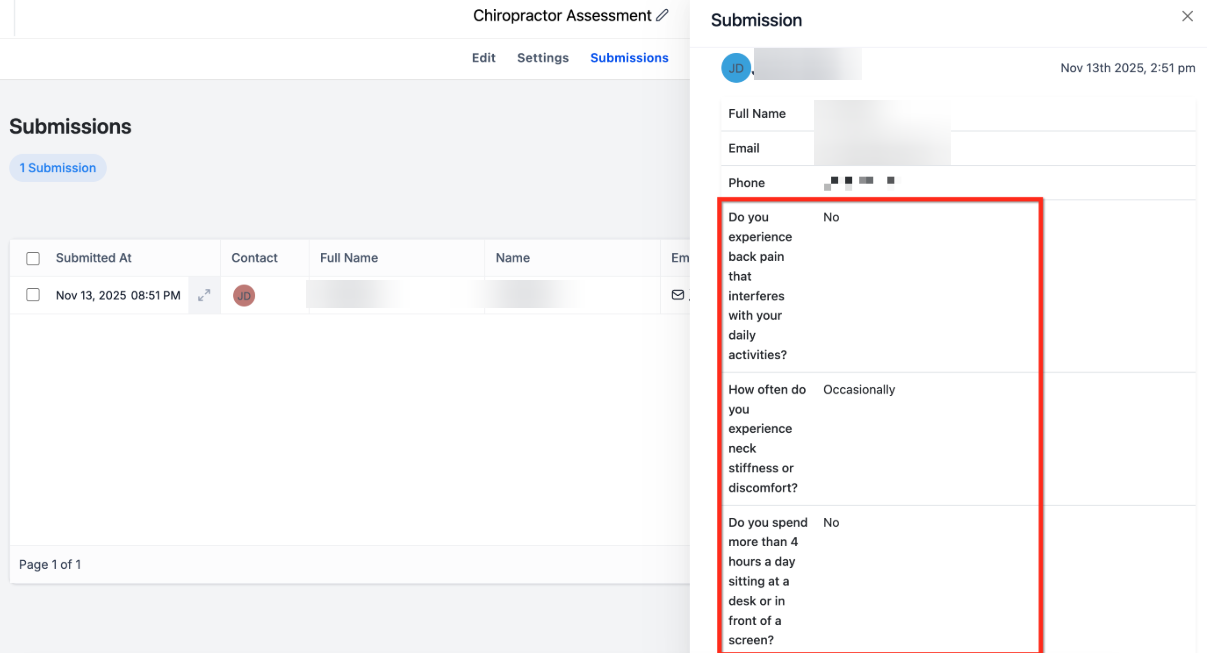
Step 4: Contact Submits a QuizWhen a user completes the quiz, scores and tiers are automatically captured.
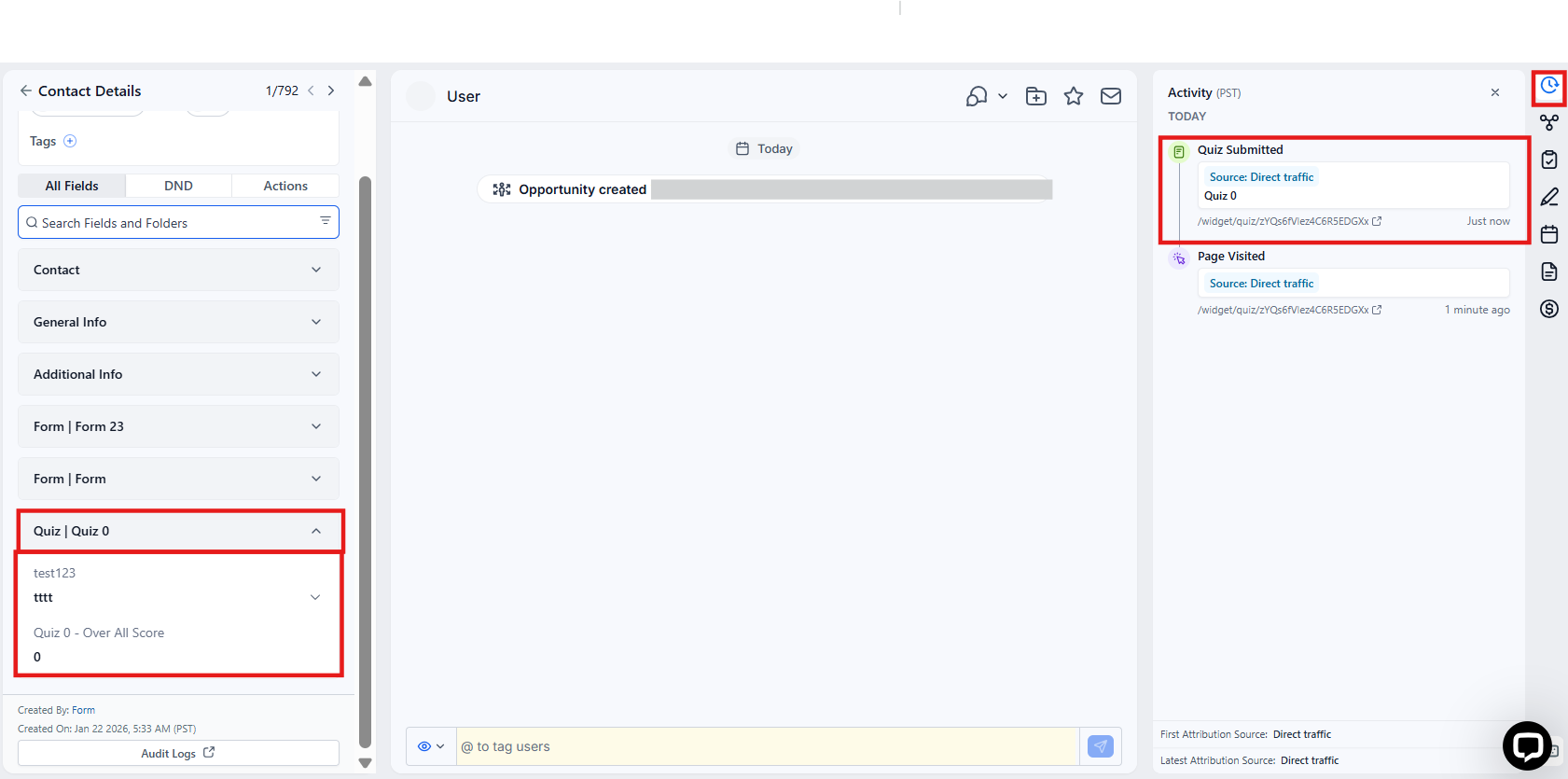
Step 5: Data is Written to FieldsThe selected fields are created and updated in the contact record.
-
Example field names:
- {{quiz_name}} - Overall Score
- {{quiz_name}} - {{category_name}} - Tier
- {{quiz_name}} - Highest Category - Score
-
If a contact retakes the same quiz, the existing data is overwritten and not duplicated. This keeps contact records clean and accurate.
Pro Tips
Section titled “Pro Tips”- Consistent Naming: Maintain a standard naming convention for quizzes and categories for easier data management.
- Test Before Use: Submit test quizzes to verify fields are mapped correctly.
- Leverage Conditional Workflows: Combine score and tier fields to create advanced automation paths.
- Data Clean-Up: Regularly review custom fields to archive outdated or unused quiz fields.
Question: Will a new field be created for every quiz submission? Answer: No, fields are automatically created only once per quiz. When a contact retakes the same quiz, their results update the existing fields instead of generating new ones.
Question: Can I customize the field names or formats? Answer: Yes, you can rename or adjust field labels within your , but the system follows a standard naming pattern for consistency.
Question: Are quiz results available immediately after submission? Answer: Yes, data mapping occurs in real time, so the fields are instantly updated under the contact’s profile.
Question: Can I use these quiz fields in workflows or automations? Answer: Absolutely. You can use mapped quiz fields as triggers or conditions for workflows, enabling personalized actions based on quiz performance.
Question: What happens if a quiz includes new categories later? Answer: New fields corresponding to added categories are automatically generated and mapped to ensure complete data coverage.
Question: Can I create a “Smart List” based on how people performed in a quiz?
Answer: Absolutely. Because the scores are stored as number fields, you can filter your contacts to create a segment of everyone who scored, for example, “Greater than or equal to 80” on a specific quiz.