Getting Started - Setup Email, Phone, and SMS
The purpose of this article is to provide a comprehensive guide on establishing a robust communication foundation within your workspace. By correctly configuring email domains, dedicated phone lines, and mastering both individual and bulk outreach, businesses can ensure high deliverability, professional branding, and efficient lead management.
Key Features and Benefits
Section titled “Key Features and Benefits”- Dedicated Email Branding: Establishing a dedicated domain ensures your messages are recognized by internet service providers, significantly reducing the likelihood of your emails being marked as spam.
- Instant Connectivity: Integrated phone services allow you to acquire local or international numbers immediately, providing a direct line for customer inquiries.
- Flexible Call Management: Call forwarding ensures that no lead is missed by directing incoming business calls to your preferred personal or office devices.
- Multi-Channel Outreach: Seamlessly switch between Email, SMS, and Voice calls from a single interface to meet customers on their preferred platforms.
- Scalable Communication: Bulk actions allow you to contact hundreds of leads simultaneously, saving hours of manual labor while maintaining a personal touch through filtering.
How to Use
Section titled “How to Use”1- Email Service Configuration
Section titled “1- Email Service Configuration”To ensure professional delivery, you must point your domain to the system:
1- Navigate to Settings > Email Services.
2- Select Dedicated Domain and IP, then click Create Dedicated Domain.
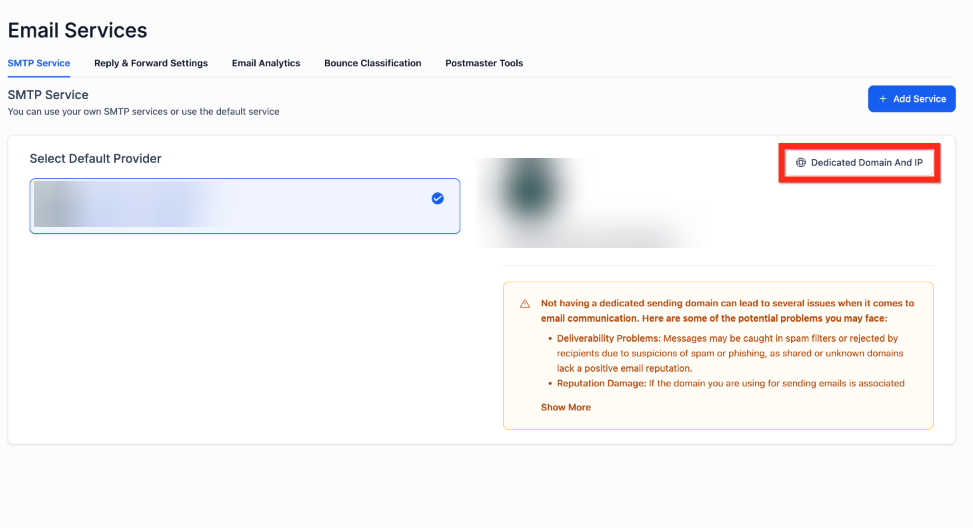
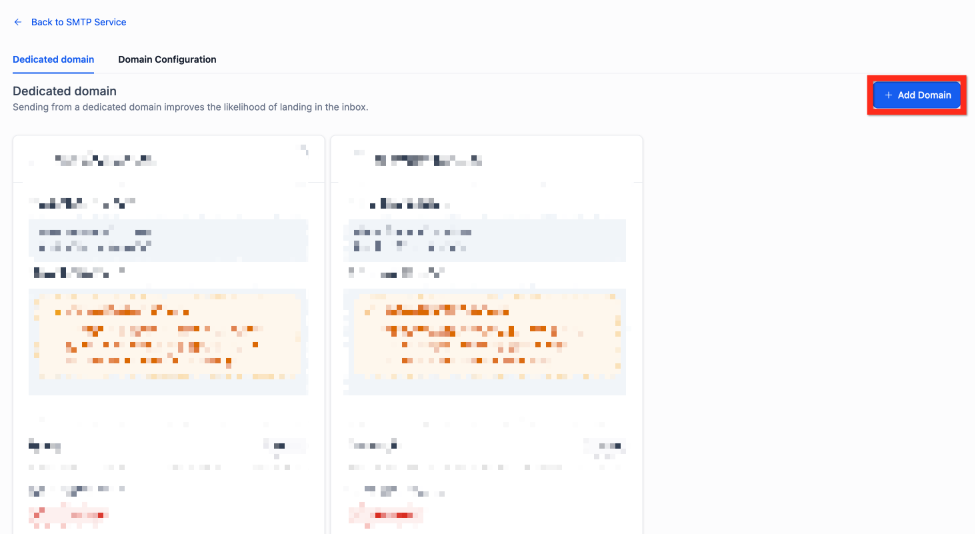
3- Click Add Domain and enter a subdomain (e.g., ).
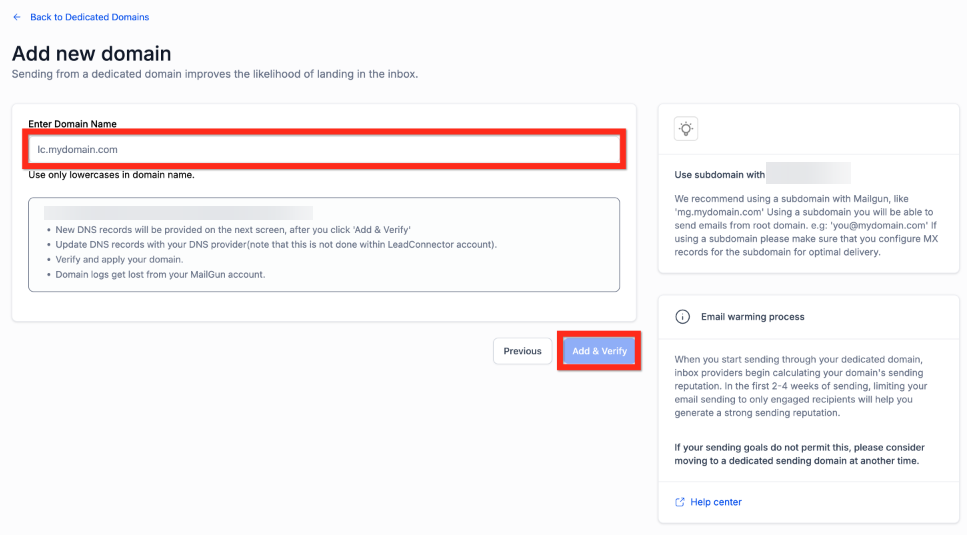
4- Click Add & Verify. You will be presented with DNS records (MX, TXT, CNAME).
5- Log in to your domain registrar and add these records to your DNS settings.
6- Return to the platform and click Verify Records.
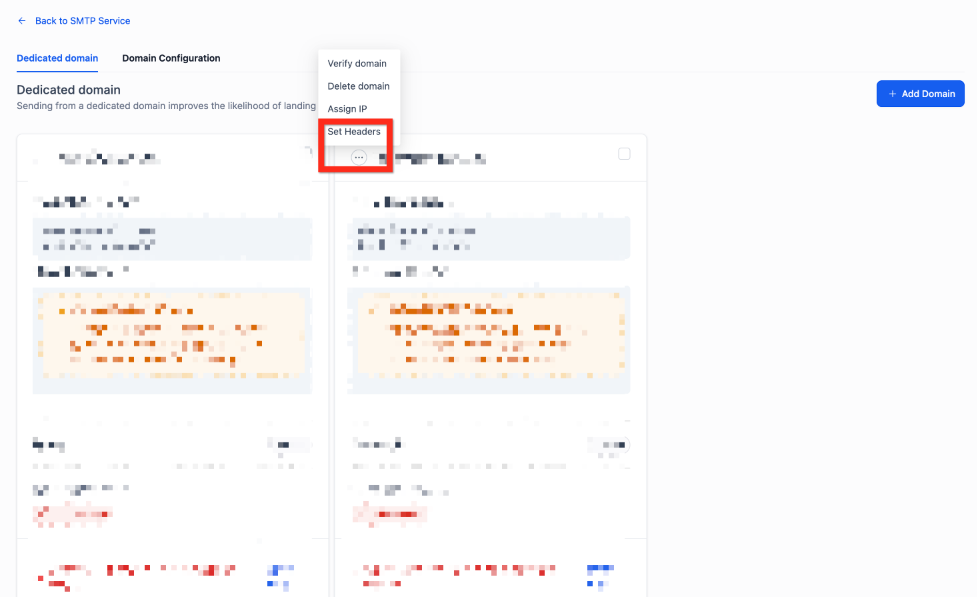
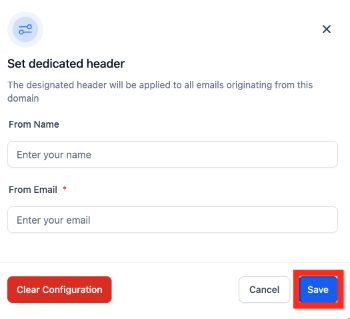
7- Once verified, click the 3-dot action menu and select Set Headers to define your “From Name” and “From Email.”
2- Acquiring a Phone Number
Section titled “2- Acquiring a Phone Number”Establish a local presence by adding a dedicated line:
1- Navigate to Settings > Phone Numbers.
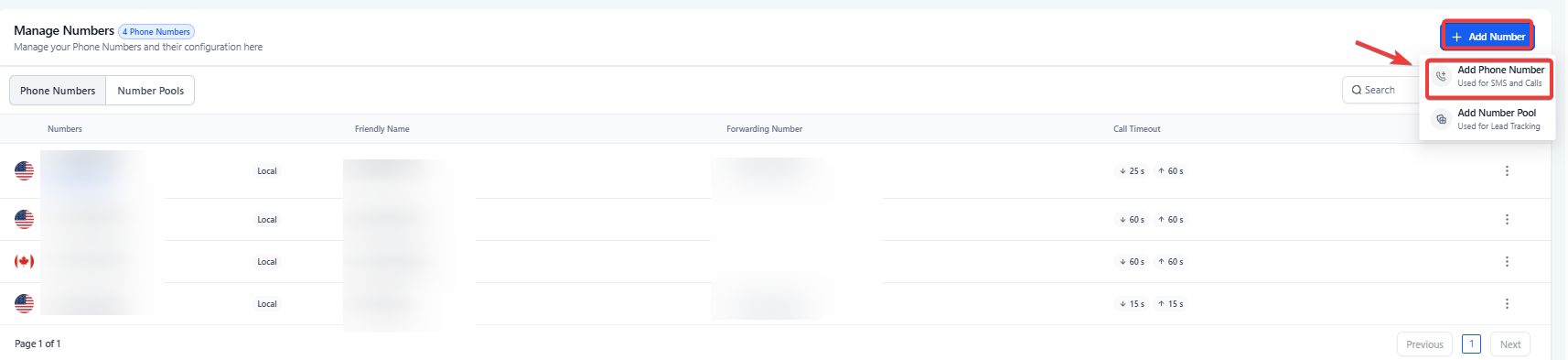
2- Click Add Number > Add Phone Number.
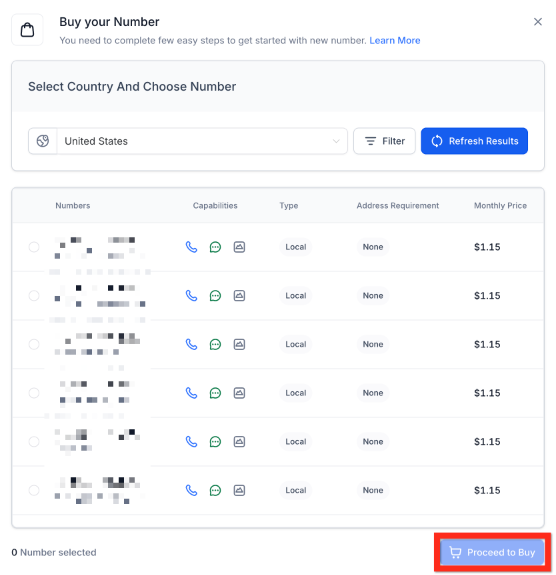
3- Filter by country and area code to find a number that suits your brand.
4- Select the number and click Proceed to Buy.
3- Configuring Call Forwarding
Section titled “3- Configuring Call Forwarding”Ensure you remain reachable even when away from your dashboard:
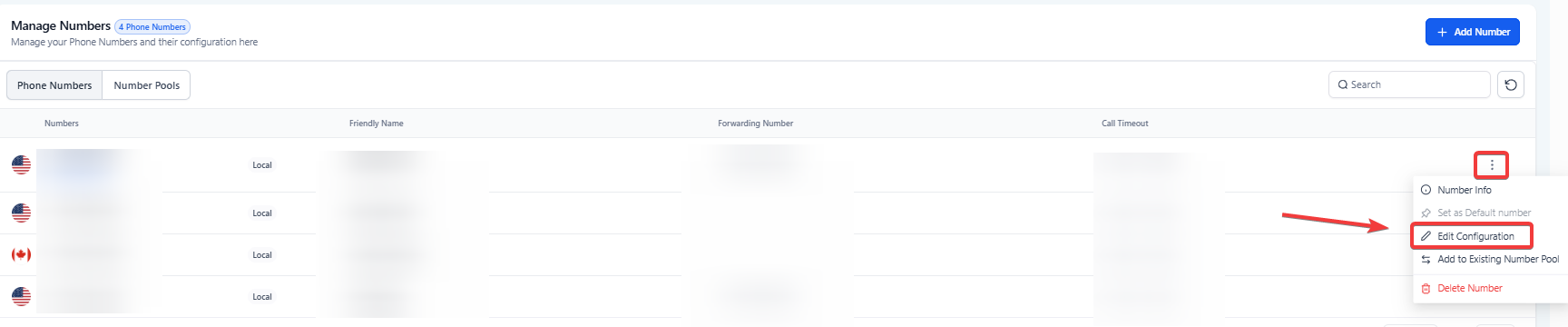
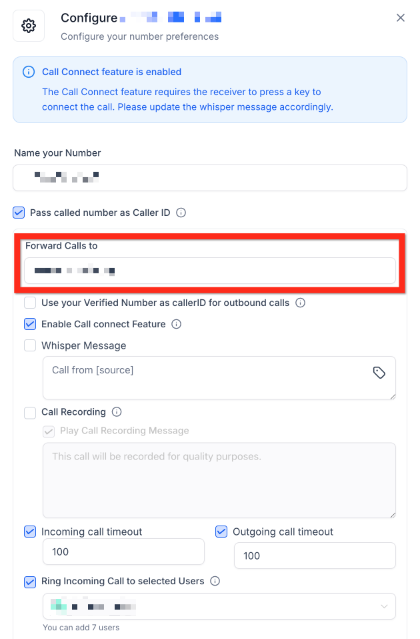
1- In Settings > Phone Numbers, click the 3-dot action menu next to your active number.
- Select Edit Configuration.
2- Enter the number where you wish to receive forwarded calls (e.g., your mobile phone).
3- Click Save.
4- Initiating Individual Contact
Section titled “4- Initiating Individual Contact”Communicate directly with specific leads:
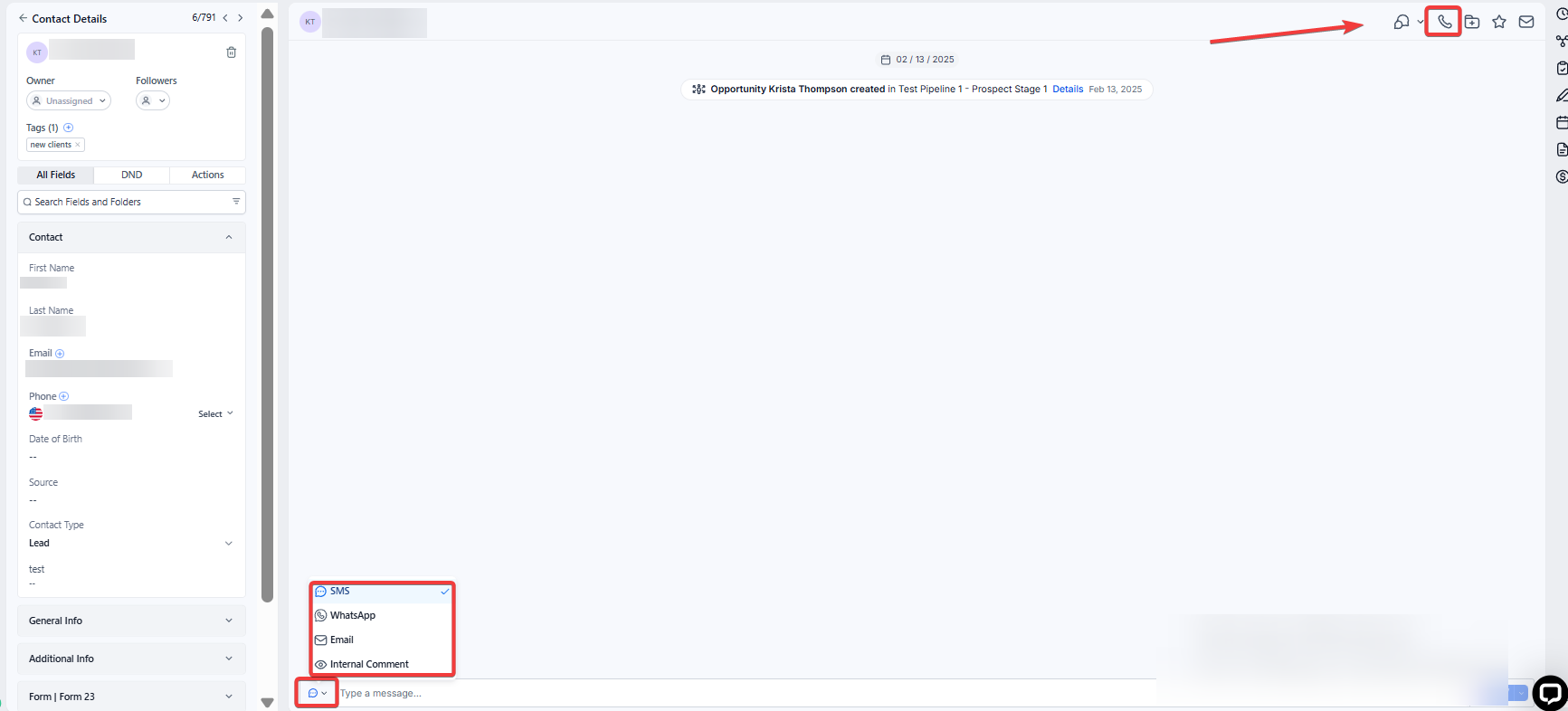
1- Navigate to the Contacts section.
2- Search for or click on the desired contact to open their Contact Card.
3- To Call: Click the phone icon in the upper right.
4- To SMS or Email: Use the message composer at the bottom middle, toggling between the SMS and Email tabs as needed.
5- Executing Bulk Communications
Section titled “5- Executing Bulk Communications”Reach a wider audience through targeted filters:
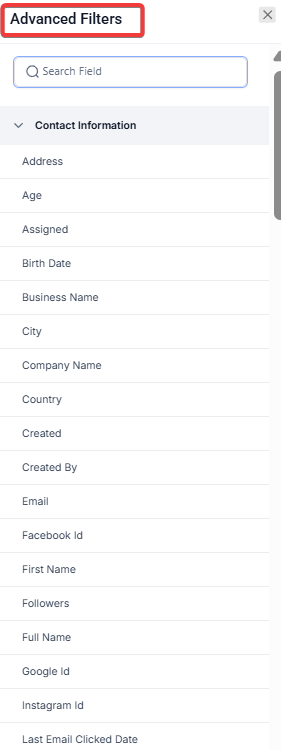
1- Navigate to Contacts and open Advanced Filters.
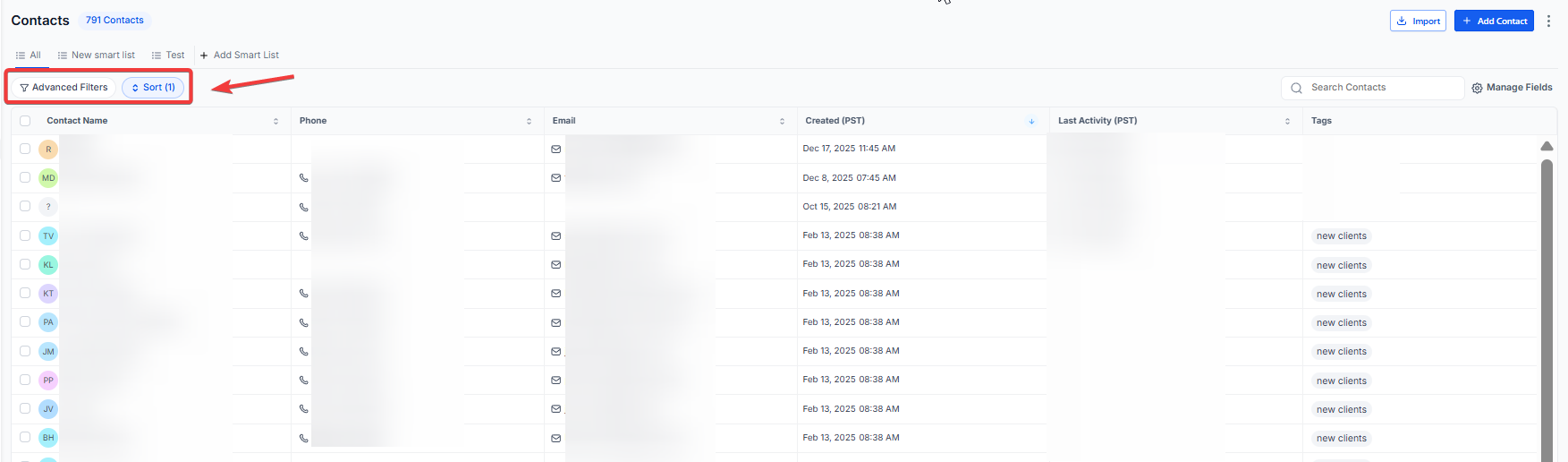
2- Apply filters to target a specific audience (e.g., leads tagged “New”).
3- Select the checkbox at the top of the list to highlight all filtered contacts.
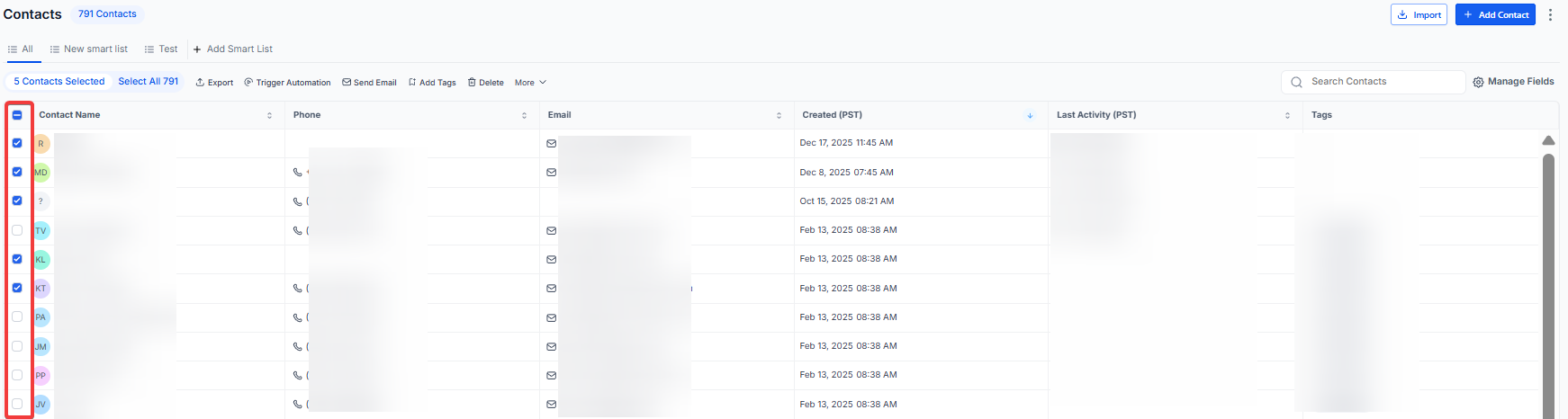
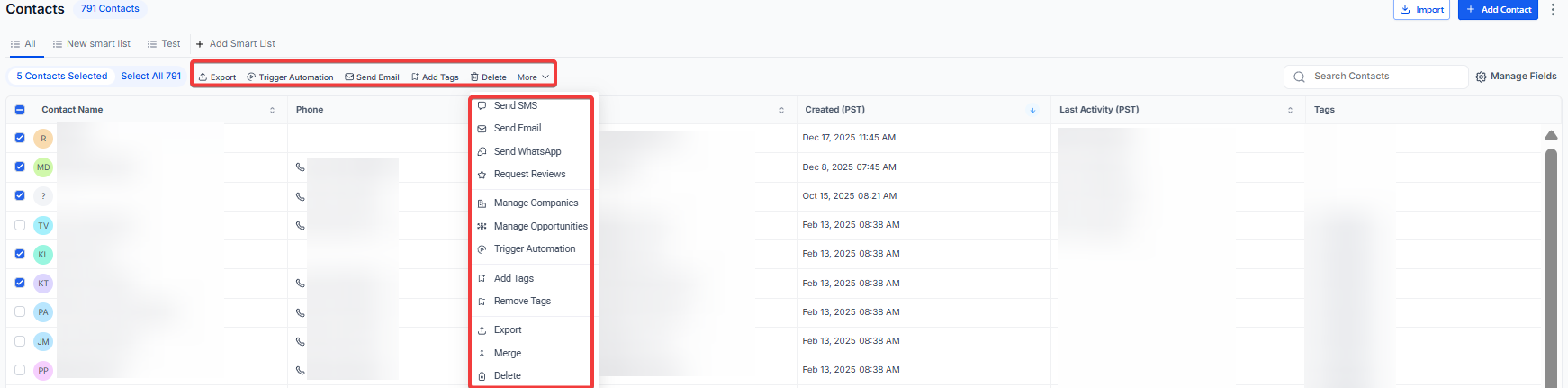
4- Choose your desired bulk action icon (Send SMS, Send Email, etc.) from the top menu.
Pro Tips
Section titled “Pro Tips”- Subdomain Selection: Use a clear, recognizable subdomain like mail.yourdomain.com or contact.yourdomain.com for your email setup. This keeps your marketing traffic separate from your primary corporate email traffic, protecting your main domain’s reputation.
- Warm-Up Period: When using a new dedicated email domain, start by sending small batches of emails to engaged users before launching high-volume campaigns. This “warms up” the domain and builds trust with email providers.
- Smart Filtering: Before sending bulk communications, always save your filtered lists as “Smart Lists.” This allows you to quickly return to that specific segment of contacts in the future without re-applying every filter.
Question: Why do I need to add a subdomain instead of just my main domain for email?
Answer: Using a subdomain allows the system to manage technical records like MX and TXT without interfering with your primary business email (like your person@company.com inbox). It also helps protect your main domain’s sender reputation.
Question: What should I do if my domain won’t verify? Answer: Double-check that there are no “conflicting” records in your DNS settings. For example, ensure you don’t have multiple MX records for the same subdomain. Also, remember that some registrars take longer to update than others.
Question: Can I forward calls to an international number?
Answer: Yes, however, ensure your account has the necessary credits and permissions for international dialing. The forwarding number should be entered in full international format (e.g., +1 for the US).
Question: Is there a limit to how many contacts I can select for bulk actions? Answer: While you can select thousands of contacts, the system often processes these in “batches” to ensure high delivery rates and to prevent being flagged by service providers. You can track the progress of these actions in your bulk activity logs.
Question: Can I change the “From Name” for different email campaigns?
Answer: Yes. While you set a default header in the Email Services settings, you can often override the “From Name” and “From Address” within individual email templates or workflow actions to suit specific marketing needs.
Question: Does call forwarding work for text messages too? Answer: Call forwarding only directs voice calls. To receive SMS on your personal device, you should set up an internal notification or an automation workflow that alerts you when a new text is received on your business number.
Question: Why did my DNS records show “Verified” and then change back to “Failed”?
Answer: This is usually due to “DNS Propagation.” When you update records at your registrar, they ripple across global servers at different speeds. If the system checks a server that hasn’t updated yet, it may show a temporary failure. Wait 1-2 hours and click Verify again.
Question: How can I save a specific group of filtered contacts so I don’t have to re-apply the filters every time?
Answer: After applying your desired criteria in the Advanced Filters section, you can save the resulting list as a “Smart List.” This allows you to quickly access that specific segment of contacts for future communications without manually filtering them again.