Product Collections
Product collections are a powerful feature for online stores, allowing you to organize and display products in a user-friendly way. This guide will walk you through setting up and managing product collections to enhance your customers’ shopping experience.
How-to Steps
Section titled “How-to Steps”1. Access the Collections Feature:
Section titled “1. Access the Collections Feature:”- Navigate to Payments > Products.
- Look for the “Collections”

2. Create a New Collection:
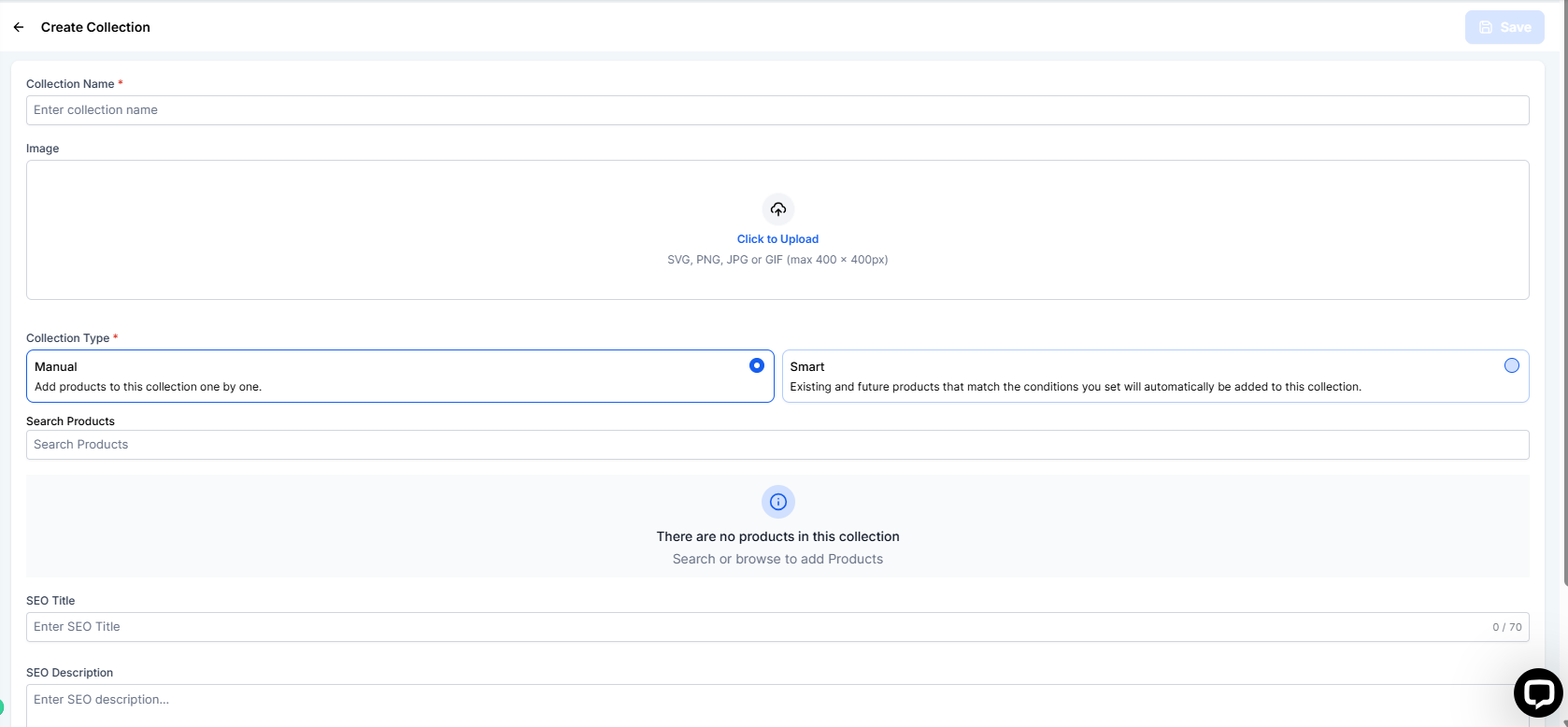
Section titled “2. Create a New Collection:”- Click on “Create Collection”
- Name your collection (e.g., “Shirts,” “Shoes,” “Accessories”).
3. Add Products to a Collection:
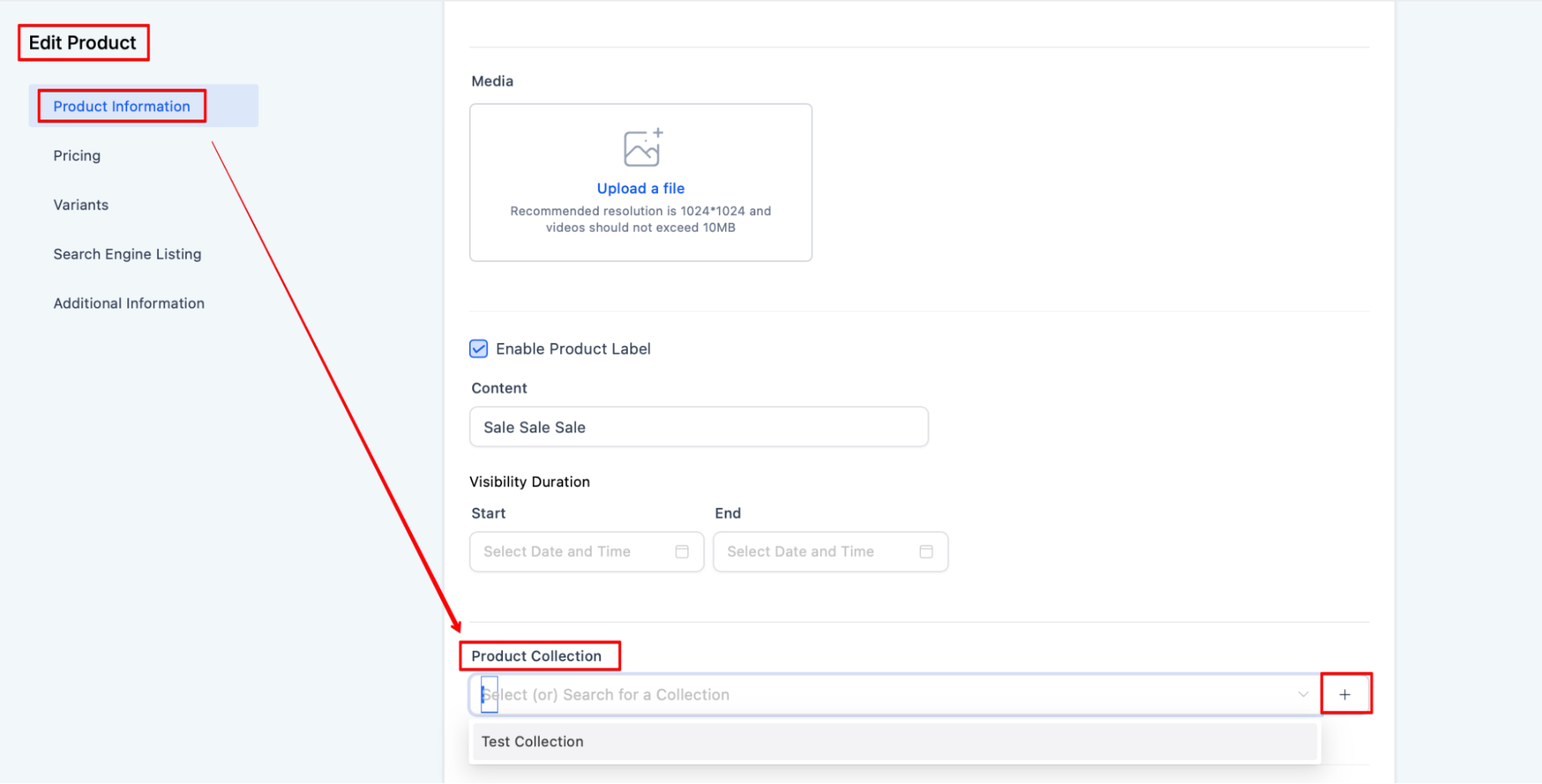
Section titled “3. Add Products to a Collection:”- Select the products you want to include in the collection.
- Assign them to the newly created collection by checking the appropriate boxes or using a drag-and-drop interface.
4. Display Collections on Your Website:
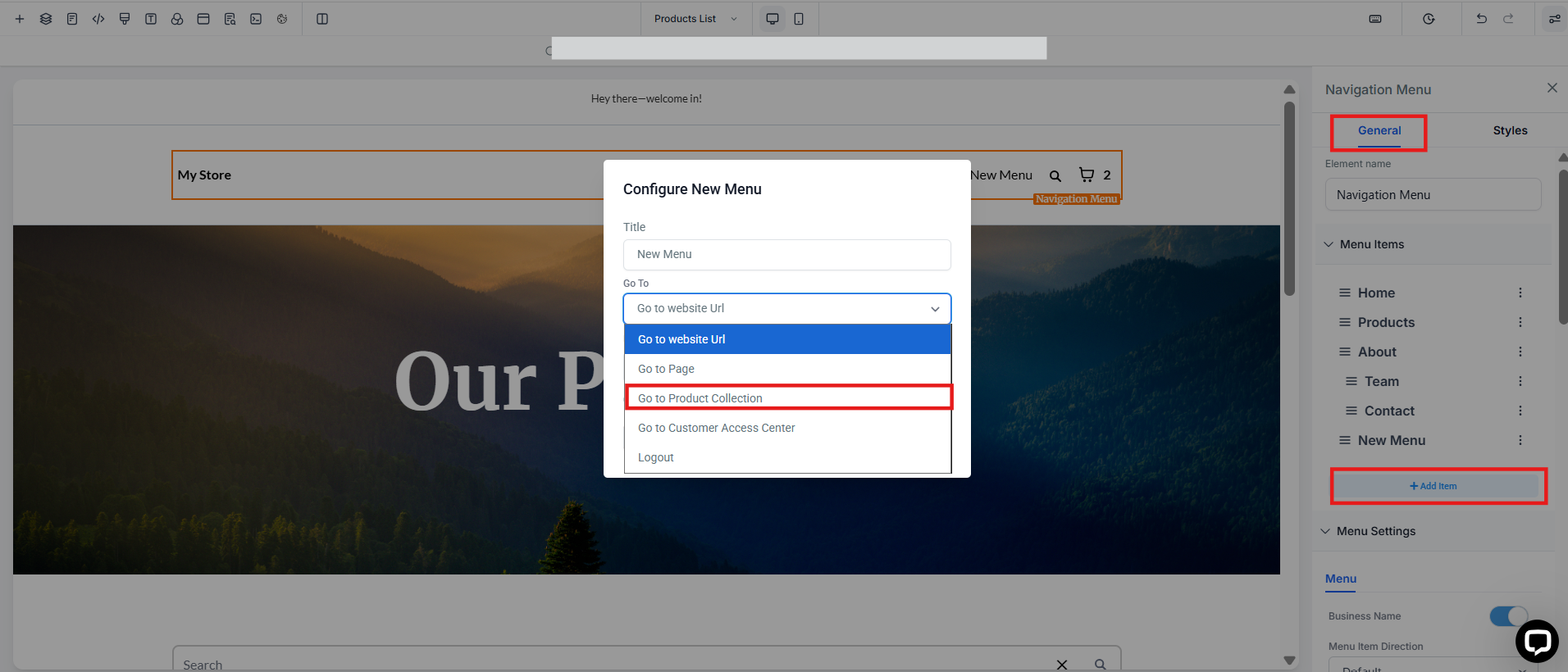
Section titled “4. Display Collections on Your Website:”- Go to your website’s navigation settings.
- Add the collection to your menu bar or navigation links.
- Ensure that each collection appears as a dropdown or a distinct section in your store.
5. Configure Collection Settings:
Section titled “5. Configure Collection Settings:”- Decide if you want the collection to link to a dedicated page or if products should appear directly on the main page.
- Adjust the display order of collections if needed.
Benefits
Section titled “Benefits”- Improved Navigation: Helps customers easily find related products, enhancing their shopping experience.
- Better Organization: Keeps your product catalog structured and visually appealing.
- Increased Sales: Organized collections can encourage customers to explore and purchase more items.
Pro Tips
Section titled “Pro Tips”- Use Descriptive Names: Ensure collection names are clear and descriptive to help customers quickly find what they need.
- Regular Updates: Periodically review and update your collections to reflect new products or seasonal changes.
- Highlight Popular Items: Feature best-selling or new items prominently within their respective collections.
Question: How do I edit a collection?
Answer: Go to the collections section, select the collection you want to edit, and update its name, products, or settings as needed.
Question: Can a product be in multiple collections?
Answer: Yes, products can belong to multiple collections, making it easier to cross-sell and promote items.
Question: What if I need help finding the collections option in my dashboard?
Answer: This could be due to your user permissions or the specific eCommerce platform you’re using. Check with your admin or platform support for assistance.
Question: What if I don’t see the Collections option in my dashboard?
Answer: This could be due to user permissions or the specific eCommerce platform version you are using. Check with your admin or platform support to ensure you have access.
Question: Can I control the order in which different collections appear?
Answer: Yes. Within the collection settings, you can adjust the display order to ensure your most important or seasonal collections are shown first to your visitors.