Processing/Miscellaneous Charges for Customer Payments
Adding extra fees, such as processing or convenience charges, is often necessary to offset costs associated with payment processing. The Processing Charge feature allows businesses to automatically apply these additional fees across multiple payment channels, providing transparency to customers and maintaining accurate billing. This article explains how to configure, apply, and manage processing charges efficiently.
Key Features and Benefits
Section titled “Key Features and Benefits”- Automatic Fee Application: Apply a processing charge across multiple payment sources including invoices, funnels, forms, surveys, payment links, and estimates.
- Customizable Fee Percentage: Define the exact percentage for the processing charge based on your business needs.
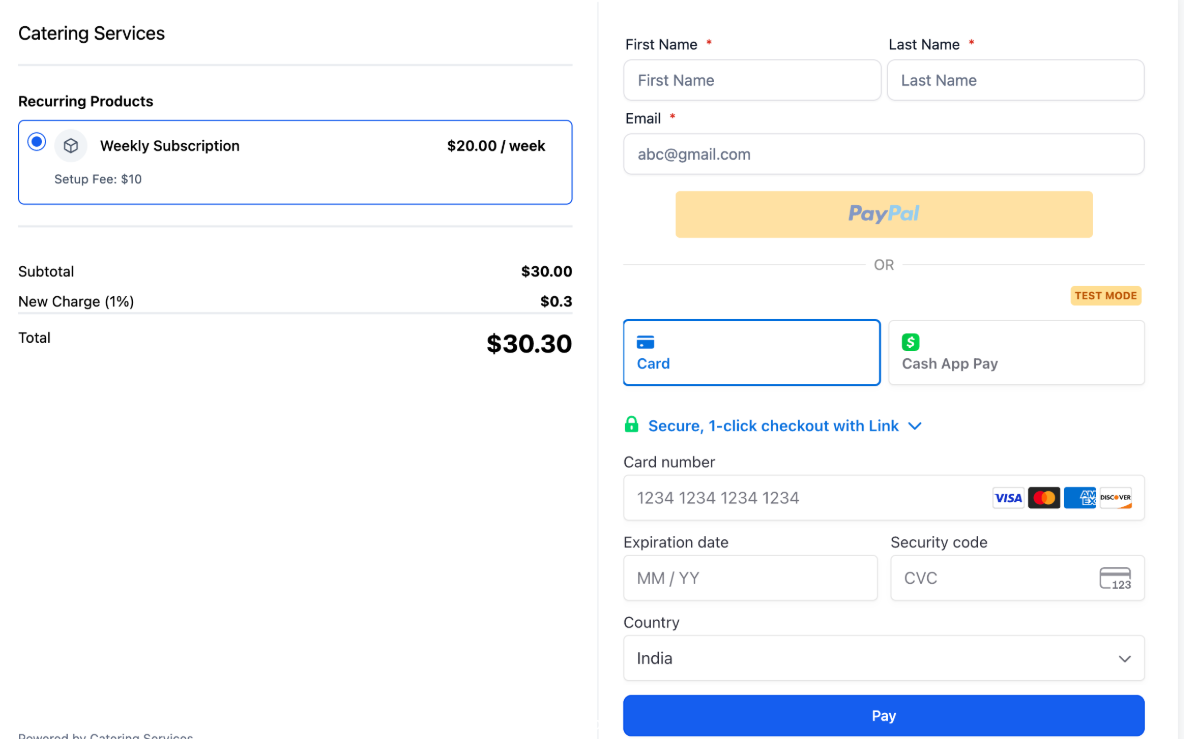
- Transparent Display: Fees are shown as a separate line item during checkout and included in the total amount, ensuring clarity for customers.
- Customizable Label: Assign a custom name to the charge, such as “Convenience Fee” or “Processing Charge,” visible to customers on receipts.
- Accurate Calculations: The fee is applied to the actual transaction amount (Subtotal – Discounts + Taxes), guaranteeing precise charges.
- Reporting and Analysis: Track all processing charges via transaction or order exports, allowing detailed financial reconciliation.
How to Use Processing Charges
Section titled “How to Use Processing Charges”Step 1: Access Payment Settings
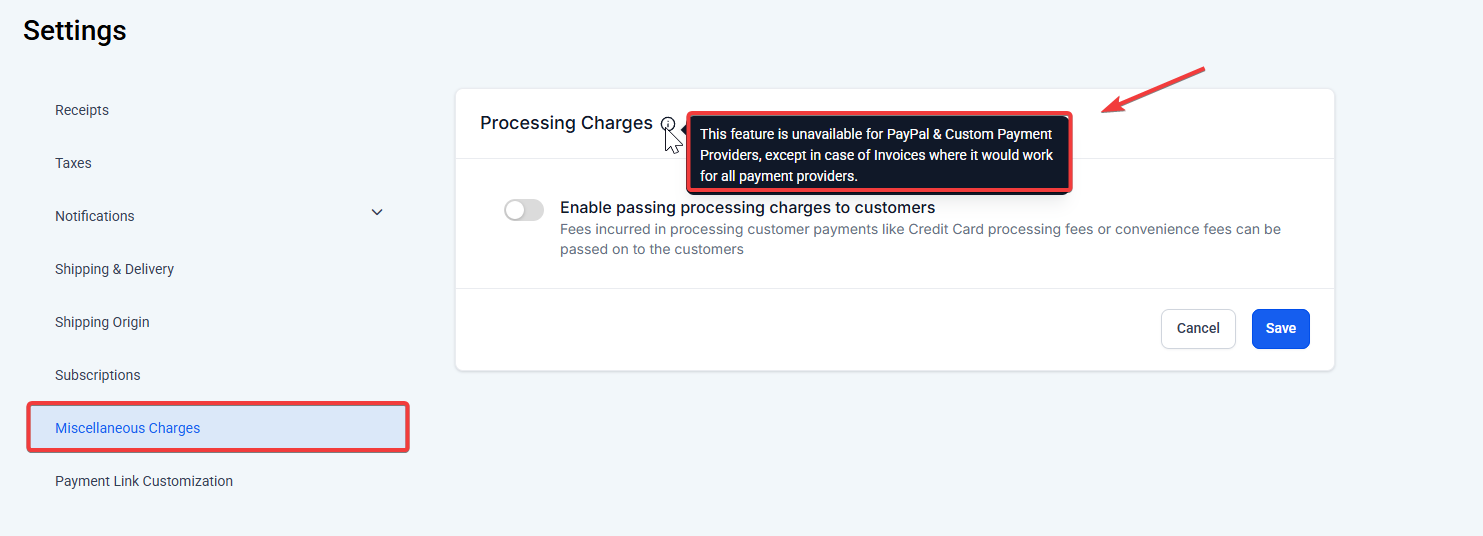
- Navigate to the platform dashboard.
- Go to Payments > Settings.
- Scroll to the Miscellaneous Charges section.
- Select the Processing Charges option.
Step 2: Define the Processing Charge
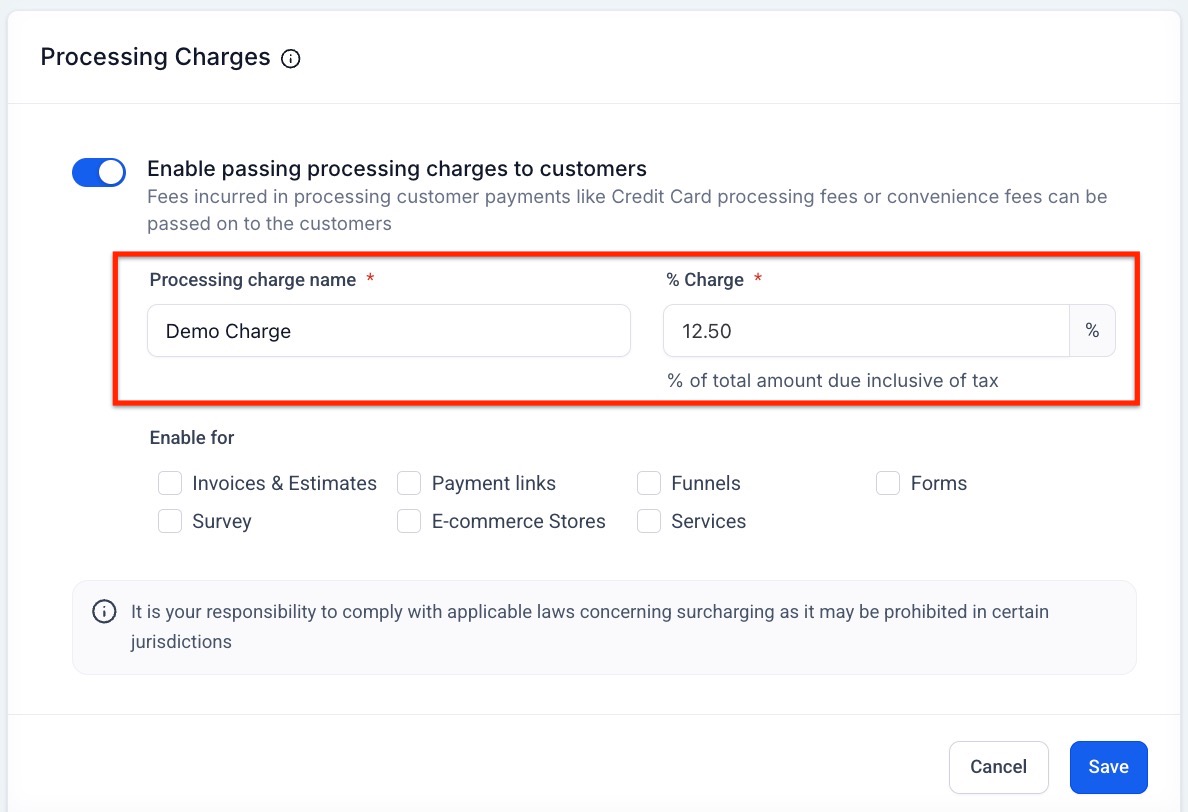
- Enable the Processing Charges toggle.
- Enter the fee percentage (e.g., 2.5%).
- Set a custom label/name for the fee to appear on checkout and receipts.
Step 3: Select Payment Sources
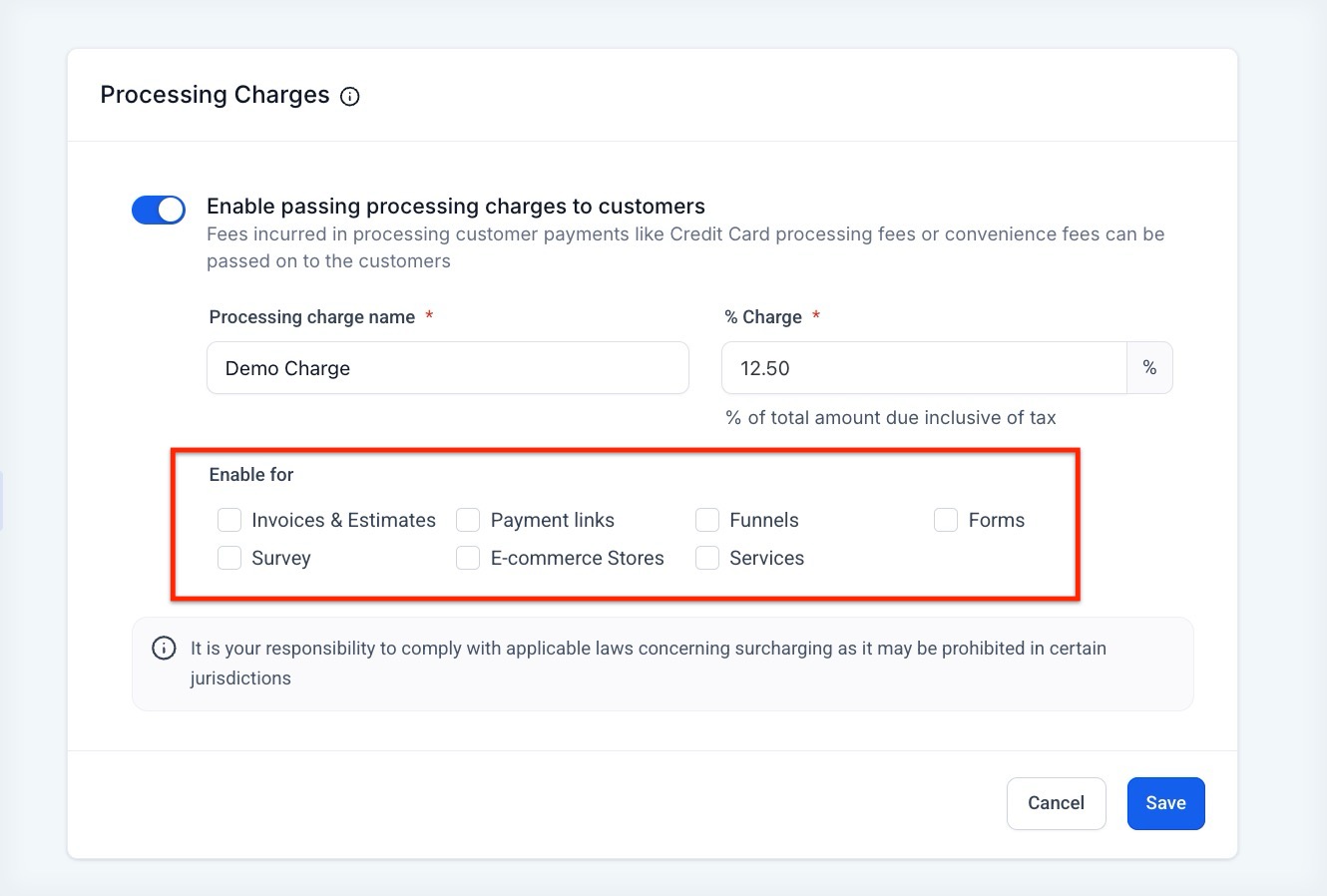
- Use checkboxes to choose where the charge should apply:
- Invoices & Estimates
- Funnels
- Payment Links
- Forms
- Surveys
- Services
- E-commerce Stores
Select one or multiple options based on your business setup.
- Click Save to confirm your configuration.
Step 4: Viewing Charges at Checkout
- Invoices & Estimates: Charges appear after the “Pay” button is clicked.
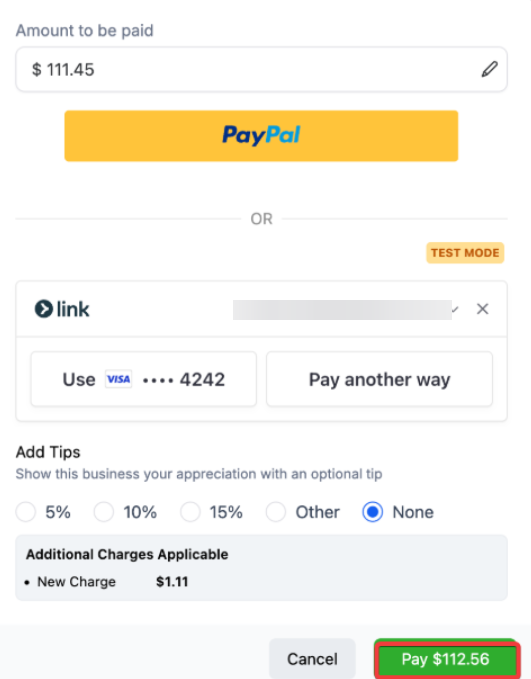
- Funnels, Forms, Payment Links: Charges are included in the total displayed at checkout.
Step 5: Reporting on Processing Charges
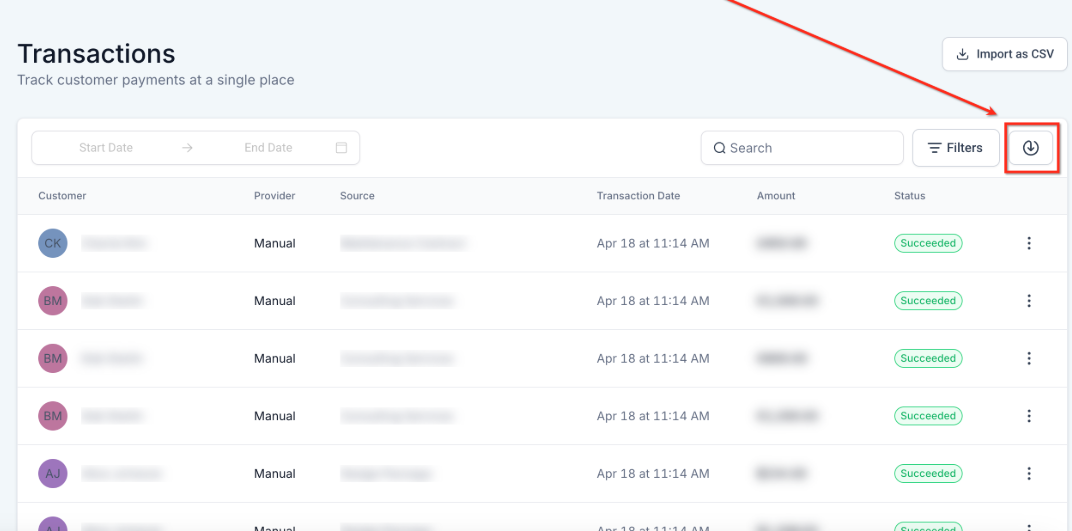
- Export transactions or orders CSV to view applied fees.
- Filter by date, payment source, or fee label to reconcile charges efficiently.
Pro Tips
Section titled “Pro Tips”- Draft Invoice Awareness: Charges appear only on draft invoices created or edited after the feature is enabled.
- Consistency Across Channels: Currently, the same processing fee applies to all selected payment sources. Keep this in mind when configuring.
- Monitoring Impact: Track acceptance of charges via reports to evaluate their effect on sales and customer behavior.
- Plan for Unsupported Channels: Some payment providers, like PayPal and custom providers, may not support this feature outside of invoices and estimates.
Question: Can I set different processing charges for different payment channels? Answer: Currently, the same fee applies across all selected channels. Channel-specific fees may be introduced in future updates.
Question: Will disabling the processing charge remove it from past invoices? Answer: No. Existing invoices or orders retain the charge unless they are still editable. Disabling only affects new transactions.
Question: Are processing charges supported for all payment providers? Answer: All providers support this feature for invoices and estimates. Other checkouts, like PayPal and custom providers, may not support it.
Question: How is the processing charge calculated? Answer: The charge is calculated on (Subtotal – Discounts + Taxes), representing the actual processed amount.
Question: Can customers see the processing charge during checkout? Answer: Yes, it appears as a separate line item on checkout screens, invoices, and transaction receipts.
Question: Can I customize the label for the processing charge? Answer: Yes, you can assign any label you want, such as “Convenience Fee” or “Processing Charge,” visible to the customer.
Question: Is there reporting available for processing charges? Answer: Yes. Transaction and order exports include details on the fee label and amount for reconciliation and analysis.**
Question: Does the processing charge apply to the original price or the final discounted price?**
Answer: The fee is applied to the actual transaction amount, which is calculated as (Subtotal – Discounts + Taxes). This ensures that the charge is precisely based on the final amount being processed.